> ## Documentation Index
> Fetch the complete documentation index at: https://docs.explo.co/llms.txt
> Use this file to discover all available pages before exploring further.
# Context Setting
Use Context Setting to apply additional contexts for your AI Assistant on a per Report Builder basis.
## Step 1:
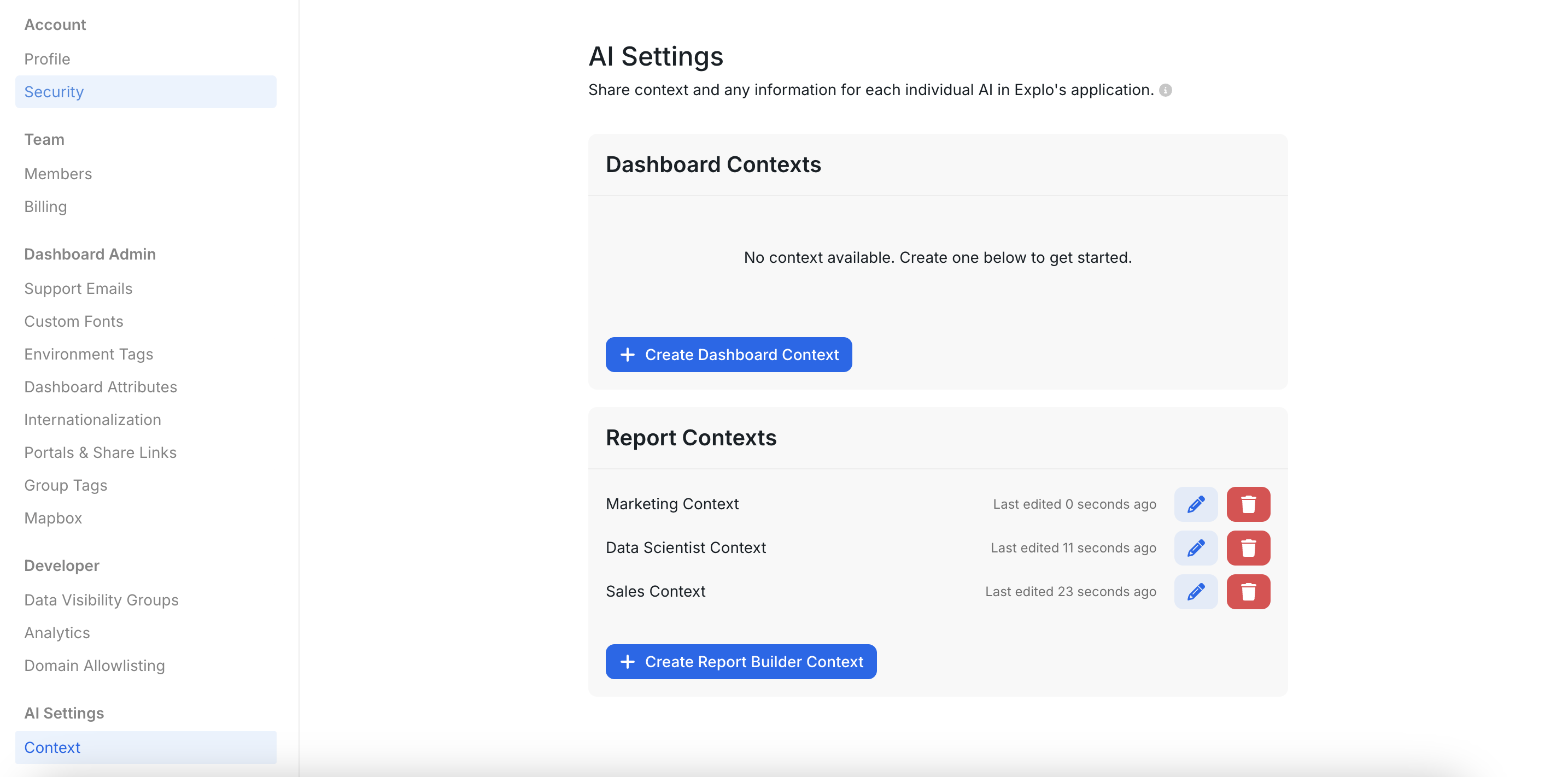
Create Context Settings in **Explo Settings > AI Settings > Context**
Dashboard AI is coming soon!
 ## Step 2:
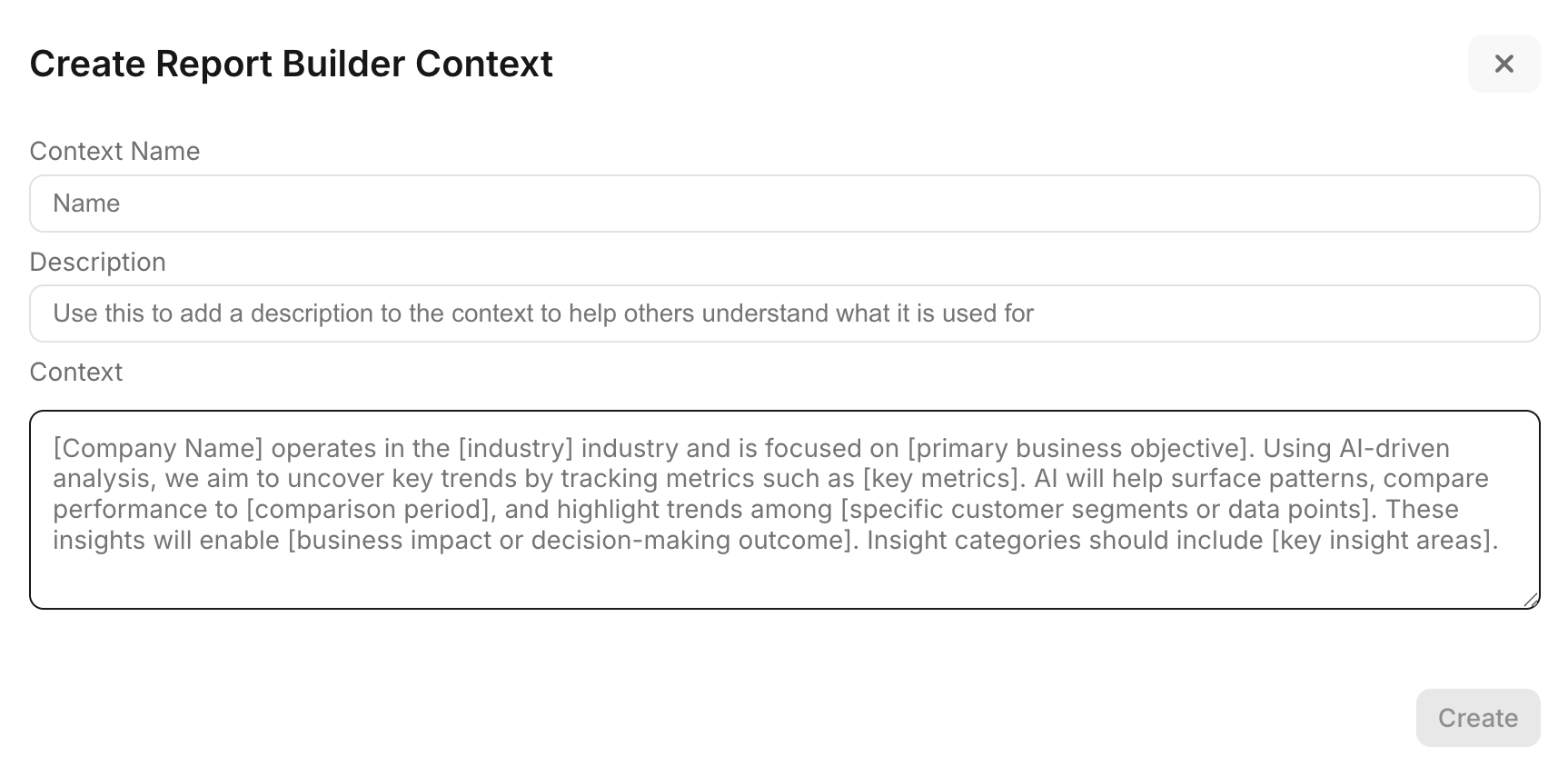
Create a new context and follow the suggested prompts. These will be passed to your AI Assistant at the start of each conversation, resulting in a tailored conversation with higher quality interactions for your end user.
## Step 2:
Create a new context and follow the suggested prompts. These will be passed to your AI Assistant at the start of each conversation, resulting in a tailored conversation with higher quality interactions for your end user.
 ## Step 3:
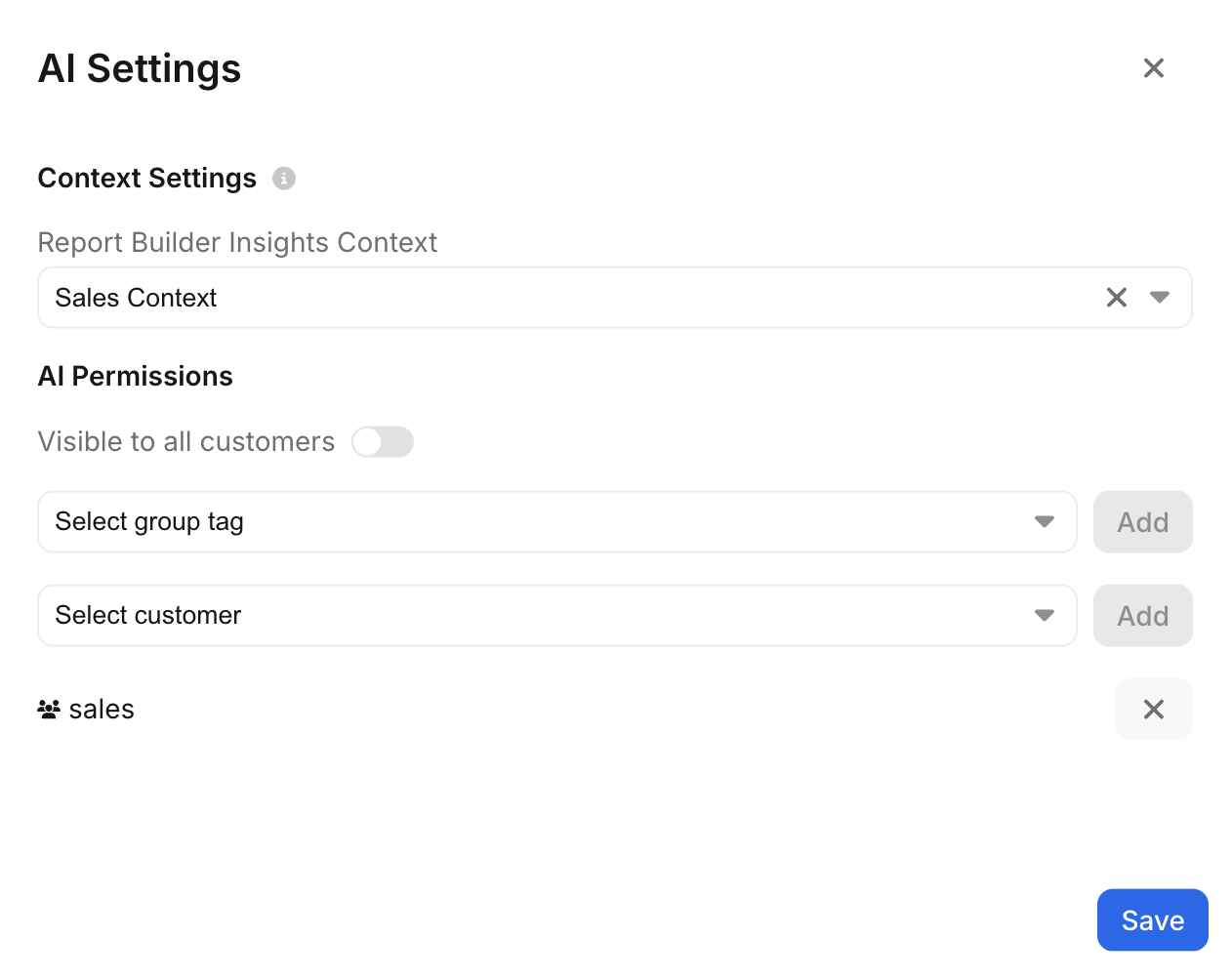
Choose this context on a per Report Builder basis using the Report Builder AI Settings.
## Step 3:
Choose this context on a per Report Builder basis using the Report Builder AI Settings.