> ## Documentation Index
> Fetch the complete documentation index at: https://docs.explo.co/llms.txt
> Use this file to discover all available pages before exploring further.
# Date Group Toggle
> Date Group Toggles can be used to allow your users to group charts by selected time intervals
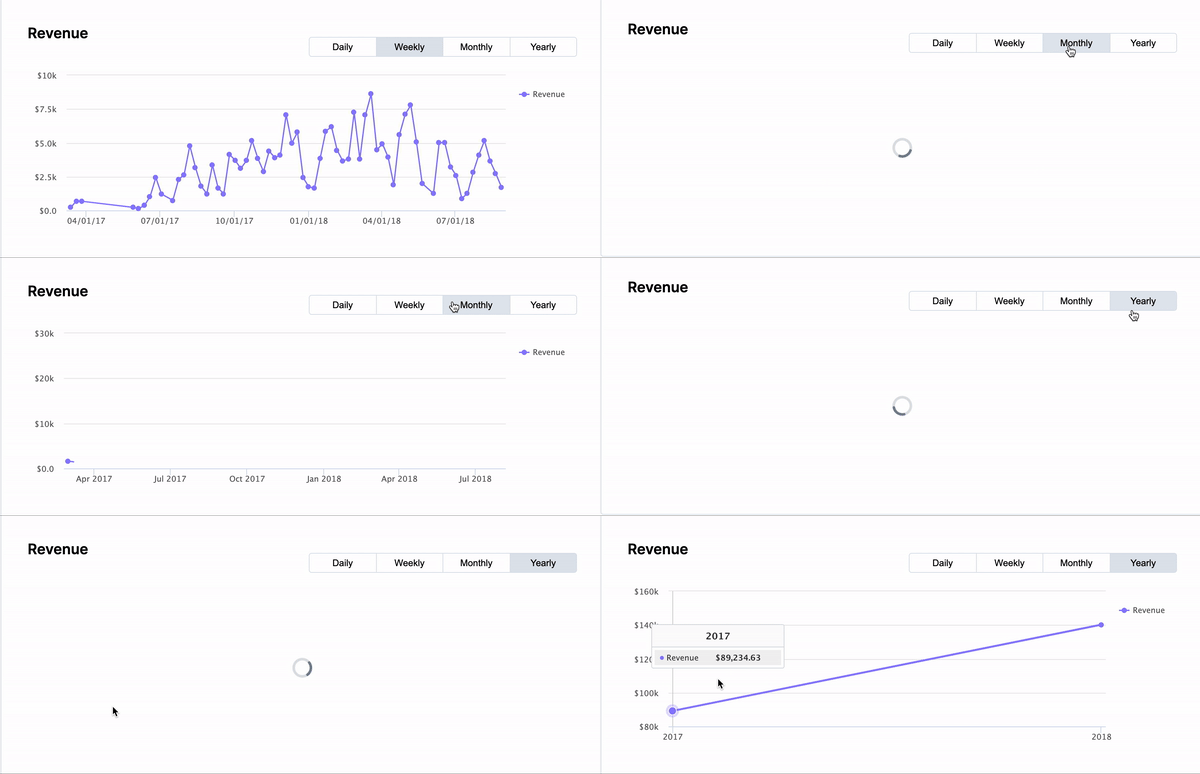
A Date Group Toggle can be linked to charts to configure which time interval the
chart is grouped by. This allows your users to select daily, weekly, monthly, or
yearly views of their data.
The date group toggle can only be linked to certain charts such as bar charts
and line charts. It also requires a the data to be grouped by a date field.
To configure a date group toggle, first drag the component onto the dashboard.
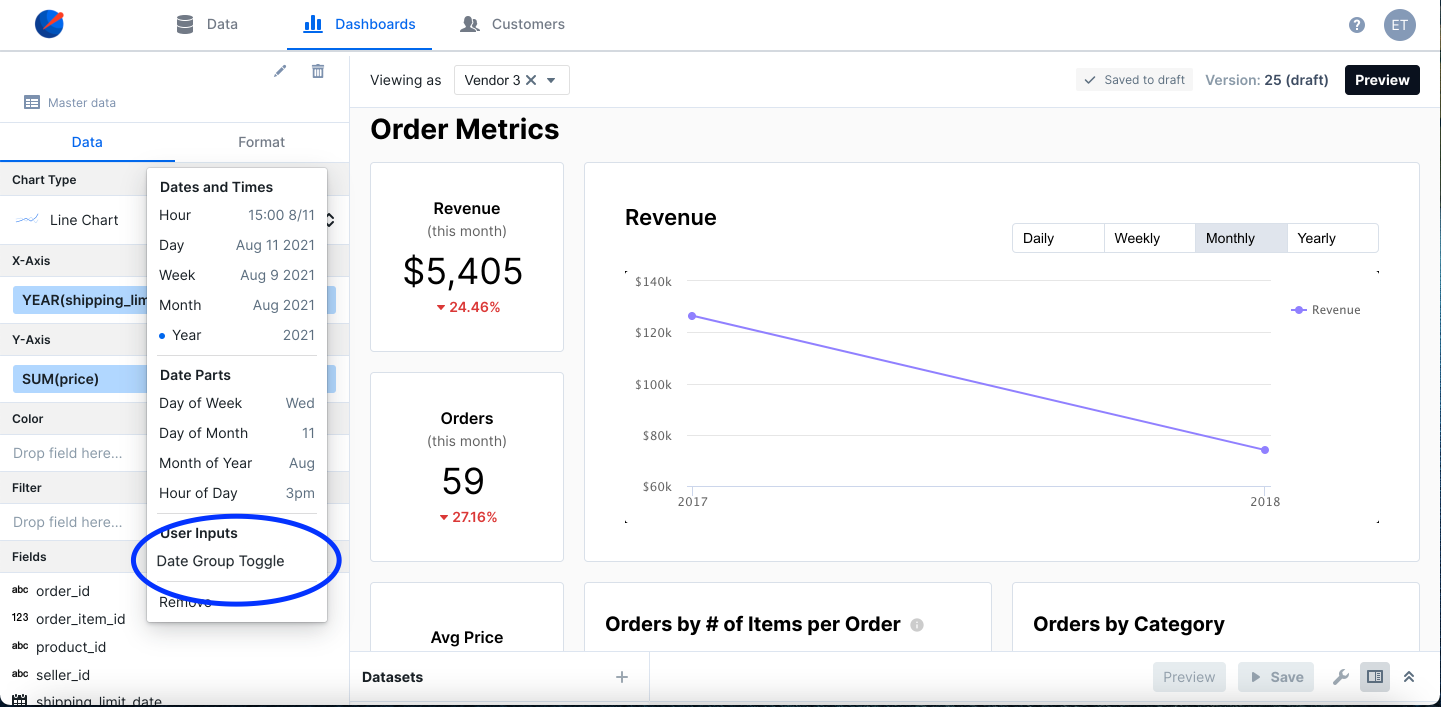
 Next, select the chart you want to link, and click on the arrow beside the date
field to group on. Select Date Group Toggle under user inputs.
Next, select the chart you want to link, and click on the arrow beside the date
field to group on. Select Date Group Toggle under user inputs.
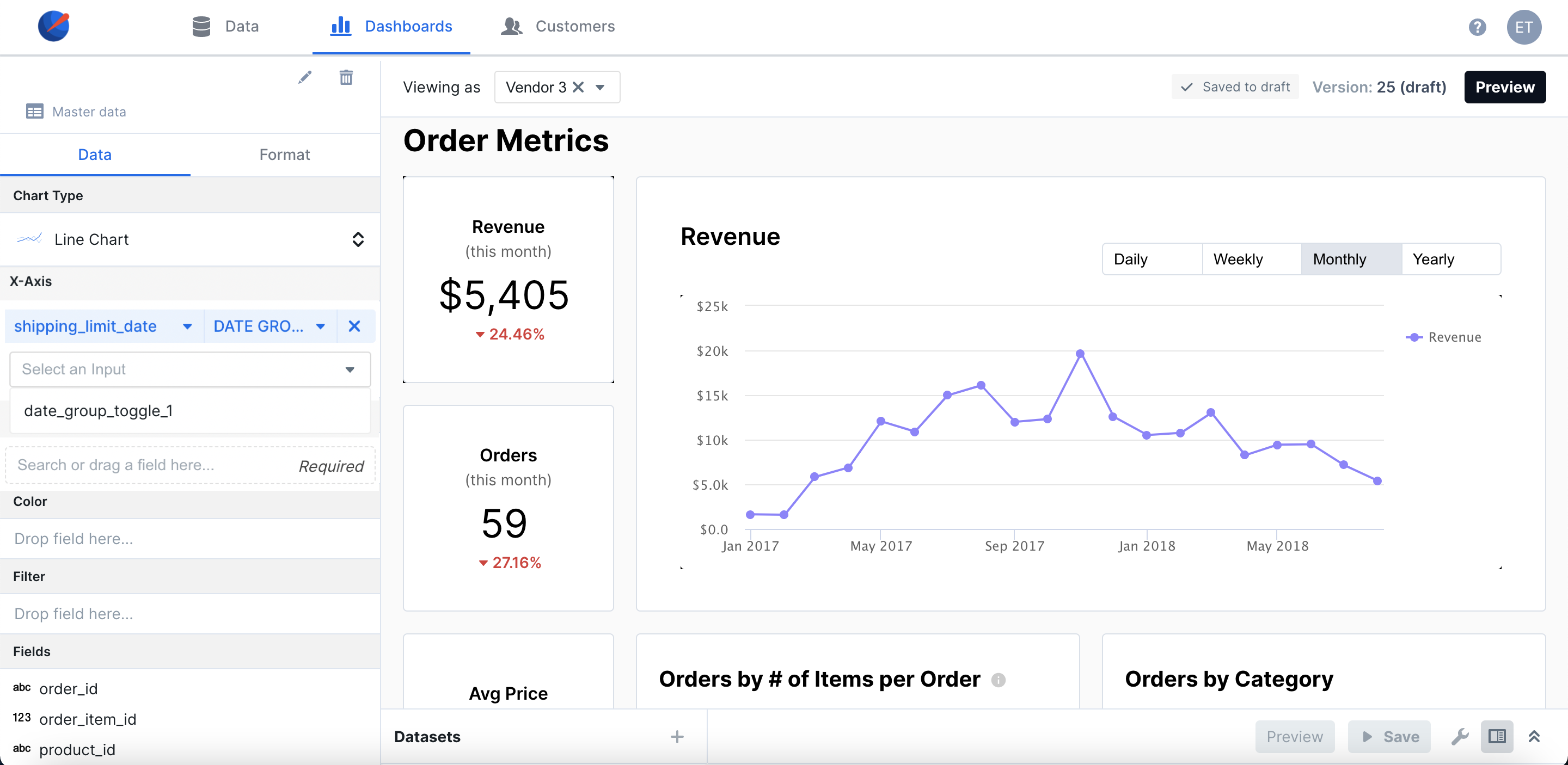
 Select the correct component from the dropdown below.
 Your chart will now be configured to change based on the data group selected.
## Configuration
#### Setup
Your chart will now be configured to change based on the data group selected.
## Configuration
#### Setup
 #### Preferences
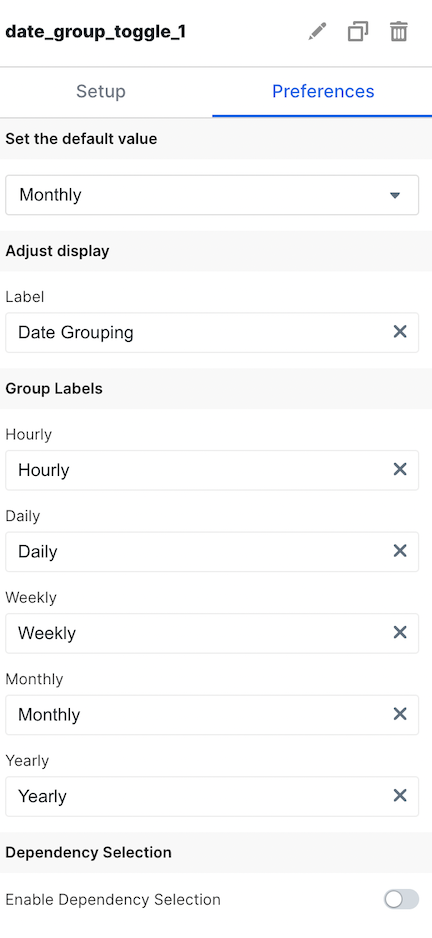 ### Basic Configuration
Available by accessing the `Setup` and `Preferences` tabs
| Configuration Option | Description |
| --------------------------- | --------------------------------------------------------------------------------------------------------------------------------------------------------------------------------------------------------------------- |
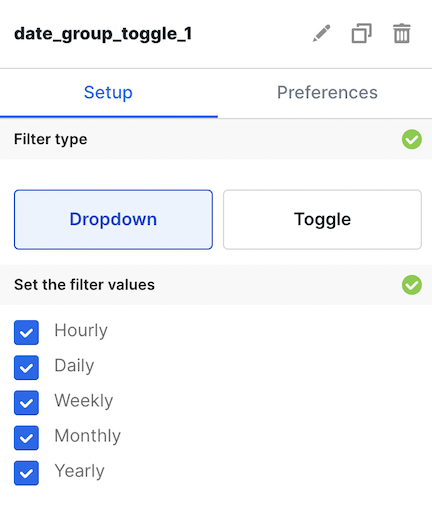
| Filter Type | Choose whether your users can access the filter value via a dropdown or toggle element |
| Set the filter values | Choose which filter values your users will have available to them |
| Set the default value | Set the default selected value on dashboard load |
| Label | Set the label for the Time Dropdown your users will see |
| Group Labels | Change the labels of the dropdown options that your users see |
| Enable Dependency Selection | When enabled, you may create a dependency between this element and other elements on the dashboard. When this element is dependent on an element selected, it will be disabled until a value is selected by the user. |
## Filtering
You can now filter directly your charts in the UI elements themselves. For more information on this process, see the [filtering section of the overview page](/creating-dashboards/ui-elements#filtering).
### Basic Configuration
Available by accessing the `Setup` and `Preferences` tabs
| Configuration Option | Description |
| --------------------------- | --------------------------------------------------------------------------------------------------------------------------------------------------------------------------------------------------------------------- |
| Filter Type | Choose whether your users can access the filter value via a dropdown or toggle element |
| Set the filter values | Choose which filter values your users will have available to them |
| Set the default value | Set the default selected value on dashboard load |
| Label | Set the label for the Time Dropdown your users will see |
| Group Labels | Change the labels of the dropdown options that your users see |
| Enable Dependency Selection | When enabled, you may create a dependency between this element and other elements on the dashboard. When this element is dependent on an element selected, it will be disabled until a value is selected by the user. |
## Filtering
You can now filter directly your charts in the UI elements themselves. For more information on this process, see the [filtering section of the overview page](/creating-dashboards/ui-elements#filtering).