> ## Documentation Index
> Fetch the complete documentation index at: https://docs.explo.co/llms.txt
> Use this file to discover all available pages before exploring further.
# Slider
> Sliders allow your customers to be able to select values within a range.
 ## What it does
This component allows your customers to select values within a range. These values
can be used to filter the data.
## Configuration
## What it does
This component allows your customers to select values within a range. These values
can be used to filter the data.
## Configuration
 ### Basic Configuration
| Configuration Option | Description |
| --------------------------- | --------------------------------------------------------------------------------------------------------------------------------------------------------------------------------------------------------------------- |
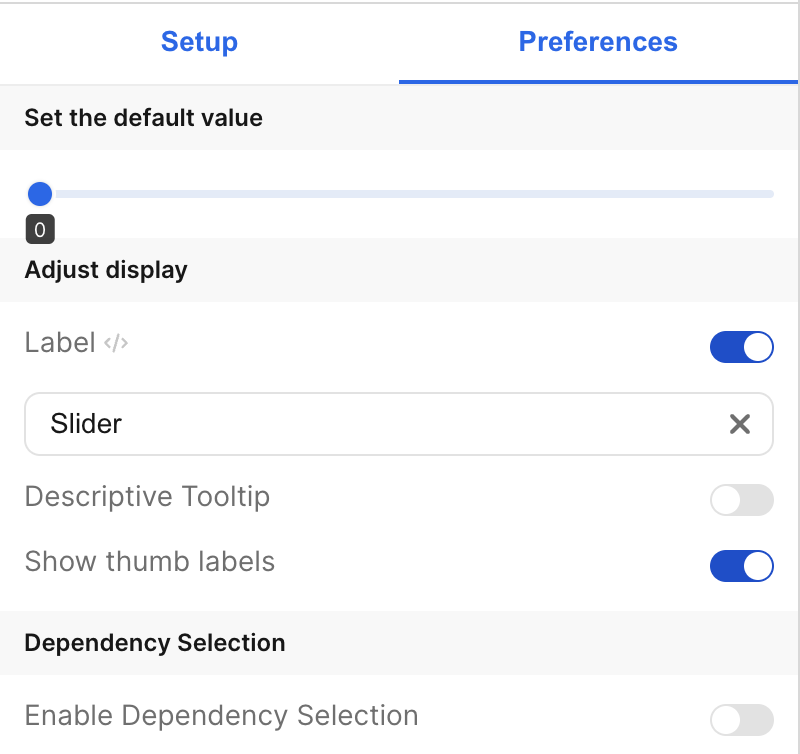
| Label | The is the label that appears on the left side of the slider. It defaults to "Slider". The toggle allows you to choose whether or not to display this label. |
| Descriptive Tooltip | This can be configured to display a helpful popover to the customer. The toggle allows you to choose whether or not to display the tooltip. |
| Show thumb labels | This allows you to show or hide value labels below each thumb on the slider. |
| Set Default Value | Specify the default values for the thumbs. |
| Enable Dependency Selection | When enabled, you may create a dependency between this element and other elements on the dashboard. When this element is dependent on an element selected, it will be disabled until a value is selected by the user. |
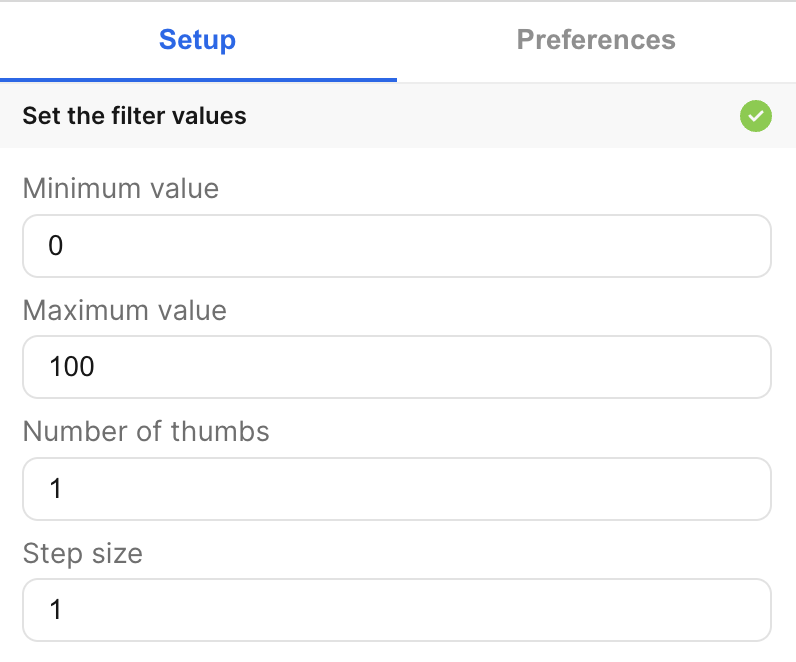
| Minimum value | The minimum (leftmost) value of the slider. |
| Maximum value | The maximum (rightmost) value of the slider. |
| Number of thumbs | The number of thumbs on the slider. |
| Step size | How much each thumb jumps between values. The minimum step size is 1. |
## Variable Usage
Each thumb on the slider has a corresponding variable. The leftmost thumb is
`thumb_1`, the second (from the left) thumb is `thumb_2`, etc.
In the SQL query, use the following syntax
```sql theme={null}
--- basic usage:
WHERE 1=1
[[AND column_1 > {{slider_1.thumb_1}} AND column_1 < {{slider_1.thumb_2}}]]
```
## Filtering
You can now filter directly your charts in the UI elements themselves. For more information on this process, see the [filtering section of the overview page](/creating-dashboards/ui-elements#filtering).
### Basic Configuration
| Configuration Option | Description |
| --------------------------- | --------------------------------------------------------------------------------------------------------------------------------------------------------------------------------------------------------------------- |
| Label | The is the label that appears on the left side of the slider. It defaults to "Slider". The toggle allows you to choose whether or not to display this label. |
| Descriptive Tooltip | This can be configured to display a helpful popover to the customer. The toggle allows you to choose whether or not to display the tooltip. |
| Show thumb labels | This allows you to show or hide value labels below each thumb on the slider. |
| Set Default Value | Specify the default values for the thumbs. |
| Enable Dependency Selection | When enabled, you may create a dependency between this element and other elements on the dashboard. When this element is dependent on an element selected, it will be disabled until a value is selected by the user. |
| Minimum value | The minimum (leftmost) value of the slider. |
| Maximum value | The maximum (rightmost) value of the slider. |
| Number of thumbs | The number of thumbs on the slider. |
| Step size | How much each thumb jumps between values. The minimum step size is 1. |
## Variable Usage
Each thumb on the slider has a corresponding variable. The leftmost thumb is
`thumb_1`, the second (from the left) thumb is `thumb_2`, etc.
In the SQL query, use the following syntax
```sql theme={null}
--- basic usage:
WHERE 1=1
[[AND column_1 > {{slider_1.thumb_1}} AND column_1 < {{slider_1.thumb_2}}]]
```
## Filtering
You can now filter directly your charts in the UI elements themselves. For more information on this process, see the [filtering section of the overview page](/creating-dashboards/ui-elements#filtering).