> ## Documentation Index
> Fetch the complete documentation index at: https://docs.explo.co/llms.txt
> Use this file to discover all available pages before exploring further.
# Time Dropdown
> Time Dropdown allows your users to select time periods in your dashboards.
 ## What it does
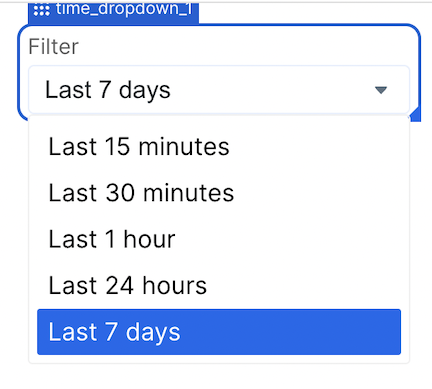
This element allows your users to select time periods in your dashboards.
## What it does
This element allows your users to select time periods in your dashboards.
 ## Configuration
 ### Basic Configuration
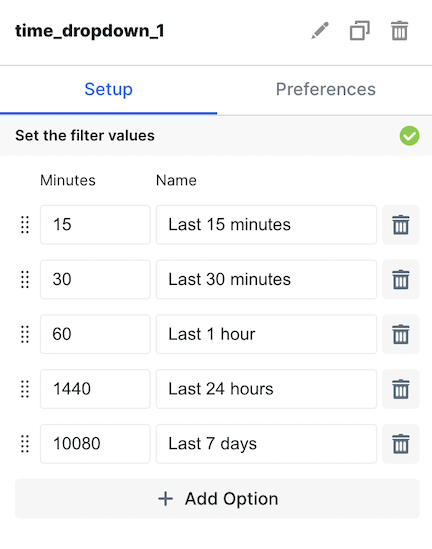
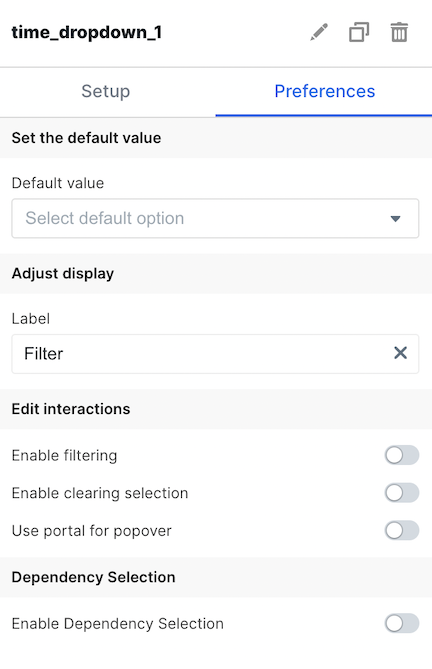
Available by accessing the `Setup` and `Preferences` tabs
| Configuration Option | Description |
| --------------------------- | --------------------------------------------------------------------------------------------------------------------------------------------------------------------------------------------------------------------- |
| Set Filter Values | In this section, you can add and reorder options your users can select from. You choose the name of the value (ex. Last 7 days) and the minutes that represents (ex. 10,080). |
| Default Value | Set the default selection for the Time Dropdown |
| Label | Set the label your users see for the dropdown |
| Enable Filtering | Allow your users to search within the dropdown for values |
| Enable Clearing Selection | Allow your users to clear the dropdown with an X |
| Use Portal for Popover | When enabled, prevents the dropdown options from being hidden when overflowing. Applicable to both overflow from a container and the embed component itself. |
| Enable Dependency Selection | When enabled, you may create a dependency between this element and other elements on the dashboard. When this element is dependent on an element selected, it will be disabled until a value is selected by the user. |
## Variable Usage
In the SQL query, use the following syntax
```sql theme={null}
WHERE 1=1
[[AND DATE_DIFF(CURRENT_TIMESTAMP(), timestamp, MINUTE) < {{time_period_dropdown_1}}]]
```
## Filtering
You can now filter directly your charts in the UI elements themselves. For more information on this process, see the [filtering section of the overview page](/creating-dashboards/ui-elements#filtering).
### Basic Configuration
Available by accessing the `Setup` and `Preferences` tabs
| Configuration Option | Description |
| --------------------------- | --------------------------------------------------------------------------------------------------------------------------------------------------------------------------------------------------------------------- |
| Set Filter Values | In this section, you can add and reorder options your users can select from. You choose the name of the value (ex. Last 7 days) and the minutes that represents (ex. 10,080). |
| Default Value | Set the default selection for the Time Dropdown |
| Label | Set the label your users see for the dropdown |
| Enable Filtering | Allow your users to search within the dropdown for values |
| Enable Clearing Selection | Allow your users to clear the dropdown with an X |
| Use Portal for Popover | When enabled, prevents the dropdown options from being hidden when overflowing. Applicable to both overflow from a container and the embed component itself. |
| Enable Dependency Selection | When enabled, you may create a dependency between this element and other elements on the dashboard. When this element is dependent on an element selected, it will be disabled until a value is selected by the user. |
## Variable Usage
In the SQL query, use the following syntax
```sql theme={null}
WHERE 1=1
[[AND DATE_DIFF(CURRENT_TIMESTAMP(), timestamp, MINUTE) < {{time_period_dropdown_1}}]]
```
## Filtering
You can now filter directly your charts in the UI elements themselves. For more information on this process, see the [filtering section of the overview page](/creating-dashboards/ui-elements#filtering).