> ## Documentation Index
> Fetch the complete documentation index at: https://docs.explo.co/llms.txt
> Use this file to discover all available pages before exploring further.
# Text
> Text elements allow you to communicate information in markdown to your customers.
## What it does
 This component allows you to add a block of text to your dashboard. Use this
component for any labeling and providing additional information for your user.
The **Text Component** supports Markdown to give you the flexibility to
configure the style and sizing of your text. You can reference the article
[here](https://www.markdownguide.org/basic-syntax/) for Markdown.
You can also utilize variables in your text component by using the
`{{element#}}`notation. This is great for adding company names into your
dashboards or dynamically describing charts and graphs.
## Configuration
This component allows you to add a block of text to your dashboard. Use this
component for any labeling and providing additional information for your user.
The **Text Component** supports Markdown to give you the flexibility to
configure the style and sizing of your text. You can reference the article
[here](https://www.markdownguide.org/basic-syntax/) for Markdown.
You can also utilize variables in your text component by using the
`{{element#}}`notation. This is great for adding company names into your
dashboards or dynamically describing charts and graphs.
## Configuration
 | Configuration Option | Description |
| -------------------- | ------------------------------------------------------------------------------------------------------------------------------------------------------------------------------------------------------------------------------------------------------------------------------------------------------------------------------------------------------------------ |
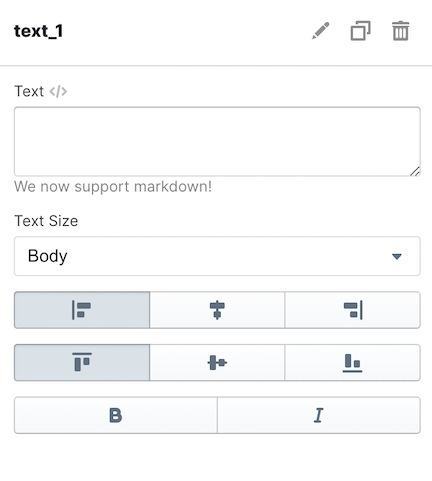
| Text | This is a text area that allows you to type in free form text. Our text elements understand markdown, enabling you to make complex text views in your dashboards. |
| Text Size | This allows you to manage the size of the text that appears on the dashboard.
| Configuration Option | Description |
| -------------------- | ------------------------------------------------------------------------------------------------------------------------------------------------------------------------------------------------------------------------------------------------------------------------------------------------------------------------------------------------------------------ |
| Text | This is a text area that allows you to type in free form text. Our text elements understand markdown, enabling you to make complex text views in your dashboards. |
| Text Size | This allows you to manage the size of the text that appears on the dashboard.
There are three options:
• Normal (default)
• Large
• Extra Large |
| Alignment | Alignment defines the horizontal & vertical placement of the text inside of the container on the dashboard. There are 3 options in the horizontal direction:
• Left aligned (default)
• Center aligned
• Right aligned
There are 3 options in the vertical direction:
• Top aligned (default)
• Center aligned
• Bottom aligned |
## Markdown formatting
The text element uses markdown formatting to format the text onto the page. This
gives you access to powerful text formatting.
Please reference a markdown guide, such as
[this one](https://www.markdownguide.org/basic-syntax/), for more information on
the specific syntax available.
## Dynamically Generated Values
You may use dynamically generated values in your text elements by using the
`{{ }}` notation, similar to the dataset SQL editor. These values can either be
generated from custom variables or through data queried against your Explo
datasets.
### Using Variables
The variables you have access to are all the variables in the page defined by
user inputs, the customers, and passed in from the embedded component.
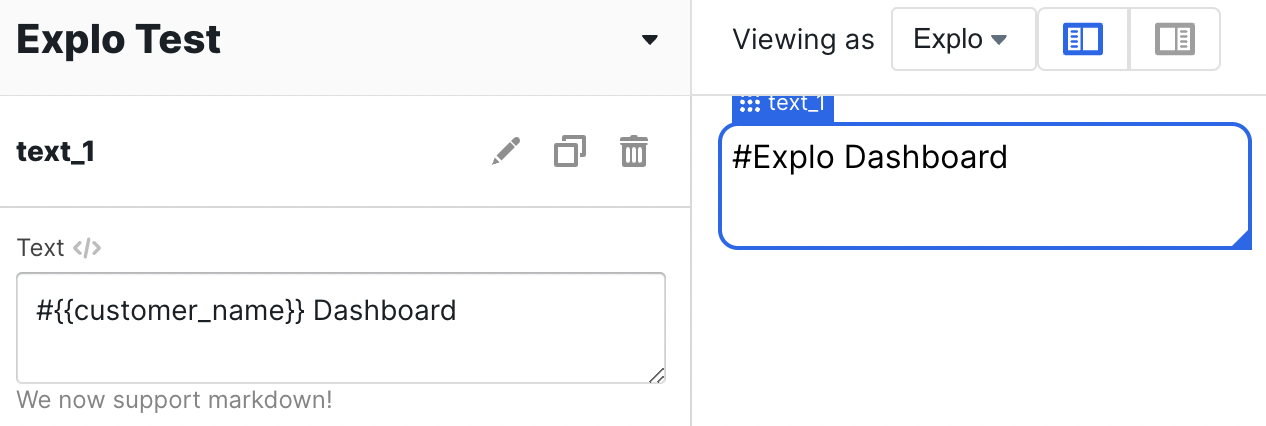 For example, in the above dashboard we are using the `customer_name` variable
to make the text shown on the screen be dynamic.
### Using Datasets
For dynamic values from datasets, you need to supply both the table name and the
column you would like read from. Explo will select the first row of whatever
column and table you specify, so you will likely want to make a specific dataset
that aggregates a value and then pass that dataset to the text component.
For example, in the above dashboard we are using the `customer_name` variable
to make the text shown on the screen be dynamic.
### Using Datasets
For dynamic values from datasets, you need to supply both the table name and the
column you would like read from. Explo will select the first row of whatever
column and table you specify, so you will likely want to make a specific dataset
that aggregates a value and then pass that dataset to the text component.
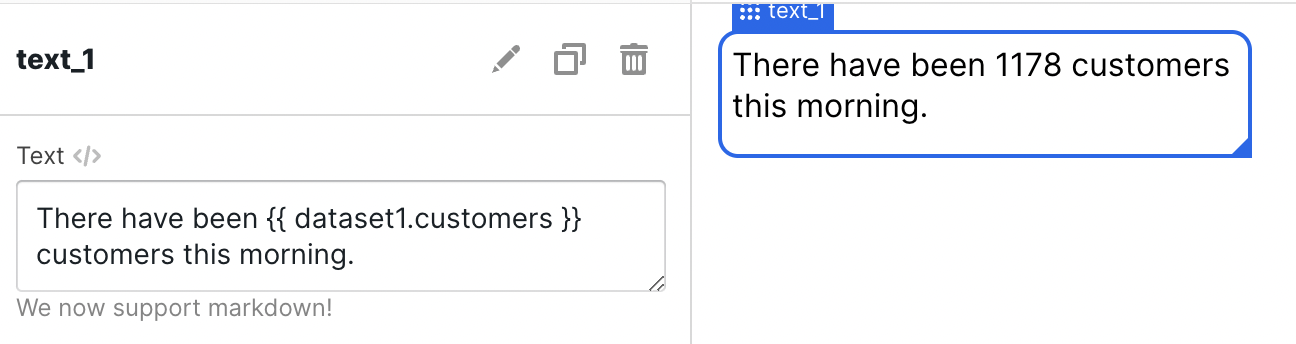 For example, in the above dashboard we are using the *customers* column from
*dataset1* to make the text shown on screen to be dynamic.
For example, in the above dashboard we are using the *customers* column from
*dataset1* to make the text shown on screen to be dynamic.