> ## Documentation Index
> Fetch the complete documentation index at: https://docs.explo.co/llms.txt
> Use this file to discover all available pages before exploring further.
# Dashboard Elements (Controls)
Customer objects can be referenced as a variable in:
* Dataset queries
* Text components
* Chart titles
* Goal lines
* Progress goal totals
**General** \
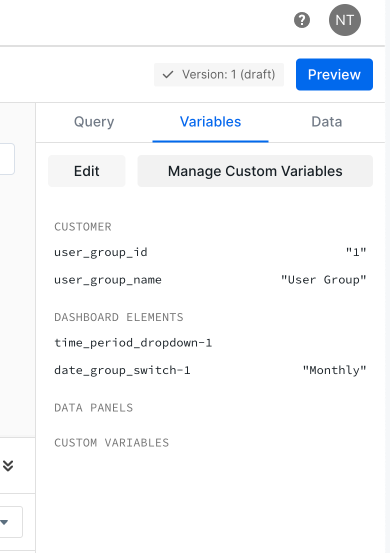
All controls create variables when they are dragged onto the dashboard.
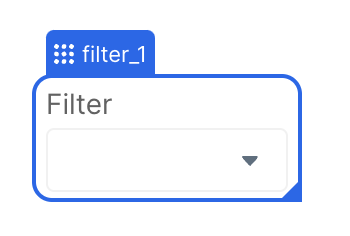 To use dashboard elements, simply reference the component ID. For instance, in the example above the component ID is `filter_1`.
**Date Range Picker** \
The [date range picker](/creating-dashboards/ui-elements/date-range-picker) creates two variables, one for the start date and another for the end date. Both will be shown on the variables tab in the debugger panel. Assuming, in this example, the component ID for the date range picker is `date_range_picker` these are the two variables created:
* `date_range_picker.startDate`
* `date_range_picker.endDate`
**Default values** \
These variables get set when your users interact with the element and select a
value. When configuring the component, you will also have the option to set
default values so that the dashboard loads preselected with certain options.
To use dashboard elements, simply reference the component ID. For instance, in the example above the component ID is `filter_1`.
**Date Range Picker** \
The [date range picker](/creating-dashboards/ui-elements/date-range-picker) creates two variables, one for the start date and another for the end date. Both will be shown on the variables tab in the debugger panel. Assuming, in this example, the component ID for the date range picker is `date_range_picker` these are the two variables created:
* `date_range_picker.startDate`
* `date_range_picker.endDate`
**Default values** \
These variables get set when your users interact with the element and select a
value. When configuring the component, you will also have the option to set
default values so that the dashboard loads preselected with certain options.