> ## Documentation Index
> Fetch the complete documentation index at: https://docs.explo.co/llms.txt
> Use this file to discover all available pages before exploring further.
# Using Variables
### In Datasets
All variables are contained in double curly brackets `{{ }}`, Explo will
recognize any text in-between curly brackets in your SQL query as a variable.
Double square brackets `[[ ]]` are used for where clauses with variables such
that if there is no variable selected, Explo will ignore the code between the
square brackets.
All variable clauses must be placed inside square brackets.
Example of where clause using a variable in square brackets:
```sql theme={null}
[[WHERE field1 = {{element1}}]]
```
When filtering by 2 different fields, you can use the syntax below to contain
the "and" in the square brackets. The `1 = 1` is required here otherwise there
will be an incomplete clause statement if neither filter is configured.
```sql theme={null}
WHERE 1=1 [[and field1 = {{element1}}]]
[[and field2 = {{element2}}]]
```
### In Data Panels
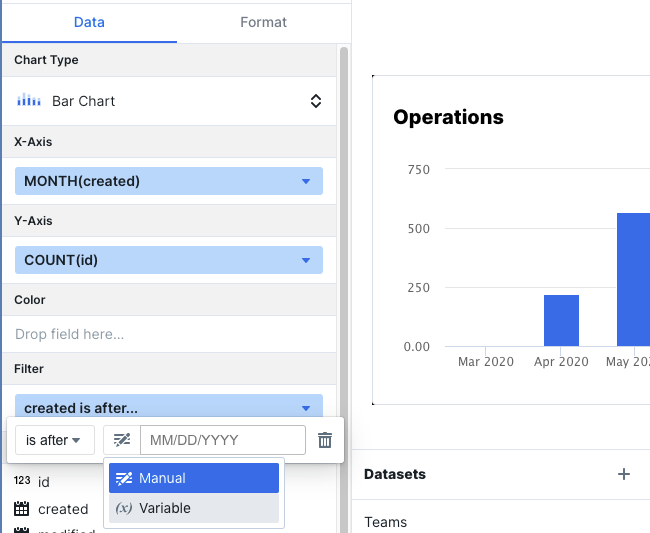
Instead of writing SQL to filter your datasets, you can filter specific data
panels by variables directly. To do this, drag the field you want to filter into
the Filter section. Then select the Variable option for the filter value input:
 You will then have the option to select the variable defined on the page that
you want to filter by. You will only be shown options for variables that are the
correct type. For example, if you are filtering a date field, we will only show
you date-picker variables.
You will then have the option to select the variable defined on the page that
you want to filter by. You will only be shown options for variables that are the
correct type. For example, if you are filtering a date field, we will only show
you date-picker variables.
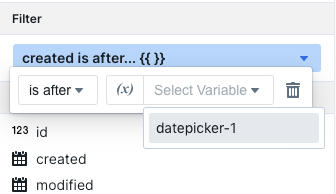 Now when the date picker is used, the data panel will filter down its data to
the selected range!
### In JS Events
Update variables with outgoing JS events. Learn more about outgoing JS events, like `updateExploDashboardVariable` [here](/general-features/custom-js-events#outgoing-events).
### Data Panel Built-In Variables
**KPI Trend**
The following variables can be used in the KPI panel's `Subtitle` field.
Now when the date picker is used, the data panel will filter down its data to
the selected range!
### In JS Events
Update variables with outgoing JS events. Learn more about outgoing JS events, like `updateExploDashboardVariable` [here](/general-features/custom-js-events#outgoing-events).
### Data Panel Built-In Variables
**KPI Trend**
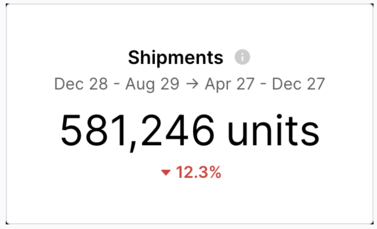
The following variables can be used in the KPI panel's `Subtitle` field.

 | Variable | Description |
| ----------------------- | --------------------------------------------------------------------------------------------------------- |
| `{{current_period}}` | This is the current period of data that will be used as the basis for comparison e.g. Jun 11 - Aug 12 |
| `{{comparison_period}}` | This is the period that the current\_period is compared to for calculating the trend e.g. July 9 - Jun 10 |
### Text Component and Other Fields
Variables can be used to replace static text and values in a variety of components and fields. Reference variables the same way you do in the dataset editor.
* Text components
* Chart titles
* Goal lines
* Progress goal totals
| Variable | Description |
| ----------------------- | --------------------------------------------------------------------------------------------------------- |
| `{{current_period}}` | This is the current period of data that will be used as the basis for comparison e.g. Jun 11 - Aug 12 |
| `{{comparison_period}}` | This is the period that the current\_period is compared to for calculating the trend e.g. July 9 - Jun 10 |
### Text Component and Other Fields
Variables can be used to replace static text and values in a variety of components and fields. Reference variables the same way you do in the dataset editor.
* Text components
* Chart titles
* Goal lines
* Progress goal totals