> ## Documentation Index
> Fetch the complete documentation index at: https://docs.explo.co/llms.txt
> Use this file to discover all available pages before exploring further.
# Custom Fonts
> Upload your own font and use it throughout your dashboards
Click on your user icon on the top right corner and select "Settings" from the
dropdown.
 From there go down to the custom fonts section and select your font file. The
font file extensions we currently support are .otf, .ttf, .woff, and .woff2. We
use the file name as the font name so make sure there are no duplicates. You can
remove any uploaded file by clicking on "Remove".
From there go down to the custom fonts section and select your font file. The
font file extensions we currently support are .otf, .ttf, .woff, and .woff2. We
use the file name as the font name so make sure there are no duplicates. You can
remove any uploaded file by clicking on "Remove".
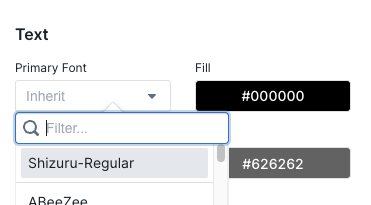
 Then head to the custom styles section and in any of the font drop-downs you
will see your custom fonts at the top like below. Select the font you want and
save the style and your font should be ready to go!
Then head to the custom styles section and in any of the font drop-downs you
will see your custom fonts at the top like below. Select the font you want and
save the style and your font should be ready to go!