> ## Documentation Index
> Fetch the complete documentation index at: https://docs.explo.co/llms.txt
> Use this file to discover all available pages before exploring further.
# Multiple Data Sources
> This guide describes how to configure Explo to support multiple data sources
## Why Multiple Data Sources?
There are a few different reasons why you may want to connect multiple data sources to Explo:
* You want to connect and build dashboards against both your staging and production databases
* You have customer data segmented into multiple different databases
In either of these scenarios, you can use Explo to connect multiple data sources to power your dashboards.
Explo allows you to folder your data sources by schema to configure which
queries run against which data sources. For more information, navigate to the
[Managing Schema](/data-sources/data-sources-and-schema/managing-schema)
section of our documentation.
## View Data Sources
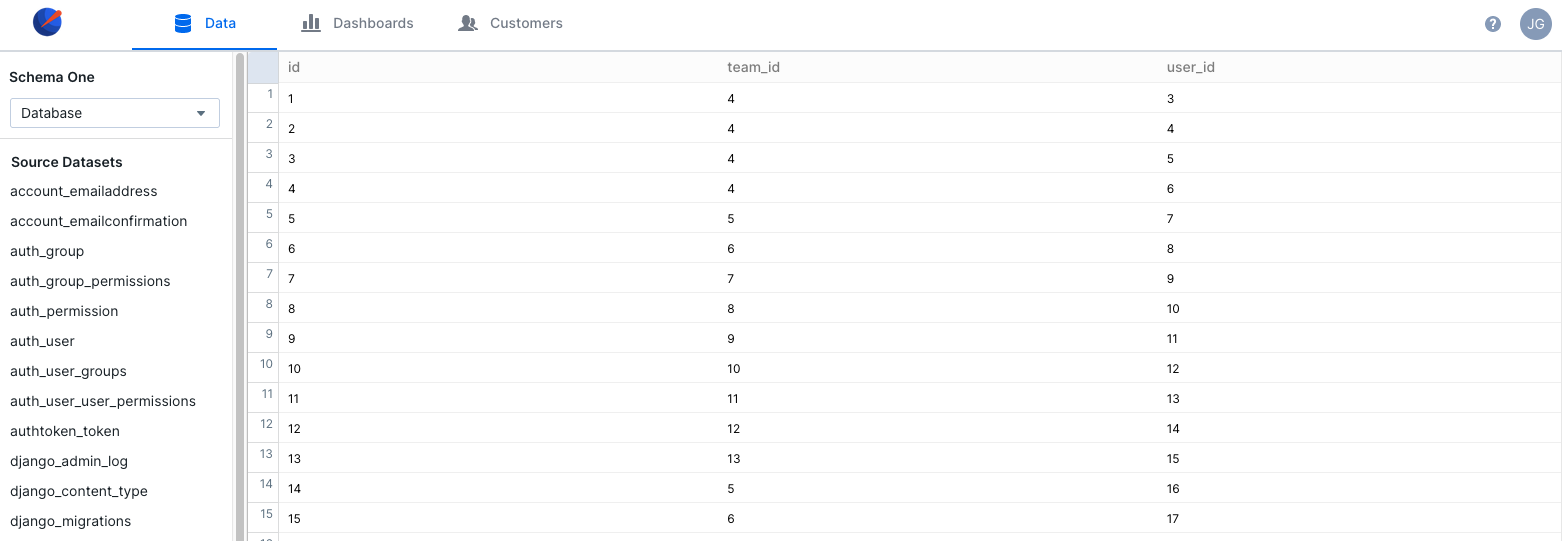
To view all connected data sources, navigate to the Data tab.
 On this page, you will see all connected data sources. If you click on a
specific data source, you will be taken to a data viewer where you can preview
the data in the data source. This view also allows you to toggle between
different data sources within that schema.
On this page, you will see all connected data sources. If you click on a
specific data source, you will be taken to a data viewer where you can preview
the data in the data source. This view also allows you to toggle between
different data sources within that schema.
 ## Add a Data Source
On the Data tab, click the "Add Data Source" button to add a new data source.
First, you'll be prompted to enter a display nickname and id for your database,
along with choosing its schema and visibility group. For more information about
visibility groups, check out
[this section of our documentation](/managing-permissions/visibility-groups).
## Add a Data Source
On the Data tab, click the "Add Data Source" button to add a new data source.
First, you'll be prompted to enter a display nickname and id for your database,
along with choosing its schema and visibility group. For more information about
visibility groups, check out
[this section of our documentation](/managing-permissions/visibility-groups).
 Follow the steps in the flow and enter your credentials for the database to
connect it to Explo.
## Connecting Customers to Data Sources
### Customer API
Every customer you create in Explo is associated with a specific set of data
sources, one for each schema. When you render the dashboard for that customer,
it will pull all data for that view from those data sources associated with the
customer.
When you create a customer via the API, you can optionally specify a
`data_source_id` or the `data_source_provided_id`. This will associate the user
group with that data source for the schema that data source belongs to. If you
do not specify the data source, it will associate the customer with the
default data source, which you can configure from the data page.
For more information, go to
[our section on the Customer API](/api-reference/customer-api).
You can retrieve the data default `data_source_id` by going to the data tab and
looking at the number ID for the data source (47).
Follow the steps in the flow and enter your credentials for the database to
connect it to Explo.
## Connecting Customers to Data Sources
### Customer API
Every customer you create in Explo is associated with a specific set of data
sources, one for each schema. When you render the dashboard for that customer,
it will pull all data for that view from those data sources associated with the
customer.
When you create a customer via the API, you can optionally specify a
`data_source_id` or the `data_source_provided_id`. This will associate the user
group with that data source for the schema that data source belongs to. If you
do not specify the data source, it will associate the customer with the
default data source, which you can configure from the data page.
For more information, go to
[our section on the Customer API](/api-reference/customer-api).
You can retrieve the data default `data_source_id` by going to the data tab and
looking at the number ID for the data source (47).
 You can assign a `data_source_provided_id` in the data tab which then can be
used to identify the data source in your API requests:
You can assign a `data_source_provided_id` in the data tab which then can be
used to identify the data source in your API requests:
 ### Customers Tab
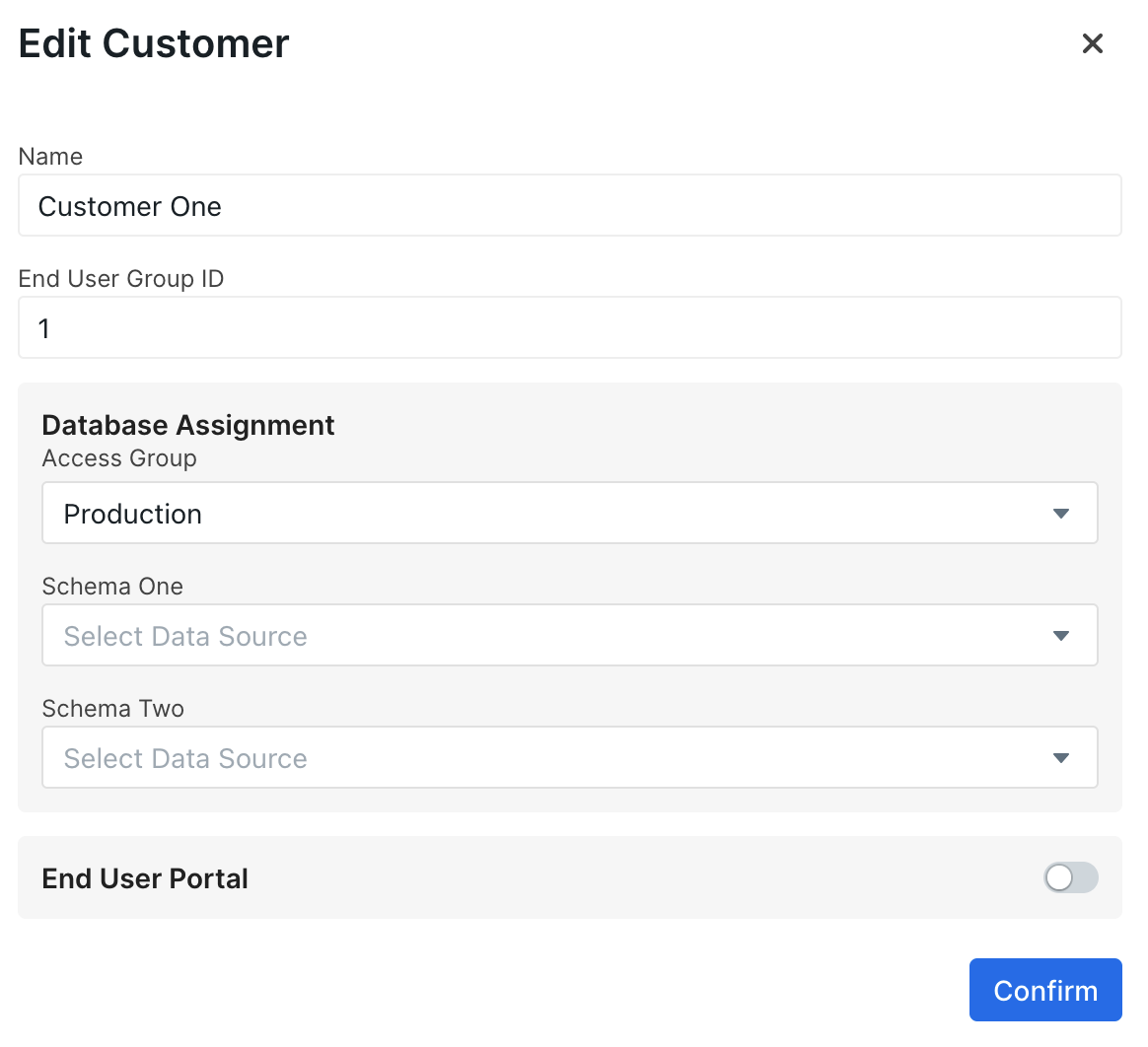
On the Customers tab, there are dropdowns for choosing a data source for each
schema when editing or creating a customer. If no data source is selected for a
given schema, that customer will be associated with the default data source for
that visibility group and schema.
### Customers Tab
On the Customers tab, there are dropdowns for choosing a data source for each
schema when editing or creating a customer. If no data source is selected for a
given schema, that customer will be associated with the default data source for
that visibility group and schema.
 ## Viewing Dashboards in Different Data Sources
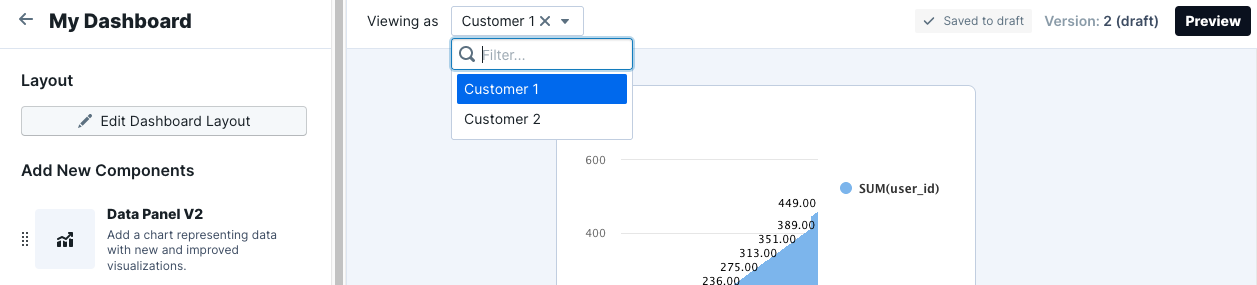
When you are making dashboards, there is a dropdown for customers.
For each dashboard, you will be able to toggle between different customers to
select which one you are viewing as. the data on the page will then reflect data
from the data sources associated with that customer.
## Embedding with Multiple Data Sources
Embedding with multiple data sources is as straightforward as with a single data
source.
When you create your customers, we will give you back the customer token.
Simply provide this token when embedding and we will query from the right data
sources and present the correct data.
## Viewing Dashboards in Different Data Sources
When you are making dashboards, there is a dropdown for customers.
For each dashboard, you will be able to toggle between different customers to
select which one you are viewing as. the data on the page will then reflect data
from the data sources associated with that customer.
## Embedding with Multiple Data Sources
Embedding with multiple data sources is as straightforward as with a single data
source.
When you create your customers, we will give you back the customer token.
Simply provide this token when embedding and we will query from the right data
sources and present the correct data.