> ## Documentation Index
> Fetch the complete documentation index at: https://docs.explo.co/llms.txt
> Use this file to discover all available pages before exploring further.
# Viewing Versions
> Explo provides a straightforward way to version your dashboards or report builders. The following pages describe how this system works and how to use it.
### View Page
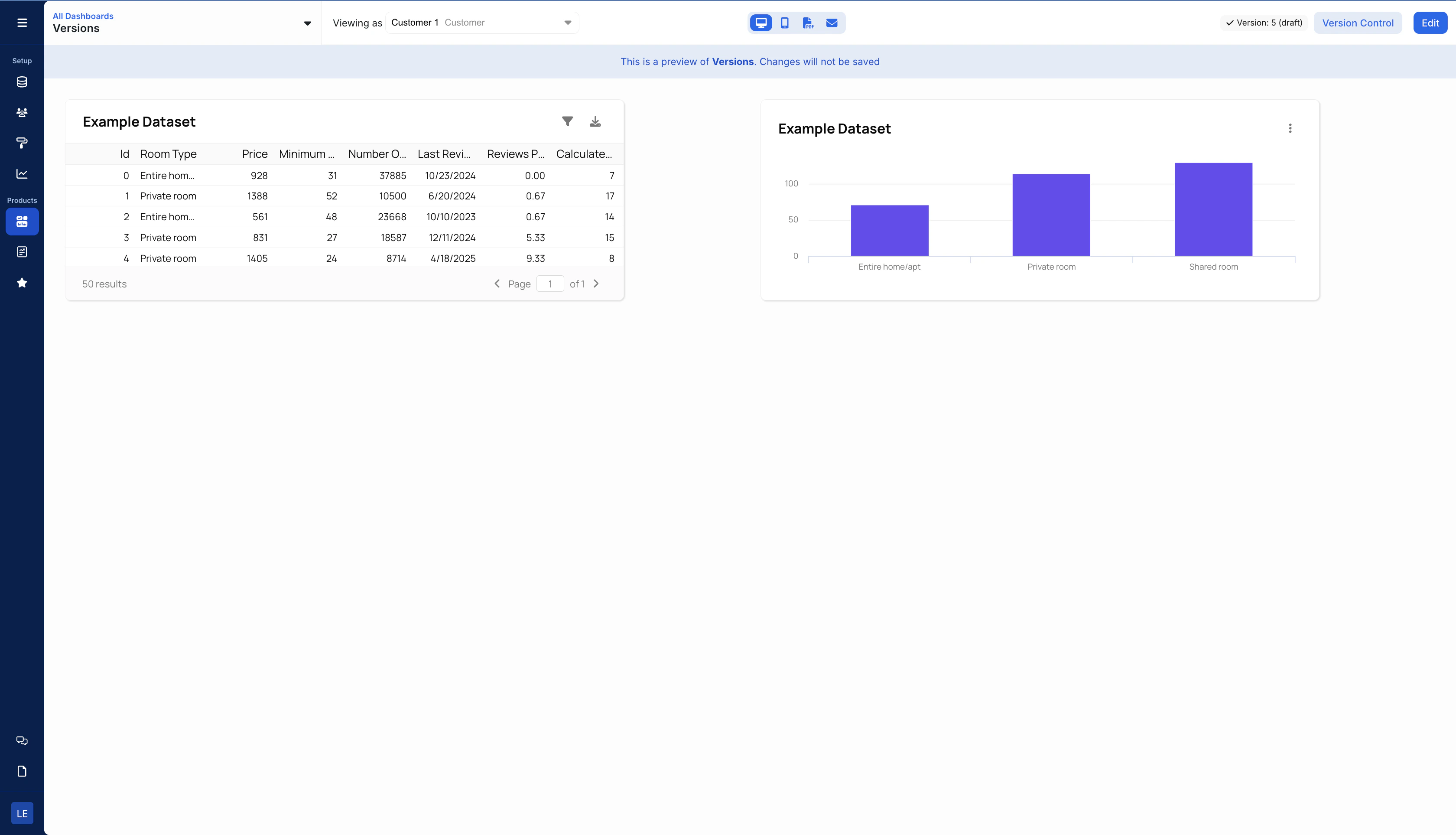 When you navigate to a dashboard or report builder from the home page, you will be taken to the viewer page. This page is a view-only preview. You
can switch between customers with the top bar.
By default, you will be viewing the most recent version or current draft
### Switching Viewing Version
When you navigate to a dashboard or report builder from the home page, you will be taken to the viewer page. This page is a view-only preview. You
can switch between customers with the top bar.
By default, you will be viewing the most recent version or current draft
### Switching Viewing Version
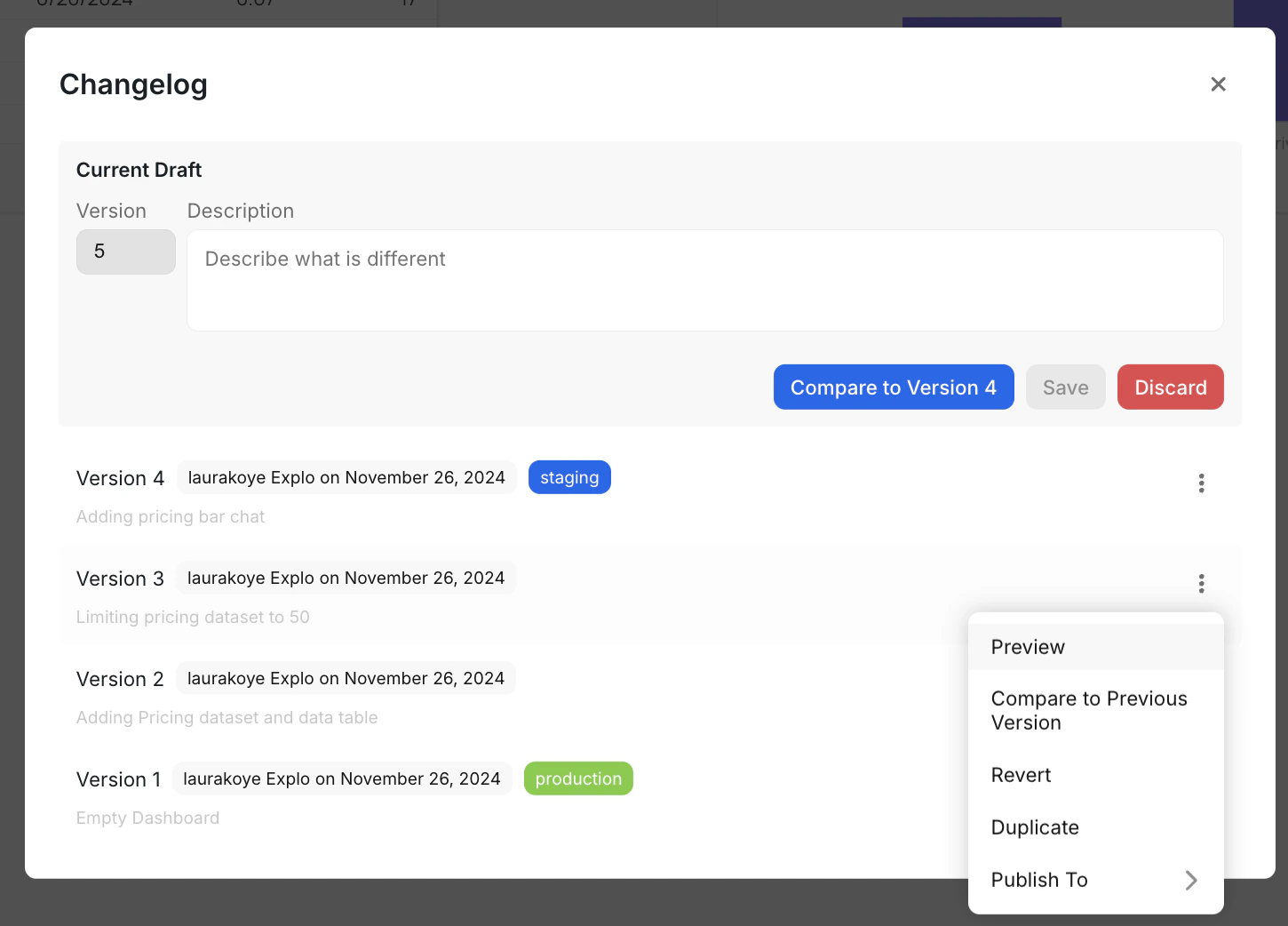 If you click on the "Version Control" button, a modal pops up showing you the
dashboard or report builder's history. In Explo, versions follow a linear history. You always
start editing off of the most recent version of the dashboard or report builder.
To view the resource as a previous version, simply select the "Preview" option
for the version you would like to view.
If you click on the "Version Control" button, a modal pops up showing you the
dashboard or report builder's history. In Explo, versions follow a linear history. You always
start editing off of the most recent version of the dashboard or report builder.
To view the resource as a previous version, simply select the "Preview" option
for the version you would like to view.