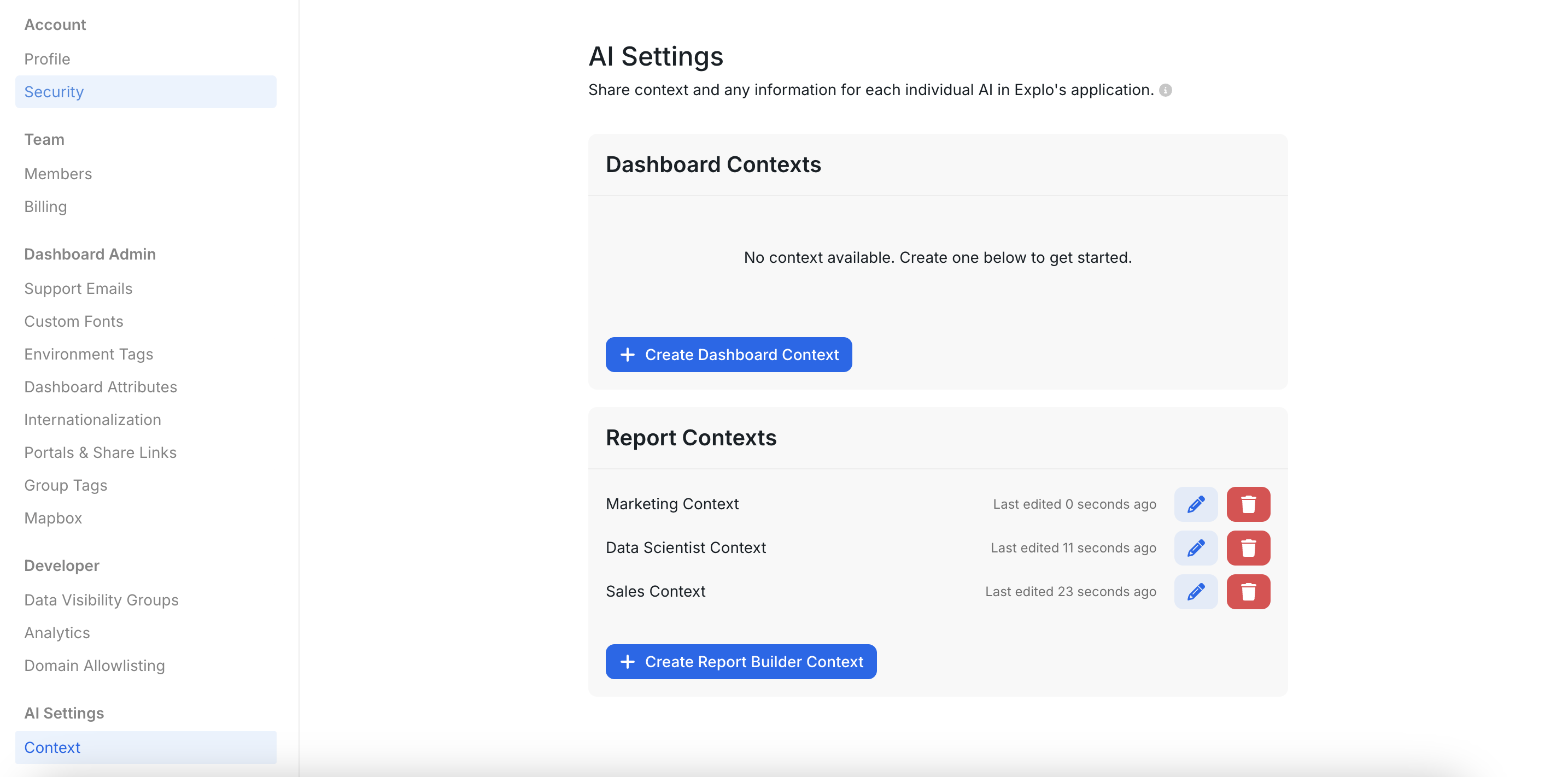
 ## Step 2:
Create a new context and follow the suggested prompts. These will be passed to your AI Assistant at the start of each conversation, resulting in a tailored conversation with higher quality interactions for your end user.
## Step 2:
Create a new context and follow the suggested prompts. These will be passed to your AI Assistant at the start of each conversation, resulting in a tailored conversation with higher quality interactions for your end user.
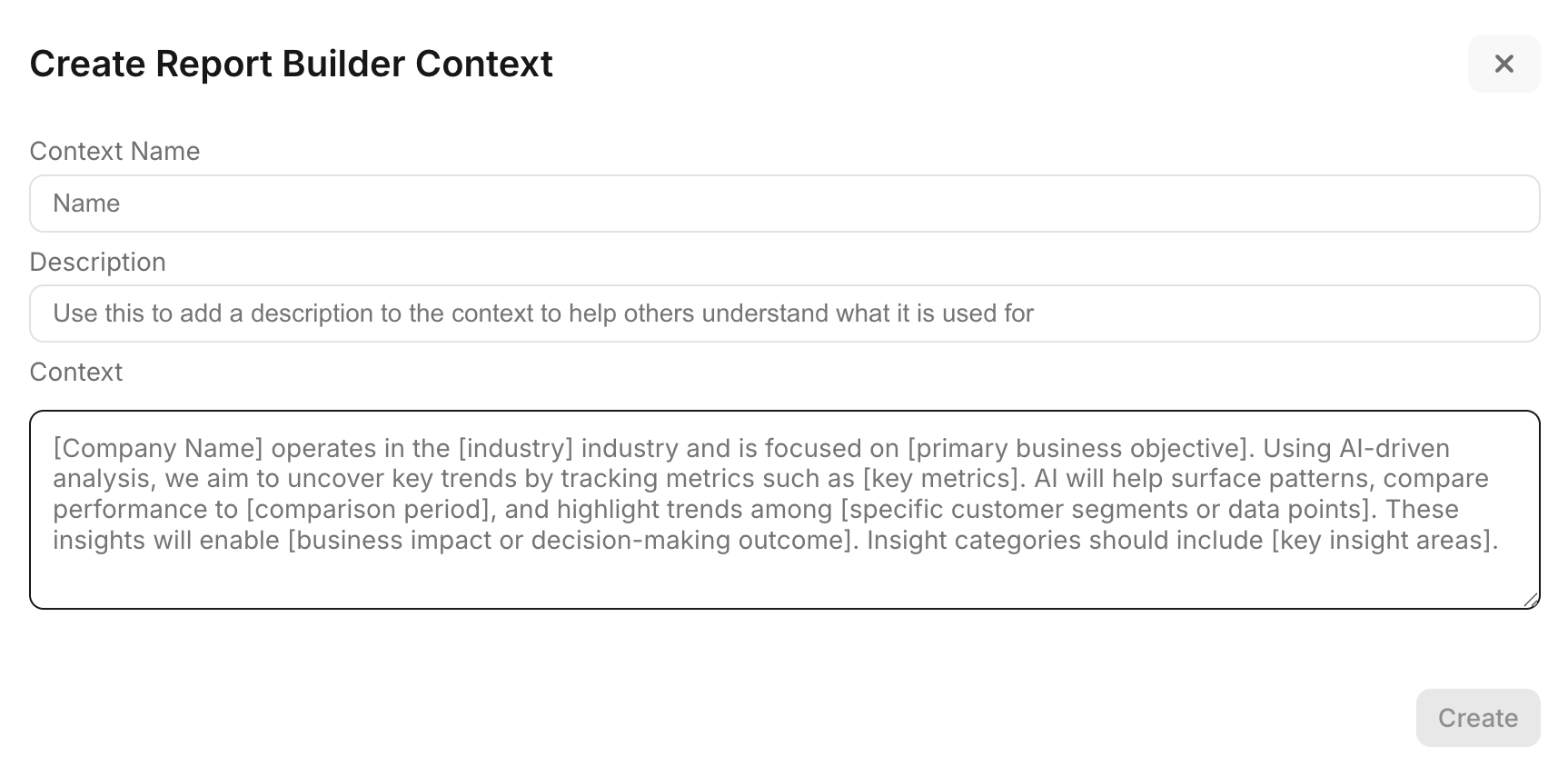 ## Step 3:
Choose this context on a per Report Builder basis using the Report Builder AI Settings.
## Step 3:
Choose this context on a per Report Builder basis using the Report Builder AI Settings.
 # Customer Endpoints
Source: https://docs.explo.co/api-reference/customer-api
Collection of endpoints to manage customers
# Customer Endpoints
Source: https://docs.explo.co/api-reference/customer-api
Collection of endpoints to manage customers
 The API Token you authenticate your request with is associated with a [Data Visibility Group](/managing-permissions/visibility-groups). When creating an customer, the token used will determine which visibility group the customer is added to. When otherwise getting or modifying customers, only groups in the associated visibility group will be accessible.
### Permissions
Currently Explo supports two types of API Token permissions, read-only and
read-write. Granting a token read-write permissions will allow it to create,
delete, and edit any customer in its visibility group, while granting a token
read-only permissions will only allow it to pull those customers.
For more information about how API tokens interact with their visibility group, see
[the visibility groups documentation](/managing-permissions/visibility-groups).
# Group Tag Endpoints
Source: https://docs.explo.co/api-reference/group-tag-api
Collection of endpoints to manage group tags
The API Token you authenticate your request with is associated with a [Data Visibility Group](/managing-permissions/visibility-groups). When creating an customer, the token used will determine which visibility group the customer is added to. When otherwise getting or modifying customers, only groups in the associated visibility group will be accessible.
### Permissions
Currently Explo supports two types of API Token permissions, read-only and
read-write. Granting a token read-write permissions will allow it to create,
delete, and edit any customer in its visibility group, while granting a token
read-only permissions will only allow it to pull those customers.
For more information about how API tokens interact with their visibility group, see
[the visibility groups documentation](/managing-permissions/visibility-groups).
# Group Tag Endpoints
Source: https://docs.explo.co/api-reference/group-tag-api
Collection of endpoints to manage group tags
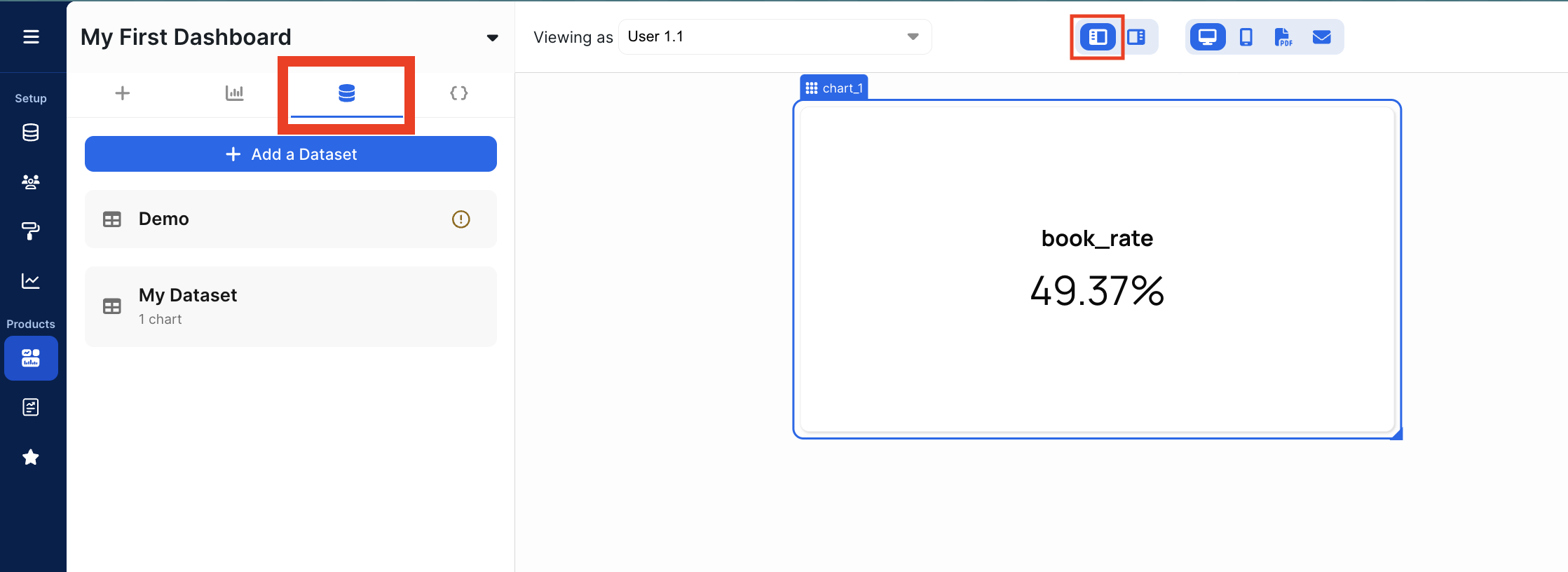
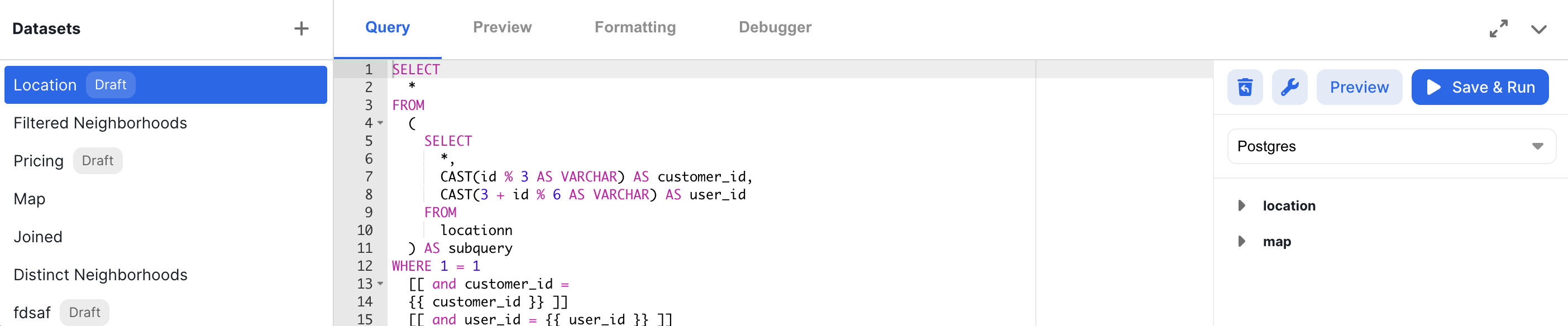 The updated dataset editor is now on the left configuration panel. You can navigate to it by clicking on the "Datasets" Tab.
 ## Dataset Management
You can perform the following actions from the datasets panel:
## Dataset Management
You can perform the following actions from the datasets panel:
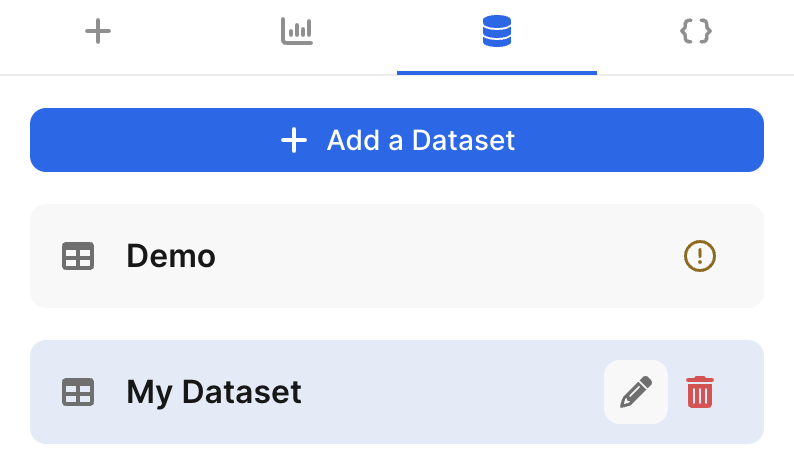 * Add a dataset (and select its schema)
* Edit a dataset's name
* Delete a dataset
* A dataset can only be deleted if it is not tied to any charts or filters
* Select a dataset to open up the editor
## Dataset Editor
Once a dataset has been selected, you can use the editor to create, edit, execute, and save a query.
You can also format the data generated.
## Query
* Add a dataset (and select its schema)
* Edit a dataset's name
* Delete a dataset
* A dataset can only be deleted if it is not tied to any charts or filters
* Select a dataset to open up the editor
## Dataset Editor
Once a dataset has been selected, you can use the editor to create, edit, execute, and save a query.
You can also format the data generated.
## Query
 ### Raw Query
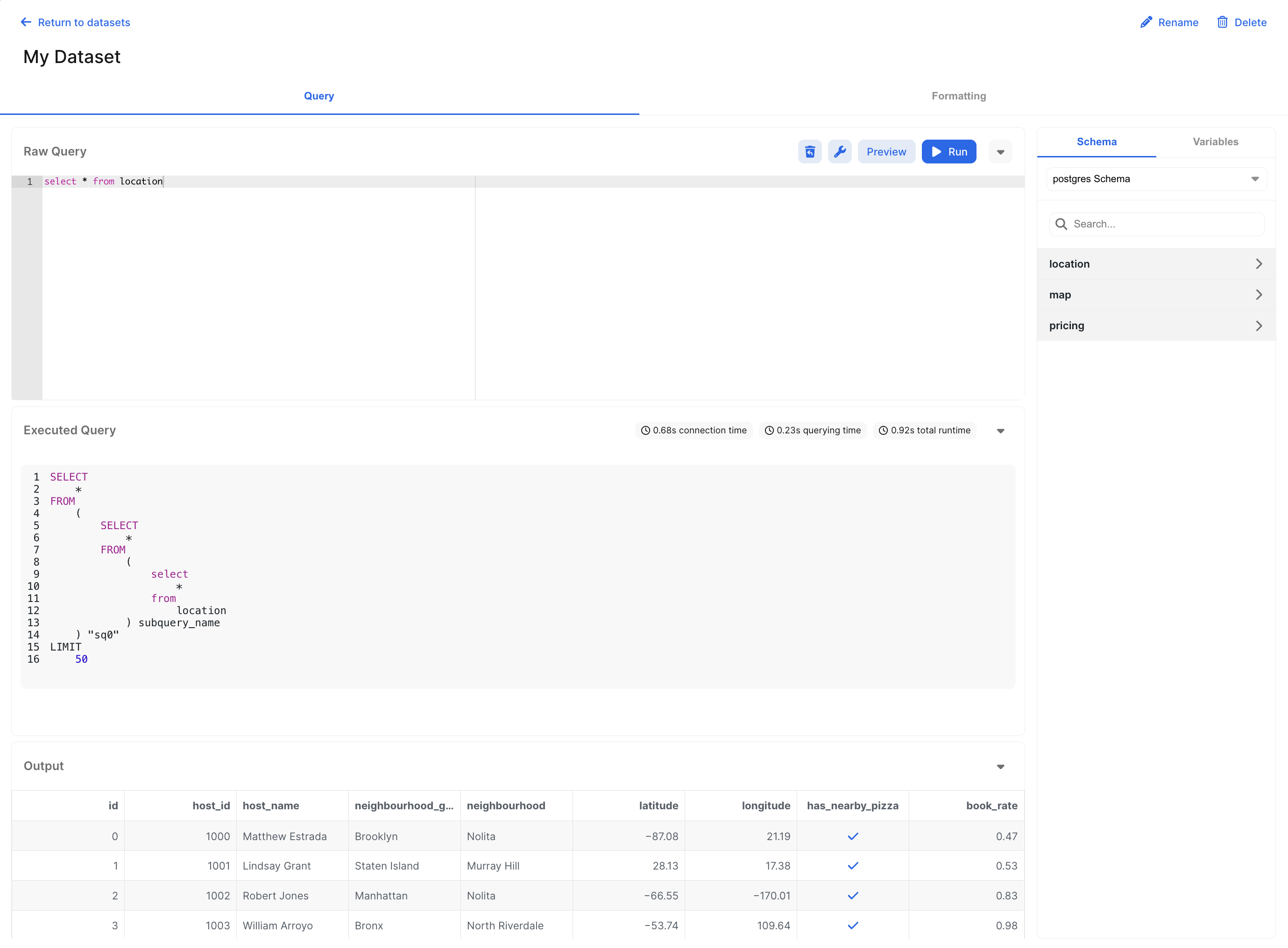
This is where you write your raw SQL query to be executed.
You can perform the following actions on the query:
* Revert draft: Undo the most recent changes.
* Format query: Apply syntax formatting to the query.
* Preview query: Run the query without saving it.
* Save & Run: Run and save the query. All charts and/or filter elements that use this query will be affected.
### Executed Query
Once a query has been run, you can see the executed version of it. Read more about how to use the executed query for debugging [here](/creating-dashboards/debugger-panel).
### Output
This section shows a data table with the result of the executed query. If there are errors with your query, they will be displayed here.
If you have `AI` enabled for your account, you can get error resolution suggestions here as well.
### Schema
This section shows the available columns in each of the tables present in the selected schema. You can also swap schemas here, but doing so may cause your charts to load different data.
### Variables
This section displays the variables that are available for use in the query. Read more about how to use variables [here](/creating-dashboards/variables).
## Formatting
### Raw Query
This is where you write your raw SQL query to be executed.
You can perform the following actions on the query:
* Revert draft: Undo the most recent changes.
* Format query: Apply syntax formatting to the query.
* Preview query: Run the query without saving it.
* Save & Run: Run and save the query. All charts and/or filter elements that use this query will be affected.
### Executed Query
Once a query has been run, you can see the executed version of it. Read more about how to use the executed query for debugging [here](/creating-dashboards/debugger-panel).
### Output
This section shows a data table with the result of the executed query. If there are errors with your query, they will be displayed here.
If you have `AI` enabled for your account, you can get error resolution suggestions here as well.
### Schema
This section shows the available columns in each of the tables present in the selected schema. You can also swap schemas here, but doing so may cause your charts to load different data.
### Variables
This section displays the variables that are available for use in the query. Read more about how to use variables [here](/creating-dashboards/variables).
## Formatting
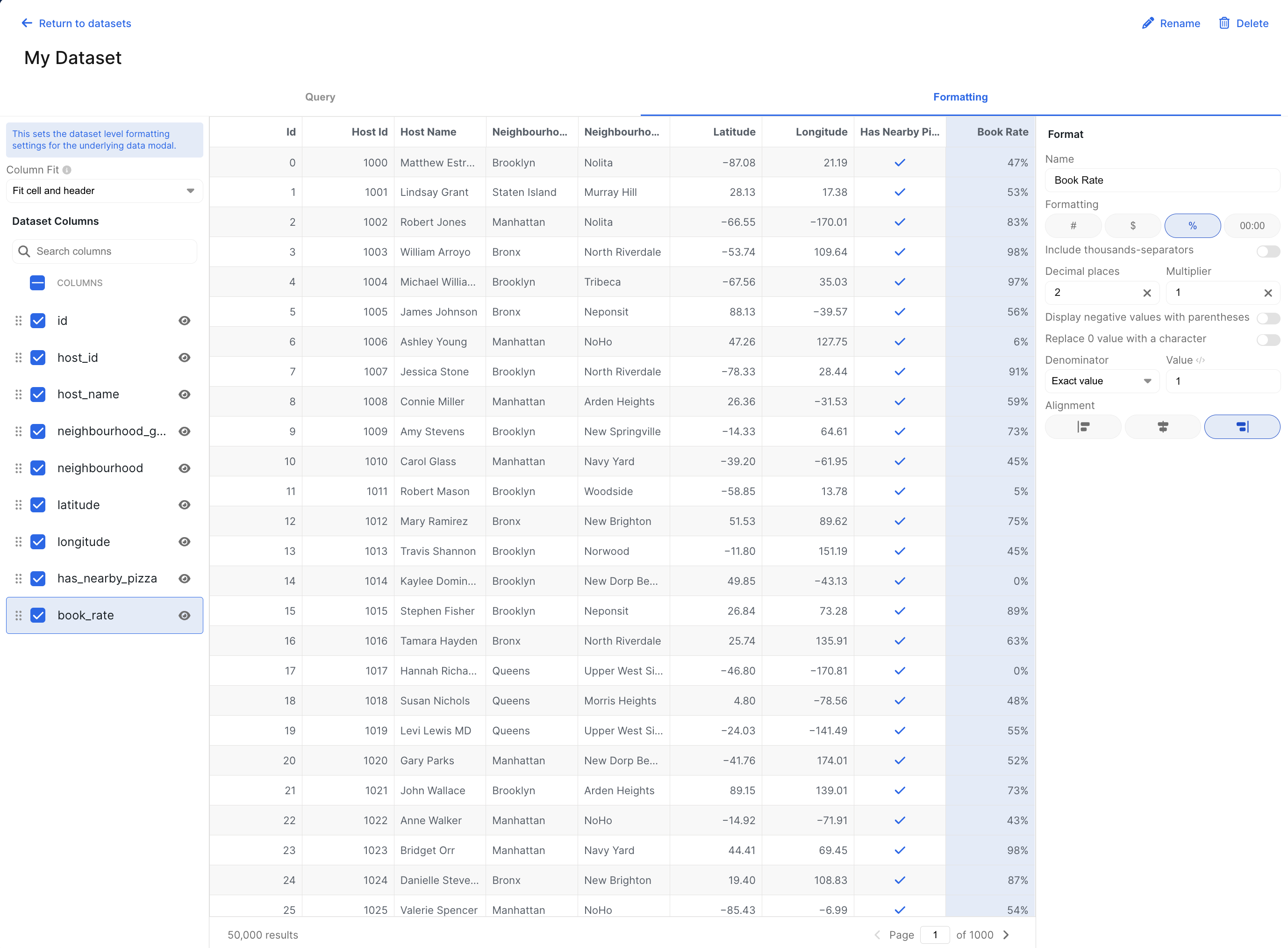 Once the query has been executed, you can use the formatting tab to modify and style the table shown in the underlying data modal.
Read more about exposing the underlying data on your charts [here](/creating-dashboards/drilldowns/underlying-data-drilldowns).
# Debugger Panel
Source: https://docs.explo.co/creating-dashboards/debugger-panel
Explo offers a dashboard debugger and also dataset debugger to help with your dashboard building experience. To access the debugger panel, select the right panel button at the top of the dashboard editor or choose the debugger view for the dataset editor.
Once the query has been executed, you can use the formatting tab to modify and style the table shown in the underlying data modal.
Read more about exposing the underlying data on your charts [here](/creating-dashboards/drilldowns/underlying-data-drilldowns).
# Debugger Panel
Source: https://docs.explo.co/creating-dashboards/debugger-panel
Explo offers a dashboard debugger and also dataset debugger to help with your dashboard building experience. To access the debugger panel, select the right panel button at the top of the dashboard editor or choose the debugger view for the dataset editor.
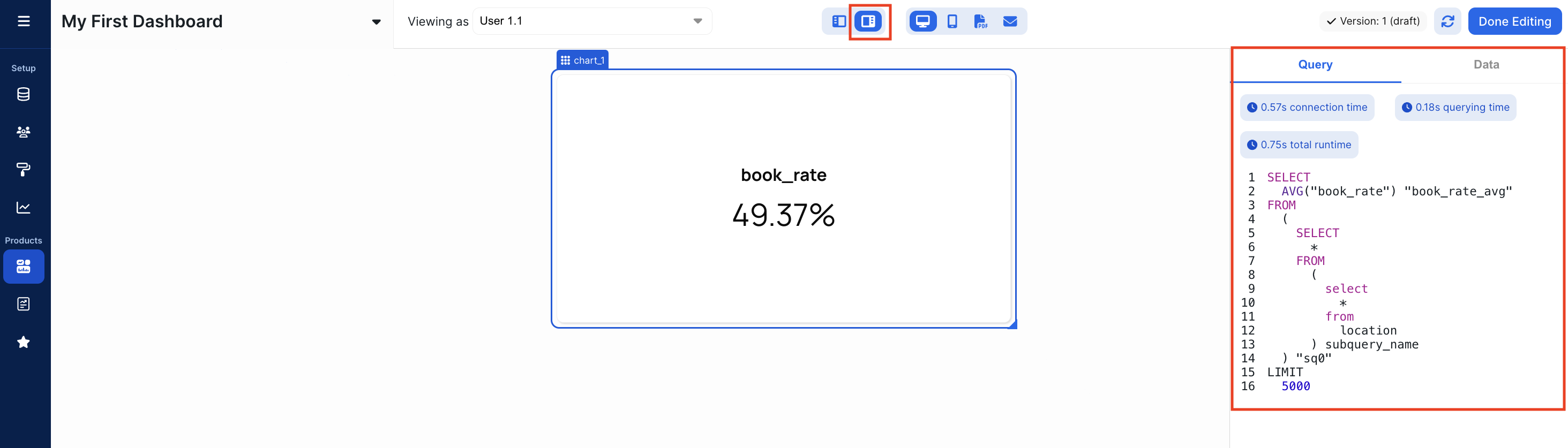 ## Query
* Connection time: time it took to connect to your database, before the query itself is run
* If this is too much time, you should consider performance improvements like increasing the number of available connections to your database. Reach out to Explo support for suggestions and help.
* Querying time: time it took to run the query in your database
* If this is too much time, you should consider looking at your datasets in Explo to see if they can be optimized. If AI is enabled for your account, you can also use it for help with query optimization.
* Processing time: time it took for Explo to read the results of the query
* Total runtime: total runtime it took to run and return the query
* `cache miss` or `cache hit`: If cache is missed, the query will run in your database and the metrics above will be returned. If cache is hit, the metrics above are not shown as the resulting data is pulled directly from the cache.
**Dataset Debugger** \
The same debugger view is available on the dataset editor's query tab in the "Executed Query" section. This view will show you the query that was run with variables inserted and the same statistics as above.
## Data
This tab shows the data returned from the query or cache. The data tab is a great way to double check if the results that are returned are expected. Most of the time, these are the same values that will be reflected on your visualization, but there are certain cases where some light calculations are computed on the frontend after the data is returned.
# Overview
Source: https://docs.explo.co/creating-dashboards/drilldowns
Drilldowns are useful interactions in dashboards that allow your customers to click into visualizations to further understand their data.
In Explo we offer two types of drilldown interactions:
1. **Underlying data drilldowns**: expose the underlying data powering visualizations. This option let’s your users dive deeper into their data by providing additional details on data points.
2. **Filter drilldowns**: use visualizations as filters for other components. This option gives your users the ability to interact with charts and graphs as opposed to just control components.
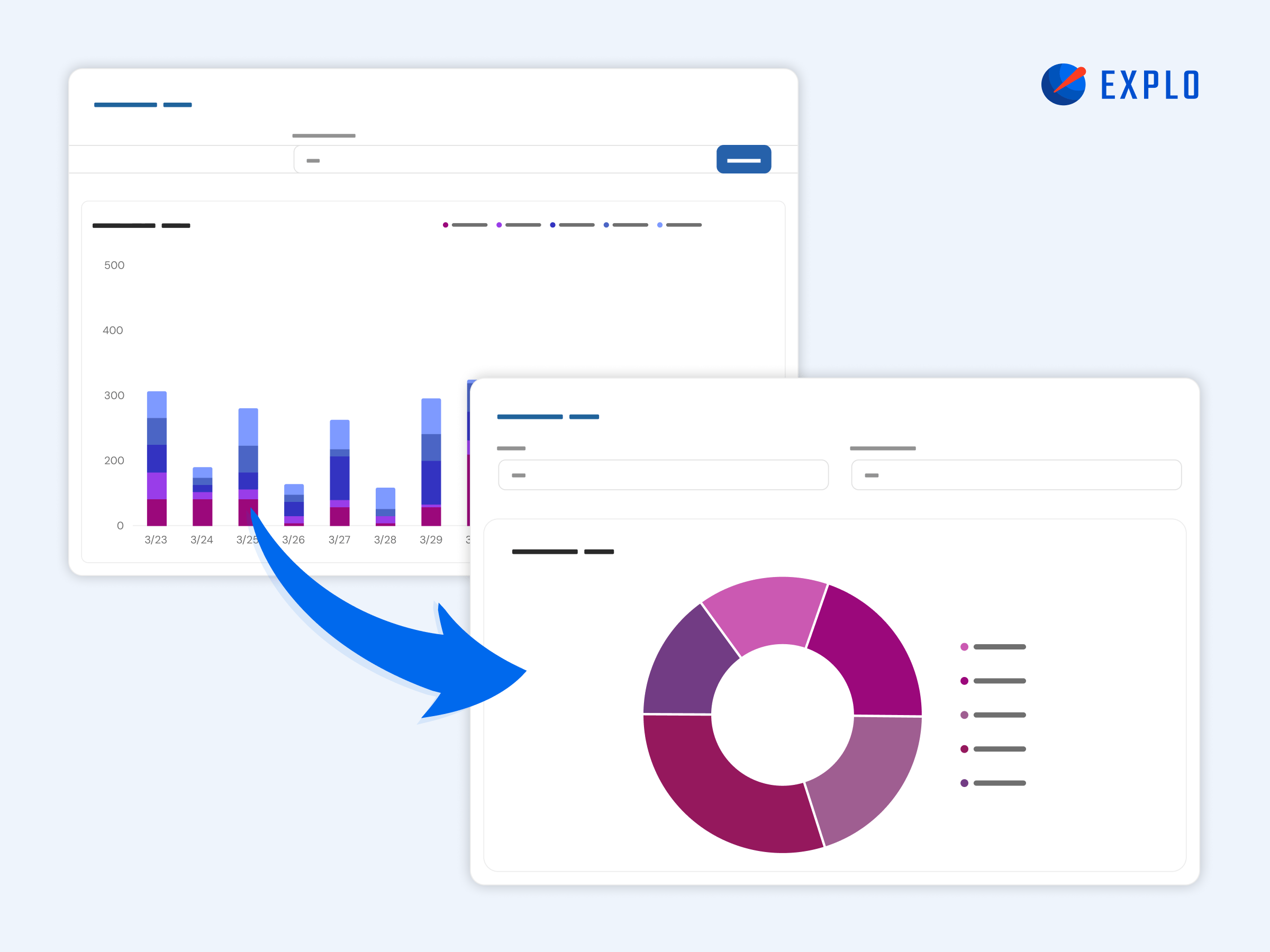
3. **Dashboard drilldowns**: enable viewers to dive deeper into a chart's data by bringing them to an additional dashboard view focused on the selected data from that chart.
# Dashboard Drilldowns
Source: https://docs.explo.co/creating-dashboards/drilldowns/dashboard-drilldowns
Dashboard Drilldowns enable viewers to dive deeper into a chart's data by bringing them to an additional Dashboard View focused on the selected data from that chart.
## Query
* Connection time: time it took to connect to your database, before the query itself is run
* If this is too much time, you should consider performance improvements like increasing the number of available connections to your database. Reach out to Explo support for suggestions and help.
* Querying time: time it took to run the query in your database
* If this is too much time, you should consider looking at your datasets in Explo to see if they can be optimized. If AI is enabled for your account, you can also use it for help with query optimization.
* Processing time: time it took for Explo to read the results of the query
* Total runtime: total runtime it took to run and return the query
* `cache miss` or `cache hit`: If cache is missed, the query will run in your database and the metrics above will be returned. If cache is hit, the metrics above are not shown as the resulting data is pulled directly from the cache.
**Dataset Debugger** \
The same debugger view is available on the dataset editor's query tab in the "Executed Query" section. This view will show you the query that was run with variables inserted and the same statistics as above.
## Data
This tab shows the data returned from the query or cache. The data tab is a great way to double check if the results that are returned are expected. Most of the time, these are the same values that will be reflected on your visualization, but there are certain cases where some light calculations are computed on the frontend after the data is returned.
# Overview
Source: https://docs.explo.co/creating-dashboards/drilldowns
Drilldowns are useful interactions in dashboards that allow your customers to click into visualizations to further understand their data.
In Explo we offer two types of drilldown interactions:
1. **Underlying data drilldowns**: expose the underlying data powering visualizations. This option let’s your users dive deeper into their data by providing additional details on data points.
2. **Filter drilldowns**: use visualizations as filters for other components. This option gives your users the ability to interact with charts and graphs as opposed to just control components.
3. **Dashboard drilldowns**: enable viewers to dive deeper into a chart's data by bringing them to an additional dashboard view focused on the selected data from that chart.
# Dashboard Drilldowns
Source: https://docs.explo.co/creating-dashboards/drilldowns/dashboard-drilldowns
Dashboard Drilldowns enable viewers to dive deeper into a chart's data by bringing them to an additional Dashboard View focused on the selected data from that chart.
 ## Demo Video
To see a Dashboard Drilldowns demo, check out this Loom [here](https://www.loom.com/share/2b2588d9fd2848baa99740b2d785d313).
## Getting Started with Dashboard Drilldowns
Here’s a few steps to start using Dashboard Drilldowns
**Step 1: Choose a Dashboard**
Navigate to the Edit view of a Dashboard that you’d like to create a Dashboard Drilldown View for.
**Step 2: Navigate to the new Views section of the Edit modal**
You’ll find a new tab on the right side of the Edit modal, allowing you to view Layers for your Dashboard.
**Step 3: Create a new Dashboard Drilldown View**
Click the plus sign to add a new View to your dashboard. When creating a new View, you’ll be asked to choose a Chart and Source Column for your Dashboard Drilldown to reference.
Once you have created a new View, you’ll find that the reference Chart now has additional Actions while edited that are focused on Dashboard Drilldowns.
**Step 4: Build out your Dashboard**
Build out your new Dashboard as you would any other dashboard. You’ll find all datasets that have been imported previously are available for use in your Dashboard Drilldown.
**Step 5: Save and Publish your new Dashboard Drilldown View**
Saving and publishing processes remain the same with added Dashboard Views. Use Explo’s preview function to test out your new Dashboard Views!
## FAQ
**Dashboard Drilldowns are currently in Early Release. What does Early Release mean?**
Dashboard Drilldowns are available to be used in production environments, but you need to reach out to [support@explo.co](mailto:support@explo.co) in order to have it enabled for your account.
**Which Charts does Dashboard Drilldowns work with today?**
Today, Dashboard Drilldowns are available for two dimensional charts. In the future, you’ll find additional chart types added to this functionality.
**How many Dashboard Views are able to be created for a dashboard?**
In early release, Dashboards are able to have up to three levels of views to drill into.
# Overview
Source: https://docs.explo.co/creating-dashboards/drilldowns/filter-drilldowns
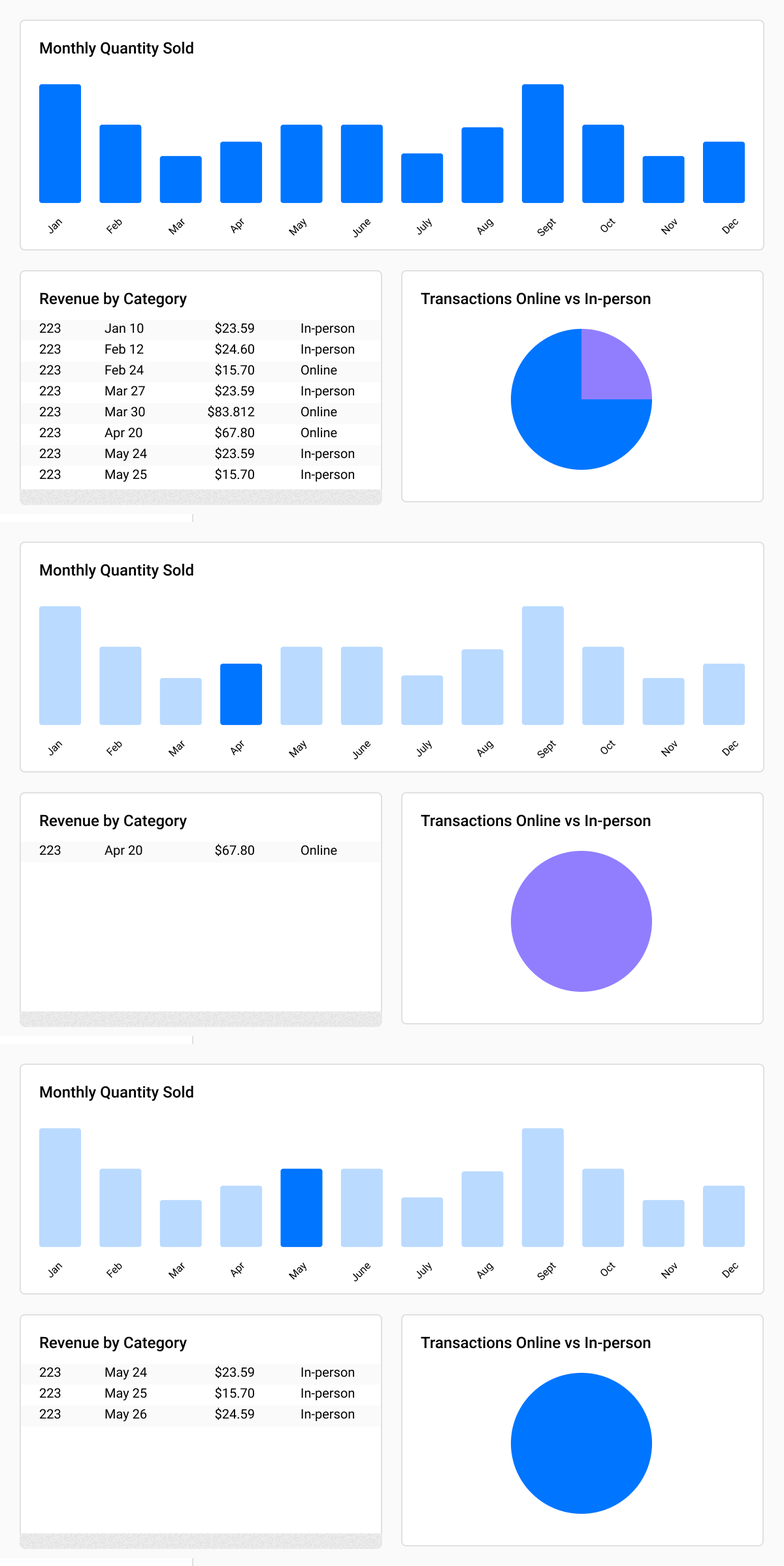
Filter drilldowns allow you to filter charts based on selections made on other charts. For example you can select a row on table to further filter down a bar chart to only show orders based on the row selected.
## Demo Video
To see a Dashboard Drilldowns demo, check out this Loom [here](https://www.loom.com/share/2b2588d9fd2848baa99740b2d785d313).
## Getting Started with Dashboard Drilldowns
Here’s a few steps to start using Dashboard Drilldowns
**Step 1: Choose a Dashboard**
Navigate to the Edit view of a Dashboard that you’d like to create a Dashboard Drilldown View for.
**Step 2: Navigate to the new Views section of the Edit modal**
You’ll find a new tab on the right side of the Edit modal, allowing you to view Layers for your Dashboard.
**Step 3: Create a new Dashboard Drilldown View**
Click the plus sign to add a new View to your dashboard. When creating a new View, you’ll be asked to choose a Chart and Source Column for your Dashboard Drilldown to reference.
Once you have created a new View, you’ll find that the reference Chart now has additional Actions while edited that are focused on Dashboard Drilldowns.
**Step 4: Build out your Dashboard**
Build out your new Dashboard as you would any other dashboard. You’ll find all datasets that have been imported previously are available for use in your Dashboard Drilldown.
**Step 5: Save and Publish your new Dashboard Drilldown View**
Saving and publishing processes remain the same with added Dashboard Views. Use Explo’s preview function to test out your new Dashboard Views!
## FAQ
**Dashboard Drilldowns are currently in Early Release. What does Early Release mean?**
Dashboard Drilldowns are available to be used in production environments, but you need to reach out to [support@explo.co](mailto:support@explo.co) in order to have it enabled for your account.
**Which Charts does Dashboard Drilldowns work with today?**
Today, Dashboard Drilldowns are available for two dimensional charts. In the future, you’ll find additional chart types added to this functionality.
**How many Dashboard Views are able to be created for a dashboard?**
In early release, Dashboards are able to have up to three levels of views to drill into.
# Overview
Source: https://docs.explo.co/creating-dashboards/drilldowns/filter-drilldowns
Filter drilldowns allow you to filter charts based on selections made on other charts. For example you can select a row on table to further filter down a bar chart to only show orders based on the row selected.
 ## Using filter drilldowns
Filter drilldowns can be linked to other visualizations the same way as control components. You have the option of configuring them in filter section or using the variables directly in the dataset editor.
## Charts that support drilldowns
* Bar Charts
* Tables
# Bar Charts
Source: https://docs.explo.co/creating-dashboards/drilldowns/filter-drilldowns/bar-charts
Here's how to enable drilldowns for bar charts
### Enable Drilldowns
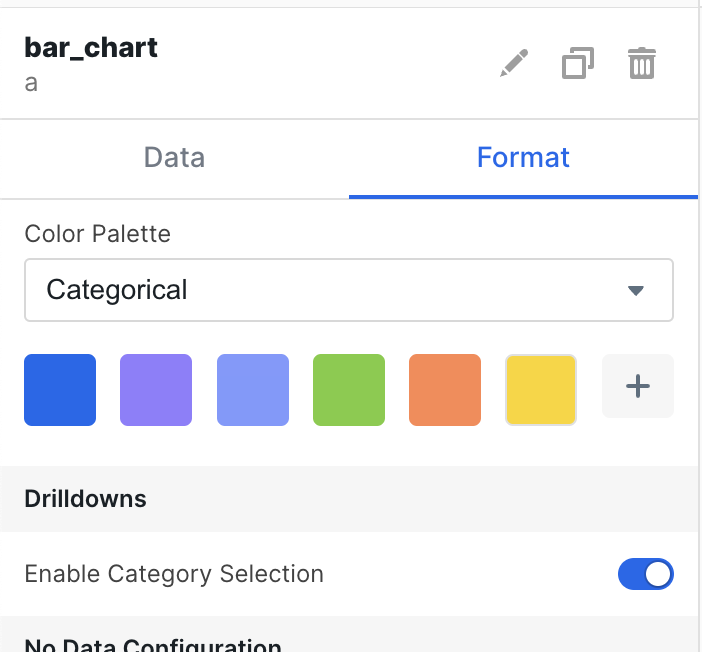
The first step to setting up the drilldown is to enable it in the bar chart
itself. In the config you can enable category selection in the drilldown menu.
Select the option to turn on the drilldown.
## Using filter drilldowns
Filter drilldowns can be linked to other visualizations the same way as control components. You have the option of configuring them in filter section or using the variables directly in the dataset editor.
## Charts that support drilldowns
* Bar Charts
* Tables
# Bar Charts
Source: https://docs.explo.co/creating-dashboards/drilldowns/filter-drilldowns/bar-charts
Here's how to enable drilldowns for bar charts
### Enable Drilldowns
The first step to setting up the drilldown is to enable it in the bar chart
itself. In the config you can enable category selection in the drilldown menu.
Select the option to turn on the drilldown.
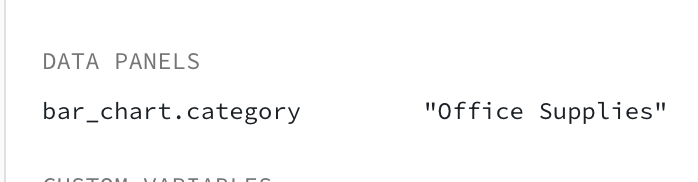
 ### Variables
When drilldown is turned on for that bar chart, a variable will be created for
that chart. The underlying value will be assigned to a variable with the format
`chart_id.category` as shown below.
You can then use the new variable as you would any other variable generated from
a filter or dropdown in the SQL editor or in the filter config for individual
charts.
For more information on how to use variables, you can reference the docs
[here](/creating-dashboards/variables/using-variables).
### Variables
When drilldown is turned on for that bar chart, a variable will be created for
that chart. The underlying value will be assigned to a variable with the format
`chart_id.category` as shown below.
You can then use the new variable as you would any other variable generated from
a filter or dropdown in the SQL editor or in the filter config for individual
charts.
For more information on how to use variables, you can reference the docs
[here](/creating-dashboards/variables/using-variables).
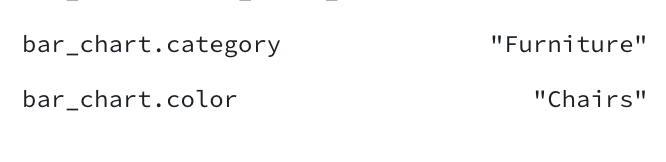
 If the bar chart is grouped then two variables will be set once a value is
selected like below.
If the bar chart is grouped then two variables will be set once a value is
selected like below.
 # Data Tables
Source: https://docs.explo.co/creating-dashboards/drilldowns/filter-drilldowns/data-tables
Here's how to enable drilldowns for data tables
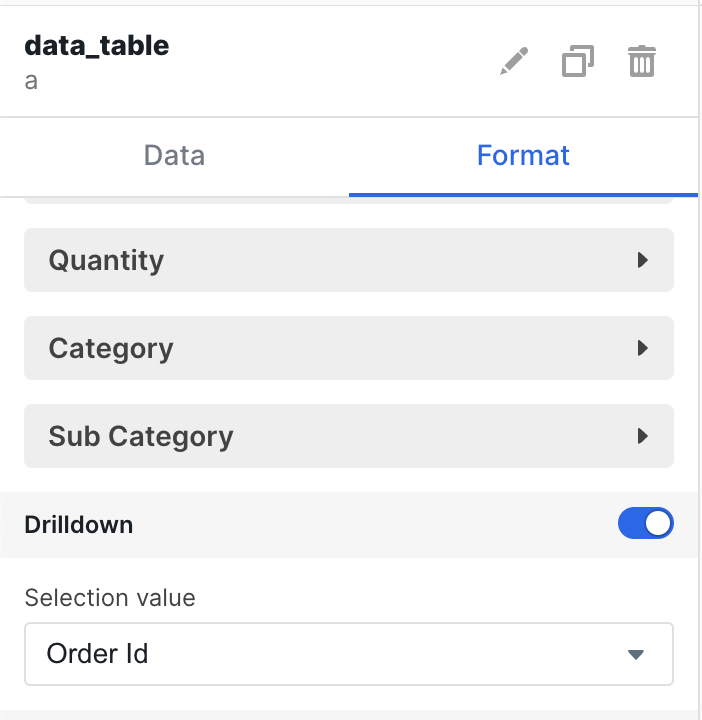
### Enable Drilldowns
In the config menu turn on drilldowns and then select a column from the table.
The value for that column in the row you have selected will be set as the
variable.
# Data Tables
Source: https://docs.explo.co/creating-dashboards/drilldowns/filter-drilldowns/data-tables
Here's how to enable drilldowns for data tables
### Enable Drilldowns
In the config menu turn on drilldowns and then select a column from the table.
The value for that column in the row you have selected will be set as the
variable.
 ### Variables
Once a row has been selected the value of the column set will be set as a
variable with the key being the id of the table as seen below.
### Variables
Once a row has been selected the value of the column set will be set as a
variable with the key being the id of the table as seen below.
 # Underlying Data Drilldowns
Source: https://docs.explo.co/creating-dashboards/drilldowns/underlying-data-drilldowns
Easily expose the data powering different visualizations on your dashboard.
# Underlying Data Drilldowns
Source: https://docs.explo.co/creating-dashboards/drilldowns/underlying-data-drilldowns
Easily expose the data powering different visualizations on your dashboard.
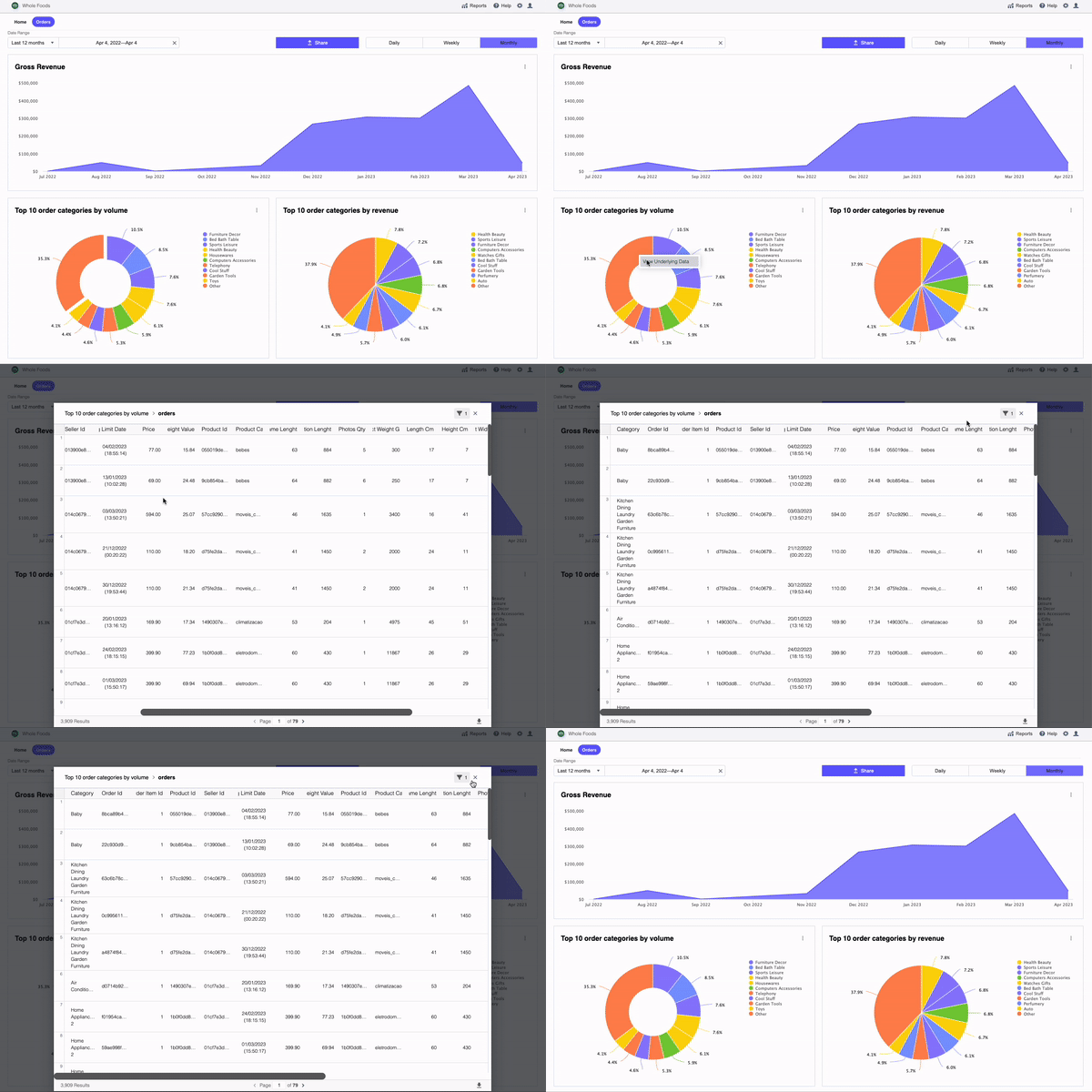 Turn on underlying data drilldowns, go to the `actions` tab and enable the option “**Open a modal with a table of the underlying data**”.
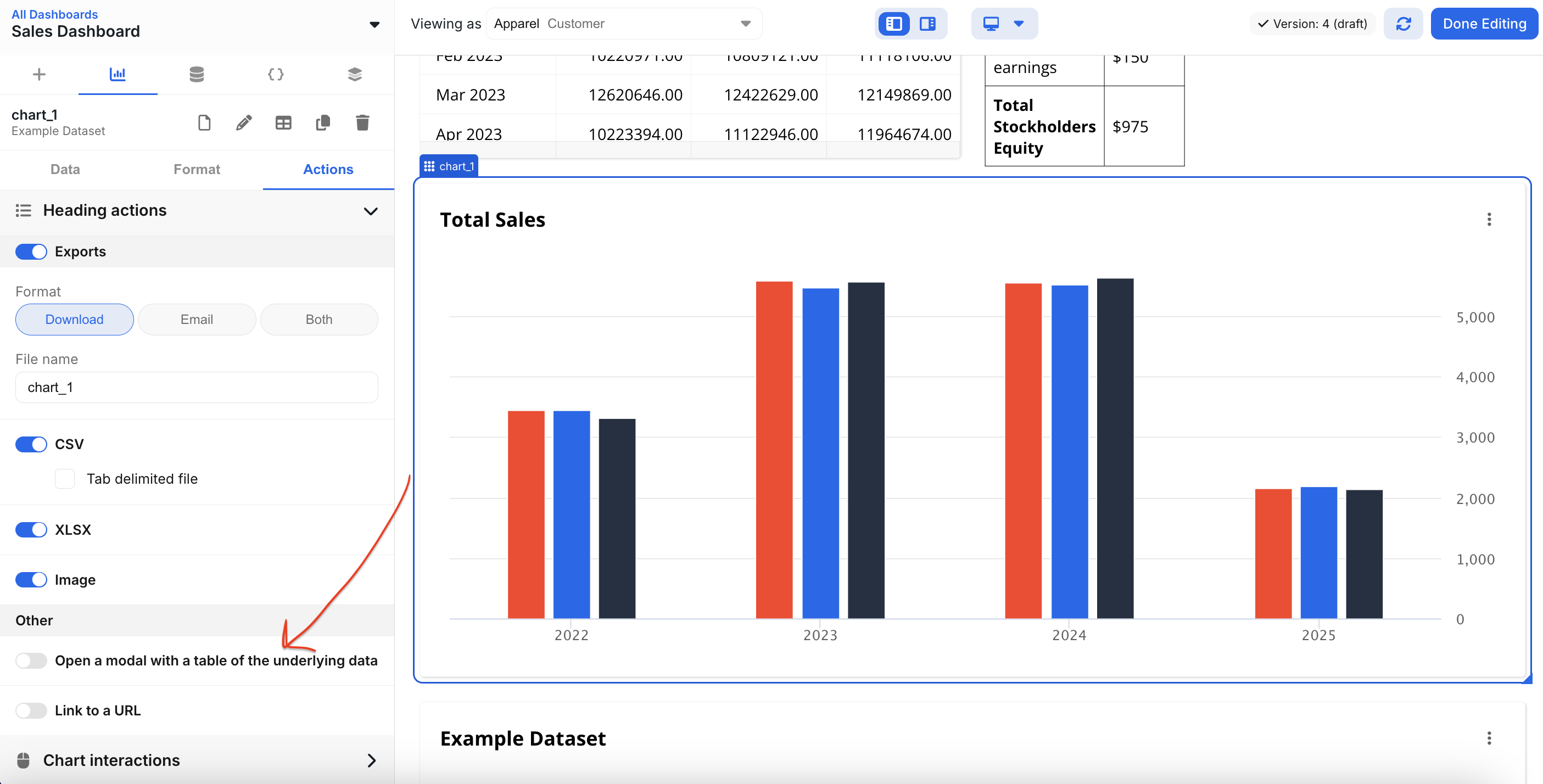 To open the drilldown modal, users can do one of the following:
1. Select the option in the triple dot menu on the top right of each component.
2. Click on a data point (bar, slice, point, etc.). This will create a table view of only data for that specific slice of the data.
To open the drilldown modal, users can do one of the following:
1. Select the option in the triple dot menu on the top right of each component.
2. Click on a data point (bar, slice, point, etc.). This will create a table view of only data for that specific slice of the data.
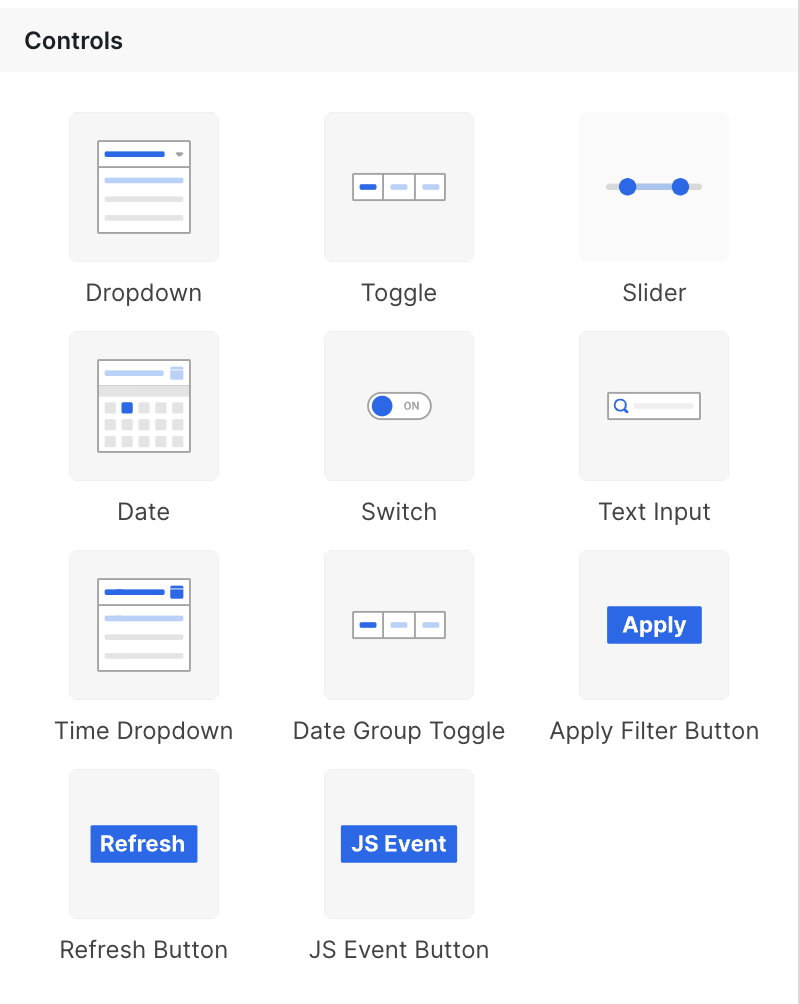
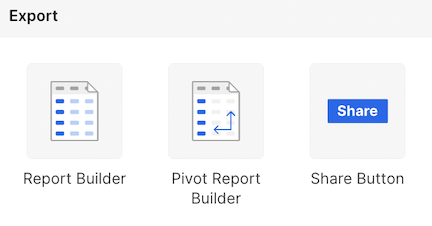
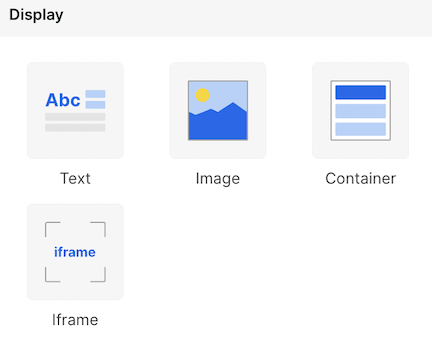 * Drag and drop these UI Elements onto your dashboard to use them.
* To edit a UI element, **double-click on the component** and the editor will
appear in the left side panel.
## Adding a new UI Element
* Drag and drop these UI Elements onto your dashboard to use them.
* To edit a UI element, **double-click on the component** and the editor will
appear in the left side panel.
## Adding a new UI Element
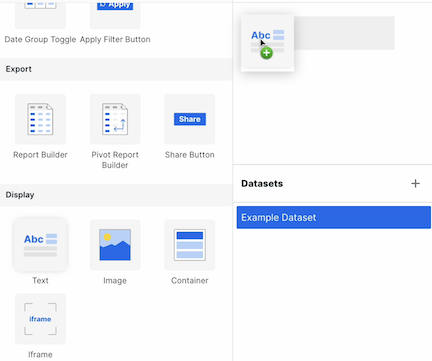 Adding new components is easy! Simply drag the component onto the canvas to get
started. You will see a hovering shadow, indicating where the component will go
when you drop it.
## Filtering
You can now filter charts directly from the UI elements.
Scroll down to the bottom of the `Setup` page to see the configuration options. With the setup process, you will setup the following relationship:
Adding new components is easy! Simply drag the component onto the canvas to get
started. You will see a hovering shadow, indicating where the component will go
when you drop it.
## Filtering
You can now filter charts directly from the UI elements.
Scroll down to the bottom of the `Setup` page to see the configuration options. With the setup process, you will setup the following relationship:`Selected Field` `Operator` `UI Element Value`
Some concrete examples:
`ecommerce_order_shipment_date` `is between` `date range`
`category_field` `is in` `multiselect dropdown values`
And so on...
The configuration process is below.
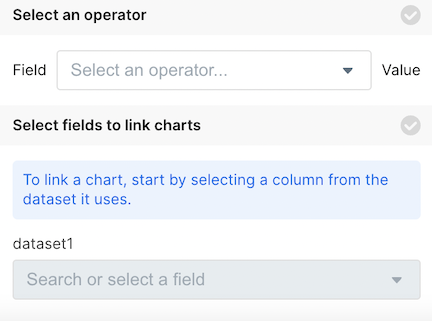 First, select your operator.
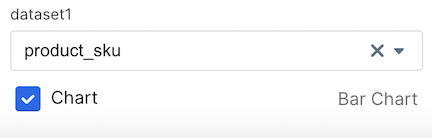
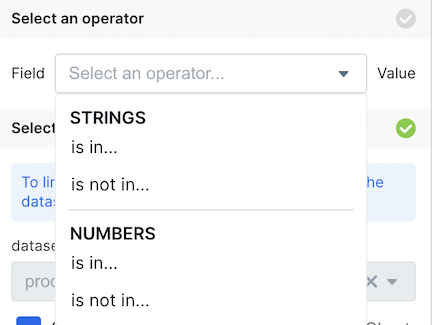 At this point, the charts on the dashboard will tell you that you need to Select a Field that the operator applies to.
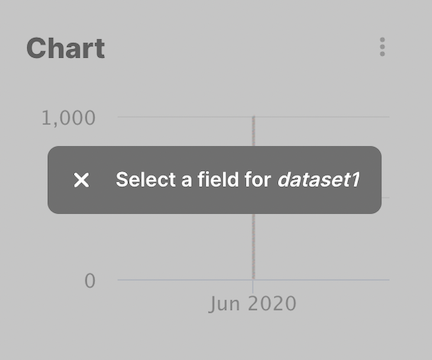 You can now select the field and which charts you want the filter to apply to.
 You will then get the message from the chart that the filter is configured.
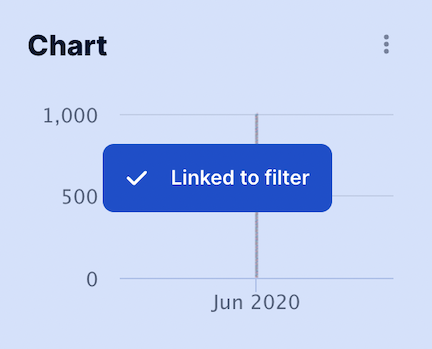 And now you have a filter configured for the charts!
# Apply Filter Button
Source: https://docs.explo.co/creating-dashboards/ui-elements/controls/apply-filter-button
An apply filter button is used to enable your customers to trigger a refresh of the dashboard once certain filters have been changed.
And now you have a filter configured for the charts!
# Apply Filter Button
Source: https://docs.explo.co/creating-dashboards/ui-elements/controls/apply-filter-button
An apply filter button is used to enable your customers to trigger a refresh of the dashboard once certain filters have been changed.
 ## What it does
The apply filter button is used to:
* prevent the dashboard from reloading when configured filters are modified
* instead allow your users to trigger the reload when they are done changing the
filters
## Configuration
## What it does
The apply filter button is used to:
* prevent the dashboard from reloading when configured filters are modified
* instead allow your users to trigger the reload when they are done changing the
filters
## Configuration
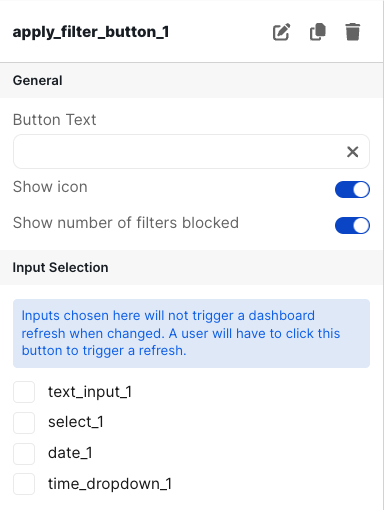 ### Basic Configuration
| Configuration Option | Description |
| ------------------------------ | ------------------------------------------------------------------------------------------------------------------------------------------------------------------------------------------------------------------------------------------------------------------------------------------------------------------------------------------------------ |
| Button Text | This is the text displayed on the button on the dashboard. It defaults to "Apply Filters" |
| Show Icon | When toggled on, a filter icon is shown on the left side of the text in the button. It defaults to on. |
| Show number of filters blocked | When toggled on, whenever a user changes a filter that is being controlled by the apply filter button, a number appears to the right of the button text indicating how many filters are currently stale and would be updated if the user clicks the button. |
| Input Selection | This section shows you all the inputs you have on your dashboard (represented by the element ID). You then check the boxes for all inputs you would like to be linked to this button.
### Basic Configuration
| Configuration Option | Description |
| ------------------------------ | ------------------------------------------------------------------------------------------------------------------------------------------------------------------------------------------------------------------------------------------------------------------------------------------------------------------------------------------------------ |
| Button Text | This is the text displayed on the button on the dashboard. It defaults to "Apply Filters" |
| Show Icon | When toggled on, a filter icon is shown on the left side of the text in the button. It defaults to on. |
| Show number of filters blocked | When toggled on, whenever a user changes a filter that is being controlled by the apply filter button, a number appears to the right of the button text indicating how many filters are currently stale and would be updated if the user clicks the button. |
| Input Selection | This section shows you all the inputs you have on your dashboard (represented by the element ID). You then check the boxes for all inputs you would like to be linked to this button.Any options selected will not refresh the dashboard automatically when changed. The values for the filter are only applied once the apply button is pressed | # Date Source: https://docs.explo.co/creating-dashboards/ui-elements/controls/date Date pickers allows your customers to filter the dashboard to a specific slice of data in time. ## What it does
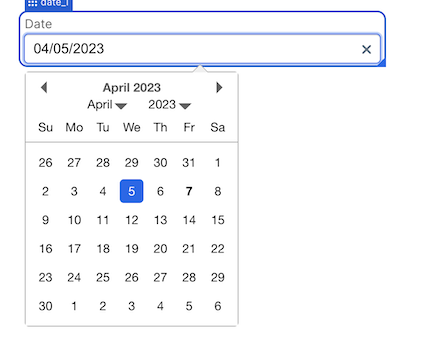
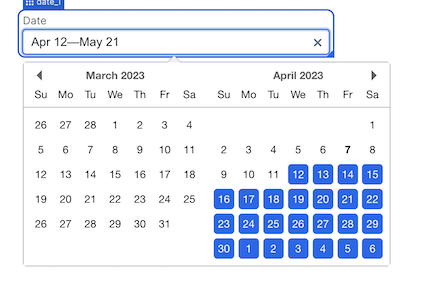
 This component allows you to create a date picker input which your users can use
to filter data. The data picker can be a single date, or a date range.
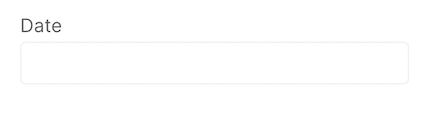
When the element is added to the dashboard, it looks like:
This component allows you to create a date picker input which your users can use
to filter data. The data picker can be a single date, or a date range.
When the element is added to the dashboard, it looks like:
 ### Single Date
 ### Date Range
 ## Configuration
#### Single Date
## Configuration
#### Single Date
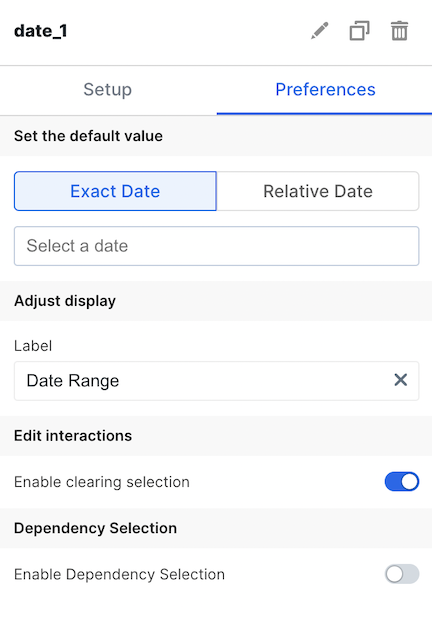 ### Single Date Basic Configuration
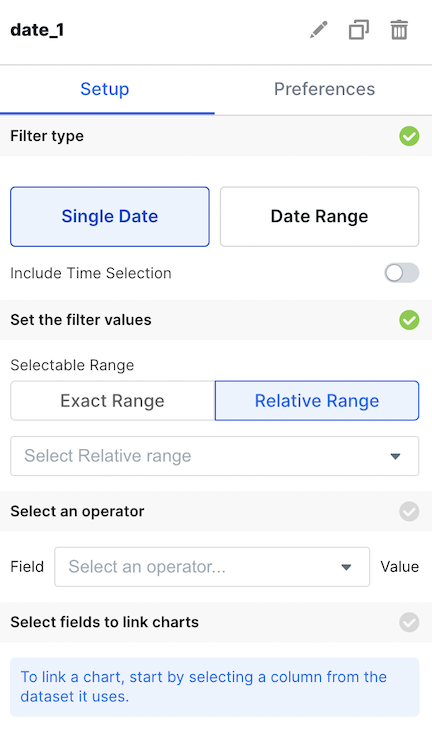
| Configuration Option | Description |
| --------------------------- | --------------------------------------------------------------------------------------------------------------------------------------------------------------------------------------------------------------------- |
| Include Time Selection | Toggle to allow users to select a time with the date |
| Selectable Range | Define from which range users can select the single date value from. You can input exact dates (such as April 1 - April 20) or relative ranges (such as the last month). |
| Default Value | Define the default value on dashboard loads. |
| Label | Define the label of the component in the dashboard. |
| Enable clearing selection | Allow users to clear the input with an X mark. |
| Enable Dependency Selection | When enabled, you may create a dependency between this element and other elements on the dashboard. When this element is dependent on an element selected, it will be disabled until a value is selected by the user. |
#### Date Range
### Single Date Basic Configuration
| Configuration Option | Description |
| --------------------------- | --------------------------------------------------------------------------------------------------------------------------------------------------------------------------------------------------------------------- |
| Include Time Selection | Toggle to allow users to select a time with the date |
| Selectable Range | Define from which range users can select the single date value from. You can input exact dates (such as April 1 - April 20) or relative ranges (such as the last month). |
| Default Value | Define the default value on dashboard loads. |
| Label | Define the label of the component in the dashboard. |
| Enable clearing selection | Allow users to clear the input with an X mark. |
| Enable Dependency Selection | When enabled, you may create a dependency between this element and other elements on the dashboard. When this element is dependent on an element selected, it will be disabled until a value is selected by the user. |
#### Date Range
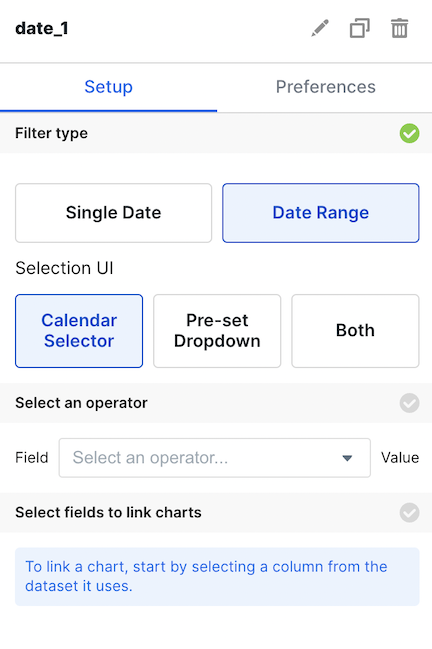
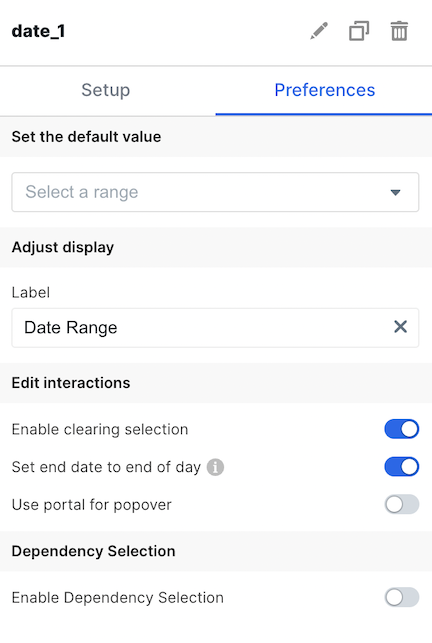 ### Date Range Basic Configuration
| Configuration Option | Description |
| --------------------------- | --------------------------------------------------------------------------------------------------------------------------------------------------------------------------------------------------------------------- |
| Selection UI | Allow your users to select from a preset list of options (such as previous quarter), allow a custom range they define, or both. |
| Default Value | Define the default value on dashboard loads. |
| Label | Define the label of the component in the dashboard. |
| Enable clearing selection | Allow users to clear the input with an X mark. |
| Set end date to end of day | This toggle allows you to select the end date in the range to refer to the end of the day, which is useful for SQL queries. Otherwise, it will refer to the beginning of the day. |
| Use portal for popover | This toggle makes it so that the dropdown or multiselect components, when the dropdown portion is opened, won't be cutoff when extending beyond a container or the embed frame. |
| Enable Dependency Selection | When enabled, you may create a dependency between this element and other elements on the dashboard. When this element is dependent on an element selected, it will be disabled until a value is selected by the user. |
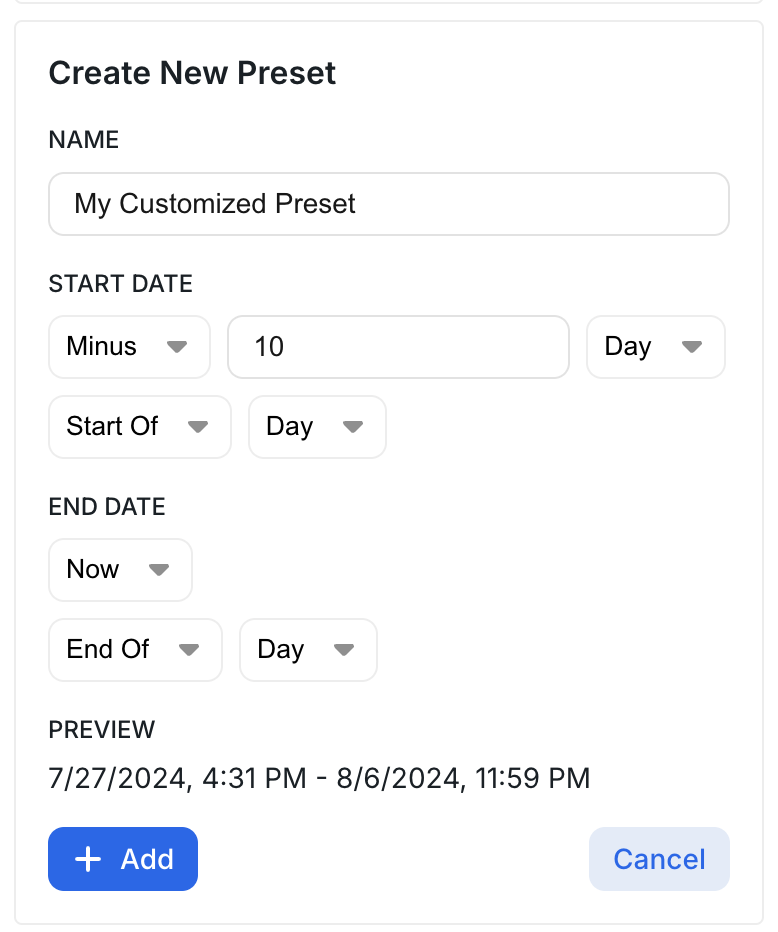
### Customizable Date Range Presets
If the pre-defined date ranges are insufficient (e.g. Today, Yesterday, Last 7 Days, etc.), you can create custom date range presets.
Date range presets appear in the dropdown alongside the pre-defined date ranges.
#### Usage
Configuration for Start Date / End Date:
* Now - Today's Date
* Plus - Add to today's date (for future dates)
* Minus - Subtract from today's date (for past dates)
* StartOf - Sets the time to 00:00:00
* EndOf - Sets the time to 23:59:59
A preview of the current date range is shown to help you understand the range you are creating.
Example of the Last 10 Days:
### Date Range Basic Configuration
| Configuration Option | Description |
| --------------------------- | --------------------------------------------------------------------------------------------------------------------------------------------------------------------------------------------------------------------- |
| Selection UI | Allow your users to select from a preset list of options (such as previous quarter), allow a custom range they define, or both. |
| Default Value | Define the default value on dashboard loads. |
| Label | Define the label of the component in the dashboard. |
| Enable clearing selection | Allow users to clear the input with an X mark. |
| Set end date to end of day | This toggle allows you to select the end date in the range to refer to the end of the day, which is useful for SQL queries. Otherwise, it will refer to the beginning of the day. |
| Use portal for popover | This toggle makes it so that the dropdown or multiselect components, when the dropdown portion is opened, won't be cutoff when extending beyond a container or the embed frame. |
| Enable Dependency Selection | When enabled, you may create a dependency between this element and other elements on the dashboard. When this element is dependent on an element selected, it will be disabled until a value is selected by the user. |
### Customizable Date Range Presets
If the pre-defined date ranges are insufficient (e.g. Today, Yesterday, Last 7 Days, etc.), you can create custom date range presets.
Date range presets appear in the dropdown alongside the pre-defined date ranges.
#### Usage
Configuration for Start Date / End Date:
* Now - Today's Date
* Plus - Add to today's date (for future dates)
* Minus - Subtract from today's date (for past dates)
* StartOf - Sets the time to 00:00:00
* EndOf - Sets the time to 23:59:59
A preview of the current date range is shown to help you understand the range you are creating.
Example of the Last 10 Days:
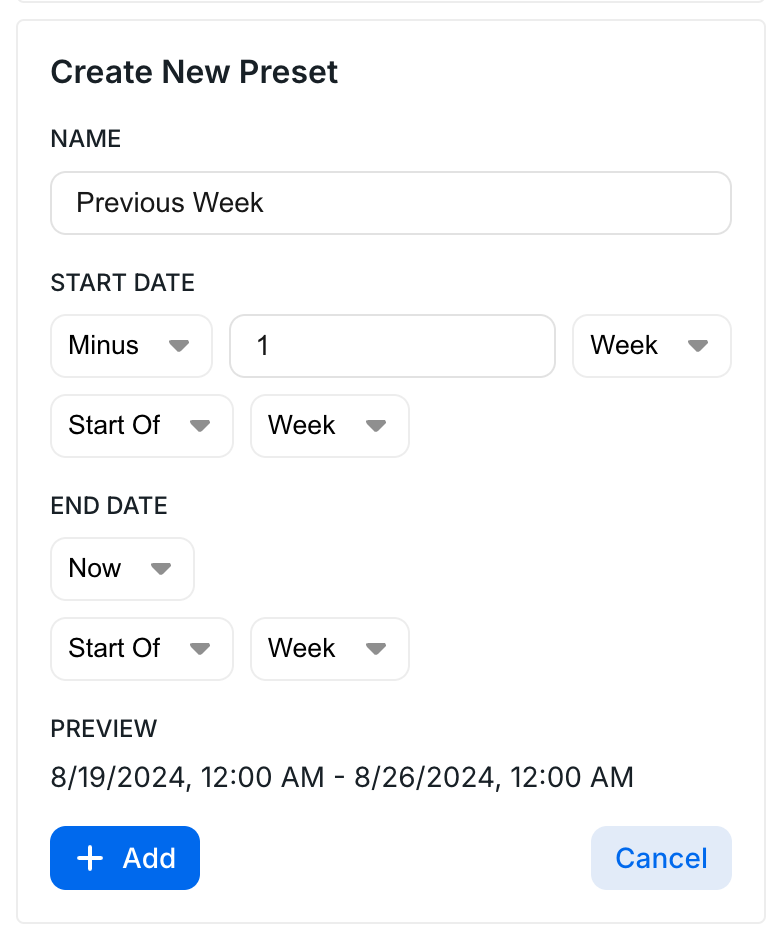
 Example of previous week:
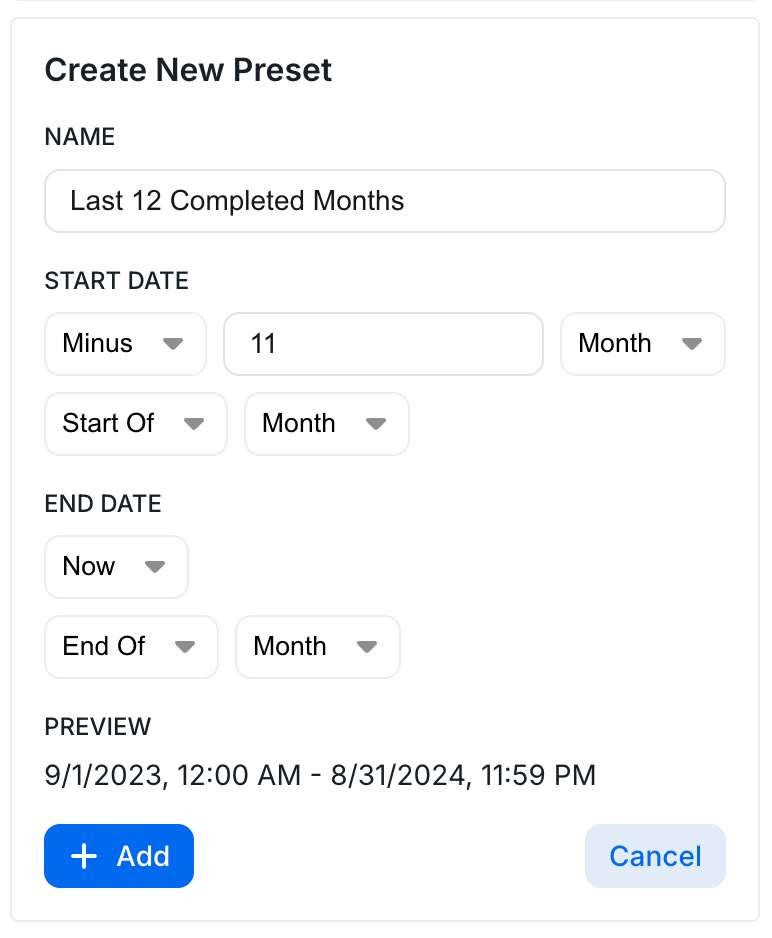
 Example of last 12 completed months:
 ## Variable Usage
To access the elements in the SQL editor, use the following syntax:
## Variable Usage
To access the elements in the SQL editor, use the following syntax:
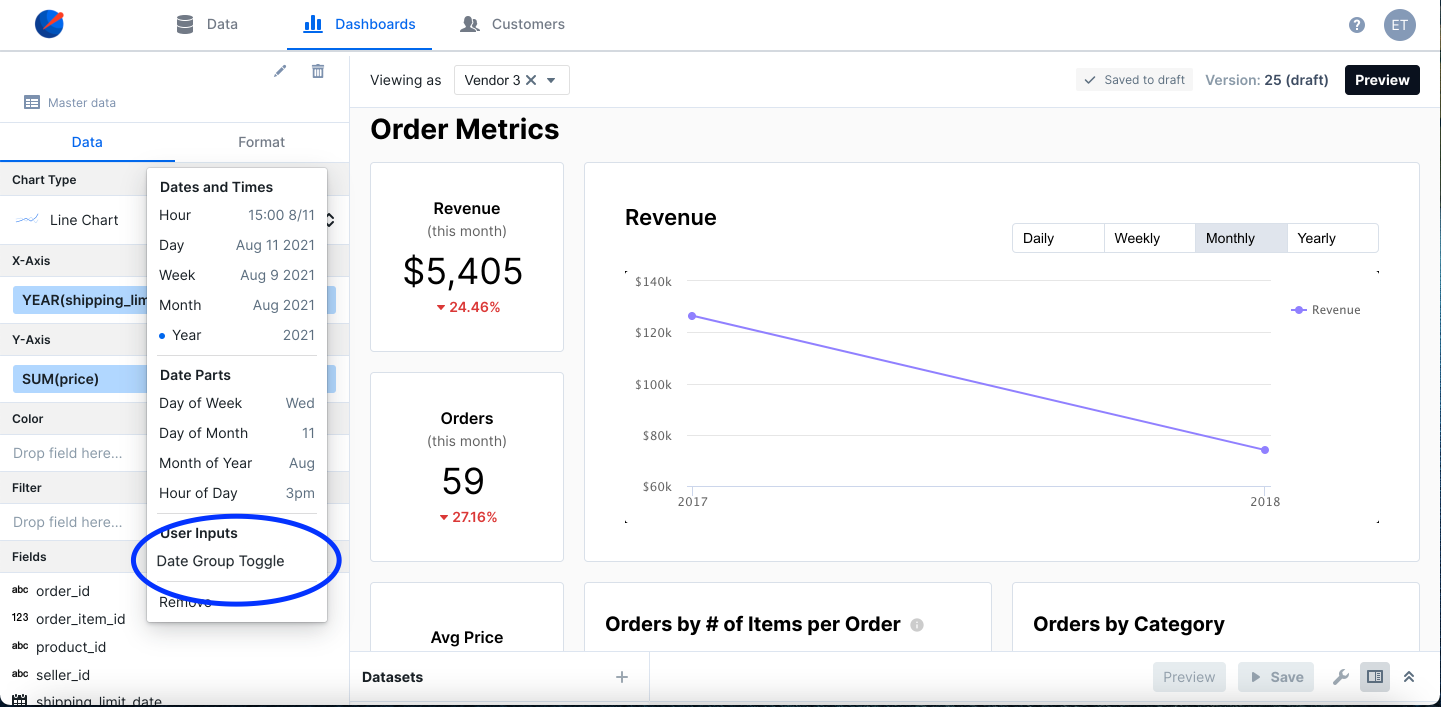
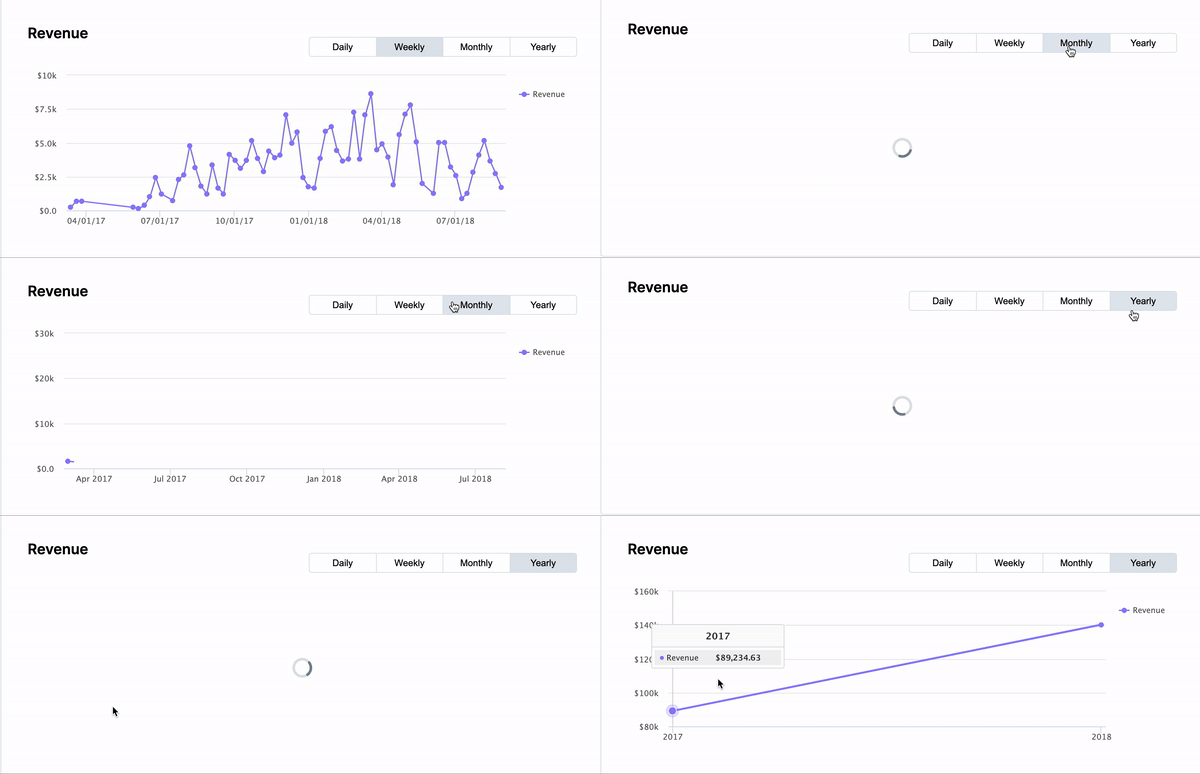 Next, select the chart you want to link, and click on the arrow beside the date
field to group on. Select Date Group Toggle under user inputs.
Next, select the chart you want to link, and click on the arrow beside the date
field to group on. Select Date Group Toggle under user inputs.
 Select the correct component from the dropdown below.
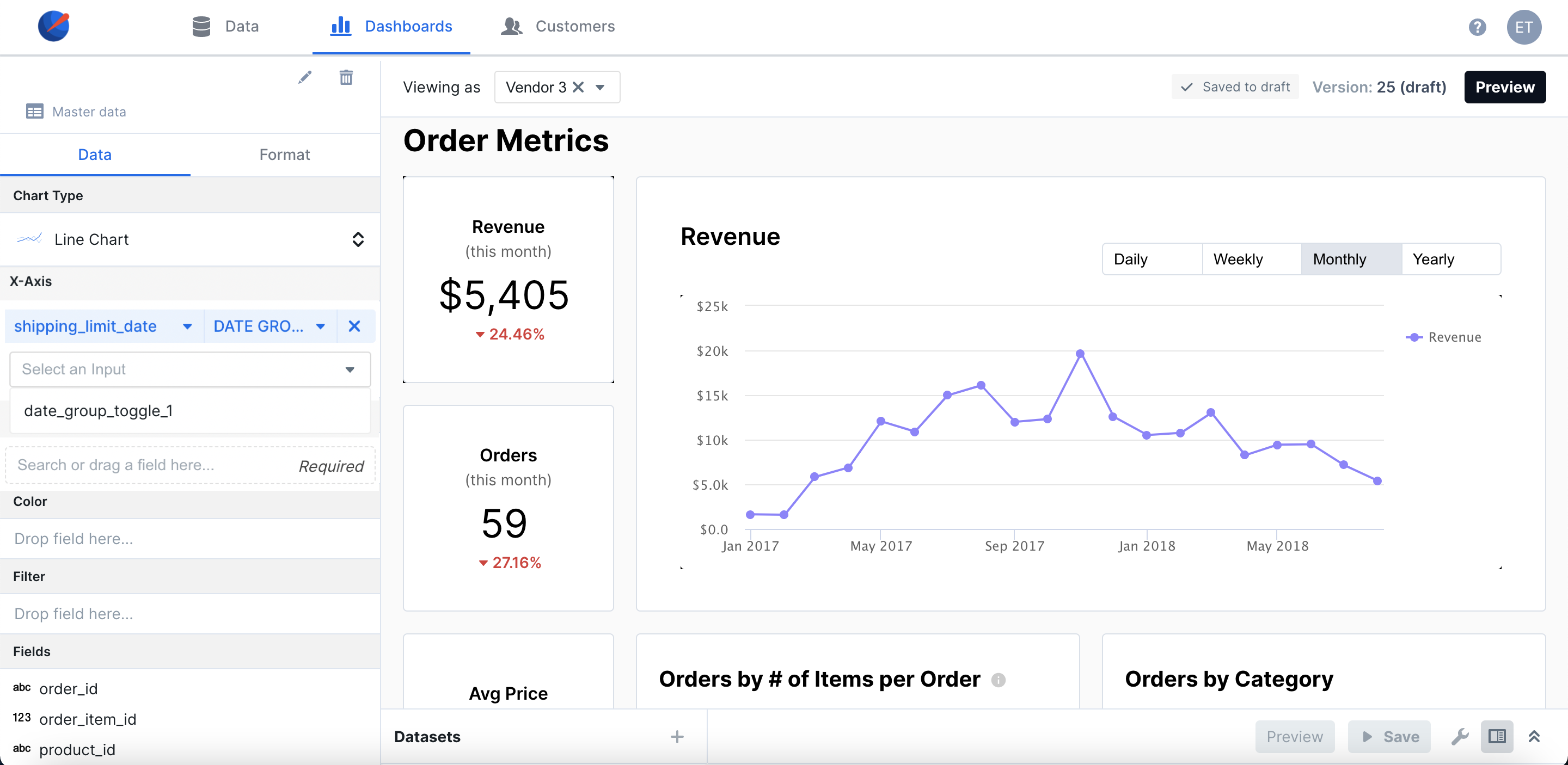 Your chart will now be configured to change based on the data group selected.
## Configuration
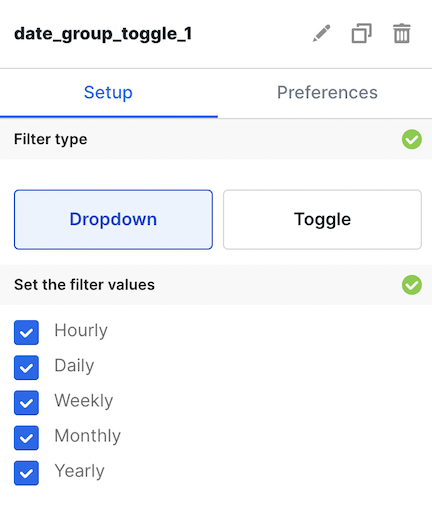
#### Setup
Your chart will now be configured to change based on the data group selected.
## Configuration
#### Setup
 #### Preferences
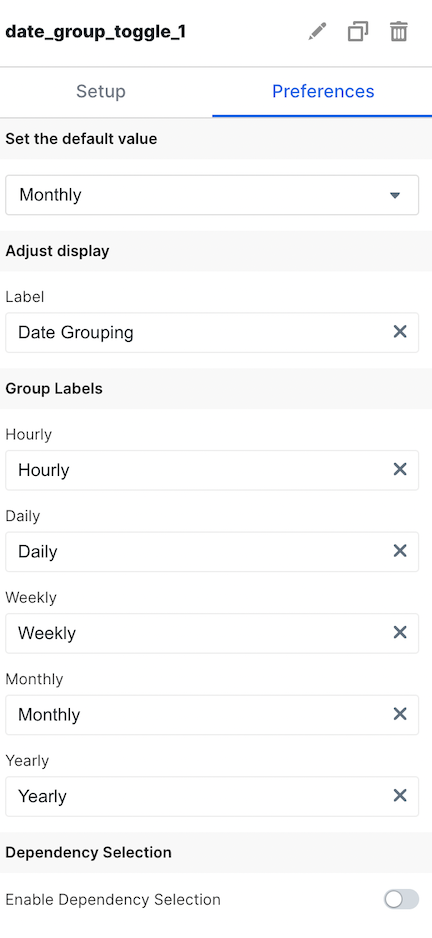 ### Basic Configuration
Available by accessing the `Setup` and `Preferences` tabs
| Configuration Option | Description |
| --------------------------- | --------------------------------------------------------------------------------------------------------------------------------------------------------------------------------------------------------------------- |
| Filter Type | Choose whether your users can access the filter value via a dropdown or toggle element |
| Set the filter values | Choose which filter values your users will have available to them |
| Set the default value | Set the default selected value on dashboard load |
| Label | Set the label for the Time Dropdown your users will see |
| Group Labels | Change the labels of the dropdown options that your users see |
| Enable Dependency Selection | When enabled, you may create a dependency between this element and other elements on the dashboard. When this element is dependent on an element selected, it will be disabled until a value is selected by the user. |
## Filtering
You can now filter directly your charts in the UI elements themselves. For more information on this process, see the [filtering section of the overview page](/creating-dashboards/ui-elements#filtering).
# Dropdown
Source: https://docs.explo.co/creating-dashboards/ui-elements/controls/dropdown
Dropdowns allow your customers to dynamically change the dashboard based on options they select.
## What it does
### Basic Configuration
Available by accessing the `Setup` and `Preferences` tabs
| Configuration Option | Description |
| --------------------------- | --------------------------------------------------------------------------------------------------------------------------------------------------------------------------------------------------------------------- |
| Filter Type | Choose whether your users can access the filter value via a dropdown or toggle element |
| Set the filter values | Choose which filter values your users will have available to them |
| Set the default value | Set the default selected value on dashboard load |
| Label | Set the label for the Time Dropdown your users will see |
| Group Labels | Change the labels of the dropdown options that your users see |
| Enable Dependency Selection | When enabled, you may create a dependency between this element and other elements on the dashboard. When this element is dependent on an element selected, it will be disabled until a value is selected by the user. |
## Filtering
You can now filter directly your charts in the UI elements themselves. For more information on this process, see the [filtering section of the overview page](/creating-dashboards/ui-elements#filtering).
# Dropdown
Source: https://docs.explo.co/creating-dashboards/ui-elements/controls/dropdown
Dropdowns allow your customers to dynamically change the dashboard based on options they select.
## What it does
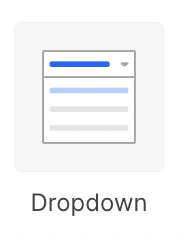 This component allows you to create a select input that your users can
interact with to filter and group data on the dashboard.
There are three different configuration options:
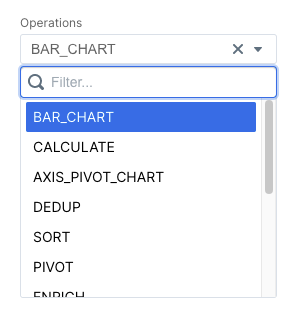
### Dropdown
Allows for a user to select a single value from a dropdown
This component allows you to create a select input that your users can
interact with to filter and group data on the dashboard.
There are three different configuration options:
### Dropdown
Allows for a user to select a single value from a dropdown
 ### Multiselect
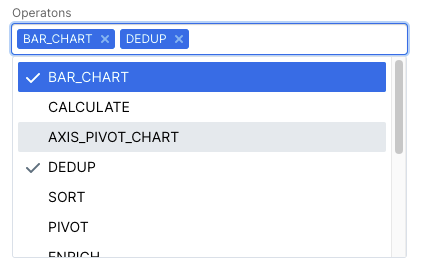
Allows for a user to select multiple values from a dropdown
### Multiselect
Allows for a user to select multiple values from a dropdown
 ### Toggle
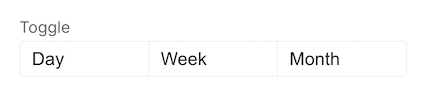
Allows for a user to select a single value from a toggle view
### Toggle
Allows for a user to select a single value from a toggle view
 ## Configuration
Setup
## Configuration
Setup
 Preferences
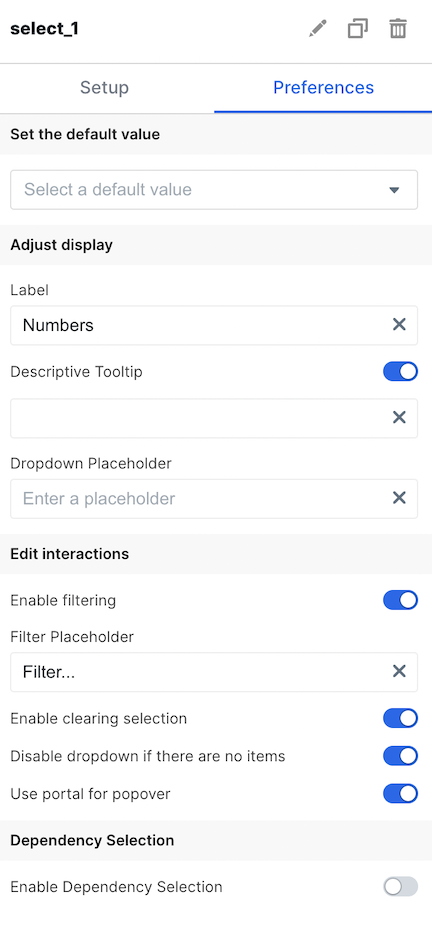 ### Basic Config
| Configuration Option | Description |
| -------------------------------------- | ------------------------------------------------------------------------------------------------------------------------------------------------------------------------------------------------------------------------------------------------------------------------------------------------------------------------------------------------------------ |
| Label | This text is the label given to the dropdown select on the dashboard. The label is placed above the dropdown. This field can be empty. |
| Descriptive tooltip | Enable this element and use the textfield that pops up to give a tooltip element to your users to hover over to understand what the dropdown/multiselect/toggle does. |
| Placeholder | This is the message shown in the dropdown when no option has been selected by the user yet (this option is not available for the toggle) |
| Enable Filtering | This toggle controls whether or not the dropdown options menu is filterable. By default, the menu is filterable.
### Basic Config
| Configuration Option | Description |
| -------------------------------------- | ------------------------------------------------------------------------------------------------------------------------------------------------------------------------------------------------------------------------------------------------------------------------------------------------------------------------------------------------------------ |
| Label | This text is the label given to the dropdown select on the dashboard. The label is placed above the dropdown. This field can be empty. |
| Descriptive tooltip | Enable this element and use the textfield that pops up to give a tooltip element to your users to hover over to understand what the dropdown/multiselect/toggle does. |
| Placeholder | This is the message shown in the dropdown when no option has been selected by the user yet (this option is not available for the toggle) |
| Enable Filtering | This toggle controls whether or not the dropdown options menu is filterable. By default, the menu is filterable.When filterable, a search input appears above the options that allows users to type text and filter down the options. This is recommended when your dropdown has a long list of options (this option is not available for the toggle). | | Disable dropdown if there are no items | This toggle allows for you to disable the dropdown if no options are present for selection (this option is not available for the toggle). | | Enable clearing selection | This toggle controls whether or not the user can click the "x" button to clear the selected option.
By default, this feature is enabled, meaning that users can clear out the selected option in a dropdown.
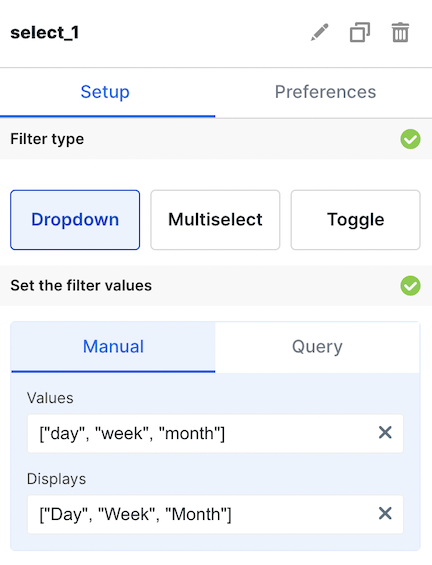
Disabled clearing selections in order to ensure that the dropdown will always have a value. | | Use Portal for Popover | This toggle makes it so that the dropdown or multiselect components, when the dropdown portion is opened, won't be cutoff when extending beyond a container or the embed frame. | | Enable Dependency Selection | When enabled, you may create a dependency between this element and other elements on the dashboard. When this element is dependent on an element selected, it will be disabled until a value is selected by the user. | ### Manual vs. Query There are two ways to supply options to the dropdown. **Manual** dropdowns allow you to provide hardcoded values. **Query** dropdowns allow you to specify the options based on a dataset defined on the dashboard. This is useful for when you want to dynamically populate the dropdown with options from you database ### Manual Config Manual dropdowns are powered by hardcoded lists of strings or numbers. You may provide only a `Values` list, in which case the values will be use to display the options.
This list is defined as javascript and so you must use quotes on strings. | | Displays | This option takes in a list of strings and numbers. This will define what the dropdown options look like when a user opens the dropdown.
When the user selects an option, the value used in the SQL query will be the corresponding `Value` option.
The `Displays` list should have the same number of elements as the `Values` list. | | Default Value | This option takes in a string or number. This defines what option the dropdown will start with when the page loads.
Use this option, in tandem with the disabling clearing selections, to ensure that the dropdown always has a value present. | | Enable Dependency Selection | When enabled, you may create a dependency between this element and other elements on the dashboard. When this element is dependent on an element selected, it will be disabled until a value is selected by the user. | ## Query Config Query dropdowns use a dataset to power the contents of the dropdown. You must define the dataset to power the dropdown using the SQL editor on the dashboard editing page. | Configuration Option | Description | | ----------------------- | -------------------------------------------------------------------------------------------------------------------------------------------------------------------------------------------------------------------------------------------------------------------------------- | | Dataset | This is a dataset defined on the dashboard which will be used to populate values for the dropdown | | Values Field | From the selected dataset, the columns on the table are available to select for the values field. This field represents what value will be used when the dropdown is selected. If no display field is selected, this will also be used to display the options | | Displays Field | Also from the selected dataset, the columns on the table are available to select for the display field. The associated display will be shown in the dropdown. If the user selects that option, the value is what will be used in the [variable](/creating-dashboards/variables). | | Default to first option | If you would like to make your dropdown start with a default value, you can select this option. We will then pick the first value from the dataset when we query it and load the dashboard with that value. | | Sort Options | Pick from amongst the sort options to pick how you would like the dataset sorted in the dropdown or multiselect (not available for the toggle). |
 ## What it does
The Javascript Event Button emits a custom JavaScript event, facilitating the execution of additional scripts in response.
## Configuration
## What it does
The Javascript Event Button emits a custom JavaScript event, facilitating the execution of additional scripts in response.
## Configuration
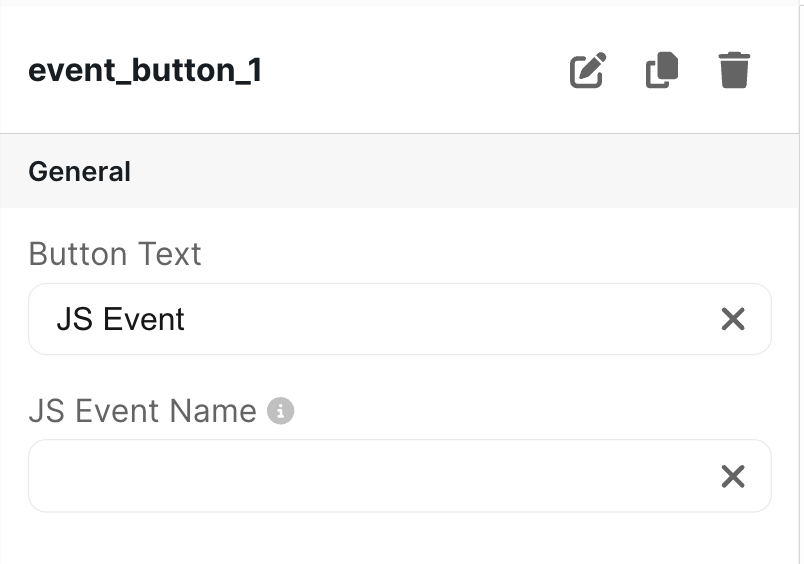 ### Basic Configuration
| Configuration Option | Description |
| -------------------- | ----------------------------------------------------------------------------------------------------------- |
| Button Text | This is the text displayed on the button on the dashboard. It defaults to "JS Event" |
| JS Event Name | Specifies the custom JavaScript event name to emit. Note: Leaving this field blank will disable the button. |
The detail body that is passed with the javascript event contains the `customerName` and the `customerProvidedId` for the customer who clicked the button.
### Example Code
```
### Basic Configuration
| Configuration Option | Description |
| -------------------- | ----------------------------------------------------------------------------------------------------------- |
| Button Text | This is the text displayed on the button on the dashboard. It defaults to "JS Event" |
| JS Event Name | Specifies the custom JavaScript event name to emit. Note: Leaving this field blank will disable the button. |
The detail body that is passed with the javascript event contains the `customerName` and the `customerProvidedId` for the customer who clicked the button.
### Example Code
```

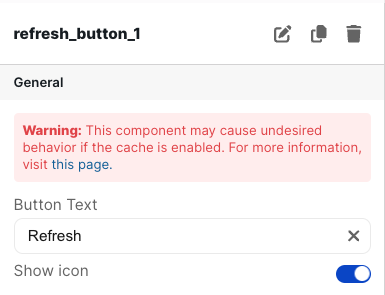 ### Basic Configuration
| Configuration Option | Description |
| -------------------- | ------------------------------------------------------------------------------------------------------- |
| Button Text | This is the text displayed on the button on the dashboard. It defaults to "Refresh Dashboard" |
| Show Icon | When toggled on, a refresh icon is shown on the left side of the text in the button. It defaults to on. |
# Slider
Source: https://docs.explo.co/creating-dashboards/ui-elements/controls/slider
Sliders allow your customers to be able to select values within a range.
### Basic Configuration
| Configuration Option | Description |
| -------------------- | ------------------------------------------------------------------------------------------------------- |
| Button Text | This is the text displayed on the button on the dashboard. It defaults to "Refresh Dashboard" |
| Show Icon | When toggled on, a refresh icon is shown on the left side of the text in the button. It defaults to on. |
# Slider
Source: https://docs.explo.co/creating-dashboards/ui-elements/controls/slider
Sliders allow your customers to be able to select values within a range.
 ## What it does
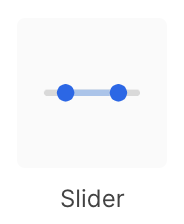
This component allows your customers to select values within a range. These values
can be used to filter the data.
## Configuration
## What it does
This component allows your customers to select values within a range. These values
can be used to filter the data.
## Configuration
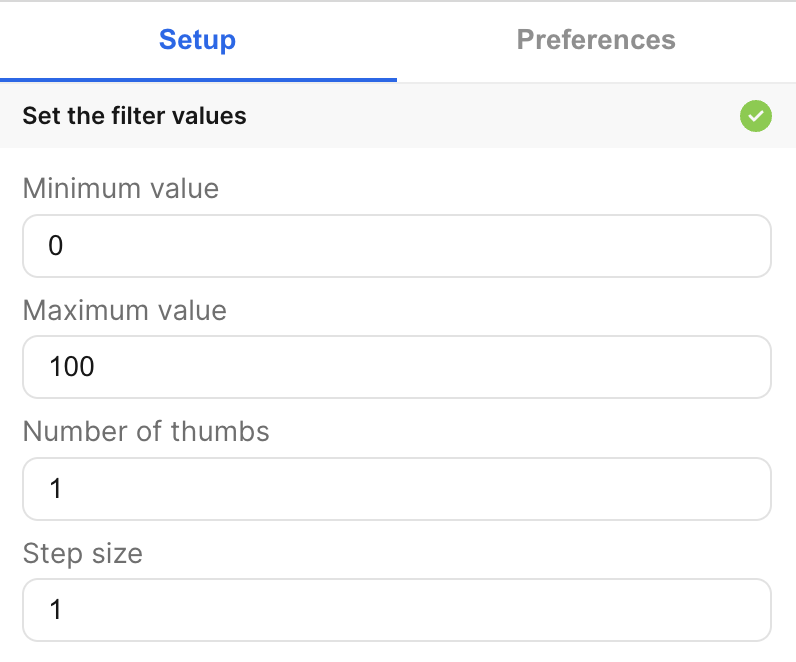
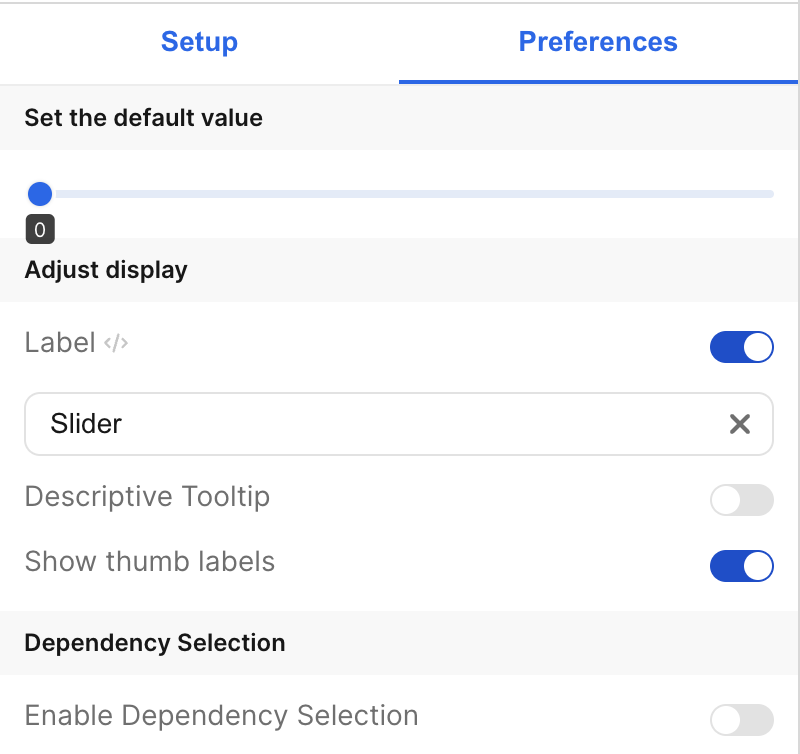 ### Basic Configuration
| Configuration Option | Description |
| --------------------------- | --------------------------------------------------------------------------------------------------------------------------------------------------------------------------------------------------------------------- |
| Label | The is the label that appears on the left side of the slider. It defaults to "Slider". The toggle allows you to choose whether or not to display this label. |
| Descriptive Tooltip | This can be configured to display a helpful popover to the customer. The toggle allows you to choose whether or not to display the tooltip. |
| Show thumb labels | This allows you to show or hide value labels below each thumb on the slider. |
| Set Default Value | Specify the default values for the thumbs. |
| Enable Dependency Selection | When enabled, you may create a dependency between this element and other elements on the dashboard. When this element is dependent on an element selected, it will be disabled until a value is selected by the user. |
| Minimum value | The minimum (leftmost) value of the slider. |
| Maximum value | The maximum (rightmost) value of the slider. |
| Number of thumbs | The number of thumbs on the slider. |
| Step size | How much each thumb jumps between values. The minimum step size is 1. |
## Variable Usage
Each thumb on the slider has a corresponding variable. The leftmost thumb is
`thumb_1`, the second (from the left) thumb is `thumb_2`, etc.
In the SQL query, use the following syntax
```sql theme={null}
--- basic usage:
WHERE 1=1
[[AND column_1 > {{slider_1.thumb_1}} AND column_1 < {{slider_1.thumb_2}}]]
```
## Filtering
You can now filter directly your charts in the UI elements themselves. For more information on this process, see the [filtering section of the overview page](/creating-dashboards/ui-elements#filtering).
# Switch
Source: https://docs.explo.co/creating-dashboards/ui-elements/controls/switch
Switches allow your customers to be able to move between two configured states of your dashboard.
### Basic Configuration
| Configuration Option | Description |
| --------------------------- | --------------------------------------------------------------------------------------------------------------------------------------------------------------------------------------------------------------------- |
| Label | The is the label that appears on the left side of the slider. It defaults to "Slider". The toggle allows you to choose whether or not to display this label. |
| Descriptive Tooltip | This can be configured to display a helpful popover to the customer. The toggle allows you to choose whether or not to display the tooltip. |
| Show thumb labels | This allows you to show or hide value labels below each thumb on the slider. |
| Set Default Value | Specify the default values for the thumbs. |
| Enable Dependency Selection | When enabled, you may create a dependency between this element and other elements on the dashboard. When this element is dependent on an element selected, it will be disabled until a value is selected by the user. |
| Minimum value | The minimum (leftmost) value of the slider. |
| Maximum value | The maximum (rightmost) value of the slider. |
| Number of thumbs | The number of thumbs on the slider. |
| Step size | How much each thumb jumps between values. The minimum step size is 1. |
## Variable Usage
Each thumb on the slider has a corresponding variable. The leftmost thumb is
`thumb_1`, the second (from the left) thumb is `thumb_2`, etc.
In the SQL query, use the following syntax
```sql theme={null}
--- basic usage:
WHERE 1=1
[[AND column_1 > {{slider_1.thumb_1}} AND column_1 < {{slider_1.thumb_2}}]]
```
## Filtering
You can now filter directly your charts in the UI elements themselves. For more information on this process, see the [filtering section of the overview page](/creating-dashboards/ui-elements#filtering).
# Switch
Source: https://docs.explo.co/creating-dashboards/ui-elements/controls/switch
Switches allow your customers to be able to move between two configured states of your dashboard.
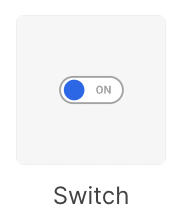 ## What it does
This component allows you to configure your dashboard so your customer can shift
between two different states.
## Configuration
## What it does
This component allows you to configure your dashboard so your customer can shift
between two different states.
## Configuration
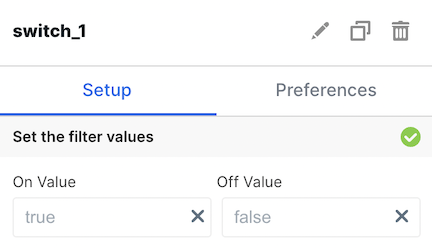
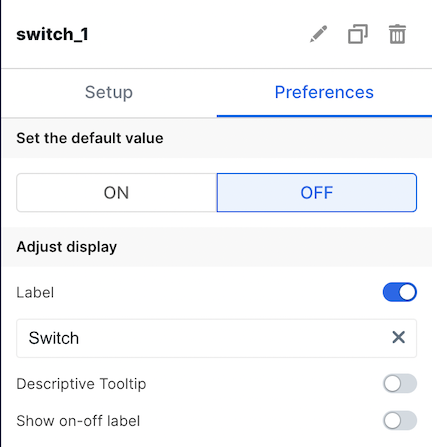 ### Basic Configuration
| Configuration Option | Description |
| --------------------------- | --------------------------------------------------------------------------------------------------------------------------------------------------------------------------------------------------------------------- |
| Label | The is the label that appears on the left side of the switch. It defaults to "Switch". The toggle allows you to choose whether or not to display this label. |
| Descriptive Tooltip | This can be configured to display a helpful popover to the customer. The toggle allows you to choose whether or not to display the tooltip. |
| On/Off Label | This is the label that appears on the right side of the switch, and it denotes the status of the switch. The toggle allows you to choose whether or not to display this label. |
| On/Off Value | This allows you to configure the value of the corresponding variable for this element. The default values are `true` for On and `false` for Off. |
| Set Default Value | Specify if default should be on or off |
| Enable Dependency Selection | When enabled, you may create a dependency between this element and other elements on the dashboard. When this element is dependent on an element selected, it will be disabled until a value is selected by the user. |
## Variable Usage
In the SQL query, use the following syntax
```sql theme={null}
--- basic usage:
WHERE 1=1
[[AND column_1 = {{switch1}}]]
--- filter a chart based on a column if switch is on, do nothing if switch is off
WHERE [[(({{switch1}} = 'true' AND column_1 = true) OR ({{switch1}} = 'false'))]]
```
## Filtering
You can now filter directly your charts in the UI elements themselves. For more information on this process, see the [filtering section of the overview page](/creating-dashboards/ui-elements#filtering).
# Text Input
Source: https://docs.explo.co/creating-dashboards/ui-elements/controls/text-input
The text input element allows you to process user inputted text on your dashboard.
### Basic Configuration
| Configuration Option | Description |
| --------------------------- | --------------------------------------------------------------------------------------------------------------------------------------------------------------------------------------------------------------------- |
| Label | The is the label that appears on the left side of the switch. It defaults to "Switch". The toggle allows you to choose whether or not to display this label. |
| Descriptive Tooltip | This can be configured to display a helpful popover to the customer. The toggle allows you to choose whether or not to display the tooltip. |
| On/Off Label | This is the label that appears on the right side of the switch, and it denotes the status of the switch. The toggle allows you to choose whether or not to display this label. |
| On/Off Value | This allows you to configure the value of the corresponding variable for this element. The default values are `true` for On and `false` for Off. |
| Set Default Value | Specify if default should be on or off |
| Enable Dependency Selection | When enabled, you may create a dependency between this element and other elements on the dashboard. When this element is dependent on an element selected, it will be disabled until a value is selected by the user. |
## Variable Usage
In the SQL query, use the following syntax
```sql theme={null}
--- basic usage:
WHERE 1=1
[[AND column_1 = {{switch1}}]]
--- filter a chart based on a column if switch is on, do nothing if switch is off
WHERE [[(({{switch1}} = 'true' AND column_1 = true) OR ({{switch1}} = 'false'))]]
```
## Filtering
You can now filter directly your charts in the UI elements themselves. For more information on this process, see the [filtering section of the overview page](/creating-dashboards/ui-elements#filtering).
# Text Input
Source: https://docs.explo.co/creating-dashboards/ui-elements/controls/text-input
The text input element allows you to process user inputted text on your dashboard.
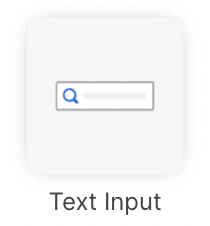 ## What it does
The text input allows you to capture a users text input and configure the
dashboard to respond to the inputted text.
## Configuration
## What it does
The text input allows you to capture a users text input and configure the
dashboard to respond to the inputted text.
## Configuration
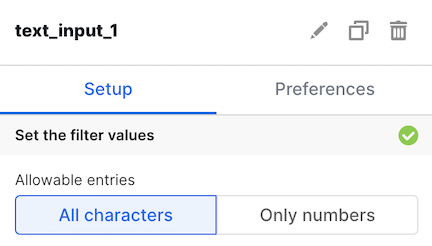
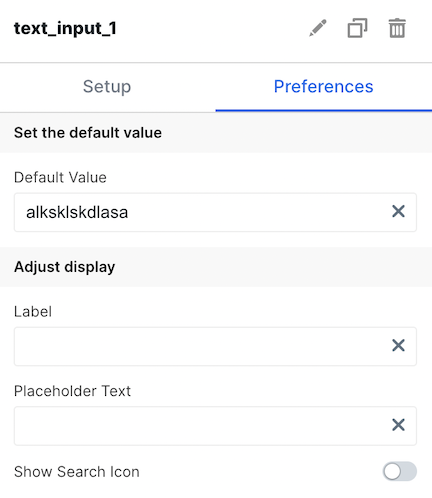 ### Basic Configuration
Available by accessing the `Setup` and `Preferences` tabs
| Configuration Option | Description |
| --------------------------- | --------------------------------------------------------------------------------------------------------------------------------------------------------------------------------------------------------------------- |
| Allowable entries | Select between whether a user can input all characters, or just numbers in the textfield |
| Default Value | Set a default value for the text input available on load |
| Label | This label appears above the text input and can be configured to describe how the text input should be used. |
| Placeholder Text | This is the message shown in the text input when no input has been written by the user yet. |
| Search Icon | This icon can be toggled on if the text input is being used as a search bar. |
| Enable Dependency Selection | When enabled, you may create a dependency between this element and other elements on the dashboard. When this element is dependent on an element selected, it will be disabled until a value is selected by the user. |
## Variable Usage
In the SQL query, use the following syntax
```sql theme={null}
--- search bar usage: If you wish to use this text input element as a search bar for,
--- a data table, you can configure the SQL editor like this, and the user will be
--- able to search the table based on column_1
WHERE 1=1
[[AND column_1 = {{text_input1}}]]
```
## Filtering
You can now filter directly your charts in the UI elements themselves. For more information on this process, see the [filtering section of the overview page](/creating-dashboards/ui-elements#filtering).
# Time Dropdown
Source: https://docs.explo.co/creating-dashboards/ui-elements/controls/time-dropdown
Time Dropdown allows your users to select time periods in your dashboards.
### Basic Configuration
Available by accessing the `Setup` and `Preferences` tabs
| Configuration Option | Description |
| --------------------------- | --------------------------------------------------------------------------------------------------------------------------------------------------------------------------------------------------------------------- |
| Allowable entries | Select between whether a user can input all characters, or just numbers in the textfield |
| Default Value | Set a default value for the text input available on load |
| Label | This label appears above the text input and can be configured to describe how the text input should be used. |
| Placeholder Text | This is the message shown in the text input when no input has been written by the user yet. |
| Search Icon | This icon can be toggled on if the text input is being used as a search bar. |
| Enable Dependency Selection | When enabled, you may create a dependency between this element and other elements on the dashboard. When this element is dependent on an element selected, it will be disabled until a value is selected by the user. |
## Variable Usage
In the SQL query, use the following syntax
```sql theme={null}
--- search bar usage: If you wish to use this text input element as a search bar for,
--- a data table, you can configure the SQL editor like this, and the user will be
--- able to search the table based on column_1
WHERE 1=1
[[AND column_1 = {{text_input1}}]]
```
## Filtering
You can now filter directly your charts in the UI elements themselves. For more information on this process, see the [filtering section of the overview page](/creating-dashboards/ui-elements#filtering).
# Time Dropdown
Source: https://docs.explo.co/creating-dashboards/ui-elements/controls/time-dropdown
Time Dropdown allows your users to select time periods in your dashboards.
 ## What it does
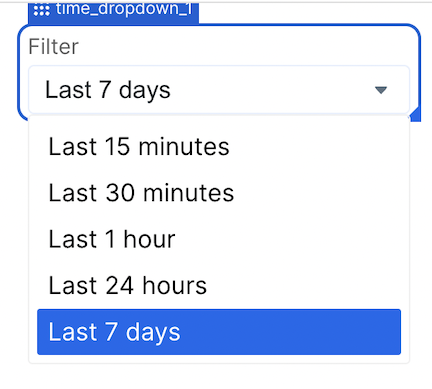
This element allows your users to select time periods in your dashboards.
## What it does
This element allows your users to select time periods in your dashboards.
 ## Configuration
 ### Basic Configuration
Available by accessing the `Setup` and `Preferences` tabs
| Configuration Option | Description |
| --------------------------- | --------------------------------------------------------------------------------------------------------------------------------------------------------------------------------------------------------------------- |
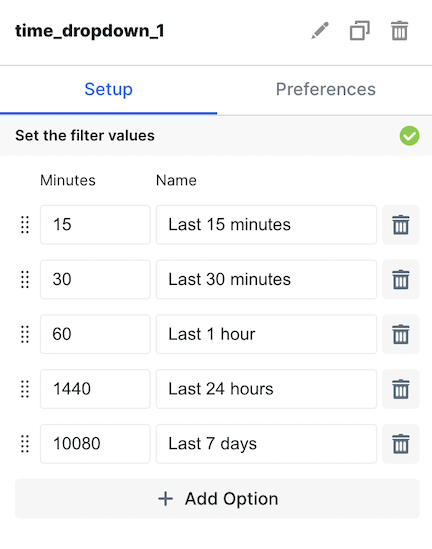
| Set Filter Values | In this section, you can add and reorder options your users can select from. You choose the name of the value (ex. Last 7 days) and the minutes that represents (ex. 10,080). |
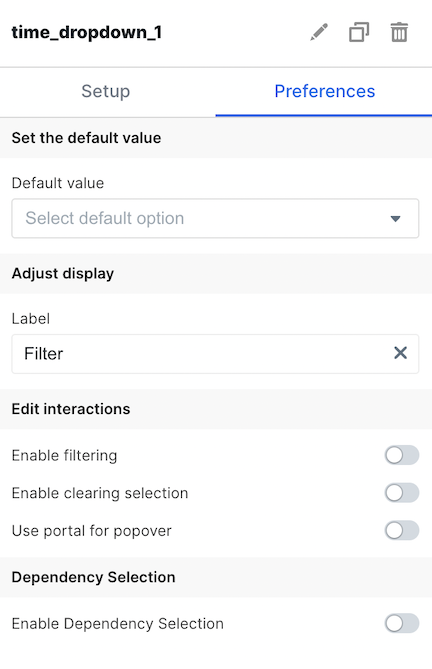
| Default Value | Set the default selection for the Time Dropdown |
| Label | Set the label your users see for the dropdown |
| Enable Filtering | Allow your users to search within the dropdown for values |
| Enable Clearing Selection | Allow your users to clear the dropdown with an X |
| Use Portal for Popover | When enabled, prevents the dropdown options from being hidden when overflowing. Applicable to both overflow from a container and the embed component itself. |
| Enable Dependency Selection | When enabled, you may create a dependency between this element and other elements on the dashboard. When this element is dependent on an element selected, it will be disabled until a value is selected by the user. |
## Variable Usage
In the SQL query, use the following syntax
```sql theme={null}
WHERE 1=1
[[AND DATE_DIFF(CURRENT_TIMESTAMP(), timestamp, MINUTE) < {{time_period_dropdown_1}}]]
```
## Filtering
You can now filter directly your charts in the UI elements themselves. For more information on this process, see the [filtering section of the overview page](/creating-dashboards/ui-elements#filtering).
# Toggle
Source: https://docs.explo.co/creating-dashboards/ui-elements/controls/toggle
The Toggle element allows you to create a single select toggle in your dashboard.
### Basic Configuration
Available by accessing the `Setup` and `Preferences` tabs
| Configuration Option | Description |
| --------------------------- | --------------------------------------------------------------------------------------------------------------------------------------------------------------------------------------------------------------------- |
| Set Filter Values | In this section, you can add and reorder options your users can select from. You choose the name of the value (ex. Last 7 days) and the minutes that represents (ex. 10,080). |
| Default Value | Set the default selection for the Time Dropdown |
| Label | Set the label your users see for the dropdown |
| Enable Filtering | Allow your users to search within the dropdown for values |
| Enable Clearing Selection | Allow your users to clear the dropdown with an X |
| Use Portal for Popover | When enabled, prevents the dropdown options from being hidden when overflowing. Applicable to both overflow from a container and the embed component itself. |
| Enable Dependency Selection | When enabled, you may create a dependency between this element and other elements on the dashboard. When this element is dependent on an element selected, it will be disabled until a value is selected by the user. |
## Variable Usage
In the SQL query, use the following syntax
```sql theme={null}
WHERE 1=1
[[AND DATE_DIFF(CURRENT_TIMESTAMP(), timestamp, MINUTE) < {{time_period_dropdown_1}}]]
```
## Filtering
You can now filter directly your charts in the UI elements themselves. For more information on this process, see the [filtering section of the overview page](/creating-dashboards/ui-elements#filtering).
# Toggle
Source: https://docs.explo.co/creating-dashboards/ui-elements/controls/toggle
The Toggle element allows you to create a single select toggle in your dashboard.
 ## What it does
The toggle element allows for you to create a single select element to pick from.
This view is also configurable from the Dropdown component. For more on the Toggle element, see the [Dropdown Section](/creating-dashboards/ui-elements/controls/dropdown).
# Container
Source: https://docs.explo.co/creating-dashboards/ui-elements/display/container
Containers can be used to group other components together and organize your dashboard.
## What it does
## What it does
The toggle element allows for you to create a single select element to pick from.
This view is also configurable from the Dropdown component. For more on the Toggle element, see the [Dropdown Section](/creating-dashboards/ui-elements/controls/dropdown).
# Container
Source: https://docs.explo.co/creating-dashboards/ui-elements/display/container
Containers can be used to group other components together and organize your dashboard.
## What it does
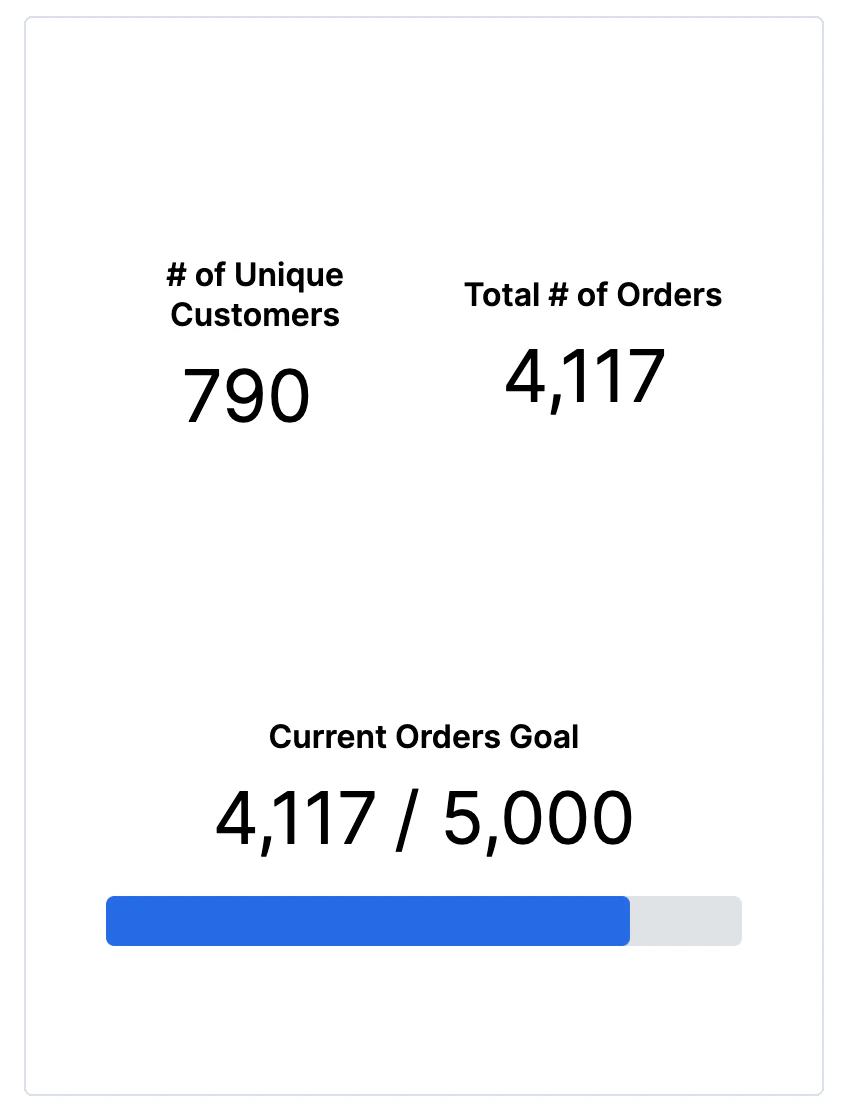
 This component allows you to group elements together on your dashboard. For
example:
This component allows you to group elements together on your dashboard. For
example:
 ## Adding elements
To add an element to a container, drag it in over the container.
# IFrame
Source: https://docs.explo.co/creating-dashboards/ui-elements/display/iframe
IFrames can be used to insert another html document within your dashboard
## What it does
## Adding elements
To add an element to a container, drag it in over the container.
# IFrame
Source: https://docs.explo.co/creating-dashboards/ui-elements/display/iframe
IFrames can be used to insert another html document within your dashboard
## What it does
 This component allows you to insert another html document within your dashboard.
 ## Configuration
| Configuration Option | Description |
| -------------------- | ---------------------------------------------------------------------- |
| IFrame URL | This is the url of the web page you want to insert into your dashboard |
# Image
Source: https://docs.explo.co/creating-dashboards/ui-elements/display/image
Images can be added to your dashboard via this UI element.
## What it does
## Configuration
| Configuration Option | Description |
| -------------------- | ---------------------------------------------------------------------- |
| IFrame URL | This is the url of the web page you want to insert into your dashboard |
# Image
Source: https://docs.explo.co/creating-dashboards/ui-elements/display/image
Images can be added to your dashboard via this UI element.
## What it does
 This component allows you to add an image to your dashboard.
 ## Configuration
| Configuration Option | Description |
| ------------------------------------ | ------------------------------------------------------------------------------------------------ |
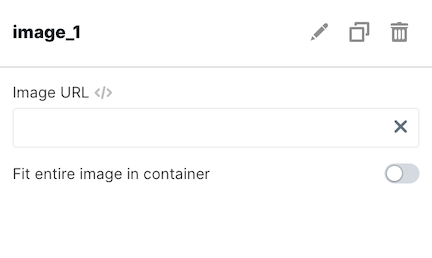
| Image URL | This is the url of the image you want to add. |
| Fit entire image in container toggle | Sets if the image should auto fill the size of the container or be the default size of the image |
# Text
Source: https://docs.explo.co/creating-dashboards/ui-elements/display/text
Text elements allow you to communicate information in markdown to your customers.
## What it does
## Configuration
| Configuration Option | Description |
| ------------------------------------ | ------------------------------------------------------------------------------------------------ |
| Image URL | This is the url of the image you want to add. |
| Fit entire image in container toggle | Sets if the image should auto fill the size of the container or be the default size of the image |
# Text
Source: https://docs.explo.co/creating-dashboards/ui-elements/display/text
Text elements allow you to communicate information in markdown to your customers.
## What it does
 This component allows you to add a block of text to your dashboard. Use this
component for any labeling and providing additional information for your user.
The **Text Component** supports Markdown to give you the flexibility to
configure the style and sizing of your text. You can reference the article
[here](https://www.markdownguide.org/basic-syntax/) for Markdown.
You can also utilize variables in your text component by using the
`{{element#}}`notation. This is great for adding company names into your
dashboards or dynamically describing charts and graphs.
## Configuration
This component allows you to add a block of text to your dashboard. Use this
component for any labeling and providing additional information for your user.
The **Text Component** supports Markdown to give you the flexibility to
configure the style and sizing of your text. You can reference the article
[here](https://www.markdownguide.org/basic-syntax/) for Markdown.
You can also utilize variables in your text component by using the
`{{element#}}`notation. This is great for adding company names into your
dashboards or dynamically describing charts and graphs.
## Configuration
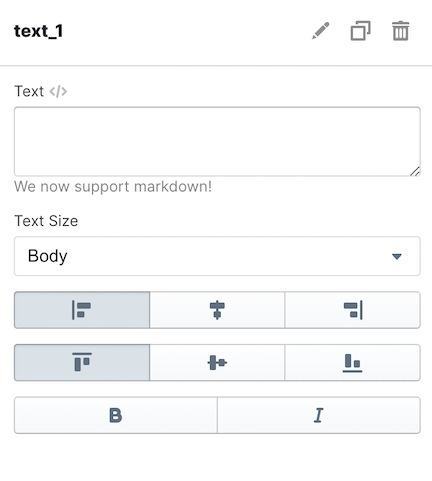 | Configuration Option | Description |
| -------------------- | ------------------------------------------------------------------------------------------------------------------------------------------------------------------------------------------------------------------------------------------------------------------------------------------------------------------------------------------------------------------ |
| Text | This is a text area that allows you to type in free form text. Our text elements understand markdown, enabling you to make complex text views in your dashboards. |
| Text Size | This allows you to manage the size of the text that appears on the dashboard.
| Configuration Option | Description |
| -------------------- | ------------------------------------------------------------------------------------------------------------------------------------------------------------------------------------------------------------------------------------------------------------------------------------------------------------------------------------------------------------------ |
| Text | This is a text area that allows you to type in free form text. Our text elements understand markdown, enabling you to make complex text views in your dashboards. |
| Text Size | This allows you to manage the size of the text that appears on the dashboard.There are three options:
• Normal (default)
• Large
• Extra Large | | Alignment | Alignment defines the horizontal & vertical placement of the text inside of the container on the dashboard. There are 3 options in the horizontal direction:
• Left aligned (default)
• Center aligned
• Right aligned
There are 3 options in the vertical direction:
• Top aligned (default)
• Center aligned
• Bottom aligned | ## Markdown formatting The text element uses markdown formatting to format the text onto the page. This gives you access to powerful text formatting. Please reference a markdown guide, such as [this one](https://www.markdownguide.org/basic-syntax/), for more information on the specific syntax available. ## Dynamically Generated Values You may use dynamically generated values in your text elements by using the `{{ }}` notation, similar to the dataset SQL editor. These values can either be generated from custom variables or through data queried against your Explo datasets. ### Using Variables The variables you have access to are all the variables in the page defined by user inputs, the customers, and passed in from the embedded component.
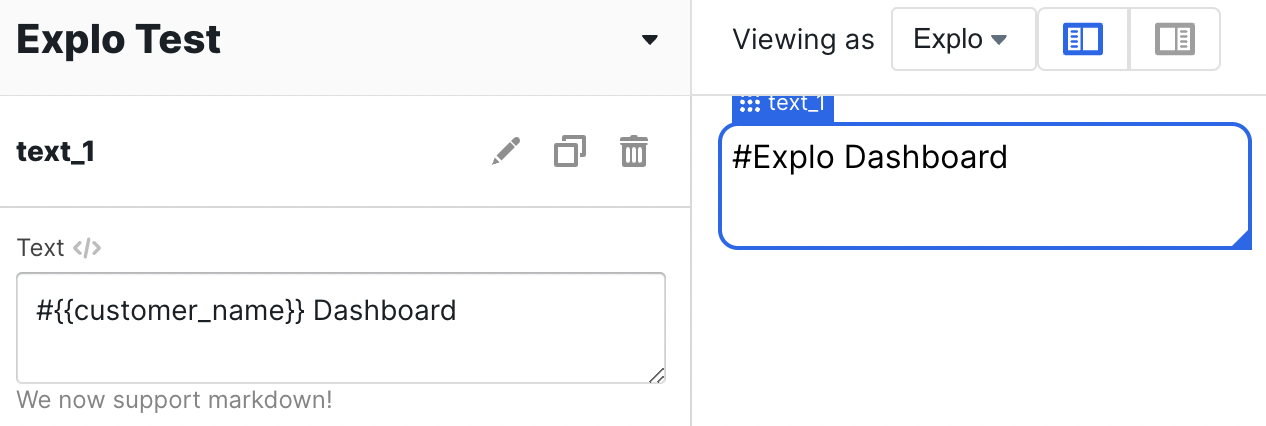 For example, in the above dashboard we are using the `customer_name` variable
to make the text shown on the screen be dynamic.
### Using Datasets
For dynamic values from datasets, you need to supply both the table name and the
column you would like read from. Explo will select the first row of whatever
column and table you specify, so you will likely want to make a specific dataset
that aggregates a value and then pass that dataset to the text component.
For example, in the above dashboard we are using the `customer_name` variable
to make the text shown on the screen be dynamic.
### Using Datasets
For dynamic values from datasets, you need to supply both the table name and the
column you would like read from. Explo will select the first row of whatever
column and table you specify, so you will likely want to make a specific dataset
that aggregates a value and then pass that dataset to the text component.
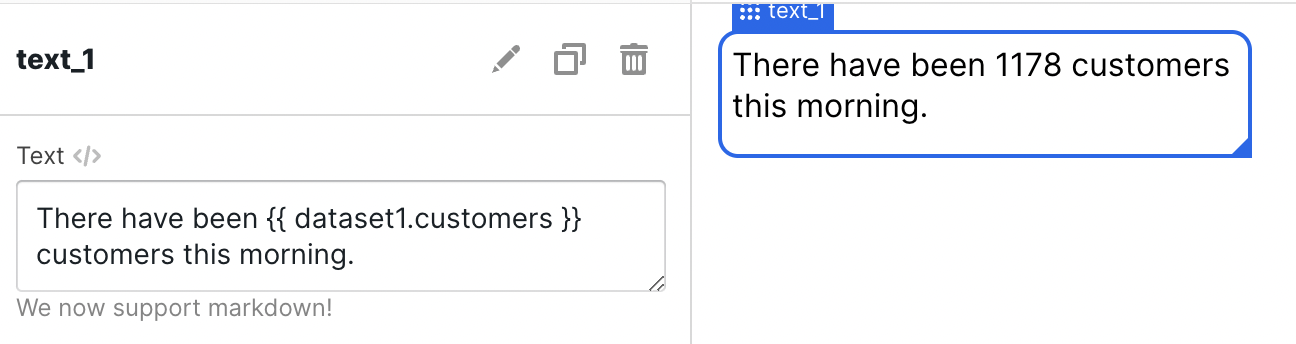 For example, in the above dashboard we are using the *customers* column from
*dataset1* to make the text shown on screen to be dynamic.
# Share Button
Source: https://docs.explo.co/creating-dashboards/ui-elements/export/share-button
Share Button allows for you to create sharing and export options for your users on your dashboard.
## What it does
For example, in the above dashboard we are using the *customers* column from
*dataset1* to make the text shown on screen to be dynamic.
# Share Button
Source: https://docs.explo.co/creating-dashboards/ui-elements/export/share-button
Share Button allows for you to create sharing and export options for your users on your dashboard.
## What it does
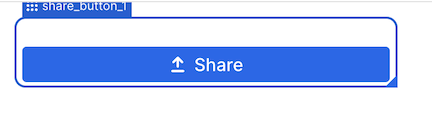
 This element allows for you to create sharing and export options for your users on your dashboard.
When the element is added to the dashboard, it looks like:
This element allows for you to create sharing and export options for your users on your dashboard.
When the element is added to the dashboard, it looks like:
 ## Configuration
 ### Basic Configuration
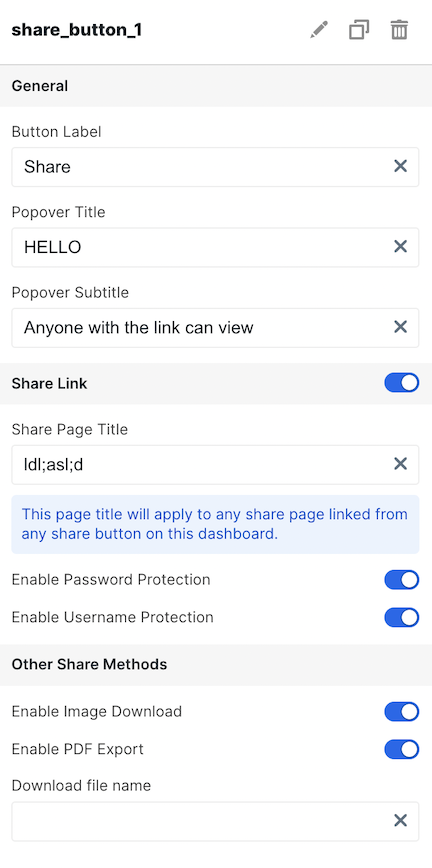
| Configuration Option | Description |
| -------------------------- | ----------------------------------------------------------------------------------------------------------------------------------------------- |
| Button Label | Specify the label of the share button users will see |
| Popover Title | Specify the title when someone selects "Share to Web" |
| Popover Subtitle | Specify the subtitle when someone selects "Share to Web" |
| Share Link Toggle | Specify whether users can "Share to Web" |
| Share Page Title | Specify the title of the webpage users with the share link see in their browser tab when visiting the page |
| Share Link Expiration | Specify the amount of time a share link is active before it expires[ISO08601 duration format](https://en.wikipedia.org/wiki/ISO_8601#Durations) |
| Enable Password Protection | Specify a password is required to see the share link page |
| Enable Username Protection | Specify a username is required to see the share link page |
| Enable Image Download | Specify whether users can download an image via the share link |
| Enable PDF Export | Specify whether users can download a PDF |
| Download file name | Specify the filename users will see when downloaded |
# Overview
Source: https://docs.explo.co/creating-dashboards/variables
Variables are used to filter and manipulate queries throughout dashboards and reports. Variables can be used to segment data depending on the viewer to ensure they only see their own data as well as provide interactions for your viewers.
## What are Variables?
Variables are created by default for every dashboard or report you build. You can also create variables by adding any control component or creating custom variables that you can pass in.
Learn more about the different types of variables [here](/creating-dashboards/variables/types-of-variables).
### Basic Configuration
| Configuration Option | Description |
| -------------------------- | ----------------------------------------------------------------------------------------------------------------------------------------------- |
| Button Label | Specify the label of the share button users will see |
| Popover Title | Specify the title when someone selects "Share to Web" |
| Popover Subtitle | Specify the subtitle when someone selects "Share to Web" |
| Share Link Toggle | Specify whether users can "Share to Web" |
| Share Page Title | Specify the title of the webpage users with the share link see in their browser tab when visiting the page |
| Share Link Expiration | Specify the amount of time a share link is active before it expires[ISO08601 duration format](https://en.wikipedia.org/wiki/ISO_8601#Durations) |
| Enable Password Protection | Specify a password is required to see the share link page |
| Enable Username Protection | Specify a username is required to see the share link page |
| Enable Image Download | Specify whether users can download an image via the share link |
| Enable PDF Export | Specify whether users can download a PDF |
| Download file name | Specify the filename users will see when downloaded |
# Overview
Source: https://docs.explo.co/creating-dashboards/variables
Variables are used to filter and manipulate queries throughout dashboards and reports. Variables can be used to segment data depending on the viewer to ensure they only see their own data as well as provide interactions for your viewers.
## What are Variables?
Variables are created by default for every dashboard or report you build. You can also create variables by adding any control component or creating custom variables that you can pass in.
Learn more about the different types of variables [here](/creating-dashboards/variables/types-of-variables).
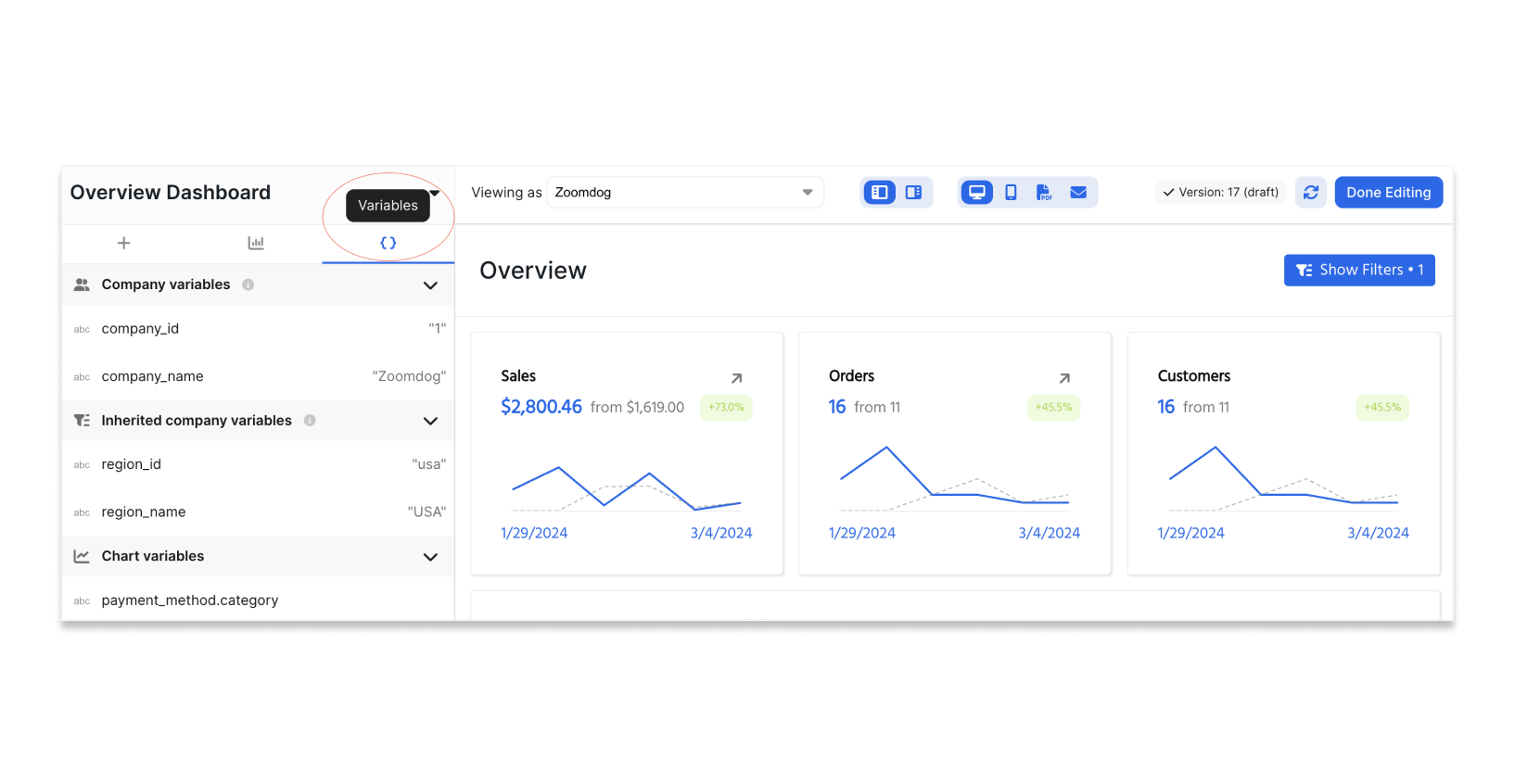 You can find all the variables you have access to by selecting the `{}` icon at the top of the left hand side configuration tab.
Create and manage custom embedded variables in the variables panel by selecting "Variables" and "Add an embed variable".
You can find all the variables you have access to by selecting the `{}` icon at the top of the left hand side configuration tab.
Create and manage custom embedded variables in the variables panel by selecting "Variables" and "Add an embed variable".
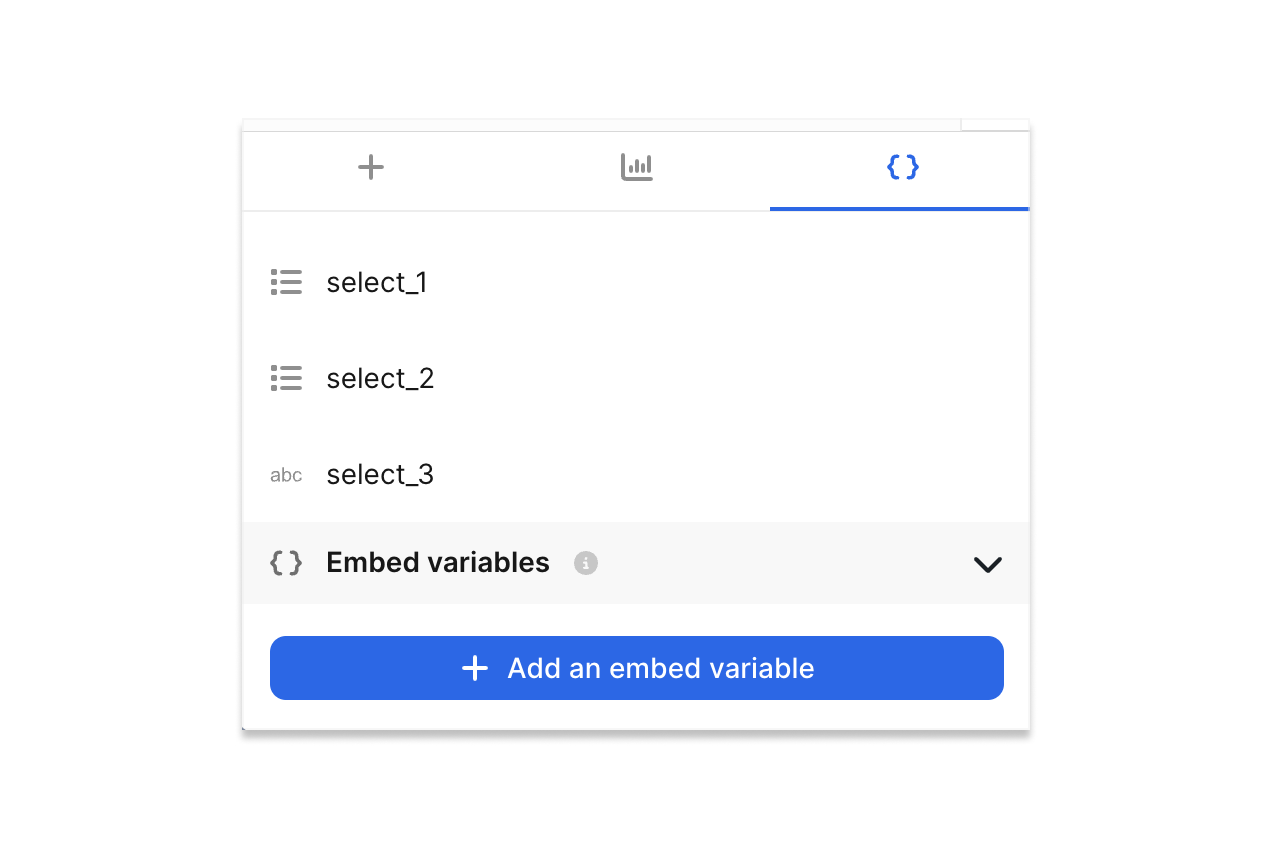 # Passing in Variables
Source: https://docs.explo.co/creating-dashboards/variables/passing-in-variables
### Embedded Component
When you embed an Explo Dashboard using an embedded component, you can pass in variables directly which are then available anywhere in the dashboard that accepts variables.
```html theme={null}
# Passing in Variables
Source: https://docs.explo.co/creating-dashboards/variables/passing-in-variables
### Embedded Component
When you embed an Explo Dashboard using an embedded component, you can pass in variables directly which are then available anywhere in the dashboard that accepts variables.
```html theme={null}
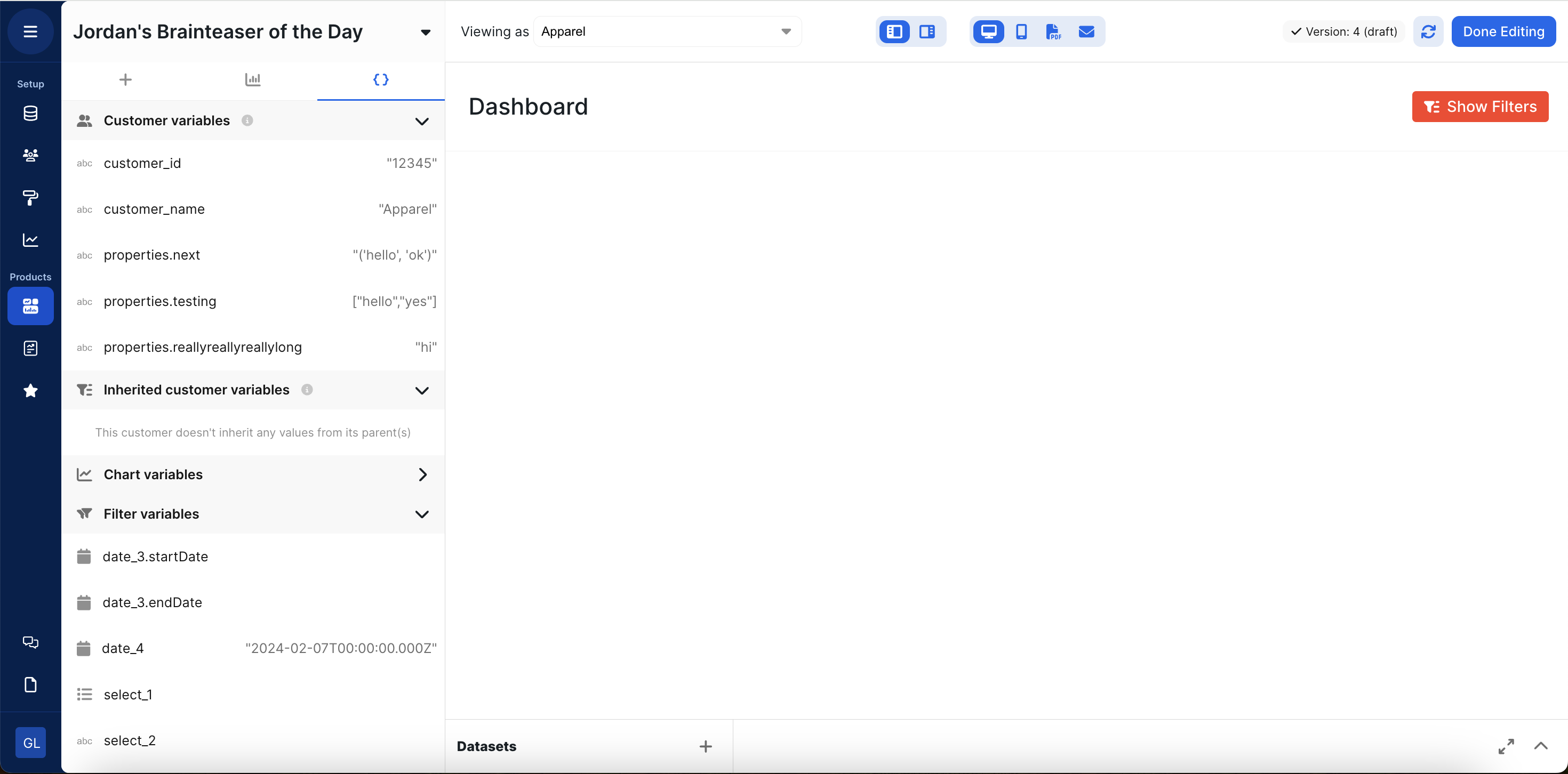 # Tips
Source: https://docs.explo.co/creating-dashboards/variables/tips
### Segmenting customer data
`{{customer_id}}`
* The customer variable is a default variable that's already created in every dashboard.
* It is important to use this variable in every dataset that a panel is built off of if you want it to be customer specific. To configure this, select the field that has your customer's ID and set it equal to `{{customer_id}}`
```sql Example theme={null}
SELECT *
FROM table_1
[[WHERE user_id = {{customer_id}}]]
```
### Additional operators
Variables can be used with other operators as well to achieve different filtering needs
```sql theme={null}
--use the in operator when configuring a multi-select component
[[WHERE field1 in {{element1}}]]
--filter for similar values using like
[[WHERE field_3 LIKE '%' || {{element3}} || '%']]
--relative date and number operators
[[WHERE field_3 >= {{element3}}]]
```
### Improving query speed by filtering before joining
In general, it is best to filter tables before joining to other tables, by doing so, you can significantly cut down the calculation and query time needed to compute the entire query.
```sql Example theme={null}
--Original Query
SELECT *
FROM models_operation
INNER JOIN models_flow
ON models_flow.resource_ptr_id = models_operation.flow_id
INNER JOIN models_datasource
ON models_datasource.id = models_operation.data_source_id
[[WHERE models_datasource.team_id = {{customer_id }}]];
--Improved Query
SELECT *
FROM models_operation
INNER JOIN models_flow
ON models_flow.resource_ptr_id = models_operation.flow_id
INNER JOIN (SELECT *
FROM models_datasource
[[WHERE models_datasource.team_id = {{customer_id }}]]
) AS ds
ON ds.id = models_operation.data_source_id;
```
# Overview
Source: https://docs.explo.co/creating-dashboards/variables/types-of-variables
There are a few main ways that variables are introduced into the application:
1. Customer-Specific Varibles
2. Dashboard Elements (Controls)
3. Data Panels (Drilldowns)
4. Embed Variables
5. Dataset Fields
6. Raw Variables
# Customer-Specific Variables
Source: https://docs.explo.co/creating-dashboards/variables/types-of-variables/customer-object
A customer entity is an object representing a customer at any level of the customer hierarchy.
Customer entities can be referenced as a variable in:
* Dataset queries
* Text components
* Chart titles
* Goal lines
* Progress goal totals
# Tips
Source: https://docs.explo.co/creating-dashboards/variables/tips
### Segmenting customer data
`{{customer_id}}`
* The customer variable is a default variable that's already created in every dashboard.
* It is important to use this variable in every dataset that a panel is built off of if you want it to be customer specific. To configure this, select the field that has your customer's ID and set it equal to `{{customer_id}}`
```sql Example theme={null}
SELECT *
FROM table_1
[[WHERE user_id = {{customer_id}}]]
```
### Additional operators
Variables can be used with other operators as well to achieve different filtering needs
```sql theme={null}
--use the in operator when configuring a multi-select component
[[WHERE field1 in {{element1}}]]
--filter for similar values using like
[[WHERE field_3 LIKE '%' || {{element3}} || '%']]
--relative date and number operators
[[WHERE field_3 >= {{element3}}]]
```
### Improving query speed by filtering before joining
In general, it is best to filter tables before joining to other tables, by doing so, you can significantly cut down the calculation and query time needed to compute the entire query.
```sql Example theme={null}
--Original Query
SELECT *
FROM models_operation
INNER JOIN models_flow
ON models_flow.resource_ptr_id = models_operation.flow_id
INNER JOIN models_datasource
ON models_datasource.id = models_operation.data_source_id
[[WHERE models_datasource.team_id = {{customer_id }}]];
--Improved Query
SELECT *
FROM models_operation
INNER JOIN models_flow
ON models_flow.resource_ptr_id = models_operation.flow_id
INNER JOIN (SELECT *
FROM models_datasource
[[WHERE models_datasource.team_id = {{customer_id }}]]
) AS ds
ON ds.id = models_operation.data_source_id;
```
# Overview
Source: https://docs.explo.co/creating-dashboards/variables/types-of-variables
There are a few main ways that variables are introduced into the application:
1. Customer-Specific Varibles
2. Dashboard Elements (Controls)
3. Data Panels (Drilldowns)
4. Embed Variables
5. Dataset Fields
6. Raw Variables
# Customer-Specific Variables
Source: https://docs.explo.co/creating-dashboards/variables/types-of-variables/customer-object
A customer entity is an object representing a customer at any level of the customer hierarchy.
Customer entities can be referenced as a variable in:
* Dataset queries
* Text components
* Chart titles
* Goal lines
* Progress goal totals
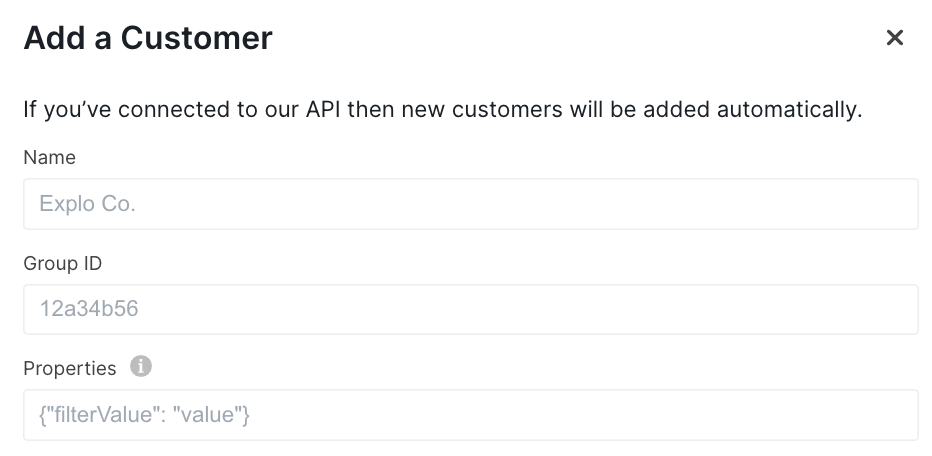 Customer entity specific variables that are created on the Customers page or via the API can be referenced.
These variables are all automatically set based on the customer entity viewing the data.
### Archetype Variables
In order to filter down data to a specific customer entity, a few variables are
provided depending on where the customer exists within the hierarchy. We call these archetype variables,
and they must be defined in order to be used in a query. If an archetype variable is referenced in a query
without being defined and it is not explicitly marked as optional, the data panel will error out.
By default, your team will have two hierarchy levels. The top level will be named `Customer` and
the bottom level will be named `User`. You will receive archetype variables that correspond to
these hierarchy level names, and they are detailed in the section below. You can view
and change the hierarchy level and parent configuration for each customer entity on the Customers
page. You can also view customer entity archetype variables on the Customers page.
If you'd like a different hierarchy setup or archetype variable configuration than the default,
please reach out to customer support.
### Default Archetype Variables
If the customer entity belongs to the top-level of the hierarchy (Customer level):
* `customer_id` : This is the given `provided_id` for this customer entity when you
[create a customer](/api-reference/customer-api).
* `customer_name` : This is the `name` provided for this customer entity when the customer is created.
If the customer entity belongs to the bottom-level of the hierarchy (User level):
* `user_id` : This is the given `provided_id` for this customer entity.
* `user_name` : This is the `name` provided for this customer entity.
* **\[inherited]** `customer_id` : If this customer entity has a parent set, this field will be inherited from its parent. So, it
will be the `provided_id` of the parent customer entity. If this customer entity does not have a parent, `customer_id` will be null,
and you will not be able to use it in a query unless you explicitly mark it as `optional`. This means your data panel will error out.
* **\[inherited]** `customer_name` : If this customer entity has a parent set, this field will be inherited from its parent. So, it
will be the `name` of the parent customer entity. If this customer entity does not have a parent, `customer_name` will be null,
and you will not be able to use it in a query unless it is marked as `optional`. This means your data panel will error out.
### Optional Archetype Variables
You may want to be able to use the same query to view as customer entities across hierarchy levels. You can use the explicit `.optional()` syntax to enable this.
When viewing a dashboard as an entity at the higher hierarchy level, there are no lower hierarchy level archetype variables defined. From the default example above,
the archetype variable `user_id` is not defined at the Customer hierarchy level since it only exists on the User level. That means this query would fail:
```
select * in table
where 1=1
[[AND customer_id = {{ customer_id }}]]
[[AND user_id = {{ user_id}}]]
```
To remedy this, we can mark the `user_id` variable as optional. It will now be removed from the query when undefined instead of raising an error.
A dashboard that uses this query can be viewed by customer entities on both the Customer and User hierarchy levels.
```
select * in table
where 1=1
[[AND customer_id = {{ customer_id }}]]
[[AND user_id = {{ user_id.optional() }}]]
```
### Custom Properties
In addition to the archetype variables, you may also add your own, custom properties on the Customers page.
When setting up your own properties, you may not overwrite any of the archetype variables.
Customer entities at any hierarchy level will have access to:
* `properties.*` : All variables passed in the `properties` object when the customer entity
is created are accessed through this format. So for example if you have
a key in the properties object called `filter_value` then you can access that
value by using `properties.filter_value`. This will include any `properties` a customer entity has
inherited from a set parent. You can see which properties have been inherited versus which have been
set on the Customers page when editing a customer entity.
### Summary Table
Here is a summary of which variables are available for a customer entity at each hierarchy level with
the default archetype configuration:
| | Top (Customer) Level | Bottom (User) Level |
| -------------- | -------------------- | -------------------------------------------------------------- |
| customer\_id | available | available if inherited from parent |
| customer\_name | available | available if inherited from parent |
| user\_id | unavailable | available |
| user\_name | unavailable | available |
| properties.\* | available | available (and includes inherited properties if parent is set) |
Customer entity specific variables that are created on the Customers page or via the API can be referenced.
These variables are all automatically set based on the customer entity viewing the data.
### Archetype Variables
In order to filter down data to a specific customer entity, a few variables are
provided depending on where the customer exists within the hierarchy. We call these archetype variables,
and they must be defined in order to be used in a query. If an archetype variable is referenced in a query
without being defined and it is not explicitly marked as optional, the data panel will error out.
By default, your team will have two hierarchy levels. The top level will be named `Customer` and
the bottom level will be named `User`. You will receive archetype variables that correspond to
these hierarchy level names, and they are detailed in the section below. You can view
and change the hierarchy level and parent configuration for each customer entity on the Customers
page. You can also view customer entity archetype variables on the Customers page.
If you'd like a different hierarchy setup or archetype variable configuration than the default,
please reach out to customer support.
### Default Archetype Variables
If the customer entity belongs to the top-level of the hierarchy (Customer level):
* `customer_id` : This is the given `provided_id` for this customer entity when you
[create a customer](/api-reference/customer-api).
* `customer_name` : This is the `name` provided for this customer entity when the customer is created.
If the customer entity belongs to the bottom-level of the hierarchy (User level):
* `user_id` : This is the given `provided_id` for this customer entity.
* `user_name` : This is the `name` provided for this customer entity.
* **\[inherited]** `customer_id` : If this customer entity has a parent set, this field will be inherited from its parent. So, it
will be the `provided_id` of the parent customer entity. If this customer entity does not have a parent, `customer_id` will be null,
and you will not be able to use it in a query unless you explicitly mark it as `optional`. This means your data panel will error out.
* **\[inherited]** `customer_name` : If this customer entity has a parent set, this field will be inherited from its parent. So, it
will be the `name` of the parent customer entity. If this customer entity does not have a parent, `customer_name` will be null,
and you will not be able to use it in a query unless it is marked as `optional`. This means your data panel will error out.
### Optional Archetype Variables
You may want to be able to use the same query to view as customer entities across hierarchy levels. You can use the explicit `.optional()` syntax to enable this.
When viewing a dashboard as an entity at the higher hierarchy level, there are no lower hierarchy level archetype variables defined. From the default example above,
the archetype variable `user_id` is not defined at the Customer hierarchy level since it only exists on the User level. That means this query would fail:
```
select * in table
where 1=1
[[AND customer_id = {{ customer_id }}]]
[[AND user_id = {{ user_id}}]]
```
To remedy this, we can mark the `user_id` variable as optional. It will now be removed from the query when undefined instead of raising an error.
A dashboard that uses this query can be viewed by customer entities on both the Customer and User hierarchy levels.
```
select * in table
where 1=1
[[AND customer_id = {{ customer_id }}]]
[[AND user_id = {{ user_id.optional() }}]]
```
### Custom Properties
In addition to the archetype variables, you may also add your own, custom properties on the Customers page.
When setting up your own properties, you may not overwrite any of the archetype variables.
Customer entities at any hierarchy level will have access to:
* `properties.*` : All variables passed in the `properties` object when the customer entity
is created are accessed through this format. So for example if you have
a key in the properties object called `filter_value` then you can access that
value by using `properties.filter_value`. This will include any `properties` a customer entity has
inherited from a set parent. You can see which properties have been inherited versus which have been
set on the Customers page when editing a customer entity.
### Summary Table
Here is a summary of which variables are available for a customer entity at each hierarchy level with
the default archetype configuration:
| | Top (Customer) Level | Bottom (User) Level |
| -------------- | -------------------- | -------------------------------------------------------------- |
| customer\_id | available | available if inherited from parent |
| customer\_name | available | available if inherited from parent |
| user\_id | unavailable | available |
| user\_name | unavailable | available |
| properties.\* | available | available (and includes inherited properties if parent is set) |
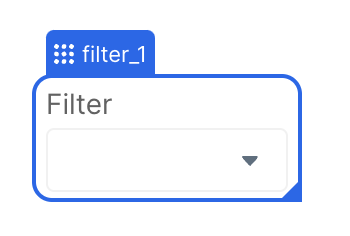 To use dashboard elements, simply reference the component ID. For instance, in the example above the component ID is `filter_1`.
**Date Range Picker** \
The [date range picker](/creating-dashboards/ui-elements/date-range-picker) creates two variables, one for the start date and another for the end date. Both will be shown on the variables tab in the debugger panel. Assuming, in this example, the component ID for the date range picker is `date_range_picker` these are the two variables created:
* `date_range_picker.startDate`
* `date_range_picker.endDate`
**Default values** \
These variables get set when your users interact with the element and select a
value. When configuring the component, you will also have the option to set
default values so that the dashboard loads preselected with certain options.
To use dashboard elements, simply reference the component ID. For instance, in the example above the component ID is `filter_1`.
**Date Range Picker** \
The [date range picker](/creating-dashboards/ui-elements/date-range-picker) creates two variables, one for the start date and another for the end date. Both will be shown on the variables tab in the debugger panel. Assuming, in this example, the component ID for the date range picker is `date_range_picker` these are the two variables created:
* `date_range_picker.startDate`
* `date_range_picker.endDate`
**Default values** \
These variables get set when your users interact with the element and select a
value. When configuring the component, you will also have the option to set
default values so that the dashboard loads preselected with certain options.
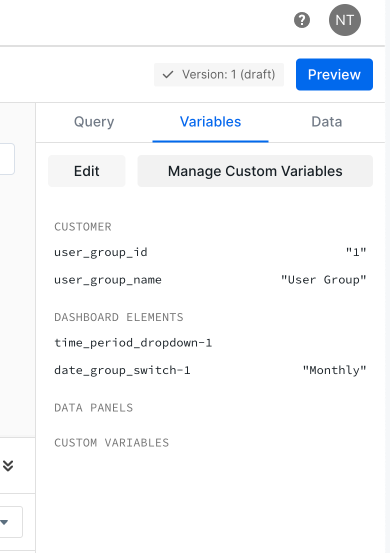 # Data Panels (Drilldowns)
Source: https://docs.explo.co/creating-dashboards/variables/types-of-variables/data-panels-drilldowns
Customer objects can be referenced as a variable in:
* Dataset queries
* Text components
* Chart titles
* Goal lines
* Progress goal totals
Data panels can be used as filters when category selection is enabled. To learn more about enabling category selection, reference the docs [here](/creating-dashboards/drilldowns).
* `data_panel.category`: enable on format tab for bar charts and tables
# Dataset Fields
Source: https://docs.explo.co/creating-dashboards/variables/types-of-variables/dataset-fields
Any field in a dataset can be referenced as a variable in different components such as:
* Text components
* Chart titles
* Goal lines
* Progress goal totals
To use a value, use the following syntax. Note that this can only pull the value in the first row of that dataset.
* `dataset_name.field_name`: This is the dataset name and which field you want to reference in that dataset
# Data Panels (Drilldowns)
Source: https://docs.explo.co/creating-dashboards/variables/types-of-variables/data-panels-drilldowns
Customer objects can be referenced as a variable in:
* Dataset queries
* Text components
* Chart titles
* Goal lines
* Progress goal totals
Data panels can be used as filters when category selection is enabled. To learn more about enabling category selection, reference the docs [here](/creating-dashboards/drilldowns).
* `data_panel.category`: enable on format tab for bar charts and tables
# Dataset Fields
Source: https://docs.explo.co/creating-dashboards/variables/types-of-variables/dataset-fields
Any field in a dataset can be referenced as a variable in different components such as:
* Text components
* Chart titles
* Goal lines
* Progress goal totals
To use a value, use the following syntax. Note that this can only pull the value in the first row of that dataset.
* `dataset_name.field_name`: This is the dataset name and which field you want to reference in that dataset
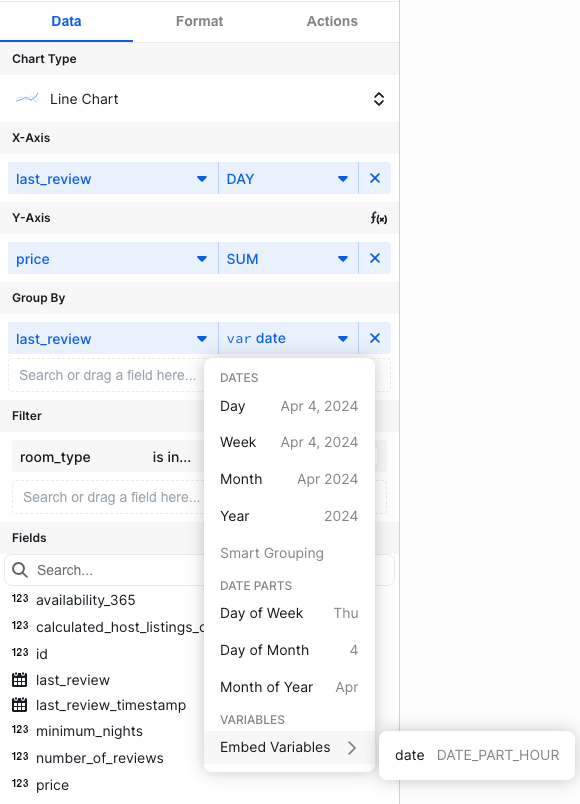 To use this feature, you must use pass in variables with the following format:
* `DATE_HOUR`: Hour
* `DATE_DAY`: Day
* `DATE_WEEK`: Week
* `DATE_MONTH`: Month
* `DATE_YEAR`: Year
* `DATE_PART_WEEK_DAY`: Day of Week
* `DATE_PART_MONTH_DAY`: Day of Month
* `DATE_PART_MONTH`: Month of Year
* `DATE_PART_HOUR`: Hour of Day
# Raw Variables
Source: https://docs.explo.co/creating-dashboards/variables/types-of-variables/raw-variables
Any field in a dataset can be referenced as a variable in different components such as:
* Dataset queries
Variables in **dataset queries** can be manipulated by adding different suffixes as follows:
* `variable.raw()`: By default, the values that is pasted into queries are surrounded in quotes or formatted based on the variable type. Adding `.raw()` strips away any sort of formatting.
This is often required if you are using a variable as a table name, or using the variable in clauses that don’t require the value to be in quotes.
```
-- use a variable name in the from statement
select *
[[from tablename.{{customer.table_name.raw()}}]]
```
# Using Variables
Source: https://docs.explo.co/creating-dashboards/variables/using-variables
### In Datasets
All variables are contained in double curly brackets `{{ }}`, Explo will
recognize any text in-between curly brackets in your SQL query as a variable.
Double square brackets `[[ ]]` are used for where clauses with variables such
that if there is no variable selected, Explo will ignore the code between the
square brackets.
All variable clauses must be placed inside square brackets.
Example of where clause using a variable in square brackets:
```sql theme={null}
[[WHERE field1 = {{element1}}]]
```
When filtering by 2 different fields, you can use the syntax below to contain
the "and" in the square brackets. The `1 = 1` is required here otherwise there
will be an incomplete clause statement if neither filter is configured.
```sql theme={null}
WHERE 1=1 [[and field1 = {{element1}}]]
[[and field2 = {{element2}}]]
```
### In Data Panels
Instead of writing SQL to filter your datasets, you can filter specific data
panels by variables directly. To do this, drag the field you want to filter into
the Filter section. Then select the Variable option for the filter value input:
To use this feature, you must use pass in variables with the following format:
* `DATE_HOUR`: Hour
* `DATE_DAY`: Day
* `DATE_WEEK`: Week
* `DATE_MONTH`: Month
* `DATE_YEAR`: Year
* `DATE_PART_WEEK_DAY`: Day of Week
* `DATE_PART_MONTH_DAY`: Day of Month
* `DATE_PART_MONTH`: Month of Year
* `DATE_PART_HOUR`: Hour of Day
# Raw Variables
Source: https://docs.explo.co/creating-dashboards/variables/types-of-variables/raw-variables
Any field in a dataset can be referenced as a variable in different components such as:
* Dataset queries
Variables in **dataset queries** can be manipulated by adding different suffixes as follows:
* `variable.raw()`: By default, the values that is pasted into queries are surrounded in quotes or formatted based on the variable type. Adding `.raw()` strips away any sort of formatting.
This is often required if you are using a variable as a table name, or using the variable in clauses that don’t require the value to be in quotes.
```
-- use a variable name in the from statement
select *
[[from tablename.{{customer.table_name.raw()}}]]
```
# Using Variables
Source: https://docs.explo.co/creating-dashboards/variables/using-variables
### In Datasets
All variables are contained in double curly brackets `{{ }}`, Explo will
recognize any text in-between curly brackets in your SQL query as a variable.
Double square brackets `[[ ]]` are used for where clauses with variables such
that if there is no variable selected, Explo will ignore the code between the
square brackets.
All variable clauses must be placed inside square brackets.
Example of where clause using a variable in square brackets:
```sql theme={null}
[[WHERE field1 = {{element1}}]]
```
When filtering by 2 different fields, you can use the syntax below to contain
the "and" in the square brackets. The `1 = 1` is required here otherwise there
will be an incomplete clause statement if neither filter is configured.
```sql theme={null}
WHERE 1=1 [[and field1 = {{element1}}]]
[[and field2 = {{element2}}]]
```
### In Data Panels
Instead of writing SQL to filter your datasets, you can filter specific data
panels by variables directly. To do this, drag the field you want to filter into
the Filter section. Then select the Variable option for the filter value input:
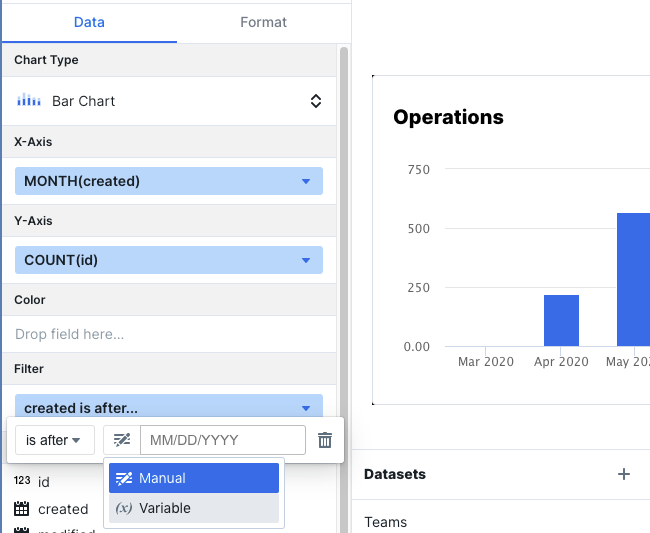 You will then have the option to select the variable defined on the page that
you want to filter by. You will only be shown options for variables that are the
correct type. For example, if you are filtering a date field, we will only show
you date-picker variables.
You will then have the option to select the variable defined on the page that
you want to filter by. You will only be shown options for variables that are the
correct type. For example, if you are filtering a date field, we will only show
you date-picker variables.
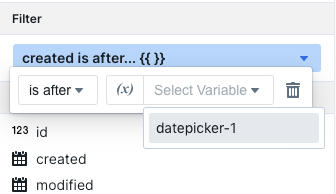 Now when the date picker is used, the data panel will filter down its data to
the selected range!
### In JS Events
Update variables with outgoing JS events. Learn more about outgoing JS events, like `updateExploDashboardVariable` [here](/general-features/custom-js-events#outgoing-events).
### Data Panel Built-In Variables
**KPI Trend**
The following variables can be used in the KPI panel's `Subtitle` field.
Now when the date picker is used, the data panel will filter down its data to
the selected range!
### In JS Events
Update variables with outgoing JS events. Learn more about outgoing JS events, like `updateExploDashboardVariable` [here](/general-features/custom-js-events#outgoing-events).
### Data Panel Built-In Variables
**KPI Trend**
The following variables can be used in the KPI panel's `Subtitle` field.

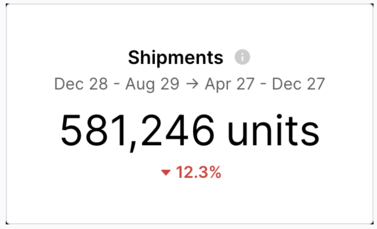 | Variable | Description |
| ----------------------- | --------------------------------------------------------------------------------------------------------- |
| `{{current_period}}` | This is the current period of data that will be used as the basis for comparison e.g. Jun 11 - Aug 12 |
| `{{comparison_period}}` | This is the period that the current\_period is compared to for calculating the trend e.g. July 9 - Jun 10 |
### Text Component and Other Fields
Variables can be used to replace static text and values in a variety of components and fields. Reference variables the same way you do in the dataset editor.
* Text components
* Chart titles
* Goal lines
* Progress goal totals
# Area Chart
Source: https://docs.explo.co/creating-dashboards/visualizations/charts/area-chart
Available Area Chart Types: Area and 100% Area Chart
## Data Configuration
#### Chart Type
You can read about this section [here](/creating-dashboards/visualizations/data-tab#chart-type).
#### X-Axis
This section is for the field you wish to group the area chart by.
#### Y-Axis
This section is for the field you wish to aggregate the area chart on. You can add multiple columns into this section. Each column will appear as a separate line on the chart.
#### Group By
This section is for additional grouping on the area chart. If there is a column in this section,
there will be as many areas on the chart as there are groups in the specified column.
It is also possible to add multiple columns in this section. If multiple columns are selected, the end user will
be able to toggle between the group by options on the chart. More info about this can be found [here](/creating-dashboards/visualizations/format-tab/chart-level-filters).
| Variable | Description |
| ----------------------- | --------------------------------------------------------------------------------------------------------- |
| `{{current_period}}` | This is the current period of data that will be used as the basis for comparison e.g. Jun 11 - Aug 12 |
| `{{comparison_period}}` | This is the period that the current\_period is compared to for calculating the trend e.g. July 9 - Jun 10 |
### Text Component and Other Fields
Variables can be used to replace static text and values in a variety of components and fields. Reference variables the same way you do in the dataset editor.
* Text components
* Chart titles
* Goal lines
* Progress goal totals
# Area Chart
Source: https://docs.explo.co/creating-dashboards/visualizations/charts/area-chart
Available Area Chart Types: Area and 100% Area Chart
## Data Configuration
#### Chart Type
You can read about this section [here](/creating-dashboards/visualizations/data-tab#chart-type).
#### X-Axis
This section is for the field you wish to group the area chart by.
#### Y-Axis
This section is for the field you wish to aggregate the area chart on. You can add multiple columns into this section. Each column will appear as a separate line on the chart.
#### Group By
This section is for additional grouping on the area chart. If there is a column in this section,
there will be as many areas on the chart as there are groups in the specified column.
It is also possible to add multiple columns in this section. If multiple columns are selected, the end user will
be able to toggle between the group by options on the chart. More info about this can be found [here](/creating-dashboards/visualizations/format-tab/chart-level-filters).
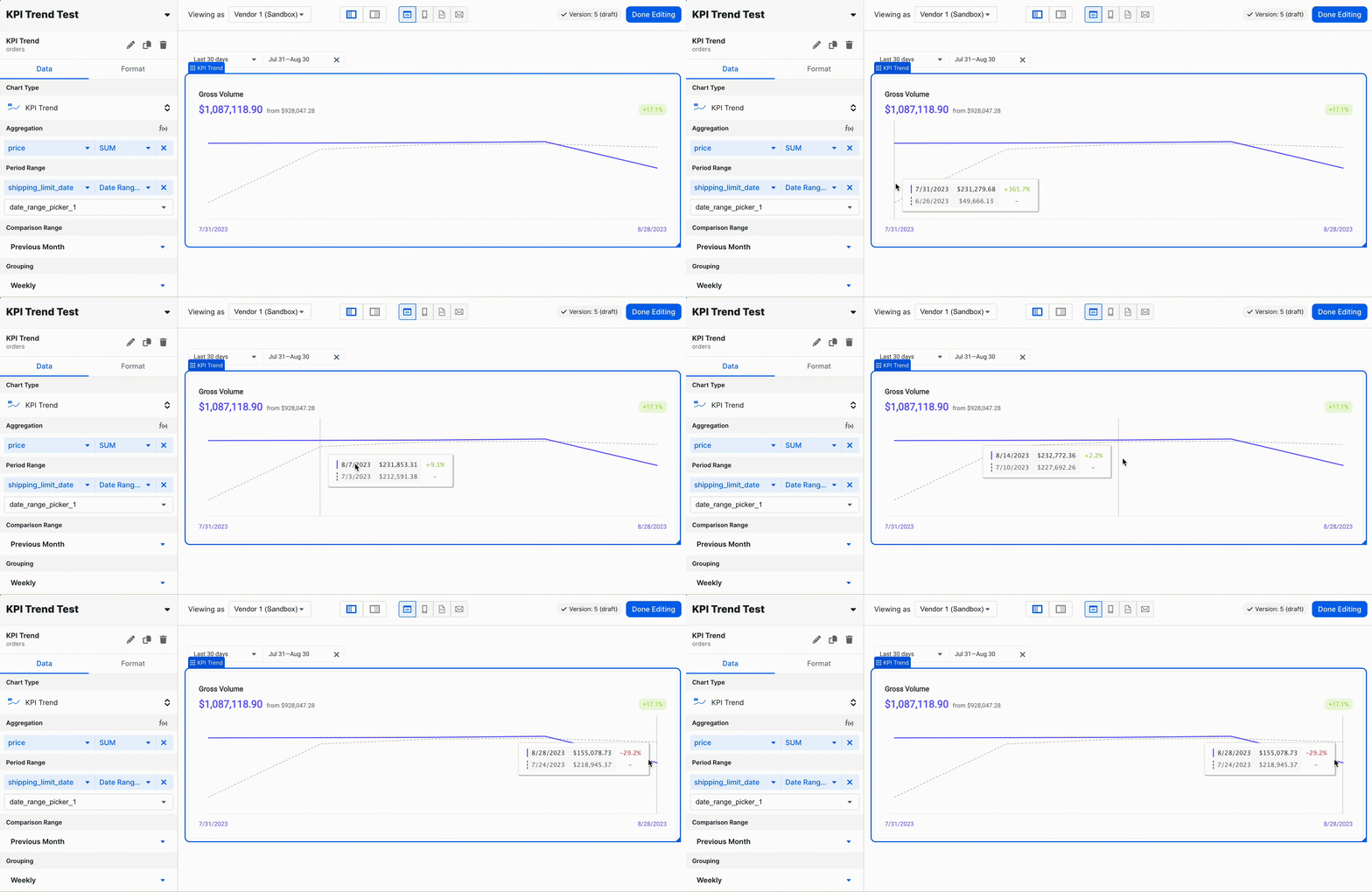 The KPI Trend chart is a visual representation that compares data groupings over a specific time frame with a similar time frame from a prior period. It helps you to visually analyze the percentage increase or decrease in the aggregated data for a particular period as compared to the same grouping of data from a previous period. When you hover over a point on the chart, it will display the data grouping for that time, as well as the same grouping from the previous period, allowing you to compare the two. At the top of the chart, you will find the total aggregated data for both periods and the percentage change between them.
However, the periods on the chart may not always align with the date range selected from a dropdown menu, because the periods are defined differently. For instance, in the provided example, the first period starts on 7/31, as expected, but the comparable period from the previous month starts on 6/26. This discrepancy occurs because the periods are defined as the last Mondays of the months, so 6/26 is the last Monday of June, and 7/31 is the last Monday of July. Similarly, the end date on the chart is 8/28, not 8/30, because the X-axis dates represent the start of a period. So, 8/28 signifies the 'Week of 8/28,' which includes the date 8/30.
## Data Configuration
#### Chart Type
You can read about this section [here](/creating-dashboards/visualizations/data-tab#chart-type).
#### Aggregation
This section is for the field you wish to aggregate for the KPI Trend.
#### Period Range
This section is for the period over which you wish to view the aggregation. There are a variety of acceptable inputs for this field.
* Preset Values (the examples assume today is 8/15/2023):
* Today
* `8/15 - 8/15`
* Last 7 days
* Goes back 6 days, creating a 7 day period including today
* `8/9 - 8/15`
* Last 4 weeks
* Goes back 27 days, creating a 28 day period including today
* `7/19 - 8/15`
* Last 3 months
* Goes back 3 months
* `5/16 - 8/15`
* Note that this will create a period of \~90 days, but can vary depending on the lengths of months
* If the day 3 months ago doesn’t exist, it uses the end of the month
* 3 months before 5/30 resolves to 2/28
* Last 12 months
* Goes back 12 months
* `8/16/2022 - 8/15/2023`
* If the day that is "last 12 months" ago doesn't exist, it uses the end of the month
* Last 12 months for 2/29 resolves to 2/28 on a non-leap year
* Month to date
* Beginning of month to EOD
* `8/1 - 8/15`
* Year to date
* Beginning of year to EOD
* `1/1 - 8/15`
* Previous month
* Previous completed month
* `7/1 - 7/31`
* Custom Hardcoded Value:
* Custom Range
* You can select a specific start date and end date for this period.
* Custom Range Variables:
* You can specify a set of variables to be used for the start and end date for this period.
* The format of these variables should follow the standard Explo variable syntax, e.g. `{{ start_date }}`
* The date format is ISO 8601, like `2024-04-24T10:30:00.000Z`.
* For custom inputs, we just treat the period as a raw number of days, the nuances around end date above in the `Preset Values` section still apply, and then we just subtract the length to get the period length.
* For time periods, the same rules apply, but the end date of a previous period is the second before the start date. So 12:00-12:30 is compared against 11:29-11:59.
* Dashboard Inputs:
* You can link some UI elements to populate this period,
allowing end users to specify the period they are interested in. These UI elements must have default values in order to be usable as inputs in this section.
* Date Range Input
* Pre-set dropdown options
* The analogous options to the KPI Trend Config Panel's `Preset Values` apply here
* For the below examples, let's assume today is `8/15/2023`
* Week to Date
* Beginning of week (starting on Monday) to EOD
* `8/14 - 8/15`
* Quarter to Date
* Beginning of quarter to EOD
* `7/1 - 8/15`
* Previous Week
* Last completed week, ranging from Monday to EOD Sunday
* `8/7 - 8/13`
* Previous Quarter
* Full quarter
* `4/1 - 6/30`
* Previous Year
* Full year
* `1/1 - 12/31`
* Last 30 Days
* Goes back 29 days, creating a 30 day period including today
* `7/16 - 8/15`
* Last 6 Months
* Goes back 6 months, the same logic as Last 3 Months applies
* `2/16 - 8/15`
* Last 12 Complete Weeks
* `5/22 - 8/13`
* Last 3 Complete Months
* `5/1 - 7/31`
* Last 6 Complete Months
* `2/1 - 7/31`
* Last 12 Complete Months
* `8/1/2022 - 7/31/2023`
* Year to Last Completed Month
* `1/1 - 7/31`
* Time Period Dropdown
* The available options and the date offsets should be clear
#### Comparison Range
This section specifies the comparison period that will be displayed as a line in a secondary color on the trend chart.
Selecting `Previous Period` will apply a range based on the length of the Period Range. For example, if the Previous
Range is `Last 12 months`, the comparison range will be 12 months. The date ranges at the top right and top left corners
of the chart should differ by the length specified in the comparison range.
The length of the comparison range will ALWAYS be the same as the length of the current range. The main behavior to note is how the end date of the comparison period is calculated:
* Previous Period - always one day before the current period start date
* The start date is then calculated as end date minus the period length
* Previous Month - the same numerical day, but offset a month. In cases where the comparison month is shorter, take the last day of the month
* e.g. March 31, 30, 29, and 28 compared to previous month all resolve to 2/28 (on a non leap year)
* Previous Year - the same numerical day, but offset a year
* For 2/29 on a non leap year, this resolves to 2/28
The KPI Trend chart is a visual representation that compares data groupings over a specific time frame with a similar time frame from a prior period. It helps you to visually analyze the percentage increase or decrease in the aggregated data for a particular period as compared to the same grouping of data from a previous period. When you hover over a point on the chart, it will display the data grouping for that time, as well as the same grouping from the previous period, allowing you to compare the two. At the top of the chart, you will find the total aggregated data for both periods and the percentage change between them.
However, the periods on the chart may not always align with the date range selected from a dropdown menu, because the periods are defined differently. For instance, in the provided example, the first period starts on 7/31, as expected, but the comparable period from the previous month starts on 6/26. This discrepancy occurs because the periods are defined as the last Mondays of the months, so 6/26 is the last Monday of June, and 7/31 is the last Monday of July. Similarly, the end date on the chart is 8/28, not 8/30, because the X-axis dates represent the start of a period. So, 8/28 signifies the 'Week of 8/28,' which includes the date 8/30.
## Data Configuration
#### Chart Type
You can read about this section [here](/creating-dashboards/visualizations/data-tab#chart-type).
#### Aggregation
This section is for the field you wish to aggregate for the KPI Trend.
#### Period Range
This section is for the period over which you wish to view the aggregation. There are a variety of acceptable inputs for this field.
* Preset Values (the examples assume today is 8/15/2023):
* Today
* `8/15 - 8/15`
* Last 7 days
* Goes back 6 days, creating a 7 day period including today
* `8/9 - 8/15`
* Last 4 weeks
* Goes back 27 days, creating a 28 day period including today
* `7/19 - 8/15`
* Last 3 months
* Goes back 3 months
* `5/16 - 8/15`
* Note that this will create a period of \~90 days, but can vary depending on the lengths of months
* If the day 3 months ago doesn’t exist, it uses the end of the month
* 3 months before 5/30 resolves to 2/28
* Last 12 months
* Goes back 12 months
* `8/16/2022 - 8/15/2023`
* If the day that is "last 12 months" ago doesn't exist, it uses the end of the month
* Last 12 months for 2/29 resolves to 2/28 on a non-leap year
* Month to date
* Beginning of month to EOD
* `8/1 - 8/15`
* Year to date
* Beginning of year to EOD
* `1/1 - 8/15`
* Previous month
* Previous completed month
* `7/1 - 7/31`
* Custom Hardcoded Value:
* Custom Range
* You can select a specific start date and end date for this period.
* Custom Range Variables:
* You can specify a set of variables to be used for the start and end date for this period.
* The format of these variables should follow the standard Explo variable syntax, e.g. `{{ start_date }}`
* The date format is ISO 8601, like `2024-04-24T10:30:00.000Z`.
* For custom inputs, we just treat the period as a raw number of days, the nuances around end date above in the `Preset Values` section still apply, and then we just subtract the length to get the period length.
* For time periods, the same rules apply, but the end date of a previous period is the second before the start date. So 12:00-12:30 is compared against 11:29-11:59.
* Dashboard Inputs:
* You can link some UI elements to populate this period,
allowing end users to specify the period they are interested in. These UI elements must have default values in order to be usable as inputs in this section.
* Date Range Input
* Pre-set dropdown options
* The analogous options to the KPI Trend Config Panel's `Preset Values` apply here
* For the below examples, let's assume today is `8/15/2023`
* Week to Date
* Beginning of week (starting on Monday) to EOD
* `8/14 - 8/15`
* Quarter to Date
* Beginning of quarter to EOD
* `7/1 - 8/15`
* Previous Week
* Last completed week, ranging from Monday to EOD Sunday
* `8/7 - 8/13`
* Previous Quarter
* Full quarter
* `4/1 - 6/30`
* Previous Year
* Full year
* `1/1 - 12/31`
* Last 30 Days
* Goes back 29 days, creating a 30 day period including today
* `7/16 - 8/15`
* Last 6 Months
* Goes back 6 months, the same logic as Last 3 Months applies
* `2/16 - 8/15`
* Last 12 Complete Weeks
* `5/22 - 8/13`
* Last 3 Complete Months
* `5/1 - 7/31`
* Last 6 Complete Months
* `2/1 - 7/31`
* Last 12 Complete Months
* `8/1/2022 - 7/31/2023`
* Year to Last Completed Month
* `1/1 - 7/31`
* Time Period Dropdown
* The available options and the date offsets should be clear
#### Comparison Range
This section specifies the comparison period that will be displayed as a line in a secondary color on the trend chart.
Selecting `Previous Period` will apply a range based on the length of the Period Range. For example, if the Previous
Range is `Last 12 months`, the comparison range will be 12 months. The date ranges at the top right and top left corners
of the chart should differ by the length specified in the comparison range.
The length of the comparison range will ALWAYS be the same as the length of the current range. The main behavior to note is how the end date of the comparison period is calculated:
* Previous Period - always one day before the current period start date
* The start date is then calculated as end date minus the period length
* Previous Month - the same numerical day, but offset a month. In cases where the comparison month is shorter, take the last day of the month
* e.g. March 31, 30, 29, and 28 compared to previous month all resolve to 2/28 (on a non leap year)
* Previous Year - the same numerical day, but offset a year
* For 2/29 on a non leap year, this resolves to 2/28
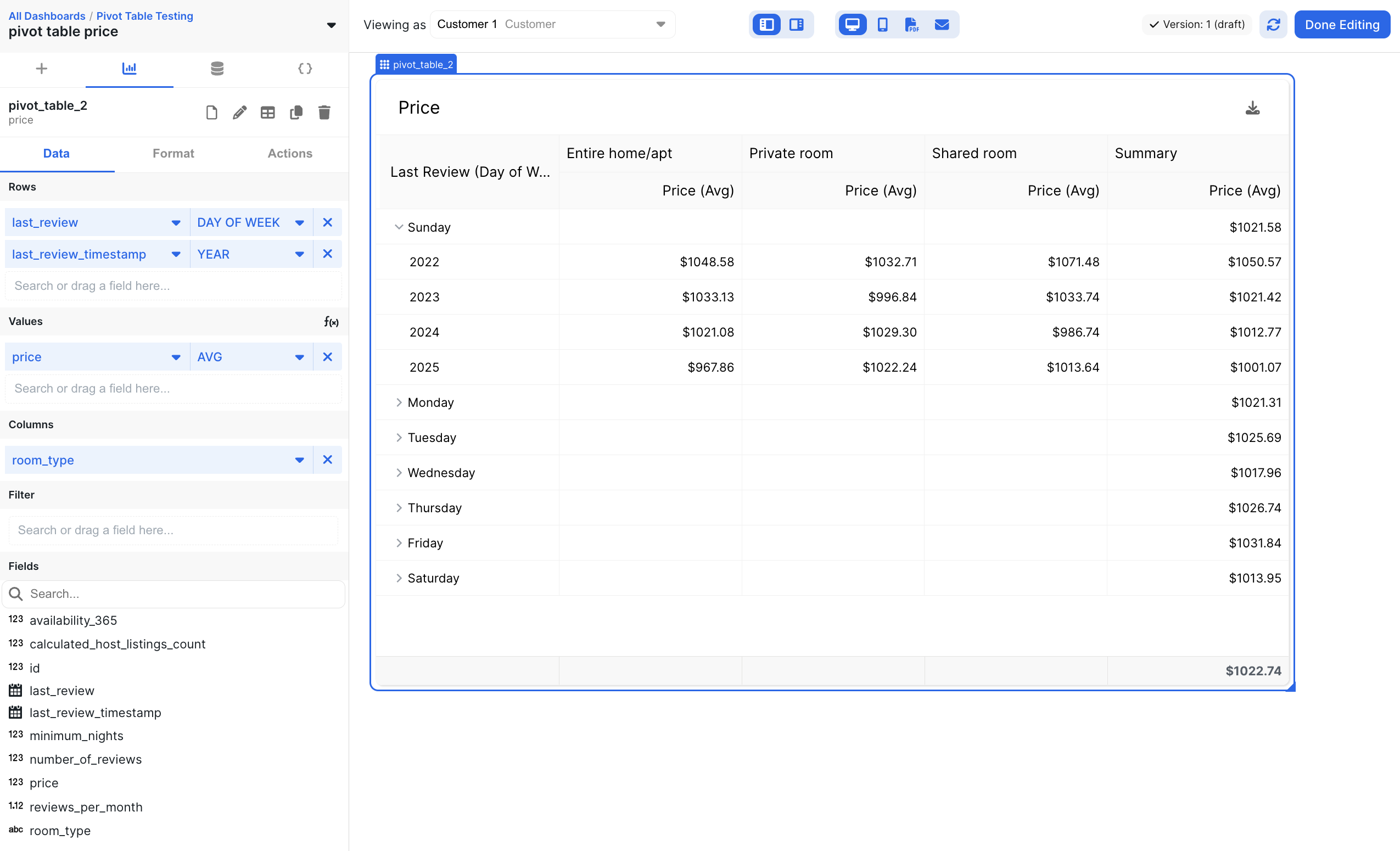 ## Pivot Table Cell Limits
To maximize performance, the pivot table has a limit to render 1750 populated cells in the table. If you need your pivot to have more cells, reach out to Explo Support.
# Sankey Chart
Source: https://docs.explo.co/creating-dashboards/visualizations/charts/sankey
## Data Configuration
#### Chart Type
You can read about this section [here](/creating-dashboards/visualizations/data-tab#chart-type).
#### From
Define the node from which values are flowing. For example, if \$100 flows from Subsidiary A to Parent Company B, then the From field would be Subsidiary A.
#### To
Define the node to which values are flowing. For example, if \$100 flows from Subsidiary A to Parent Company B, then the To field would be Parent Company B.
#### Aggregation
Define the amount that is flowing from Point A to Point B. For example, if $100 flows from Subsidiary A to Parent Company B, then the Aggregation field would be the $100 value.
#### Filter
This section is for filtering the chart based on certain columns. You can read about chart filtering [here](/creating-dashboards/visualizations/data-tab#filter).
## Formatting
#### Header
Read about the `Header` section [here](/creating-dashboards/visualizations/format-tab/overview#header).
#### Show Values
Toggle to default show values on the chart, or only on hover.
#### Value Format
Read about the `Value Formatting` section [here](/creating-dashboards/visualizations/format-tab/value-formatting).
#### Enable Download
Read about the `Enable Download` section [here](/creating-dashboards/visualizations/format-tab/overview#enable-download).
#### Data Labels
Read about the `Data Labels` section [here](/creating-dashboards/visualizations/format-tab/data-labels).
#### URL Link
Read about the `URL Link` section [here](/creating-dashboards/visualizations/format-tab/overview#url-link).
#### No Data Configuration
Read about the `No Data Configuration` section [here](/creating-dashboards/visualizations/format-tab/overview#no-data-configuration).
#### Expose Underlying Data
Read about the `Expose Underlying Data` section [here](/creating-dashboards/drilldowns/underlying-data-drilldowns).
# Scatter Plot
Source: https://docs.explo.co/creating-dashboards/visualizations/charts/scatter-plot
## Data Configuration
#### Chart Type
You can read about this section [here](/creating-dashboards/visualizations/data-tab#chart-type).
#### X-Axis
This section defines which field will map to the x coordinate for each point on the scatter plot.
#### Y-Axis
This section defines which field will map to the y coordinate for each point on the scatter plot.
#### Group By
This section is for grouping on the scatter plot. If there is a column in this section, each point
will be colored based on the value in this column for that point.
## Pivot Table Cell Limits
To maximize performance, the pivot table has a limit to render 1750 populated cells in the table. If you need your pivot to have more cells, reach out to Explo Support.
# Sankey Chart
Source: https://docs.explo.co/creating-dashboards/visualizations/charts/sankey
## Data Configuration
#### Chart Type
You can read about this section [here](/creating-dashboards/visualizations/data-tab#chart-type).
#### From
Define the node from which values are flowing. For example, if \$100 flows from Subsidiary A to Parent Company B, then the From field would be Subsidiary A.
#### To
Define the node to which values are flowing. For example, if \$100 flows from Subsidiary A to Parent Company B, then the To field would be Parent Company B.
#### Aggregation
Define the amount that is flowing from Point A to Point B. For example, if $100 flows from Subsidiary A to Parent Company B, then the Aggregation field would be the $100 value.
#### Filter
This section is for filtering the chart based on certain columns. You can read about chart filtering [here](/creating-dashboards/visualizations/data-tab#filter).
## Formatting
#### Header
Read about the `Header` section [here](/creating-dashboards/visualizations/format-tab/overview#header).
#### Show Values
Toggle to default show values on the chart, or only on hover.
#### Value Format
Read about the `Value Formatting` section [here](/creating-dashboards/visualizations/format-tab/value-formatting).
#### Enable Download
Read about the `Enable Download` section [here](/creating-dashboards/visualizations/format-tab/overview#enable-download).
#### Data Labels
Read about the `Data Labels` section [here](/creating-dashboards/visualizations/format-tab/data-labels).
#### URL Link
Read about the `URL Link` section [here](/creating-dashboards/visualizations/format-tab/overview#url-link).
#### No Data Configuration
Read about the `No Data Configuration` section [here](/creating-dashboards/visualizations/format-tab/overview#no-data-configuration).
#### Expose Underlying Data
Read about the `Expose Underlying Data` section [here](/creating-dashboards/drilldowns/underlying-data-drilldowns).
# Scatter Plot
Source: https://docs.explo.co/creating-dashboards/visualizations/charts/scatter-plot
## Data Configuration
#### Chart Type
You can read about this section [here](/creating-dashboards/visualizations/data-tab#chart-type).
#### X-Axis
This section defines which field will map to the x coordinate for each point on the scatter plot.
#### Y-Axis
This section defines which field will map to the y coordinate for each point on the scatter plot.
#### Group By
This section is for grouping on the scatter plot. If there is a column in this section, each point
will be colored based on the value in this column for that point.
 ## Adding the Chart Level Filter
 In a chart that supports color categorization, you can drag multiple columns
into the color category. If more than one color exists, a dropdown will appear
on the respective chart that the customer can use to switch between views.
In a chart that supports color categorization, you can drag multiple columns
into the color category. If more than one color exists, a dropdown will appear
on the respective chart that the customer can use to switch between views.
 You can also format the dropdown to appear either in the top right corner or
below the title of the chart. The default placement is top right corner.
## Variable Usage
The selected item in the dropdown will be saved in a variable and can be used
like any other variables across the dashboard.
In the SQL query, use the following syntax
```sql theme={null}
WHERE 1=1
[[AND column_1 = {{
You can also format the dropdown to appear either in the top right corner or
below the title of the chart. The default placement is top right corner.
## Variable Usage
The selected item in the dropdown will be saved in a variable and can be used
like any other variables across the dashboard.
In the SQL query, use the following syntax
```sql theme={null}
WHERE 1=1
[[AND column_1 = {{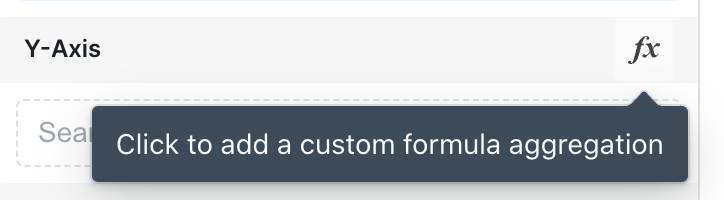 To use a custom formula, go to the Data tab and click on the "fx" button
to the right of the aggregation configuration section.
In the input field, write your formula using SQL aggregation functions.
Here are some examples of custom formulas:
`SUM(price)`
`SUM(revenue) - SUM(cost)`
### Edit or Remove a Custom Formula
You can edit the formula by clicking on the icon to the left,
and you can delete the formula by clicking on the icon to the right
To use a custom formula, go to the Data tab and click on the "fx" button
to the right of the aggregation configuration section.
In the input field, write your formula using SQL aggregation functions.
Here are some examples of custom formulas:
`SUM(price)`
`SUM(revenue) - SUM(cost)`
### Edit or Remove a Custom Formula
You can edit the formula by clicking on the icon to the left,
and you can delete the formula by clicking on the icon to the right
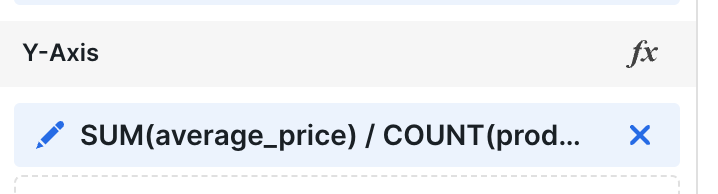 ### Rename the Formula
You can rename the label that appears in tooltips and legends in the Data Labels section of the Format tab
### Rename the Formula
You can rename the label that appears in tooltips and legends in the Data Labels section of the Format tab
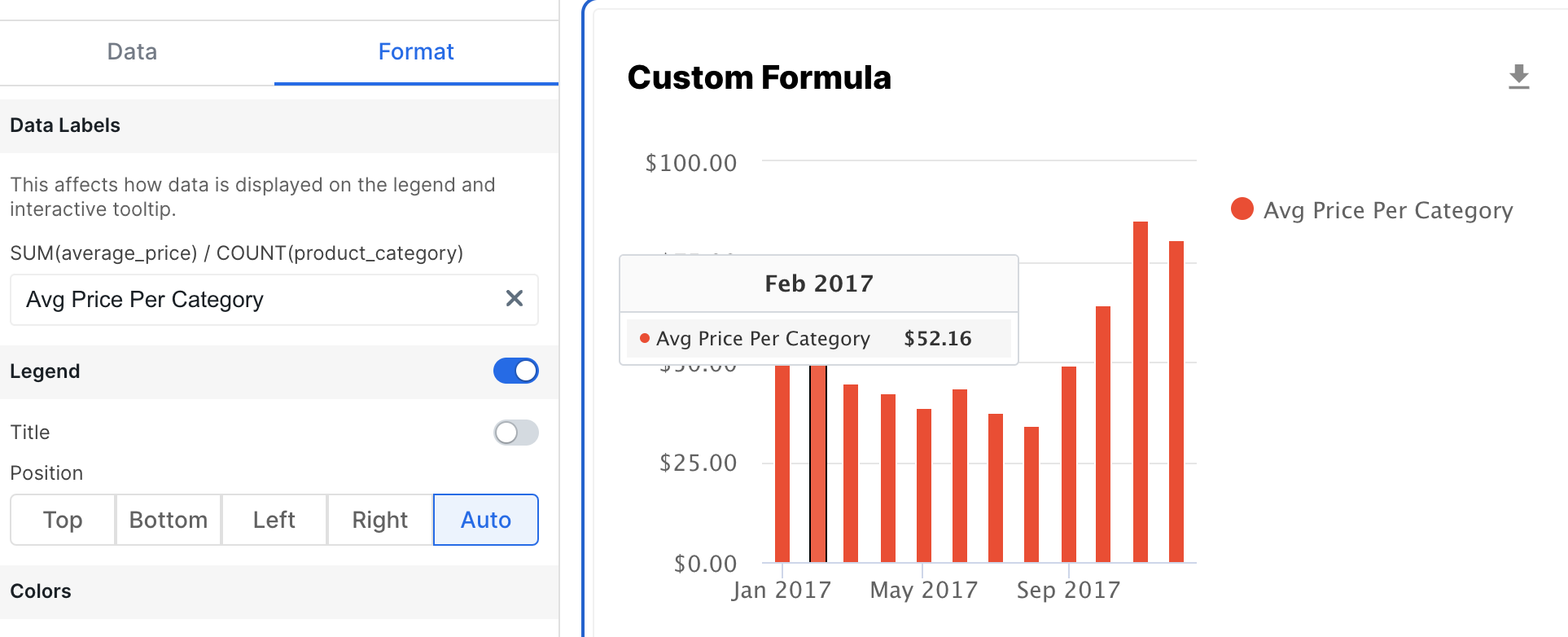 # Data Labels
Source: https://docs.explo.co/creating-dashboards/visualizations/format-tab/data-labels
Data labels are the text in the legends and interactive tooltips on all non table charts. They are populated from values in the dataset, and this section in the Format Tab allows you to edit them.
### Supported charts
Data Labels can be edited for all of the following charts:
* Bar Charts (grouped, stacked, and 100%)
* Line Charts (line and combo)
* Area Charts
* Pie Charts
* Heat Maps
* Spider Charts
### Editing a Data Label
This section will contain an input field for each field that will appear in the legend or tooltip.
The default value for these will be the name of the column, but they can be edited to be more readable.
# Goal Lines
Source: https://docs.explo.co/creating-dashboards/visualizations/format-tab/goal-lines
Goal lines allow you to enhance your graphs and provide information on targets for the data.
## Adding a Goal
### Supported charts
Goals can be added to charts that display data on the two-dimensional axis.
Specifically:
* Bar Charts (grouped, stacked, and 100%)
* Line Charts
* Combo Charts
* Area Charts
### Create a Goal
To create a goal, go to the Format tab and click the "+" button for the "Goal
Line" section.
# Data Labels
Source: https://docs.explo.co/creating-dashboards/visualizations/format-tab/data-labels
Data labels are the text in the legends and interactive tooltips on all non table charts. They are populated from values in the dataset, and this section in the Format Tab allows you to edit them.
### Supported charts
Data Labels can be edited for all of the following charts:
* Bar Charts (grouped, stacked, and 100%)
* Line Charts (line and combo)
* Area Charts
* Pie Charts
* Heat Maps
* Spider Charts
### Editing a Data Label
This section will contain an input field for each field that will appear in the legend or tooltip.
The default value for these will be the name of the column, but they can be edited to be more readable.
# Goal Lines
Source: https://docs.explo.co/creating-dashboards/visualizations/format-tab/goal-lines
Goal lines allow you to enhance your graphs and provide information on targets for the data.
## Adding a Goal
### Supported charts
Goals can be added to charts that display data on the two-dimensional axis.
Specifically:
* Bar Charts (grouped, stacked, and 100%)
* Line Charts
* Combo Charts
* Area Charts
### Create a Goal
To create a goal, go to the Format tab and click the "+" button for the "Goal
Line" section.
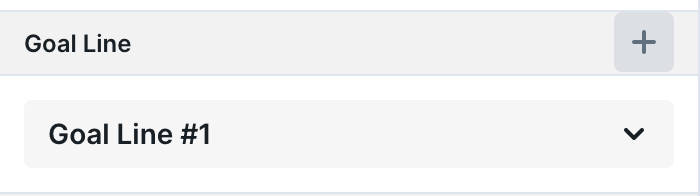 ## Goal Line
### Example
## Goal Line
### Example
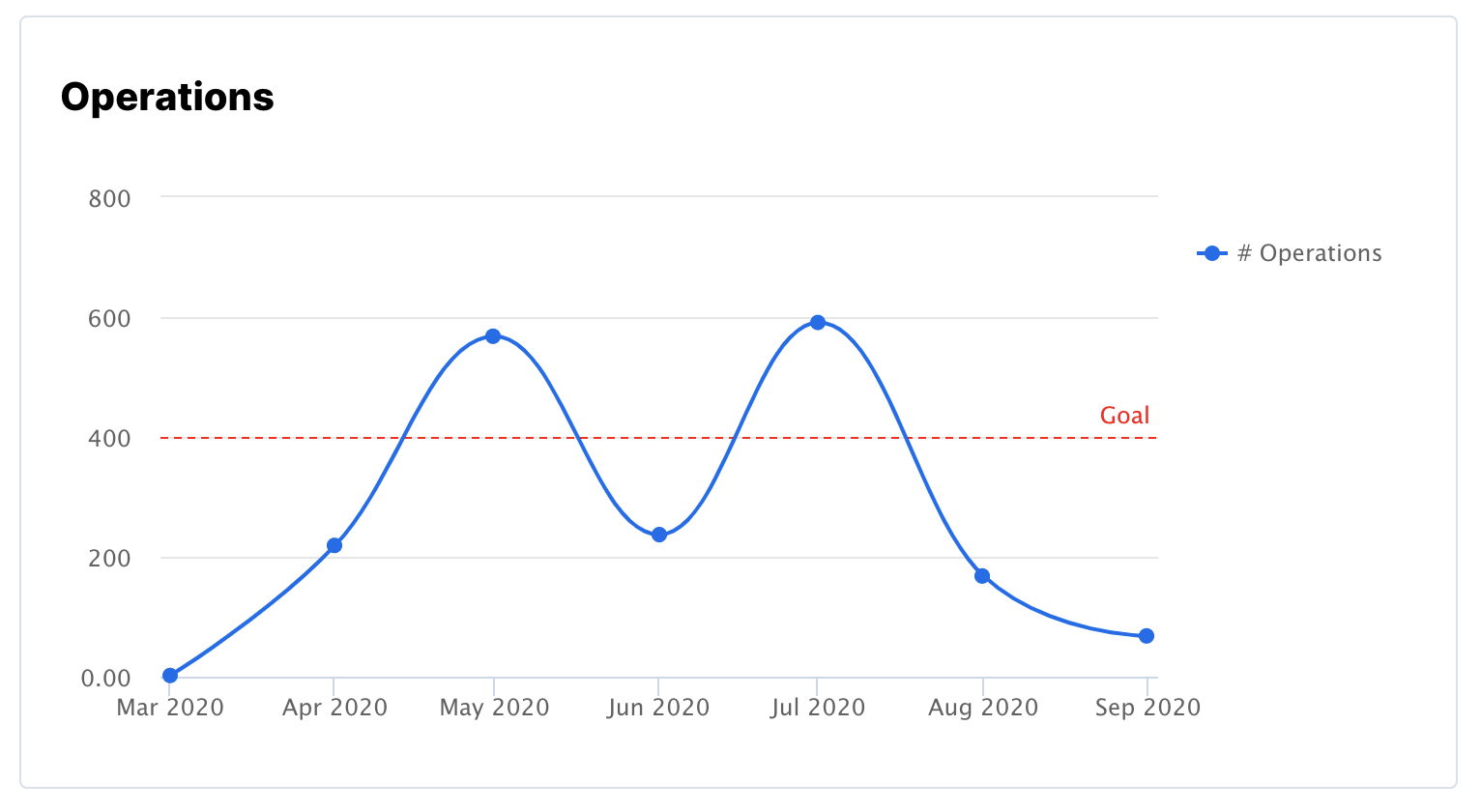 ### Configuration
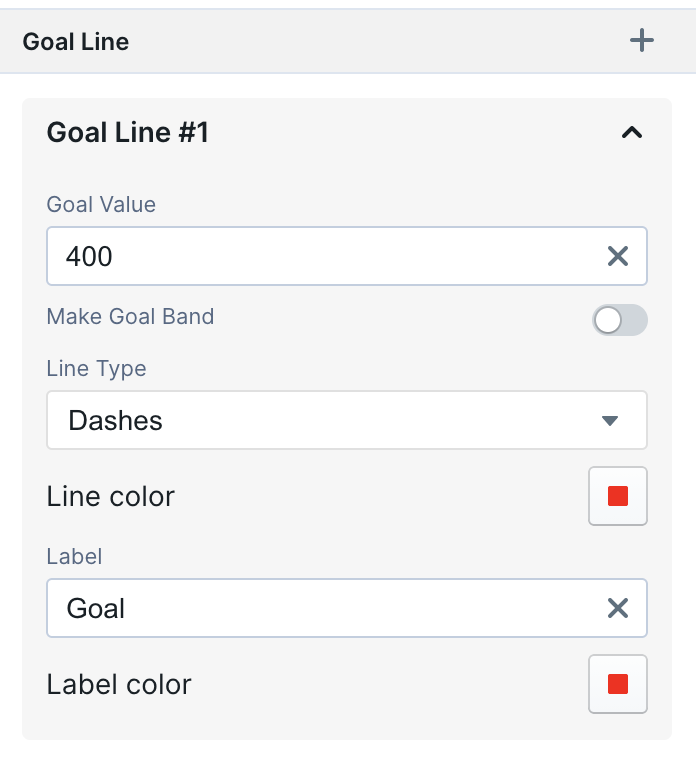 ## Goal Band
### Example
## Goal Band
### Example
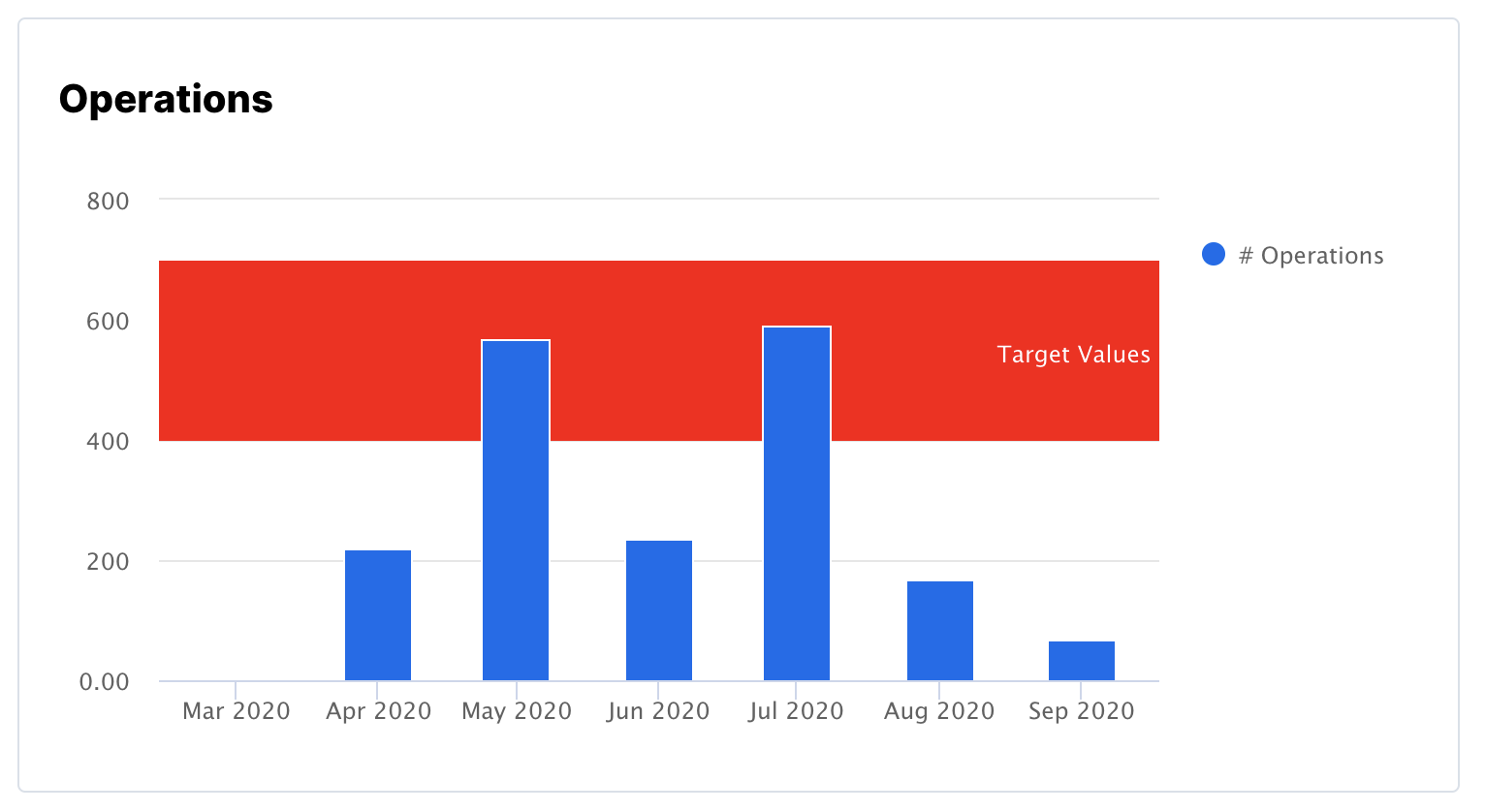 ### Configuration
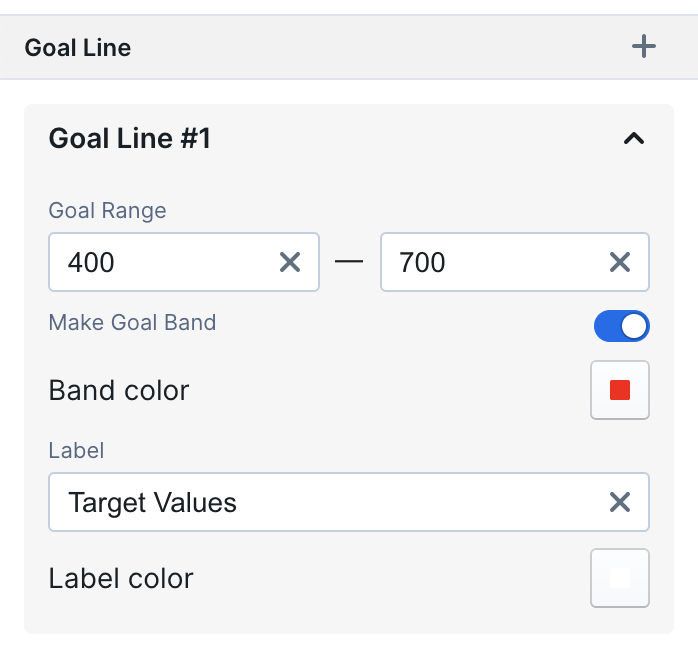 ## Multiple Goals
You can add more than one goal. To add multiple goals, simply click the "+"
button for each new line or band.
# KPI Value
Source: https://docs.explo.co/creating-dashboards/visualizations/format-tab/kpi-values
### Supported charts
* KPI
* KPI Progress
* KPI Trend
* KPI Trend Text Panel
### Options
#### Format
This specifies the format of the KPI value. The options are: number, number with significant digits, dollar, percentage, and time (days, hours, etc).
#### Smart Number Abbreviation
This specifies if the KPI value should be abbreviated using smart number abbreviation. It truncates to 2 decimal places thousands (k), millions (M), billions (B), and trillions (T). This toggle is turned off and disabled automatically when selecting the abbreviation option from the Format toggles.
#### Decimal Places
This specifies the number of decimal places on the KPI value.
#### Significant Digits
This specifies the number of significant digits that should be used, in the case that the format is `Abbr`.
#### Time Format
Specifies the time format for KPI values. Options:
* **Standard**: Formats as `DD days HH:mm:ss` (see [date format options](https://moment.github.io/luxon/#/formatting?id=table-of-tokens))
* **Abbreviated**: Shows largest nonzero value of days, hours, minutes, or seconds.
* **Custom Time Format**: Formats using your custom format (see [date format options](https://moment.github.io/luxon/#/formatting?id=table-of-tokens)).
* **Custom Total Duration**: Treats input as a Duration and uses your custom format (see [duration format options](https://moment.github.io/luxon/api-docs/index.html#durationtoformat)). To add additional text, wrap it in single quotes, e.g., `dd 'days' hh 'hours'`.
#### Multiplier
This specifies a numerical multiplier for the KPI value.
#### Unit
This specifies a unit for the KPI value, e.g. hours, people, etc.
#### Include Unit Padding
This specifies if there is space between the KPI value and the unit. For something like `g` for grams, this should be toggled off. But for something like `hours`, it may make sense to have padding.
#### Text Format
This specifies if additional formatting should be applied to the KPI value, either bold or italics.
#### Image to Display Next to Value (only for KPI/KPI Progress)
An image can be displayed next to the KPI value by inputting an image URL in this section.
#### Value Alignment (only for KPI Trend Text Panel)
This specifies the horizontal alignment of the KPI Trend value when trend lines are hidden.
# Legends
Source: https://docs.explo.co/creating-dashboards/visualizations/format-tab/legends
Legends can provide additional information to make visualizations easier to read.
### Supported Charts
Legends are supported on the following charts:
* Area Charts
* Bar Charts
* Box Plots
* Heat Maps
* Line Charts
* Pie Charts
* Scatter Plots
* Spider Charts
### Configuring a Legend
The legend is an optional component on the chart. Toggle it on and off using the switch to the right of the section header.
#### Title
The title is optional, but when turned on, it will appear above the legend. By default, the title is turned off.
#### Position
The legend can be positioned on any side chart. This section allows you to specify the positioning. The default position is
to the right of the chart.
# Overview
Source: https://docs.explo.co/creating-dashboards/visualizations/format-tab/overview
The format tab allows you to set specific formatting parameters for your visualization including labels, legends, axis settings, colors, and more. Note that the format tab will be different depending on the visualization that you choose.
#### Shared Format Tab Options Across Visualizations
The following are shared sections across most visualizations. For a full list of formatting options for a specific chart, navigate to the page for that chart type.
#### Header
* **Title**: This is the text that will appear at the top of the chart.
* **Tooltip**: This tooltip will appear to the right of the title. It can be used to add a description to the chart.
#### Enable Download
You can choose to enable downloading for all charts, except KPIs. The toggle to the right of this section header is used to control this.
* **Download file name**: The name of the file that is downloaded can be configured in this section. The default name is the name of the data panel.
#### Tooltip
This tooltip appears when hovering over a section of a chart, e.g. a bar in a bar chart. The tooltip gives details of the bar at the hover point.
* **Show percentage values:** This option adds the percentage breakdown of the bar or line for each y axis value at the given x axis value.
#### Colors
* **Color Palette**: The color palette for a specific chart can be specified with this section here. You can select a palette from the list of pre-populated palettes, as well as edit these palettes or create new palettes from scratch.
#### URL Link
This section, if toggled on, will display a button at the top right corner of the chart that links to another url.
* **URL:** This is the external url that the chart will navigate to. This link must be prefaced with `https://`.
* **Open in New Tab:** This toggle will determine if the link that is opened when the button is clicked opens in the same tab or in a new tab.
#### No Data Configuration
This is the text that will appear in a panel if there is no data returned for a specific chart. This section will allow you to configure what the panel looks like in this state.
* **Hide Chart Icon**: This toggle can be used to show or hide the chart icon on the empty panel.
* **No Data Text:** This is the text that will appear on a panel that has no data. The default is "No Data".
* **Text Size:** This section will allow you to specify the text size of the **No Data Text**.
# Table Value Formatting
Source: https://docs.explo.co/creating-dashboards/visualizations/format-tab/value-formatting
The values in a table on a dashboard can be formatted, and they each have a set of formatting options, dependent on the value type. This page details all the possible formatting options for each value type.
## Number
#### Format
These are the number formatting options that can be selected. The full list is: no format, number,
abbreviated number, dollar, percentage, and time (days, hours, etc).
#### Decimal Places
This specifies the number of decimal places on the value.
#### Significant Digits
This specifies the number of significant digits that should be used, in the case that the format is `Abbr`.
#### Time Format
Specifies the time format for numeric values. Options:
* **Standard**: Formats as `DD days HH:mm:ss` (see [date format options](https://moment.github.io/luxon/#/formatting?id=table-of-tokens))
* **Abbreviated**: Shows largest nonzero value of days, hours, minutes, or seconds.
* **Custom Time Format**: Formats using your custom format (see [date format options](https://moment.github.io/luxon/#/formatting?id=table-of-tokens)).
* **Custom Total Duration**: Treats input as a Duration and uses your custom format (see [duration format options](https://moment.github.io/luxon/api-docs/index.html#durationtoformat)). To add additional text, wrap it in single quotes, e.g., `dd 'days' hh 'hours'`.
#### Include thousands-separators
This specifies if separators (depending on internationalization) should be used for values over 999.
#### Multiplier
This specifies a numerical multiplier for the value.
#### Unit
This specifies a unit for the value, e.g. hours, orders, etc.
## String
The following are the formatting options available for strings in tables.
#### Normal
This is the default string format. No modifications are made, the string will appear exactly as it is in the dataset.
#### Category
Each unique string will be tagged with a different color, the default color palette will appear below the format section,
and the color for each category can be updated.
#### Link
Cells formatted as links will allow users to navigate to other pages from a row in a table. Choosing `Label` allow
you to specify custom text that will appear in each row for that column as the display for the underlying link. `Column`
will allow to pick another column within the dataset as the display for the underlying link.
#### Image
Cells that have image urls can be formatted to display the image in the table with this format option. You can also select
the shape of the image, either circle or square.
## Date
Dates within tables are also fully customizable. Choose either a preset date format option, or choose `Custom` and
input a date format. Read more about date format options [here](https://moment.github.io/luxon/#/formatting?id=table-of-tokens)
## Multiple Goals
You can add more than one goal. To add multiple goals, simply click the "+"
button for each new line or band.
# KPI Value
Source: https://docs.explo.co/creating-dashboards/visualizations/format-tab/kpi-values
### Supported charts
* KPI
* KPI Progress
* KPI Trend
* KPI Trend Text Panel
### Options
#### Format
This specifies the format of the KPI value. The options are: number, number with significant digits, dollar, percentage, and time (days, hours, etc).
#### Smart Number Abbreviation
This specifies if the KPI value should be abbreviated using smart number abbreviation. It truncates to 2 decimal places thousands (k), millions (M), billions (B), and trillions (T). This toggle is turned off and disabled automatically when selecting the abbreviation option from the Format toggles.
#### Decimal Places
This specifies the number of decimal places on the KPI value.
#### Significant Digits
This specifies the number of significant digits that should be used, in the case that the format is `Abbr`.
#### Time Format
Specifies the time format for KPI values. Options:
* **Standard**: Formats as `DD days HH:mm:ss` (see [date format options](https://moment.github.io/luxon/#/formatting?id=table-of-tokens))
* **Abbreviated**: Shows largest nonzero value of days, hours, minutes, or seconds.
* **Custom Time Format**: Formats using your custom format (see [date format options](https://moment.github.io/luxon/#/formatting?id=table-of-tokens)).
* **Custom Total Duration**: Treats input as a Duration and uses your custom format (see [duration format options](https://moment.github.io/luxon/api-docs/index.html#durationtoformat)). To add additional text, wrap it in single quotes, e.g., `dd 'days' hh 'hours'`.
#### Multiplier
This specifies a numerical multiplier for the KPI value.
#### Unit
This specifies a unit for the KPI value, e.g. hours, people, etc.
#### Include Unit Padding
This specifies if there is space between the KPI value and the unit. For something like `g` for grams, this should be toggled off. But for something like `hours`, it may make sense to have padding.
#### Text Format
This specifies if additional formatting should be applied to the KPI value, either bold or italics.
#### Image to Display Next to Value (only for KPI/KPI Progress)
An image can be displayed next to the KPI value by inputting an image URL in this section.
#### Value Alignment (only for KPI Trend Text Panel)
This specifies the horizontal alignment of the KPI Trend value when trend lines are hidden.
# Legends
Source: https://docs.explo.co/creating-dashboards/visualizations/format-tab/legends
Legends can provide additional information to make visualizations easier to read.
### Supported Charts
Legends are supported on the following charts:
* Area Charts
* Bar Charts
* Box Plots
* Heat Maps
* Line Charts
* Pie Charts
* Scatter Plots
* Spider Charts
### Configuring a Legend
The legend is an optional component on the chart. Toggle it on and off using the switch to the right of the section header.
#### Title
The title is optional, but when turned on, it will appear above the legend. By default, the title is turned off.
#### Position
The legend can be positioned on any side chart. This section allows you to specify the positioning. The default position is
to the right of the chart.
# Overview
Source: https://docs.explo.co/creating-dashboards/visualizations/format-tab/overview
The format tab allows you to set specific formatting parameters for your visualization including labels, legends, axis settings, colors, and more. Note that the format tab will be different depending on the visualization that you choose.
#### Shared Format Tab Options Across Visualizations
The following are shared sections across most visualizations. For a full list of formatting options for a specific chart, navigate to the page for that chart type.
#### Header
* **Title**: This is the text that will appear at the top of the chart.
* **Tooltip**: This tooltip will appear to the right of the title. It can be used to add a description to the chart.
#### Enable Download
You can choose to enable downloading for all charts, except KPIs. The toggle to the right of this section header is used to control this.
* **Download file name**: The name of the file that is downloaded can be configured in this section. The default name is the name of the data panel.
#### Tooltip
This tooltip appears when hovering over a section of a chart, e.g. a bar in a bar chart. The tooltip gives details of the bar at the hover point.
* **Show percentage values:** This option adds the percentage breakdown of the bar or line for each y axis value at the given x axis value.
#### Colors
* **Color Palette**: The color palette for a specific chart can be specified with this section here. You can select a palette from the list of pre-populated palettes, as well as edit these palettes or create new palettes from scratch.
#### URL Link
This section, if toggled on, will display a button at the top right corner of the chart that links to another url.
* **URL:** This is the external url that the chart will navigate to. This link must be prefaced with `https://`.
* **Open in New Tab:** This toggle will determine if the link that is opened when the button is clicked opens in the same tab or in a new tab.
#### No Data Configuration
This is the text that will appear in a panel if there is no data returned for a specific chart. This section will allow you to configure what the panel looks like in this state.
* **Hide Chart Icon**: This toggle can be used to show or hide the chart icon on the empty panel.
* **No Data Text:** This is the text that will appear on a panel that has no data. The default is "No Data".
* **Text Size:** This section will allow you to specify the text size of the **No Data Text**.
# Table Value Formatting
Source: https://docs.explo.co/creating-dashboards/visualizations/format-tab/value-formatting
The values in a table on a dashboard can be formatted, and they each have a set of formatting options, dependent on the value type. This page details all the possible formatting options for each value type.
## Number
#### Format
These are the number formatting options that can be selected. The full list is: no format, number,
abbreviated number, dollar, percentage, and time (days, hours, etc).
#### Decimal Places
This specifies the number of decimal places on the value.
#### Significant Digits
This specifies the number of significant digits that should be used, in the case that the format is `Abbr`.
#### Time Format
Specifies the time format for numeric values. Options:
* **Standard**: Formats as `DD days HH:mm:ss` (see [date format options](https://moment.github.io/luxon/#/formatting?id=table-of-tokens))
* **Abbreviated**: Shows largest nonzero value of days, hours, minutes, or seconds.
* **Custom Time Format**: Formats using your custom format (see [date format options](https://moment.github.io/luxon/#/formatting?id=table-of-tokens)).
* **Custom Total Duration**: Treats input as a Duration and uses your custom format (see [duration format options](https://moment.github.io/luxon/api-docs/index.html#durationtoformat)). To add additional text, wrap it in single quotes, e.g., `dd 'days' hh 'hours'`.
#### Include thousands-separators
This specifies if separators (depending on internationalization) should be used for values over 999.
#### Multiplier
This specifies a numerical multiplier for the value.
#### Unit
This specifies a unit for the value, e.g. hours, orders, etc.
## String
The following are the formatting options available for strings in tables.
#### Normal
This is the default string format. No modifications are made, the string will appear exactly as it is in the dataset.
#### Category
Each unique string will be tagged with a different color, the default color palette will appear below the format section,
and the color for each category can be updated.
#### Link
Cells formatted as links will allow users to navigate to other pages from a row in a table. Choosing `Label` allow
you to specify custom text that will appear in each row for that column as the display for the underlying link. `Column`
will allow to pick another column within the dataset as the display for the underlying link.
#### Image
Cells that have image urls can be formatted to display the image in the table with this format option. You can also select
the shape of the image, either circle or square.
## Date
Dates within tables are also fully customizable. Choose either a preset date format option, or choose `Custom` and
input a date format. Read more about date format options [here](https://moment.github.io/luxon/#/formatting?id=table-of-tokens)
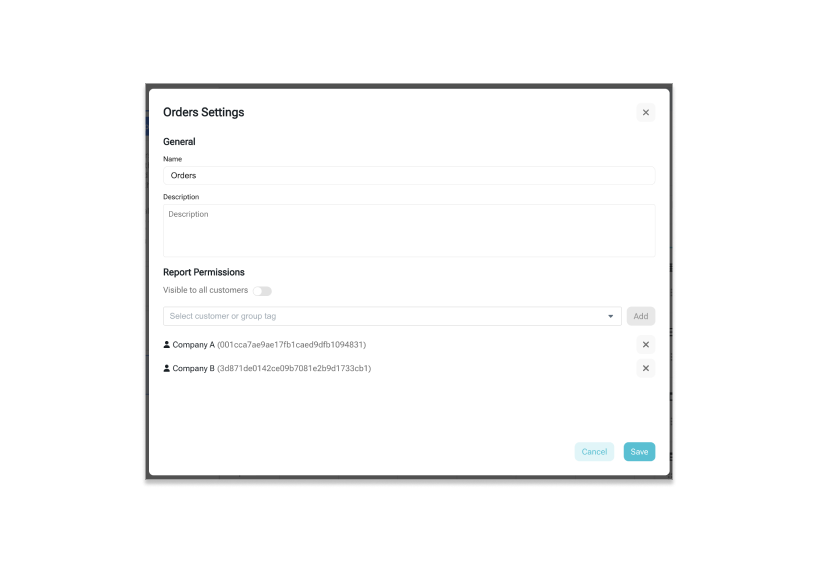 ## Configuring a Built In Report
Built in reports have all the same functionality as new reports. You can configure filters and sorts, add groupings and aggregations, and create multiple views and visualizations all within one report.
## Built In Report Usage
End users that have access to built in reports will not be able to make direct edits to the built in report itself, but they will be able to make edits and then save their edits as a copy of the original report.
## Configuring a Built In Report
Built in reports have all the same functionality as new reports. You can configure filters and sorts, add groupings and aggregations, and create multiple views and visualizations all within one report.
## Built In Report Usage
End users that have access to built in reports will not be able to make direct edits to the built in report itself, but they will be able to make edits and then save their edits as a copy of the original report.
 # Datasets
Source: https://docs.explo.co/creating-report-builders/datasets
A Report Builder dataset is a table of data that your end users will be able explore and use to build reports and visualizations.
## Defining a dataset
A dataset is defined using SQL. The SQL can be as simple or complex as needed. It may be pulling an entire table from a datasource using a `select *`, or it may contain business logic including calculated columns, joins and filters.
You will also need to use the dynamic customer variables to make sure the data is filtered by the customer entity. Read more about this [here](/creating-dashboards/variables/types-of-variables/customer-object)
## Permissions
You can specify permissions on datasets to allow access to some or all of your customers. This can be specified at the customer level or the group tag level. Read more about group tags [here](/getting-started/group-tags#filtering-on-the-frontend-by-group-tag)
# Datasets
Source: https://docs.explo.co/creating-report-builders/datasets
A Report Builder dataset is a table of data that your end users will be able explore and use to build reports and visualizations.
## Defining a dataset
A dataset is defined using SQL. The SQL can be as simple or complex as needed. It may be pulling an entire table from a datasource using a `select *`, or it may contain business logic including calculated columns, joins and filters.
You will also need to use the dynamic customer variables to make sure the data is filtered by the customer entity. Read more about this [here](/creating-dashboards/variables/types-of-variables/customer-object)
## Permissions
You can specify permissions on datasets to allow access to some or all of your customers. This can be specified at the customer level or the group tag level. Read more about group tags [here](/getting-started/group-tags#filtering-on-the-frontend-by-group-tag)
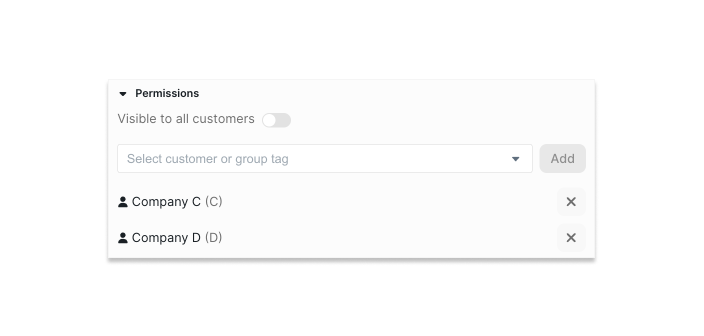 ## Column Selection and Formatting
Once the dataset is defined with SQL, you can use the column selection and formatting sections to clean up and style the data.
In the column selection section, you can specify column visibility and default filters. Default filters will appear initially on new reports using that dataset, but they will be empty.
## Column Selection and Formatting
Once the dataset is defined with SQL, you can use the column selection and formatting sections to clean up and style the data.
In the column selection section, you can specify column visibility and default filters. Default filters will appear initially on new reports using that dataset, but they will be empty.
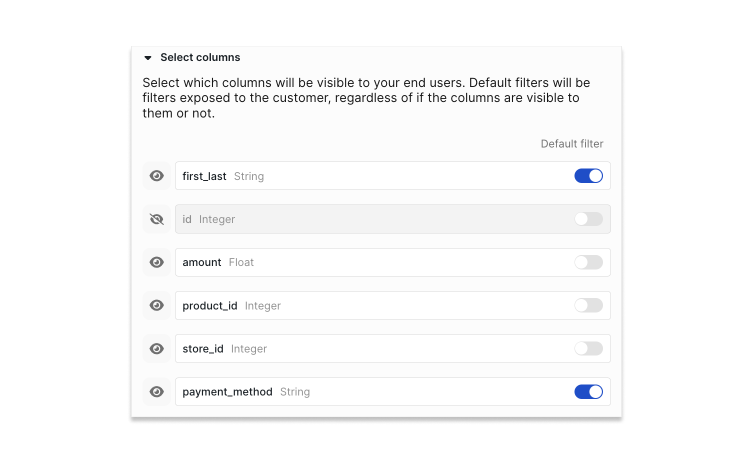 In the column formatting section, you can rename columns, add descriptions, and format the values based on column type.
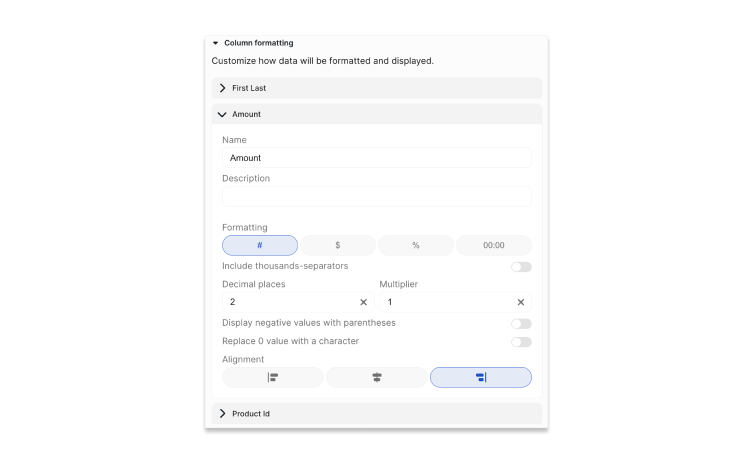 ## Custom Aggregations
You can define formulas for aggregating data that your team and your end users can use in reports. Read more about these [here](/report-builder-features/custom-aggregations).
# Customer Hierarchy
Source: https://docs.explo.co/customers/customer-hierarchy
Facilitate a hierarchical structure with parent-child relationships among your customers.
## Feature Motivation
We at Explo have observed that our clients frequently have a natural parent-child hierarchy among their customer entities that they wish to depict in the Explo Customers tab.
For instance, a client may have customers that are sports leagues, with each league comprising various teams, and each team having multiple players.
This scenario presents a natural three-tier hierarchy: `League`, `Team`, and `Player`. Similarly, many of our clients work with companies that have individual users,
resulting in a natural two-tier hierarchy of `Customer` and `User`. Explo can accommodate up to three layers of any desired hierarchy.
## Configurable Dashboard Sections and Customer Hierarchy
In most scenarios, we anticipate that customers will employ a two-tier `Customer` and `User` hierarchy when activating Configurable Dashboard Sections.
This is primarily because you may want the dashboards to have data populated from the `Customer` level, but have special state saved for each entity at the `User` level.
For instance, if you want Alice and Bob, users within Generic Company, to have their own individually configured dashboards, you must designate Generic Company as the parent customer and
Alice and Bob as the children. Subsequently, in your dashboard queries, you should reference the variables from the Customer level. When embedding, it should be done at
the User level so Alice and Bob can have their own unique views.
## Filtering on the Frontend by Hierarchy Level
On the frontend interface, selecting a customer will filter the customer page accordingly.
## Custom Aggregations
You can define formulas for aggregating data that your team and your end users can use in reports. Read more about these [here](/report-builder-features/custom-aggregations).
# Customer Hierarchy
Source: https://docs.explo.co/customers/customer-hierarchy
Facilitate a hierarchical structure with parent-child relationships among your customers.
## Feature Motivation
We at Explo have observed that our clients frequently have a natural parent-child hierarchy among their customer entities that they wish to depict in the Explo Customers tab.
For instance, a client may have customers that are sports leagues, with each league comprising various teams, and each team having multiple players.
This scenario presents a natural three-tier hierarchy: `League`, `Team`, and `Player`. Similarly, many of our clients work with companies that have individual users,
resulting in a natural two-tier hierarchy of `Customer` and `User`. Explo can accommodate up to three layers of any desired hierarchy.
## Configurable Dashboard Sections and Customer Hierarchy
In most scenarios, we anticipate that customers will employ a two-tier `Customer` and `User` hierarchy when activating Configurable Dashboard Sections.
This is primarily because you may want the dashboards to have data populated from the `Customer` level, but have special state saved for each entity at the `User` level.
For instance, if you want Alice and Bob, users within Generic Company, to have their own individually configured dashboards, you must designate Generic Company as the parent customer and
Alice and Bob as the children. Subsequently, in your dashboard queries, you should reference the variables from the Customer level. When embedding, it should be done at
the User level so Alice and Bob can have their own unique views.
## Filtering on the Frontend by Hierarchy Level
On the frontend interface, selecting a customer will filter the customer page accordingly.
 You can set the hierarchy level and any parent-child relationships on this customer page as well.
## Feature Functionality
The customer hierarchy feature currently provides two key functionalities:
1. Referencing any ancestor customer entity in a query by utilizing the inherited archetype variables. You can read more about those [here](/creating-dashboards/variables/types-of-variables/customer-object#archetype-variables).
2. Automatically inheriting properties from the parent. For example, in a three-tier hierarchy of sports leagues, if the `conference` property is assigned as `Eastern` at the top level,
each child and grandchild ('Team' and 'Player') could reference `properties.conference`, which would yield `Eastern` for each level of the hierarchy.
## Example Usage in Queries
The following examples will show how you can control which level in the hierarchy provides the data in your queries.
Understanding customer-specific variables is a prerequesite for writing these types of queries, and you can read more about those [here](/creating-dashboards/variables/types-of-variables/customer-object).
Let's say we have some customer entities with the following setup:
| Name | Provided Id | Hierarchy Level | Parent Provided ID | Available Archetype Variables |
| ------------ | ------------- | --------------- | ------------------ | ------------------------------------------------------------------------------------------------------------------------------------- |
| NBA | nba | League | None | `league_id: nba`, `league_name: NBA` |
| Lakers | lakers | Team | NBA | `league_id: nba`, `league_name: NBA`, `team_id: lakers` , `team_name: Lakers` |
| LeBron James | lebron\_james | Player | lakers | `league_id: nba`, `league_name: NBA`, `team_id: lakers` , `team_name: Lakers`, `player_id: lebron_james`, `player_name: LeBron James` |
| Rockets | rockets | Team | NBA | `league_id: nba`, `league_name: NBA`, `team_id: rockets` , `team_name: Rockets` |
| Jalen Green | jalen\_green | Player | rockets | `league_id: nba`, `league_name: NBA`, `team_id: rockets` , `team_name: Rockets`, `player_id: jalen_green`, `player_name: Jalen Green` |
If we wanted to show league-level data,
```sql theme={null}
SELECT *
FROM Table_1
WHERE 1=1
[[AND league_column = {{ league_id }}]]
```
For the query above, if you viewed an Explo dashboard as any of the customer entities in the table,
you'd be able to see all of the NBA data since all of the listed customer entities have NBA as an ancestor.
If we wanted to show team-level data,
```sql theme={null}
SELECT *
FROM Table_1
WHERE 1=1
[[AND league_column = {{ league_id }}]]
[[AND team_column = {{ team_id }}]]
```
For the query above, if you viewed an Explo dashboard as `Lakers` you'd be able to see all of the Lakers data. If you
viewed the dashboard as `LeBron James`, you'd also be able to see the all Lakers data because LeBron is a member of the Lakers team.
If we wanted to show player-level data,
```sql theme={null}
SELECT *
FROM Table_1
WHERE 1=1
[[AND league_column = {{ league_id }}]]
[[AND team_column = {{ team_id }}]]
[[AND player_column = {{ player_id }}]]
```
If you viewed the dashboard as `LeBron James`, you'd be able to see all of LeBron's data. If you viewed the
dashboard as `Jalen Green`, you'd only be able to see Jalen's data.
Referencing an inherited property
```sql theme={null}
SELECT *
FROM Table_1
WHERE 1=1
[[AND column = {{properties.inherited_property}}]]
```
# Group Tags
Source: https://docs.explo.co/customers/group-tags
Group customer entities and control their access to different products.
## Feature Motivation
Group Tags are customizable tags that you can assign to your customer entities to control their access to different products, like Reports in Report Builder, Shares in Data Share, or Report Builder AI.
This way, you can set the visibility of a report to an entire group of customer entities at once instead of having to add them individually.
You can also use group tags to organize customer entities on the Customer Page.
## Create, Edit, and Delete Group Tags
In the Group Tags section of the Settings page, you can create, edit, and delete the group tags for your team.
You can set the hierarchy level and any parent-child relationships on this customer page as well.
## Feature Functionality
The customer hierarchy feature currently provides two key functionalities:
1. Referencing any ancestor customer entity in a query by utilizing the inherited archetype variables. You can read more about those [here](/creating-dashboards/variables/types-of-variables/customer-object#archetype-variables).
2. Automatically inheriting properties from the parent. For example, in a three-tier hierarchy of sports leagues, if the `conference` property is assigned as `Eastern` at the top level,
each child and grandchild ('Team' and 'Player') could reference `properties.conference`, which would yield `Eastern` for each level of the hierarchy.
## Example Usage in Queries
The following examples will show how you can control which level in the hierarchy provides the data in your queries.
Understanding customer-specific variables is a prerequesite for writing these types of queries, and you can read more about those [here](/creating-dashboards/variables/types-of-variables/customer-object).
Let's say we have some customer entities with the following setup:
| Name | Provided Id | Hierarchy Level | Parent Provided ID | Available Archetype Variables |
| ------------ | ------------- | --------------- | ------------------ | ------------------------------------------------------------------------------------------------------------------------------------- |
| NBA | nba | League | None | `league_id: nba`, `league_name: NBA` |
| Lakers | lakers | Team | NBA | `league_id: nba`, `league_name: NBA`, `team_id: lakers` , `team_name: Lakers` |
| LeBron James | lebron\_james | Player | lakers | `league_id: nba`, `league_name: NBA`, `team_id: lakers` , `team_name: Lakers`, `player_id: lebron_james`, `player_name: LeBron James` |
| Rockets | rockets | Team | NBA | `league_id: nba`, `league_name: NBA`, `team_id: rockets` , `team_name: Rockets` |
| Jalen Green | jalen\_green | Player | rockets | `league_id: nba`, `league_name: NBA`, `team_id: rockets` , `team_name: Rockets`, `player_id: jalen_green`, `player_name: Jalen Green` |
If we wanted to show league-level data,
```sql theme={null}
SELECT *
FROM Table_1
WHERE 1=1
[[AND league_column = {{ league_id }}]]
```
For the query above, if you viewed an Explo dashboard as any of the customer entities in the table,
you'd be able to see all of the NBA data since all of the listed customer entities have NBA as an ancestor.
If we wanted to show team-level data,
```sql theme={null}
SELECT *
FROM Table_1
WHERE 1=1
[[AND league_column = {{ league_id }}]]
[[AND team_column = {{ team_id }}]]
```
For the query above, if you viewed an Explo dashboard as `Lakers` you'd be able to see all of the Lakers data. If you
viewed the dashboard as `LeBron James`, you'd also be able to see the all Lakers data because LeBron is a member of the Lakers team.
If we wanted to show player-level data,
```sql theme={null}
SELECT *
FROM Table_1
WHERE 1=1
[[AND league_column = {{ league_id }}]]
[[AND team_column = {{ team_id }}]]
[[AND player_column = {{ player_id }}]]
```
If you viewed the dashboard as `LeBron James`, you'd be able to see all of LeBron's data. If you viewed the
dashboard as `Jalen Green`, you'd only be able to see Jalen's data.
Referencing an inherited property
```sql theme={null}
SELECT *
FROM Table_1
WHERE 1=1
[[AND column = {{properties.inherited_property}}]]
```
# Group Tags
Source: https://docs.explo.co/customers/group-tags
Group customer entities and control their access to different products.
## Feature Motivation
Group Tags are customizable tags that you can assign to your customer entities to control their access to different products, like Reports in Report Builder, Shares in Data Share, or Report Builder AI.
This way, you can set the visibility of a report to an entire group of customer entities at once instead of having to add them individually.
You can also use group tags to organize customer entities on the Customer Page.
## Create, Edit, and Delete Group Tags
In the Group Tags section of the Settings page, you can create, edit, and delete the group tags for your team.
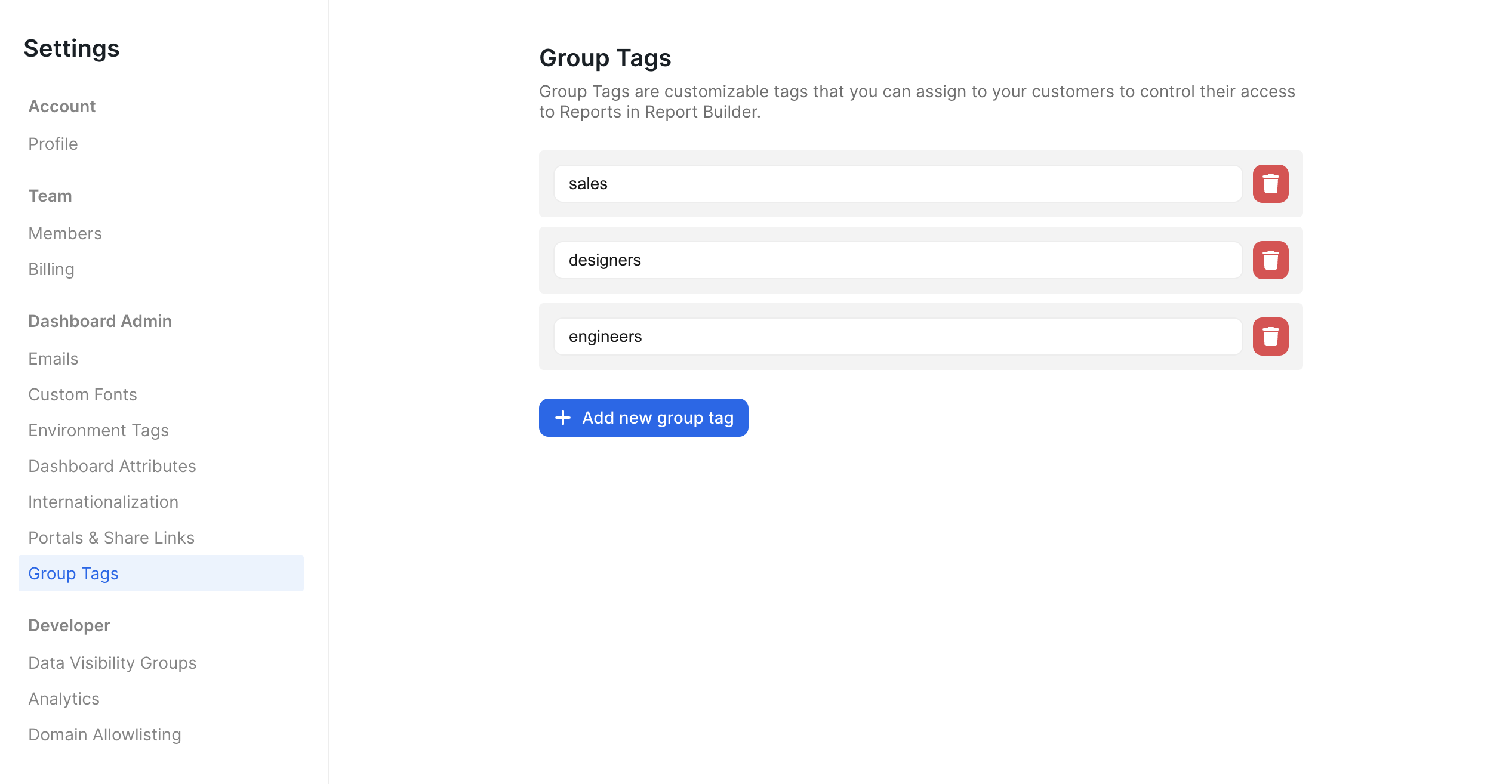 ## Customer Group Tag Assignment
You can change a customer entity's group tag assignment on the Customer Page. Note that group tags
are an inherited field, so child customers inherit the group tags assigned to their parents.
When editing a customer,
inherited group tags are shown in gray and non-inherited group tags are shown in blue.
## Customer Group Tag Assignment
You can change a customer entity's group tag assignment on the Customer Page. Note that group tags
are an inherited field, so child customers inherit the group tags assigned to their parents.
When editing a customer,
inherited group tags are shown in gray and non-inherited group tags are shown in blue.
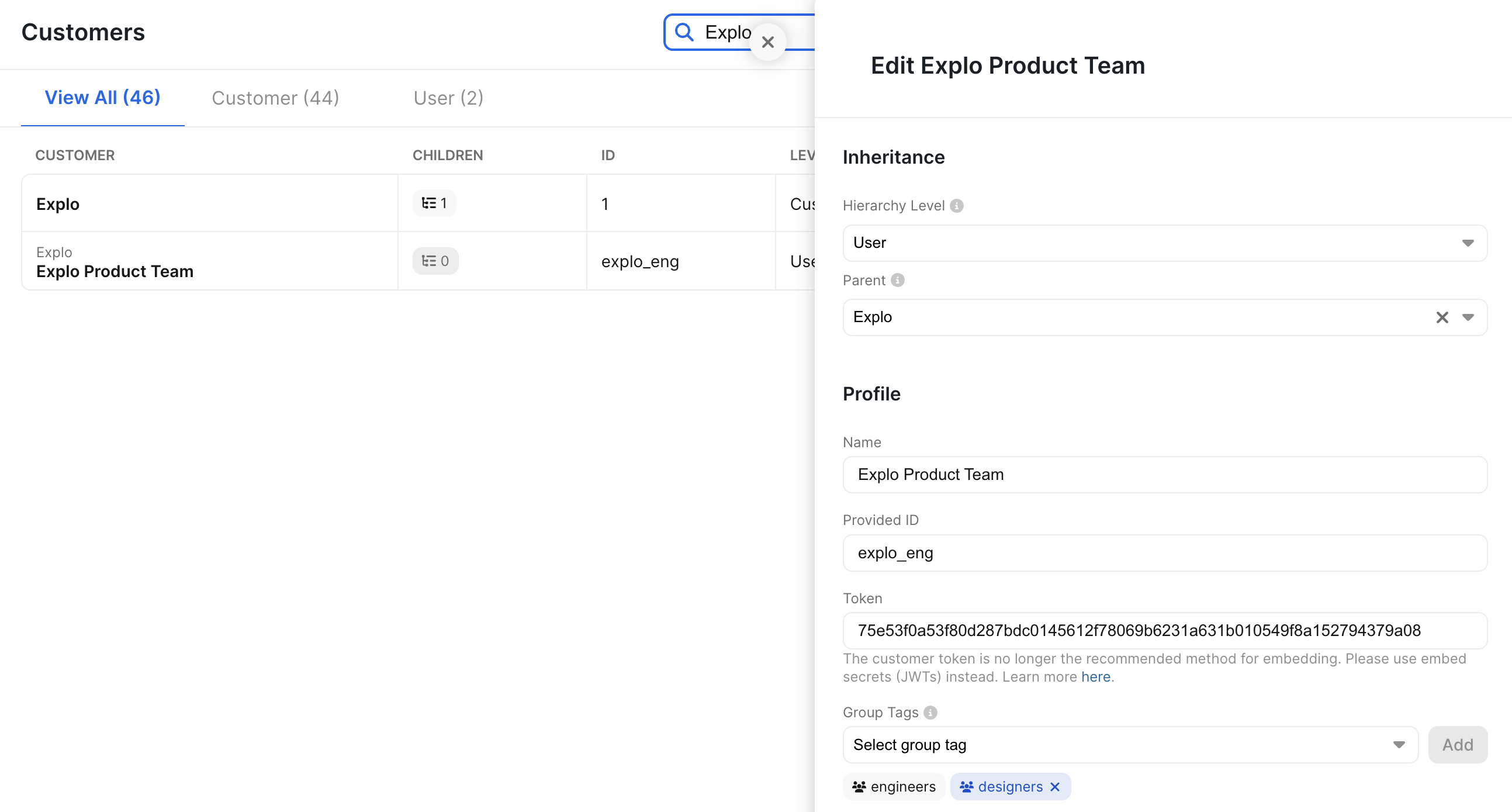 In the table, all group tags (both inherited and non-inherited) are listed.
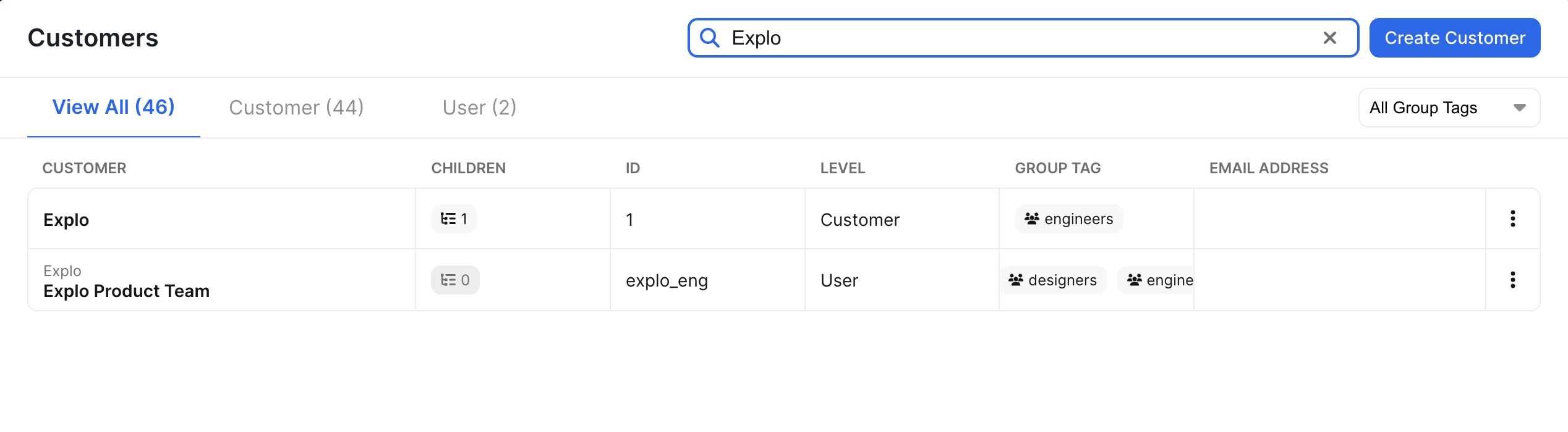 ## Filtering on the Frontend by Group Tag
On the frontend interface, selecting a group tag will filter the customer page accordingly.
## Filtering on the Frontend by Group Tag
On the frontend interface, selecting a group tag will filter the customer page accordingly.
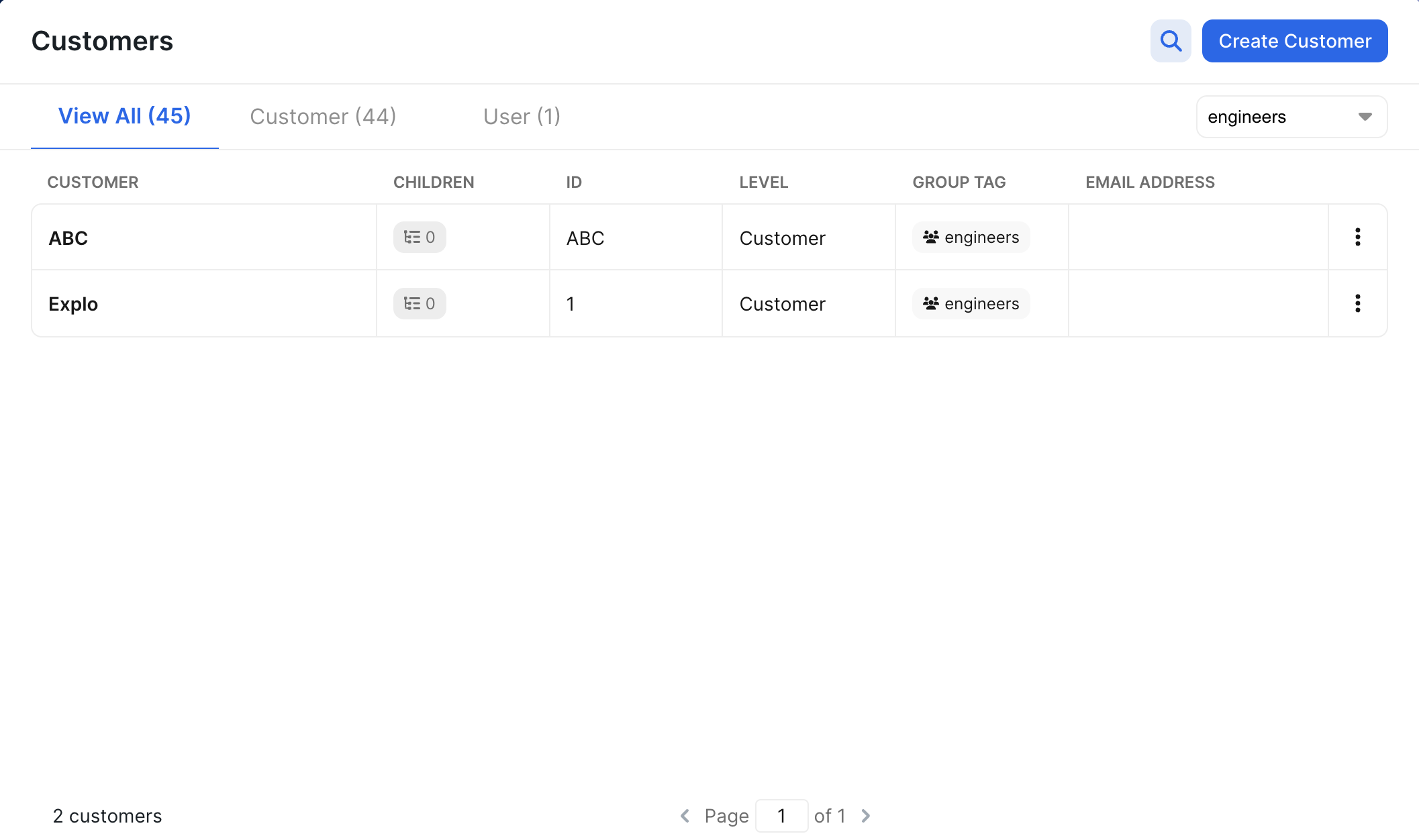 ## Group Tags and Report Builder Visibility
You can assign report visibility to entire group tags in place of or addition to individual customers.
## Group Tags and Report Builder Visibility
You can assign report visibility to entire group tags in place of or addition to individual customers.
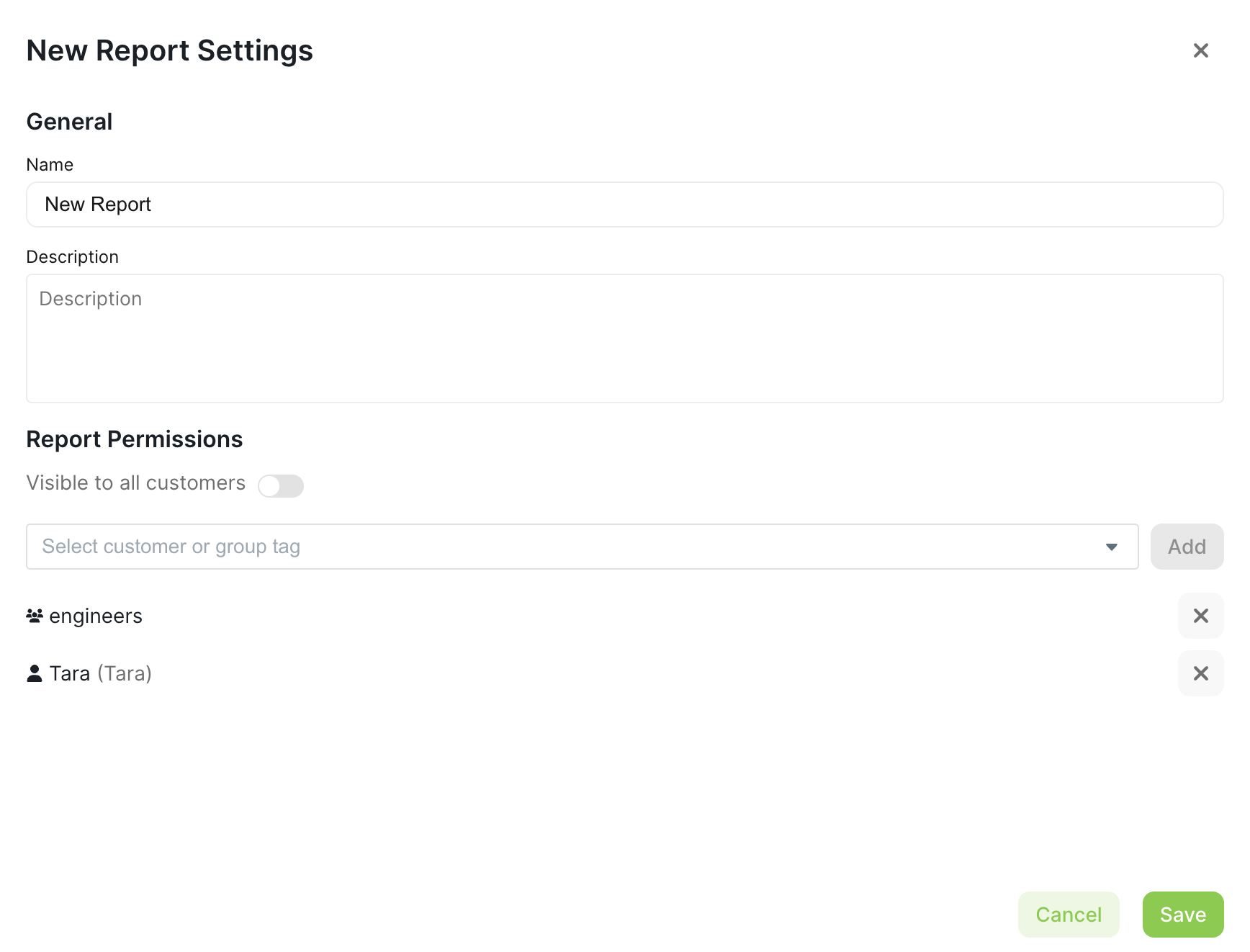 # Overview
Source: https://docs.explo.co/customers/overview
An overview of the concept of customer groups and their implementation.
## What are customer groups
A customer group is a security group that can only see and access their set of data. This can be a company, a user at a company, a location, a region, etc.
## Creating customer groups
This process can be managed via the UI by navigating to the Customers tab and selecting Create Customer in the top left corner.
The fields that will be required here are `Name` and `Provided ID`.
# Overview
Source: https://docs.explo.co/customers/overview
An overview of the concept of customer groups and their implementation.
## What are customer groups
A customer group is a security group that can only see and access their set of data. This can be a company, a user at a company, a location, a region, etc.
## Creating customer groups
This process can be managed via the UI by navigating to the Customers tab and selecting Create Customer in the top left corner.
The fields that will be required here are `Name` and `Provided ID`.
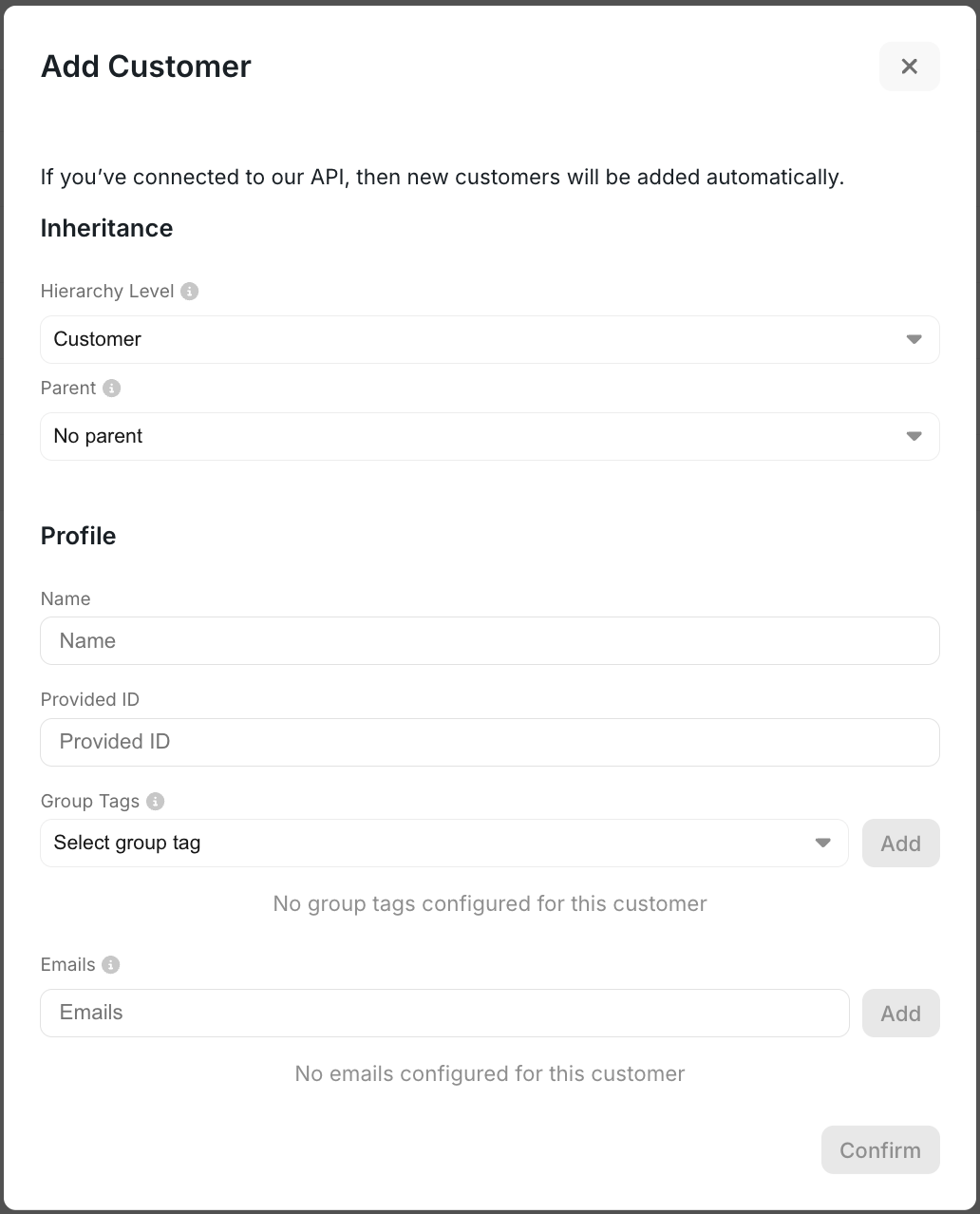 If you are supporting a single tenant data model, there's a section at the bottom of that panel for database assignment where you can choose which database this particular customer has access to within a schema.
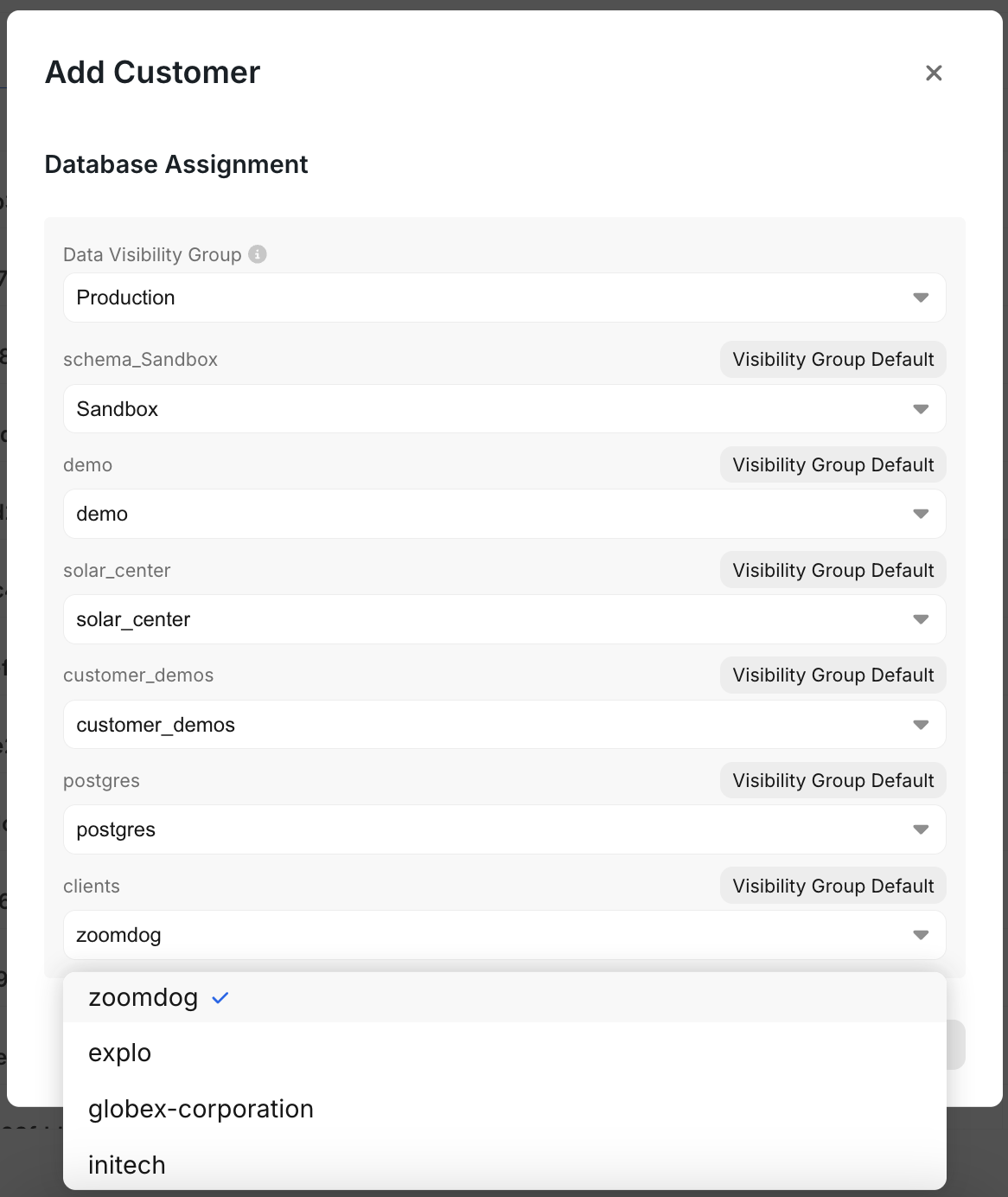 Or you can leverage our [API endpoint](/api-reference/customer-api/get-or-create) to programmatically create them.
## Using customer groups
You are always viewing a dashboard in the context of a customer. When you create a dataset, you are able to pass in variables associated to that customer into the query. You can open the variables section in the dataset editor to see what you can access.
Or you can leverage our [API endpoint](/api-reference/customer-api/get-or-create) to programmatically create them.
## Using customer groups
You are always viewing a dashboard in the context of a customer. When you create a dataset, you are able to pass in variables associated to that customer into the query. You can open the variables section in the dataset editor to see what you can access.
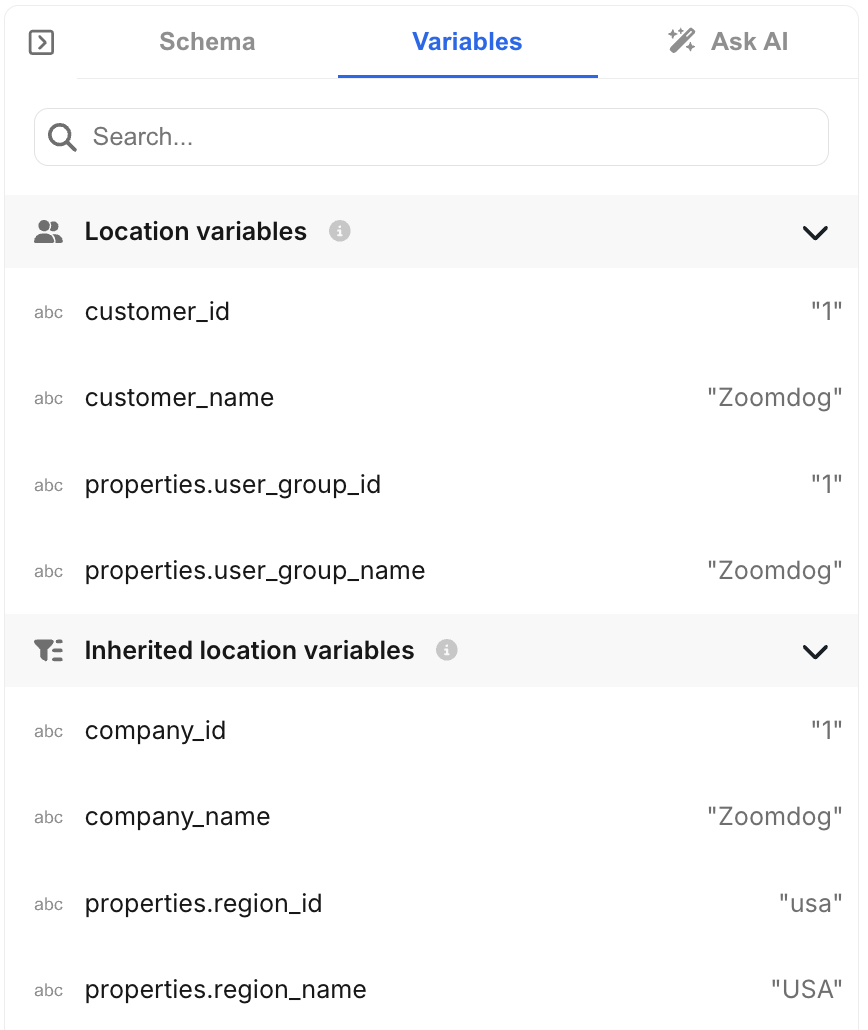 When using variables they need to get wrapped in `{{}}` and all statement that have variables need to get wrapped in `[[]]`.
If you have a multi-tenant data model this may look something like
`WHERE 1=1`
`[[AND fieldFromDB = {{customer_id}}]]`
Whereas if you have a single tenant data model you can instead pass in the variable into the table name.
`[[FROM {{customer_id}}]]`
This will ensure that your end users will only have access to their data.
# Custom Map Boundaries
Source: https://docs.explo.co/dashboard-features/custom-map-boundaries
The Custom Map Boundaries feature allows you to use custom Mapbox configurations for your choropleth maps, enabling support for specialized boundary types.
## Prerequisites
Before using custom map configurations, you'll need:
* A Mapbox API key with access to your custom tilesets
* Knowledge of your boundary configuration details:
* Source layer name
* Tileset ID
* Boundary format (column name for matching)
## Setting Up Your Mapbox API Key
1. Navigate to your team settings
2. Locate the "Custom Map Boundaries Configuration" section
3. Enter your Mapbox API key
4. Save the configuration
## Configuring Custom Boundaries
When creating or editing a choropleth map:
1. Select "Custom" as the boundary type
2. Configure the following settings:
* **Custom Boundary Source Layer**: The name of your source layer (e.g., "custom-regions")
* **Custom Boundary Tileset**: Your Mapbox tileset ID (e.g., "mapbox://your-tileset-id")
* **Custom Boundary Format**: The column name in your tileset that contains the matching values (e.g., "postcode")
## Default Behavior
If any custom settings are left unspecified:
* Source Layer: Defaults to the standard states layer
* Tileset: Uses the default Explo engineering tileset
* Boundary Format: Uses standard state format (STUSPS)
## Troubleshooting
If your custom map configuration isn't working:
* Verify your Mapbox API key has access to the specified tileset
* Ensure the boundary format matches exactly with your data column names
* Check that your source layer name matches the one in your Mapbox tileset
# Custom Menu
Source: https://docs.explo.co/dashboard-features/custom-menu
The Custom Menu option allows you add a menu option to a chart that then fires off a javascript event when clicked on by the end user.
When using variables they need to get wrapped in `{{}}` and all statement that have variables need to get wrapped in `[[]]`.
If you have a multi-tenant data model this may look something like
`WHERE 1=1`
`[[AND fieldFromDB = {{customer_id}}]]`
Whereas if you have a single tenant data model you can instead pass in the variable into the table name.
`[[FROM {{customer_id}}]]`
This will ensure that your end users will only have access to their data.
# Custom Map Boundaries
Source: https://docs.explo.co/dashboard-features/custom-map-boundaries
The Custom Map Boundaries feature allows you to use custom Mapbox configurations for your choropleth maps, enabling support for specialized boundary types.
## Prerequisites
Before using custom map configurations, you'll need:
* A Mapbox API key with access to your custom tilesets
* Knowledge of your boundary configuration details:
* Source layer name
* Tileset ID
* Boundary format (column name for matching)
## Setting Up Your Mapbox API Key
1. Navigate to your team settings
2. Locate the "Custom Map Boundaries Configuration" section
3. Enter your Mapbox API key
4. Save the configuration
## Configuring Custom Boundaries
When creating or editing a choropleth map:
1. Select "Custom" as the boundary type
2. Configure the following settings:
* **Custom Boundary Source Layer**: The name of your source layer (e.g., "custom-regions")
* **Custom Boundary Tileset**: Your Mapbox tileset ID (e.g., "mapbox://your-tileset-id")
* **Custom Boundary Format**: The column name in your tileset that contains the matching values (e.g., "postcode")
## Default Behavior
If any custom settings are left unspecified:
* Source Layer: Defaults to the standard states layer
* Tileset: Uses the default Explo engineering tileset
* Boundary Format: Uses standard state format (STUSPS)
## Troubleshooting
If your custom map configuration isn't working:
* Verify your Mapbox API key has access to the specified tileset
* Ensure the boundary format matches exactly with your data column names
* Check that your source layer name matches the one in your Mapbox tileset
# Custom Menu
Source: https://docs.explo.co/dashboard-features/custom-menu
The Custom Menu option allows you add a menu option to a chart that then fires off a javascript event when clicked on by the end user.
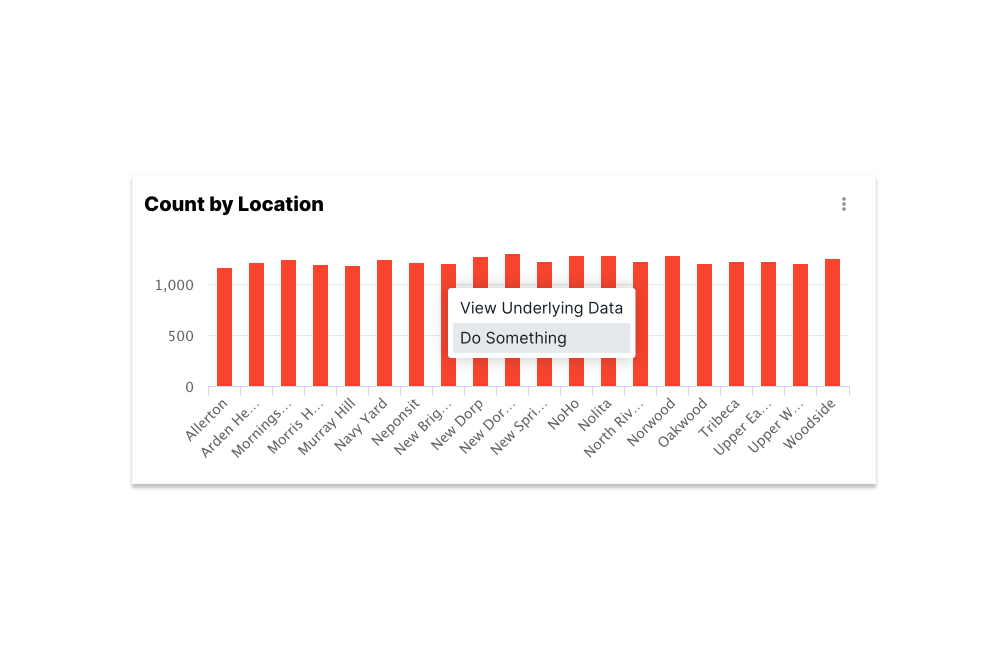 ## Configuration
The configuration for this custom menu option can be found in the Action tab for the following charts:
* Bar Chart
* Line Chart
* Area Chart
* Pie Chart
* Heat Map
* Boxplot
## Configuration
The configuration for this custom menu option can be found in the Action tab for the following charts:
* Bar Chart
* Line Chart
* Area Chart
* Pie Chart
* Heat Map
* Boxplot
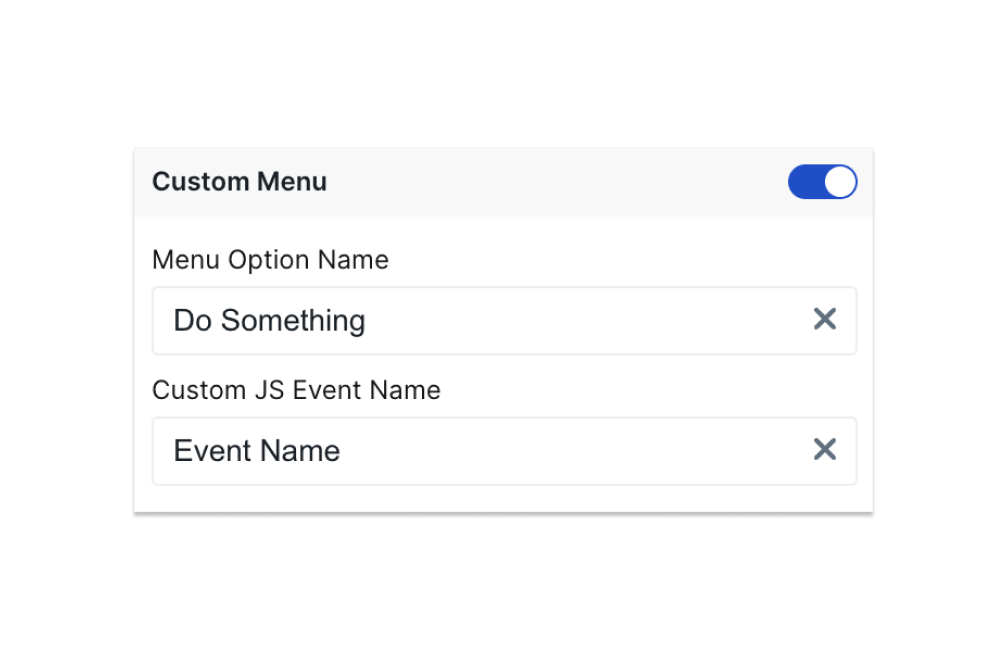 Once toggled on, you’ll need to specify the name of the menu option under Menu Option Name.
This is what will show up when a certain bar, point, slice, etc. is clicked. Then you will
specify the javascript event name under Customer JS Event Name. This will be the name that
is passed into the event listener in your frontend code that will then trigger the desired action.
The detail body that is passed with the javascript event contains the `category` value and `color` value.
# Overview
Source: https://docs.explo.co/dashboard-features/dashboard-attributes
Categorize your dashboards using attributes
## Creating Attributes
Once toggled on, you’ll need to specify the name of the menu option under Menu Option Name.
This is what will show up when a certain bar, point, slice, etc. is clicked. Then you will
specify the javascript event name under Customer JS Event Name. This will be the name that
is passed into the event listener in your frontend code that will then trigger the desired action.
The detail body that is passed with the javascript event contains the `category` value and `color` value.
# Overview
Source: https://docs.explo.co/dashboard-features/dashboard-attributes
Categorize your dashboards using attributes
## Creating Attributes
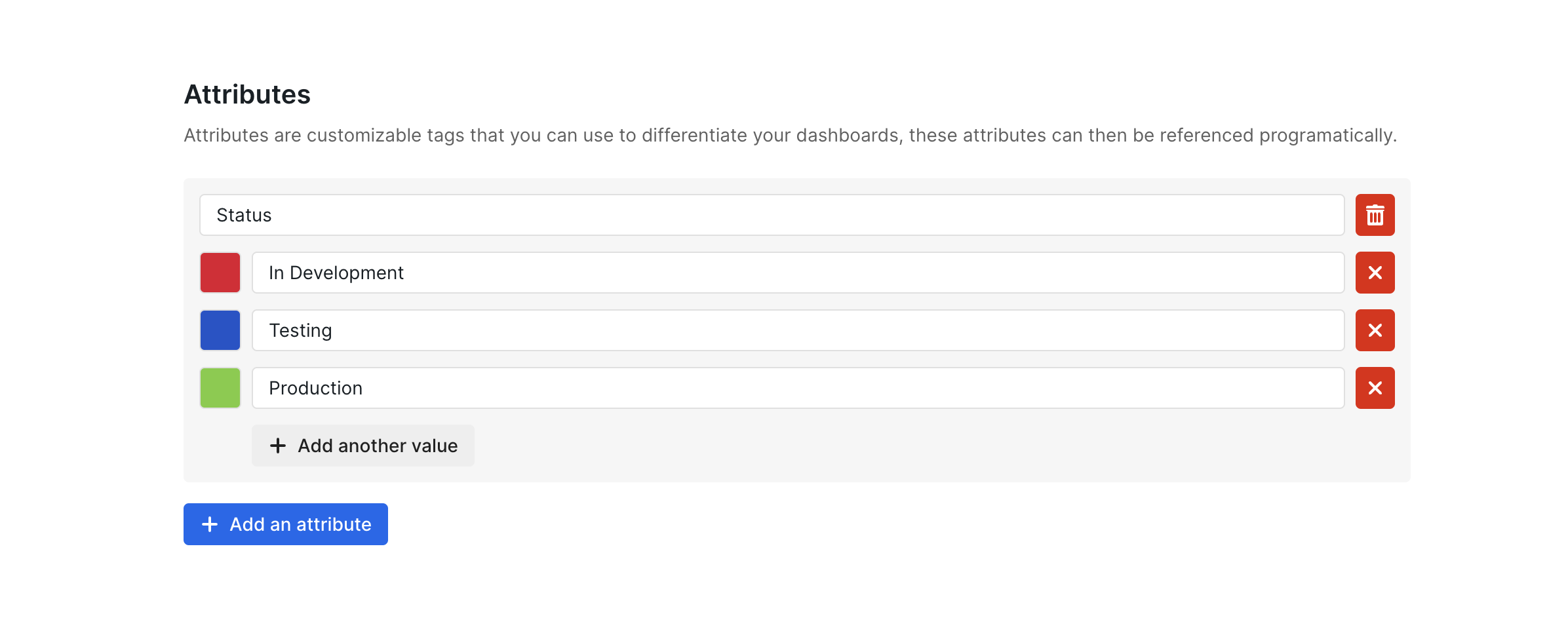 On the settings page, there is an Attributes section under Developer. There you
can create a new attribute or create a new value for an attribute. You can
choose a color for a new value that can easily help distinguish values chosen
for a dashboard when assigning them.
# Assigning Values
Source: https://docs.explo.co/dashboard-features/dashboard-attributes/assigning-values
Once you have created attributes and values you can start assigning them to your dashboards. There are two places that this can be done.
### Dashboard List Page
On the dashboard page you can assign them by clicking on the menu button and
choosing the value you want assigned for that dashboard.
On the settings page, there is an Attributes section under Developer. There you
can create a new attribute or create a new value for an attribute. You can
choose a color for a new value that can easily help distinguish values chosen
for a dashboard when assigning them.
# Assigning Values
Source: https://docs.explo.co/dashboard-features/dashboard-attributes/assigning-values
Once you have created attributes and values you can start assigning them to your dashboards. There are two places that this can be done.
### Dashboard List Page
On the dashboard page you can assign them by clicking on the menu button and
choosing the value you want assigned for that dashboard.
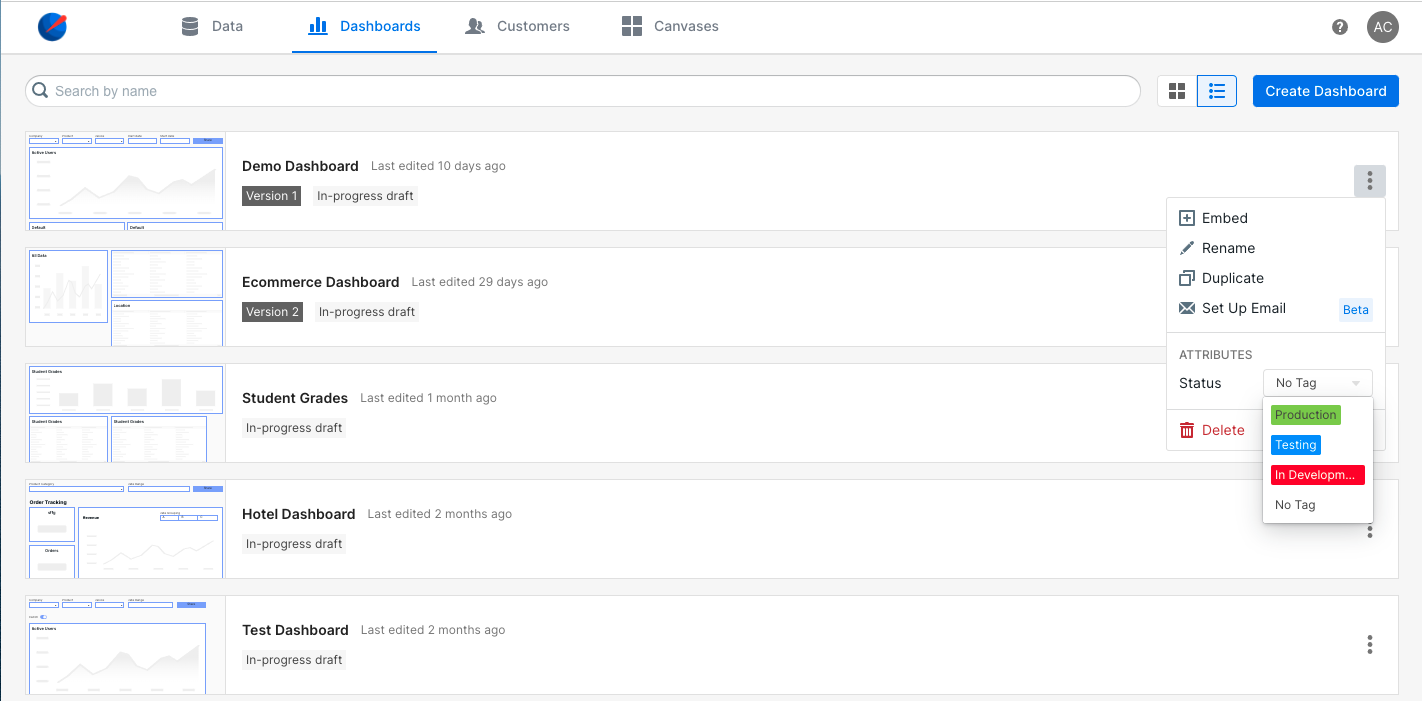 ### Dashboard Edit Page
When viewing or editing a dashboard you can click on the down arrow next to the
dashboard name to open up the menu where you can assign values to the dashboard.
### Dashboard Edit Page
When viewing or editing a dashboard you can click on the down arrow next to the
dashboard name to open up the menu where you can assign values to the dashboard.
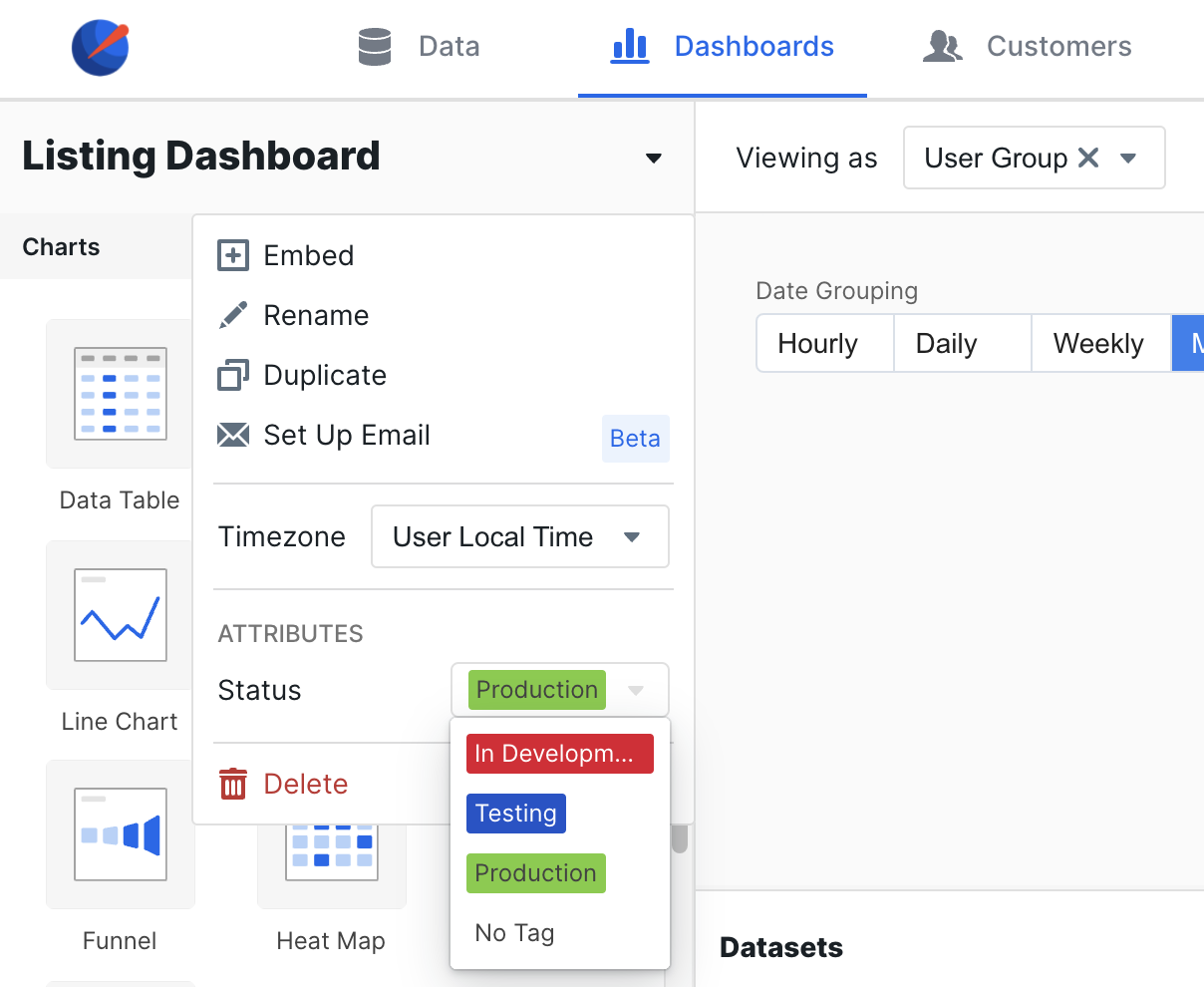 # Using Assigned Values
Source: https://docs.explo.co/dashboard-features/dashboard-attributes/using-assigned-values
Now that dashboards have been assigned certain values for attributes how you can you use them
### Labeling for Team Purposes
You can use dashboard attributes as a way to let your teammates know what the
status, purpose, or any other attribute of that dashboard you have created or
worked on.
### Filter Through API for Embedding
If you want some logic to control which dashboards are embedded you can use our
dashboard API to get a list of all your team's dashboard and their attributes.
This way you can get more information on which dashboard you should be choosing
to embed on your app.
# Dashboard Caching
Source: https://docs.explo.co/dashboard-features/dashboard-caching
Cache your data at the dashboard level to enable faster data loading
## Implementing Dashboard Caching
# Using Assigned Values
Source: https://docs.explo.co/dashboard-features/dashboard-attributes/using-assigned-values
Now that dashboards have been assigned certain values for attributes how you can you use them
### Labeling for Team Purposes
You can use dashboard attributes as a way to let your teammates know what the
status, purpose, or any other attribute of that dashboard you have created or
worked on.
### Filter Through API for Embedding
If you want some logic to control which dashboards are embedded you can use our
dashboard API to get a list of all your team's dashboard and their attributes.
This way you can get more information on which dashboard you should be choosing
to embed on your app.
# Dashboard Caching
Source: https://docs.explo.co/dashboard-features/dashboard-caching
Cache your data at the dashboard level to enable faster data loading
## Implementing Dashboard Caching
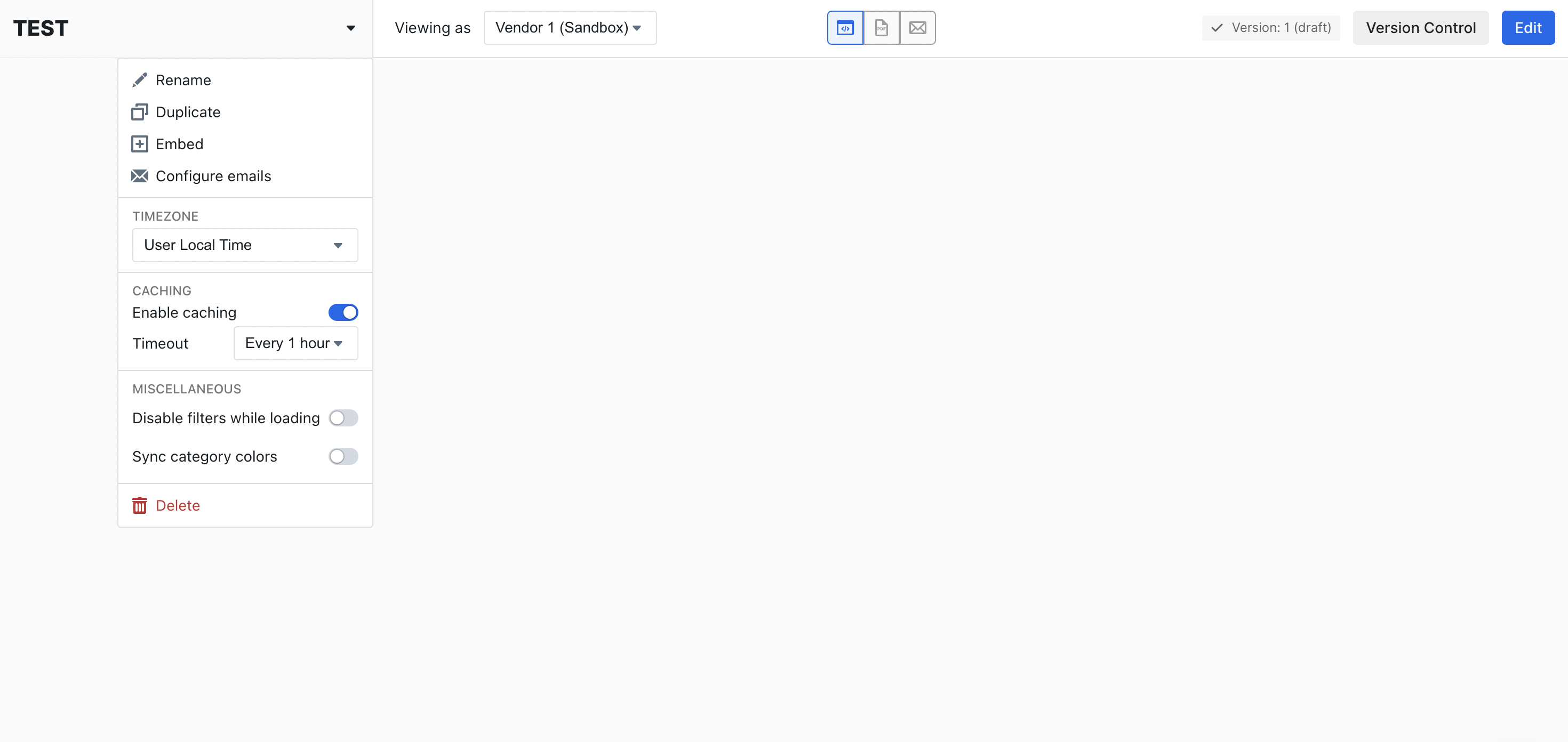 To access caching, click on the down arrow in the upper left corner of the dashboard. Then, toggle "Enable caching". At this point, there will be an option to set the Timeout period via a dropdown menu. The caching feature is, by default, available for all dashboards, but will need to be manually turned on. Please reach out to support if you would like to make the caching feature not available for all dashboards.
## How Dashboard Caching Works In Practice
Caching is turned on at the dashboard level, but what ends up being cached is the query and the corresponding result. These get cached into Explo's caching layer, which is either Redis or Apache Ignite, depending on which data connector your workspace uses.
If that same **exact** query is then executed again within the set timeout period, instead of executing the query in your database, the data will be fetched from the cache. This should result in much faster data loads. You may configure the Timeout to be 15 minutes, 30 minutes, 1 hour, 2 hours, 4 hours, 6 hours, 12 hours, or 24 hours.
### Caching Applies to Exact Query Matches
Caching applies to all queries within the dashboard, including queries for filters. Only exact match queries will trigger pulling from the cached results.
For example, if the following query has been cached:
```
Query 1:
SELECT * FROM DB WHERE DATE > "2022-01-01"
```
The following query would trigger a call to the database instead of pulling from the cache:
```
Query 2:
SELECT * FROM DB WHERE DATE > "2022-09-09"
```
Even though Query 2 is a subset of the results from Query 1, only exact matches will trigger pulling from the cached results.
## Clearing the cache
The cache will be automatically cleared on the timeout period set or manually by the user, whichever comes first.
Here is an example of how this works:
* If the timeout is set to 24 hours, the cache will clear everyday at midnight UTC
* If the timeout is set to every 6 hours, it will clear at midnight, 6am, 12pm, and 6pm UTC
### Manually Clearing the Cache
To access caching, click on the down arrow in the upper left corner of the dashboard. Then, toggle "Enable caching". At this point, there will be an option to set the Timeout period via a dropdown menu. The caching feature is, by default, available for all dashboards, but will need to be manually turned on. Please reach out to support if you would like to make the caching feature not available for all dashboards.
## How Dashboard Caching Works In Practice
Caching is turned on at the dashboard level, but what ends up being cached is the query and the corresponding result. These get cached into Explo's caching layer, which is either Redis or Apache Ignite, depending on which data connector your workspace uses.
If that same **exact** query is then executed again within the set timeout period, instead of executing the query in your database, the data will be fetched from the cache. This should result in much faster data loads. You may configure the Timeout to be 15 minutes, 30 minutes, 1 hour, 2 hours, 4 hours, 6 hours, 12 hours, or 24 hours.
### Caching Applies to Exact Query Matches
Caching applies to all queries within the dashboard, including queries for filters. Only exact match queries will trigger pulling from the cached results.
For example, if the following query has been cached:
```
Query 1:
SELECT * FROM DB WHERE DATE > "2022-01-01"
```
The following query would trigger a call to the database instead of pulling from the cache:
```
Query 2:
SELECT * FROM DB WHERE DATE > "2022-09-09"
```
Even though Query 2 is a subset of the results from Query 1, only exact matches will trigger pulling from the cached results.
## Clearing the cache
The cache will be automatically cleared on the timeout period set or manually by the user, whichever comes first.
Here is an example of how this works:
* If the timeout is set to 24 hours, the cache will clear everyday at midnight UTC
* If the timeout is set to every 6 hours, it will clear at midnight, 6am, 12pm, and 6pm UTC
### Manually Clearing the Cache
 #### Embedded Refresh Button
Explo allows you to add a refresh button as a dashboard element that will similarly refresh the data on the dashboard. Note that embedding this button will allow your users to refresh the data at any time for all users.
#### Embedded Refresh Button
Explo allows you to add a refresh button as a dashboard element that will similarly refresh the data on the dashboard. Note that embedding this button will allow your users to refresh the data at any time for all users.
 ## Caching Security
To learn more about the security details of caching, please refer to [this page](/security/caching-layer).
# Dashboard State Persistence
Source: https://docs.explo.co/dashboard-features/dashboard-state-persistence
## How does it work?
Customer state can be persisted across page loads. In other words, if the customer makes certain changes to the dashboard, those changes will be persisted if they refresh the page and come back to the dashboard.
In this case, a "customer" refers to a customer object in the [customers tab](https://app.explo.co/customers).
The changes that are persisted today are:
* Renaming of table columns
* Reordering of table columns
If there are other things you would like to see persisted, please contact Explo support so we can get it added for you!
## How do I turn it on?
There are two steps to getting this feature turned on:
1. Ask the Explo team to turn this on for you as this is something that is not available for all Explo tiers.
2. Toggle the `Persist customer state` option for any relevant dashboards.
## Caching Security
To learn more about the security details of caching, please refer to [this page](/security/caching-layer).
# Dashboard State Persistence
Source: https://docs.explo.co/dashboard-features/dashboard-state-persistence
## How does it work?
Customer state can be persisted across page loads. In other words, if the customer makes certain changes to the dashboard, those changes will be persisted if they refresh the page and come back to the dashboard.
In this case, a "customer" refers to a customer object in the [customers tab](https://app.explo.co/customers).
The changes that are persisted today are:
* Renaming of table columns
* Reordering of table columns
If there are other things you would like to see persisted, please contact Explo support so we can get it added for you!
## How do I turn it on?
There are two steps to getting this feature turned on:
1. Ask the Explo team to turn this on for you as this is something that is not available for all Explo tiers.
2. Toggle the `Persist customer state` option for any relevant dashboards.
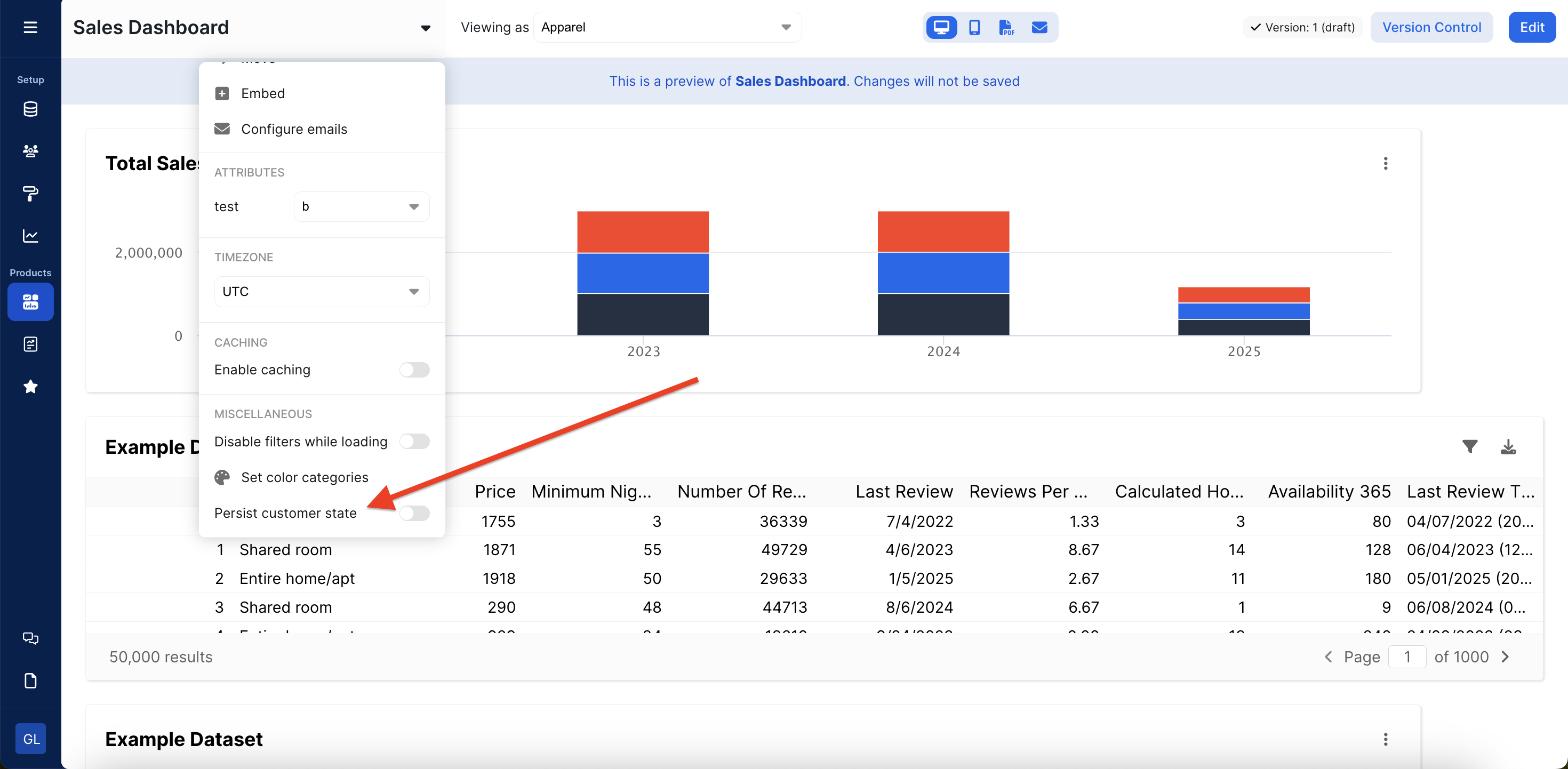 # Duplicating Dashboards
Source: https://docs.explo.co/dashboard-features/duplicating-dashboards
Learn how to duplicate dashboards in Explo
You can duplicate a dashboard in two ways:
1. **From the Resource List Page**: Locate the dashboard you want to duplicate, click the options menu, and select "Duplicate". You will be prompted to select a specific version to duplicate.
# Duplicating Dashboards
Source: https://docs.explo.co/dashboard-features/duplicating-dashboards
Learn how to duplicate dashboards in Explo
You can duplicate a dashboard in two ways:
1. **From the Resource List Page**: Locate the dashboard you want to duplicate, click the options menu, and select "Duplicate". You will be prompted to select a specific version to duplicate.
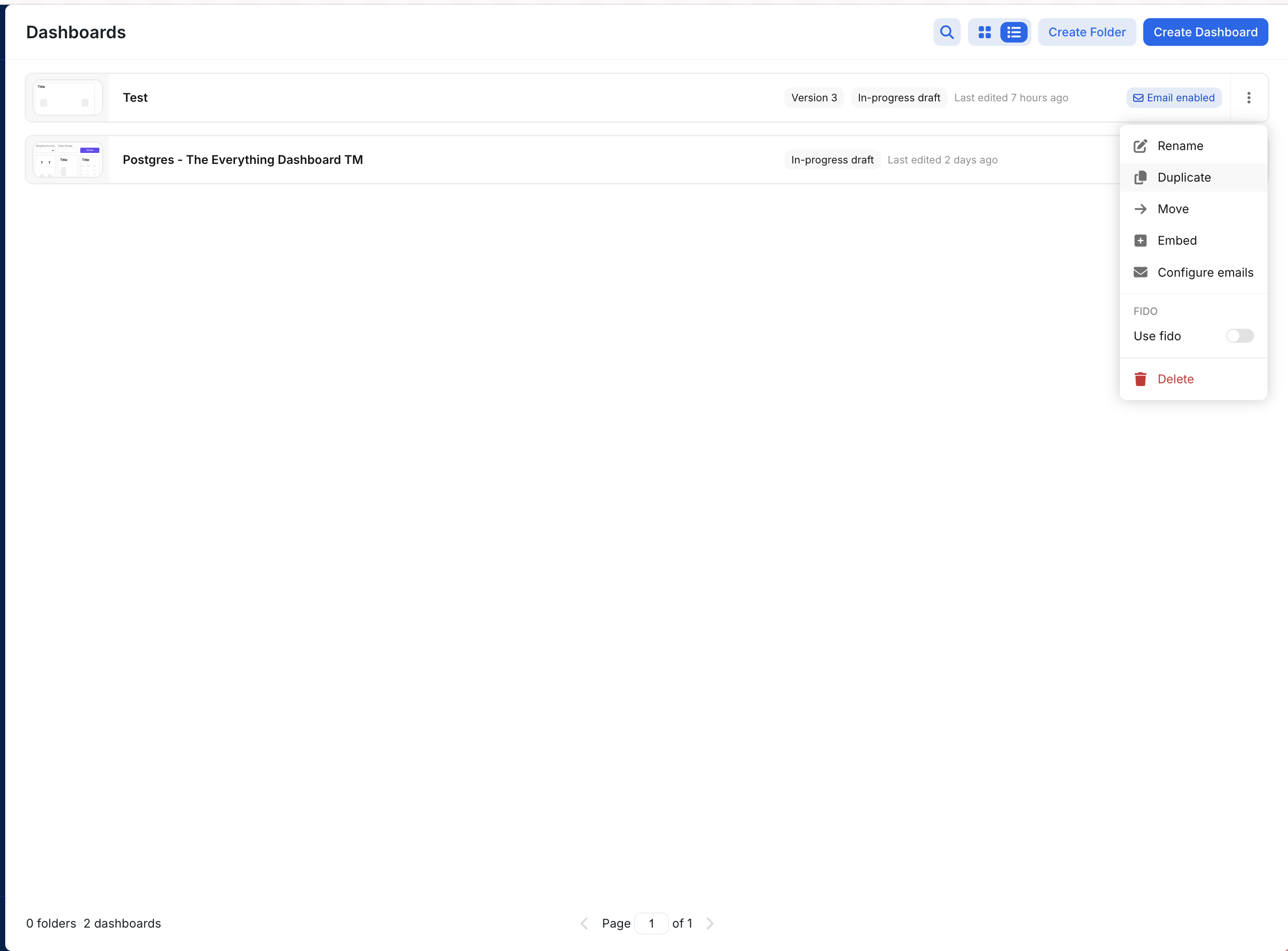
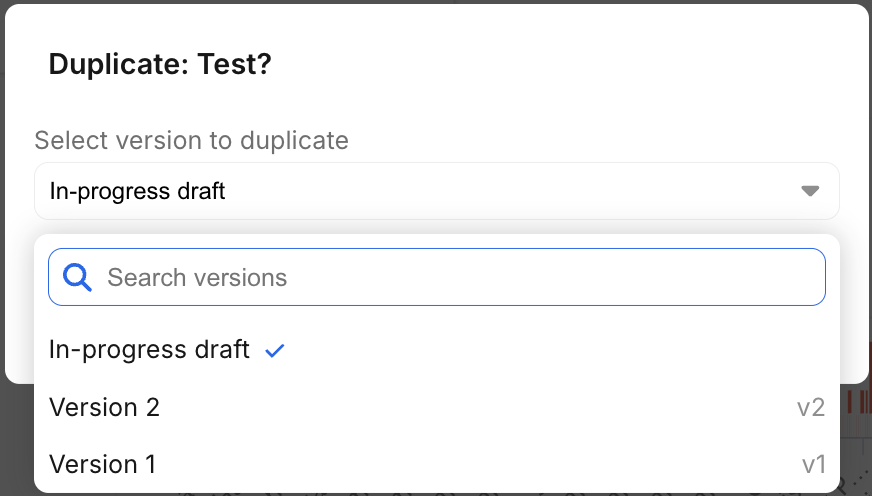 2. **From the Version Control Panel**: Open the dashboard, navigate to the version control panel, and select the version you want to duplicate.
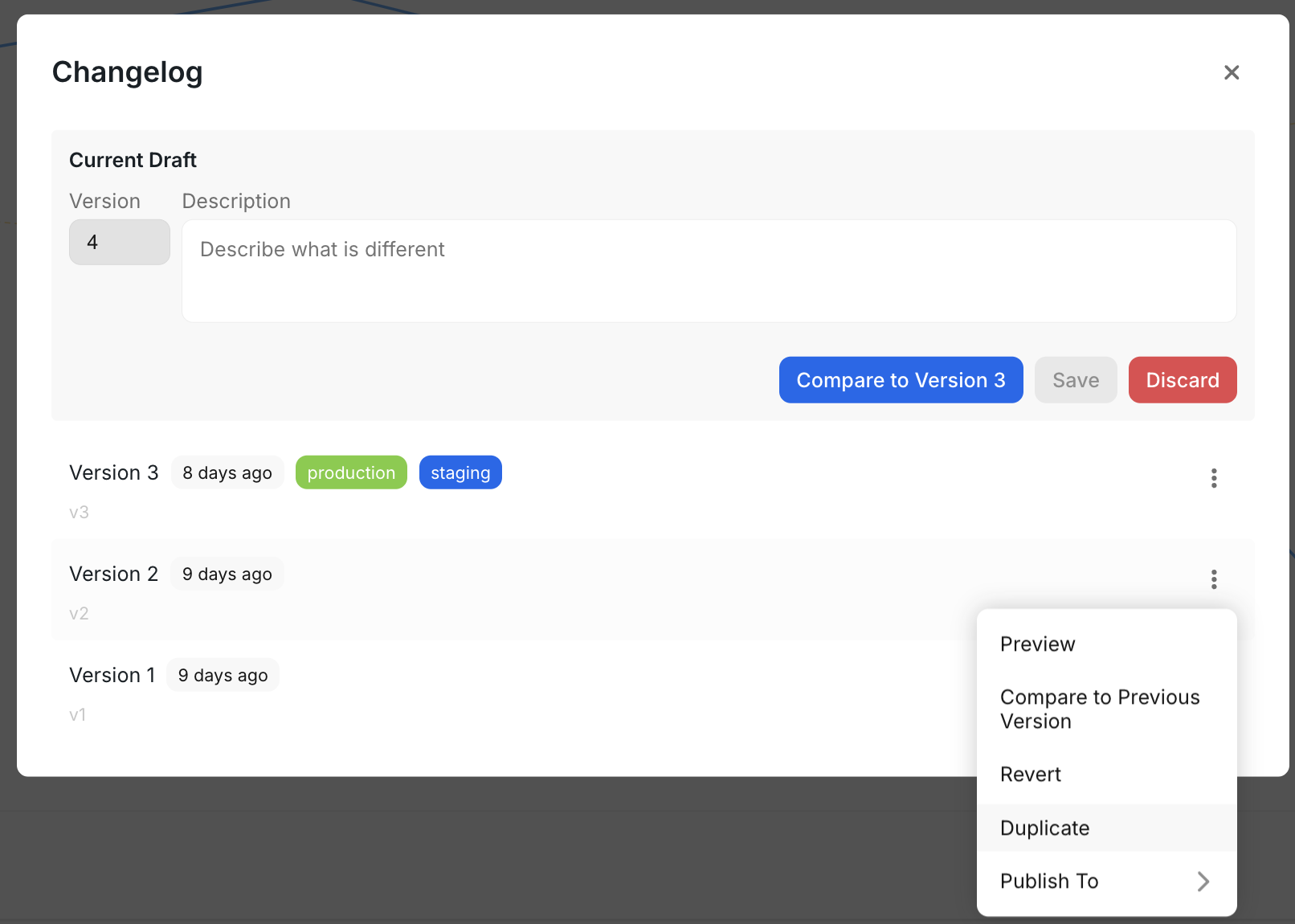
 ### Important Notes
* Scheduled emails will not be duplicated.
* Ensure you have the necessary permissions to duplicate dashboards.
# What is an Editable Dashboard Section?
Source: https://docs.explo.co/dashboard-features/editable-dashboard-sections
Enable Your Users to Manage Which Charts They Want in Their Dashboards
Explo built Editable Dashboard Sections in response to three problems:
1. You want to show certain charts to certain users, but not others, without needing to create multiple dashboards
2. You want to allow your users to pick from templates to show on their personalized dashboards
3. You want to allow your users to rearrange and resize charts
Editable Dashboard Sections is a section of your dashboard where your users can drag charts around and add or remove charts from their view based on their permission levels, tackling all three problems at once.
# Configuring Editable Dashboard Sections
Source: https://docs.explo.co/dashboard-features/editable-dashboard-sections/configuring-editable-dashboard-sections
Enable Editable Dashboard Sections via the toggle in the top left of the dashboard page.
### Important Notes
* Scheduled emails will not be duplicated.
* Ensure you have the necessary permissions to duplicate dashboards.
# What is an Editable Dashboard Section?
Source: https://docs.explo.co/dashboard-features/editable-dashboard-sections
Enable Your Users to Manage Which Charts They Want in Their Dashboards
Explo built Editable Dashboard Sections in response to three problems:
1. You want to show certain charts to certain users, but not others, without needing to create multiple dashboards
2. You want to allow your users to pick from templates to show on their personalized dashboards
3. You want to allow your users to rearrange and resize charts
Editable Dashboard Sections is a section of your dashboard where your users can drag charts around and add or remove charts from their view based on their permission levels, tackling all three problems at once.
# Configuring Editable Dashboard Sections
Source: https://docs.explo.co/dashboard-features/editable-dashboard-sections/configuring-editable-dashboard-sections
Enable Editable Dashboard Sections via the toggle in the top left of the dashboard page.
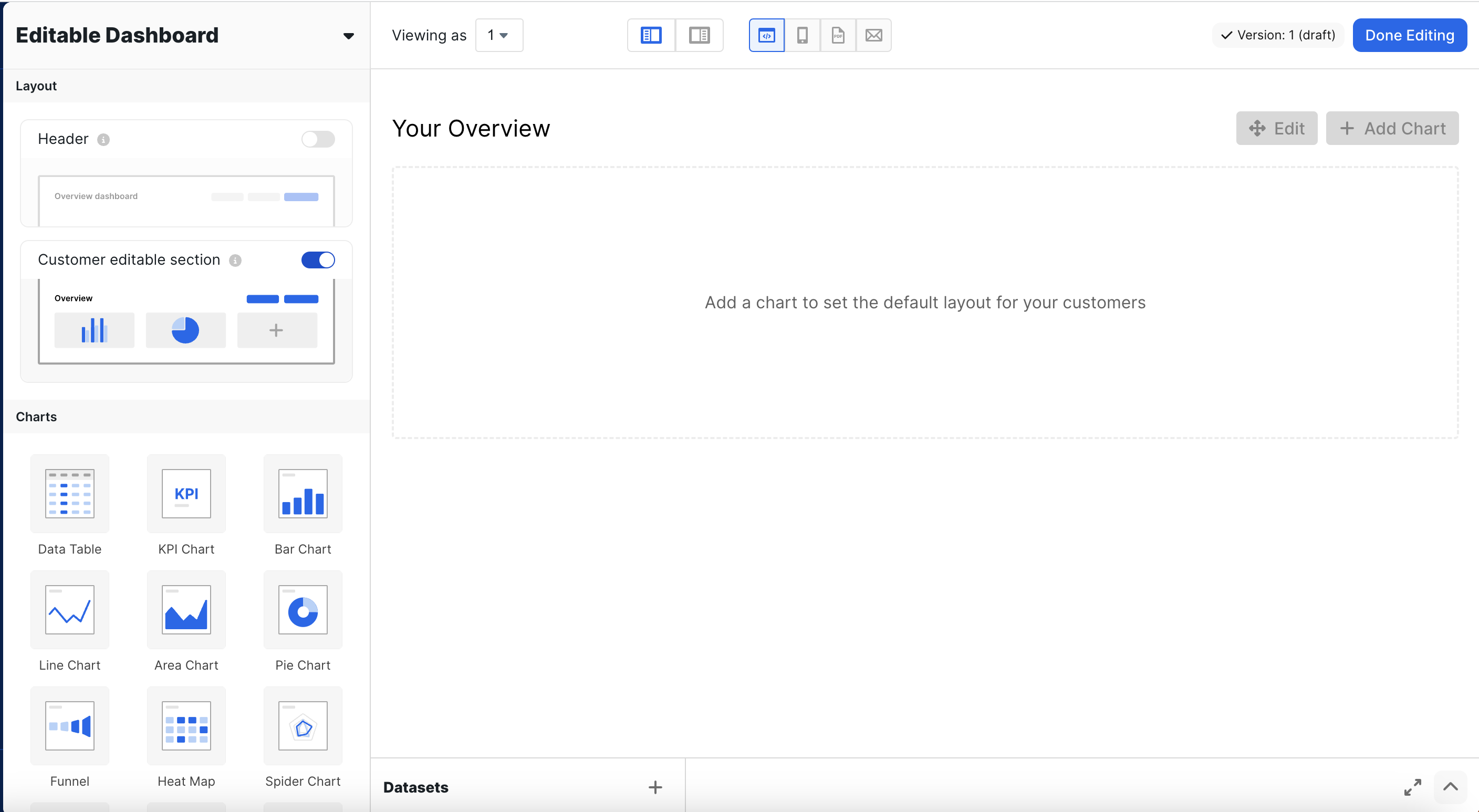 The section is now available at the bottom of your dashboard. To begin creating charts for the Editable dashboard sections, click into the Editable Dashboard Section.
### Adding and Editing a Chart
Click 'Add a Chart'. Now, you can begin creating the chart, exactly how you would with the traditional dashboard experience.
The section is now available at the bottom of your dashboard. To begin creating charts for the Editable dashboard sections, click into the Editable Dashboard Section.
### Adding and Editing a Chart
Click 'Add a Chart'. Now, you can begin creating the chart, exactly how you would with the traditional dashboard experience.
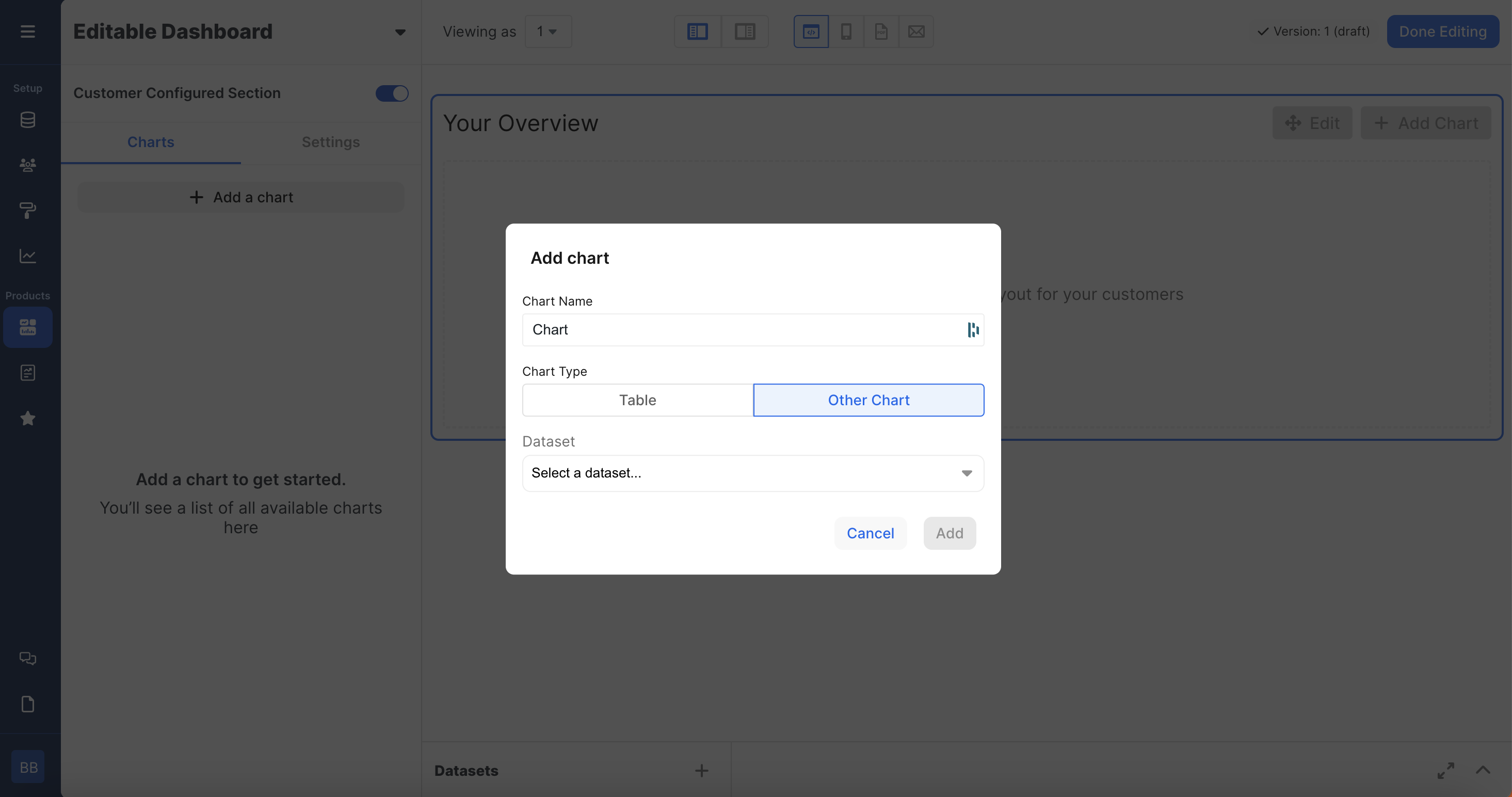 To edit a chart, simply click on the chart and begin editing.
### User Permissions
To edit the user permissions on a chart, click the three dots and 'Edit'. From there, you can change the group tag that the chart is associated with. Each customer can be associated with a Group Tag within the customer object. Typically, group tags will take the form of groups such as Marketing, Sales, Engineering, Leadership, etc.
To edit a chart, simply click on the chart and begin editing.
### User Permissions
To edit the user permissions on a chart, click the three dots and 'Edit'. From there, you can change the group tag that the chart is associated with. Each customer can be associated with a Group Tag within the customer object. Typically, group tags will take the form of groups such as Marketing, Sales, Engineering, Leadership, etc.
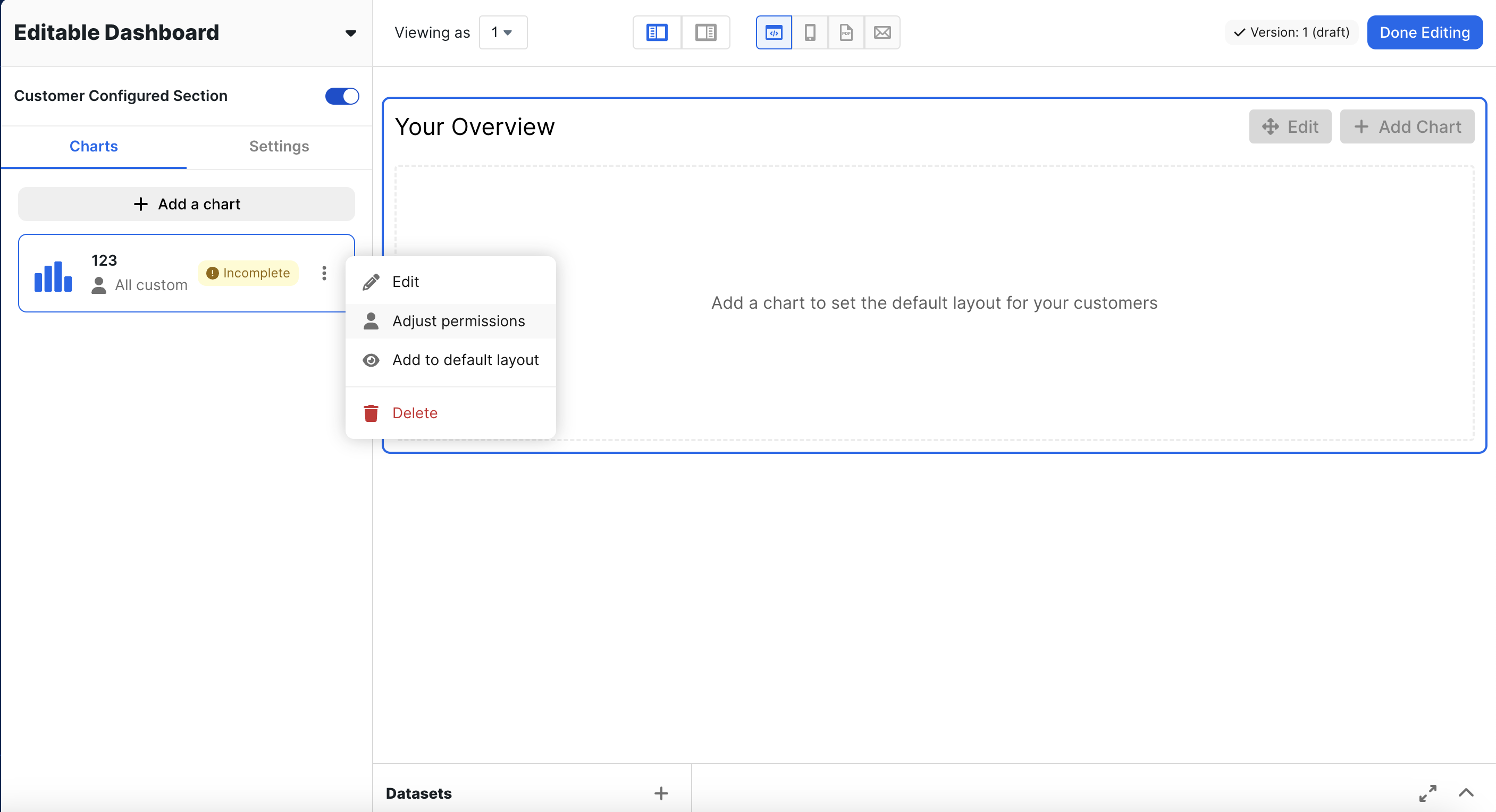 ### Edit Default Layout
To add/remove a chart from the default layout, click on the three dots and click 'Add to default layout' or 'Remove from default layout'. Only charts available to all customers can be added to the default layout.
### Edit Default Layout
To add/remove a chart from the default layout, click on the three dots and click 'Add to default layout' or 'Remove from default layout'. Only charts available to all customers can be added to the default layout.
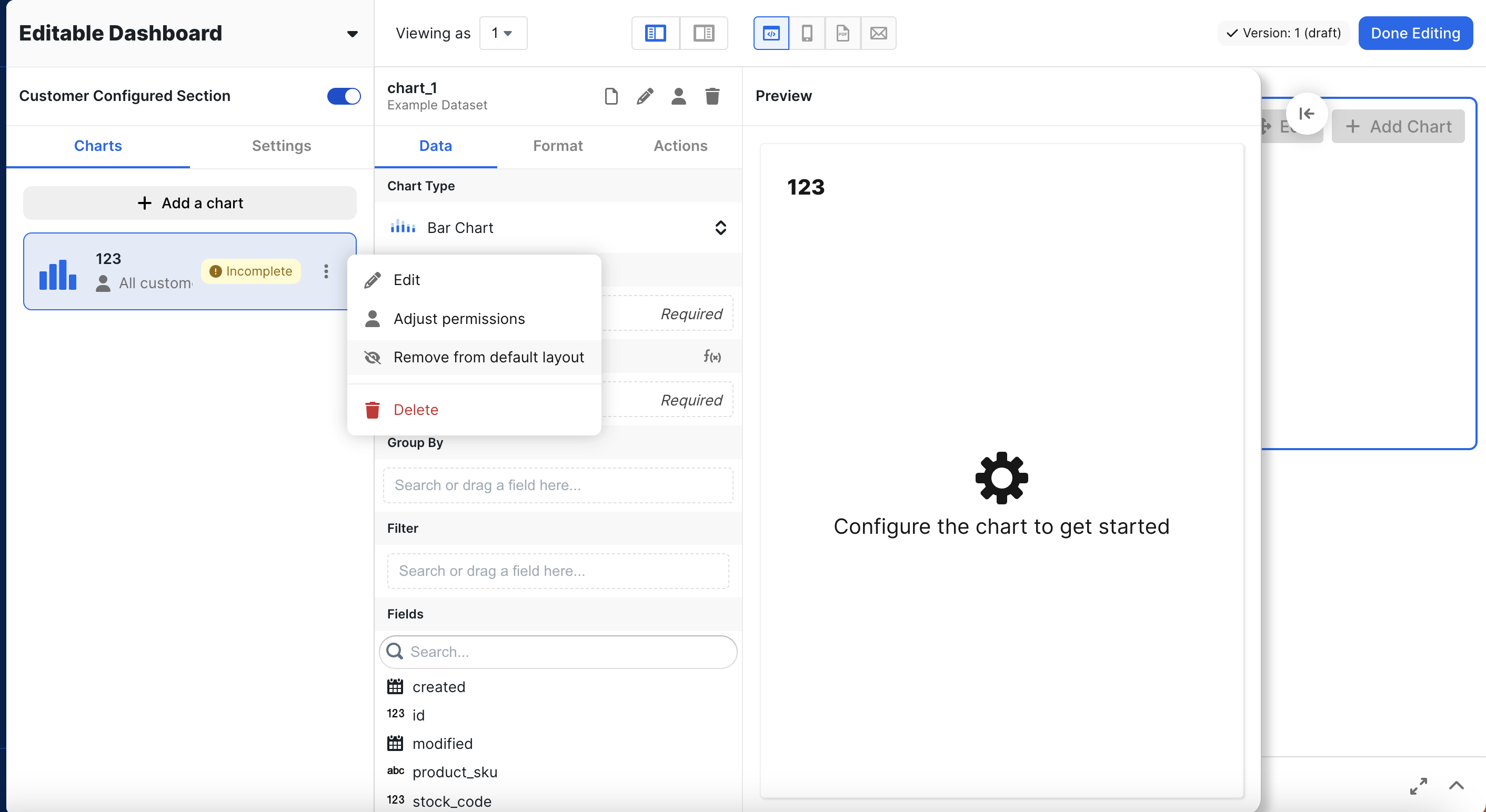 # How End Users Configure an Editable Dashboard Section
Source: https://docs.explo.co/dashboard-features/editable-dashboard-sections/end-user-configuration-of-section
This is how end users will configure and interact with editable dashboard sections.
# How End Users Configure an Editable Dashboard Section
Source: https://docs.explo.co/dashboard-features/editable-dashboard-sections/end-user-configuration-of-section
This is how end users will configure and interact with editable dashboard sections.
 ### Adding/Removing Charts
Within an Editable Section, a user can click the 'Add' button to see the charts on the Editable Dashboard Section and additional templates available to them. From there, they can toggle whether or not to show these charts.
### Moving Charts around and Resizing Charts
Within an Editable Section, when a user clicks the 'Edit' button, they can click on a chart then move the chart around or resize the chart from the bottom right hand corner.
# FAQ
Source: https://docs.explo.co/dashboard-features/editable-dashboard-sections/faq
## Editable Dashboard Sections FAQ
**Q: What charts do my customers see?**
**A:** If no edits were made by the customer to the editable section, then the default layout will be shown. Note that the charts in the default layout that they will see are ones that they are permissioned to see (there is an `Visible to all customers` toggle) and that you choose to `Add to default layout`. If the customer makes changes to the editable section, then they have deviated from the default layout and will only see the specific view they have now created.
**Q: What happens if I delete a chart from the editable dashboard section and my user might have deviated from the default layout and uses it?**
**A:** The deleted chart will still take up the designated space on the editable dashboard section, but it will have an error saying that `The chart is no longer available`. You can preview editable dashboard sections to see if there are any impacted customers -- check out how to preview an editable dashboard section [here](/dashboard-features/editable-dashboard-sections/previewing-an-editable-dashboard-section).
Please reach out to Explo support if you need help resetting a customers' editable dashboard section.
**Q: How are the dashboard edits saved?**
**A:** The dashboards are saved to the customer in Explo. For enabling editable dashboard sections, we would recommend utilizing the Explo hierarchy. In this model, you will continue to have your existing customers, but can now add sub customers (typically `users`) that can inherit the property of their parent. In this way, Explo will automatically save dashboard sections at the user level.
# Previewing an Editable Dashboard Section
Source: https://docs.explo.co/dashboard-features/editable-dashboard-sections/previewing-an-editable-dashboard-section
### How it works
The preview URL will bring you to a view where you can preview a dashboard and toggle it for a specific customer group and version, allowing you to see exactly what the end user will see. This will allow you to see if any changes were made to their editable dashboard section and what those changes are.
### Preview URL
To preview an editable dashboard section, go to the following URL:
```
app.explo.co/preview/
### Adding/Removing Charts
Within an Editable Section, a user can click the 'Add' button to see the charts on the Editable Dashboard Section and additional templates available to them. From there, they can toggle whether or not to show these charts.
### Moving Charts around and Resizing Charts
Within an Editable Section, when a user clicks the 'Edit' button, they can click on a chart then move the chart around or resize the chart from the bottom right hand corner.
# FAQ
Source: https://docs.explo.co/dashboard-features/editable-dashboard-sections/faq
## Editable Dashboard Sections FAQ
**Q: What charts do my customers see?**
**A:** If no edits were made by the customer to the editable section, then the default layout will be shown. Note that the charts in the default layout that they will see are ones that they are permissioned to see (there is an `Visible to all customers` toggle) and that you choose to `Add to default layout`. If the customer makes changes to the editable section, then they have deviated from the default layout and will only see the specific view they have now created.
**Q: What happens if I delete a chart from the editable dashboard section and my user might have deviated from the default layout and uses it?**
**A:** The deleted chart will still take up the designated space on the editable dashboard section, but it will have an error saying that `The chart is no longer available`. You can preview editable dashboard sections to see if there are any impacted customers -- check out how to preview an editable dashboard section [here](/dashboard-features/editable-dashboard-sections/previewing-an-editable-dashboard-section).
Please reach out to Explo support if you need help resetting a customers' editable dashboard section.
**Q: How are the dashboard edits saved?**
**A:** The dashboards are saved to the customer in Explo. For enabling editable dashboard sections, we would recommend utilizing the Explo hierarchy. In this model, you will continue to have your existing customers, but can now add sub customers (typically `users`) that can inherit the property of their parent. In this way, Explo will automatically save dashboard sections at the user level.
# Previewing an Editable Dashboard Section
Source: https://docs.explo.co/dashboard-features/editable-dashboard-sections/previewing-an-editable-dashboard-section
### How it works
The preview URL will bring you to a view where you can preview a dashboard and toggle it for a specific customer group and version, allowing you to see exactly what the end user will see. This will allow you to see if any changes were made to their editable dashboard section and what those changes are.
### Preview URL
To preview an editable dashboard section, go to the following URL:
```
app.explo.co/preview/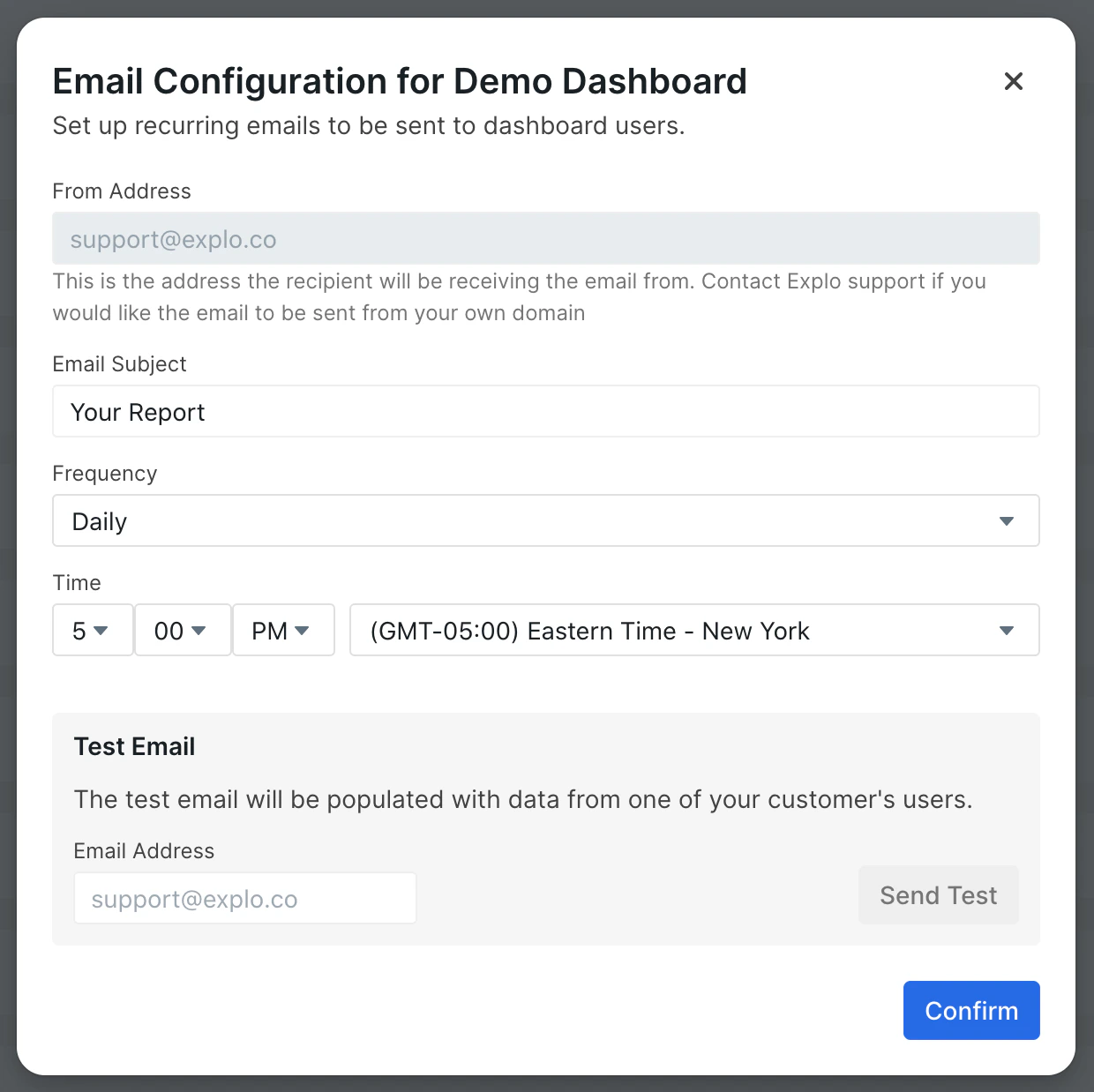 If you would like to set up Email Reporting, please contact us at [support@explo.co](mailto:support@explo.co)!
# Email Layout Configuration
Source: https://docs.explo.co/dashboard-features/email-reporting/email-layout-configuration
You can customize how you want your email to look with the Email Layout configuration, which can be found near the top middle of a dashboard page.
If you would like to set up Email Reporting, please contact us at [support@explo.co](mailto:support@explo.co)!
# Email Layout Configuration
Source: https://docs.explo.co/dashboard-features/email-reporting/email-layout-configuration
You can customize how you want your email to look with the Email Layout configuration, which can be found near the top middle of a dashboard page.
 In this configuration, you can specify custom text and formatting for headers
and footers, and you can adjust the layout and contents of your dashboard,
specifically for emails.
In this configuration, you can specify custom text and formatting for headers
and footers, and you can adjust the layout and contents of your dashboard,
specifically for emails.
 # Email Networking
Source: https://docs.explo.co/dashboard-features/email-reporting/email-networking
# Email Egress IPs
Explo's emails are coming from the below egress IPs
```
149.72.49.28
167.89.81.10
```
# Email-specific Dashboard Configuration
Source: https://docs.explo.co/dashboard-features/email-reporting/email-specific-dashboard-configuration
You can further customize your dashboards at the customer level when you create your customers. The attributes field on customers allows you to provide key-value pairs that can display on your dashboards like any other custom variables.
For example, providing `name: 'Explo Customer'` as an attribute for an end\_user
will display 'Hello Explo Customer!' in an email for the following dashboard.
See [the customer api documentation](/api-reference/customer-api/get-or-create)
for more information about how to create customers.
# Email Networking
Source: https://docs.explo.co/dashboard-features/email-reporting/email-networking
# Email Egress IPs
Explo's emails are coming from the below egress IPs
```
149.72.49.28
167.89.81.10
```
# Email-specific Dashboard Configuration
Source: https://docs.explo.co/dashboard-features/email-reporting/email-specific-dashboard-configuration
You can further customize your dashboards at the customer level when you create your customers. The attributes field on customers allows you to provide key-value pairs that can display on your dashboards like any other custom variables.
For example, providing `name: 'Explo Customer'` as an attribute for an end\_user
will display 'Hello Explo Customer!' in an email for the following dashboard.
See [the customer api documentation](/api-reference/customer-api/get-or-create)
for more information about how to create customers.
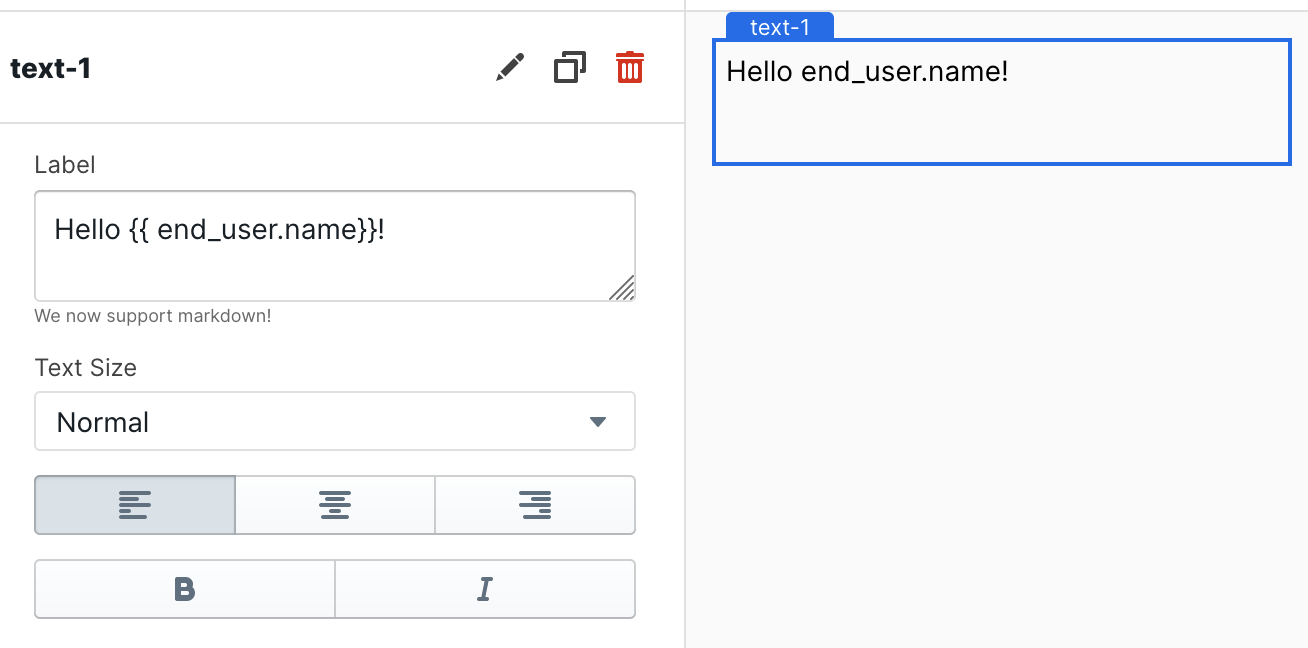 ### Explo-Specific Attributes
Explo also has specific attributes you can set for further control over your
emails: header and footer. You can provide raw html to these attributes to
display your own text, images, or links above or below the dashboard screenshot.
# Scheduling Emails
Source: https://docs.explo.co/dashboard-features/email-reporting/scheduling-emails
From the Dashboard tab, you can open the Set Up Email modal for each of your
dashboards. This modal contains options to configure how and when your emails
get sent out to each of your customers.
### Explo-Specific Attributes
Explo also has specific attributes you can set for further control over your
emails: header and footer. You can provide raw html to these attributes to
display your own text, images, or links above or below the dashboard screenshot.
# Scheduling Emails
Source: https://docs.explo.co/dashboard-features/email-reporting/scheduling-emails
From the Dashboard tab, you can open the Set Up Email modal for each of your
dashboards. This modal contains options to configure how and when your emails
get sent out to each of your customers.
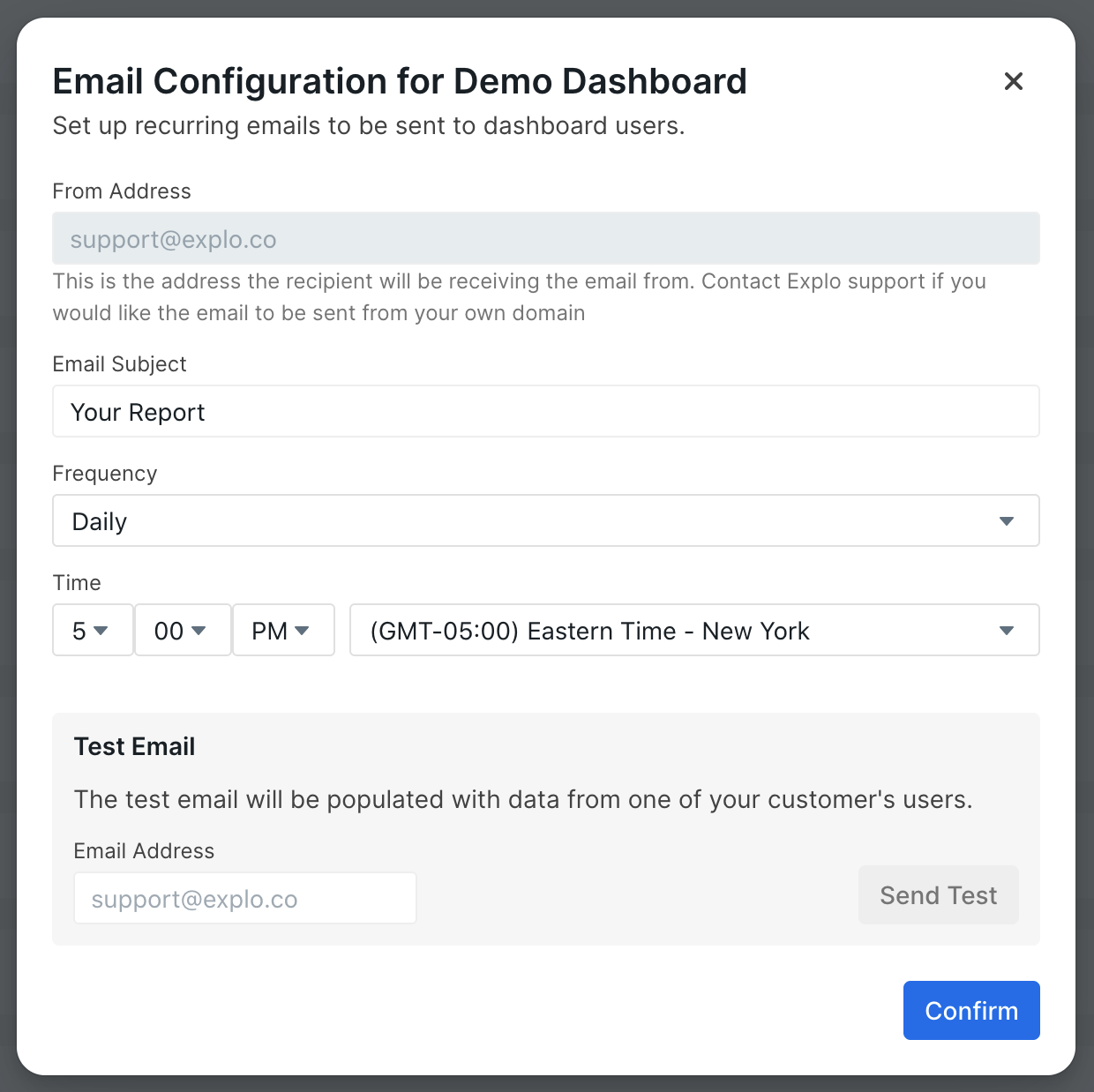 When emails for your dashboard are sent out, they are sent to each of the emails
you've set up for your customers. The dashboard is populated with
the data for the corresponding customer. See the
[customer api documentation](/api-reference/customer-api/get-or-create) for more
information about how to configure customers.
When emails for your dashboard are sent out, they are sent to each of the emails
you've set up for your customers. The dashboard is populated with
the data for the corresponding customer. See the
[customer api documentation](/api-reference/customer-api/get-or-create) for more
information about how to configure customers.
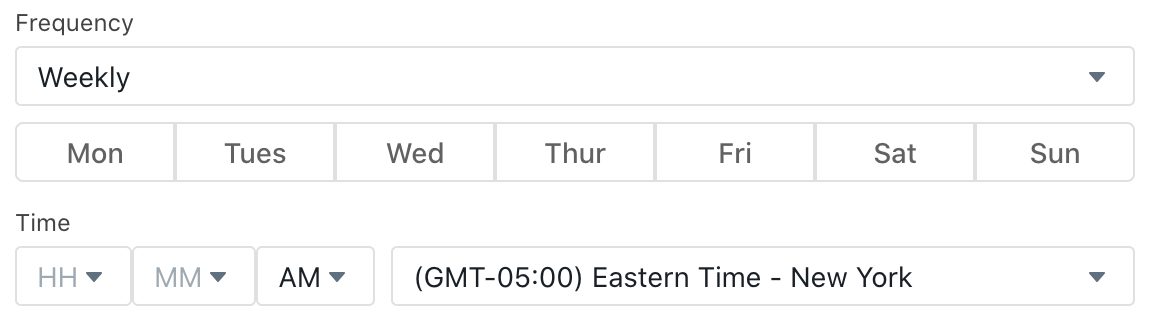 Monthly Frequency Options
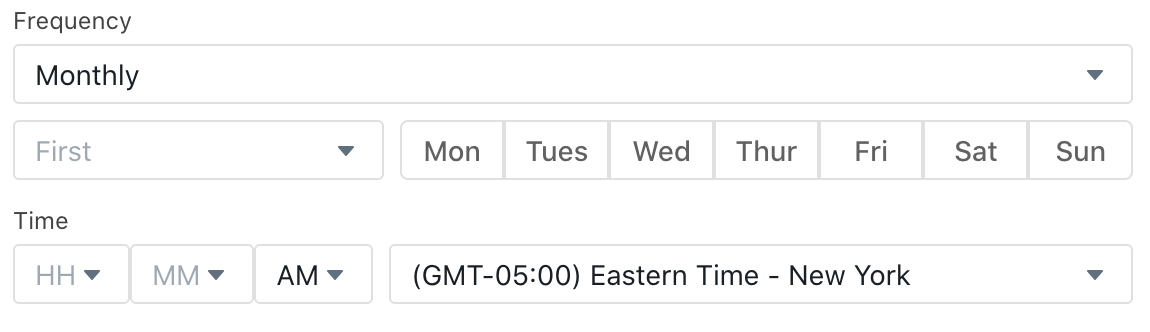 ### Sending a Test Email
To view what your dashboard will look like in an email, you can send a test
email by supplying an email address in the test email box and hitting "Send
Test." A test email will populate the dashboard with a random customer's
data and will send to the email address you supply.
# Row Level Actions
Source: https://docs.explo.co/dashboard-features/row-level-actions
The Row Level Actions feature allows your users to fire custom Javascript events from a row in a Data Table.
When enabled, a special Row Level Actions column will be added as the last column to your Data Table. Each cell in this column will have a menu
with custom actions that will be fired when clicked. Note that this feature is only enabled for the new Data Table.
### Sending a Test Email
To view what your dashboard will look like in an email, you can send a test
email by supplying an email address in the test email box and hitting "Send
Test." A test email will populate the dashboard with a random customer's
data and will send to the email address you supply.
# Row Level Actions
Source: https://docs.explo.co/dashboard-features/row-level-actions
The Row Level Actions feature allows your users to fire custom Javascript events from a row in a Data Table.
When enabled, a special Row Level Actions column will be added as the last column to your Data Table. Each cell in this column will have a menu
with custom actions that will be fired when clicked. Note that this feature is only enabled for the new Data Table.
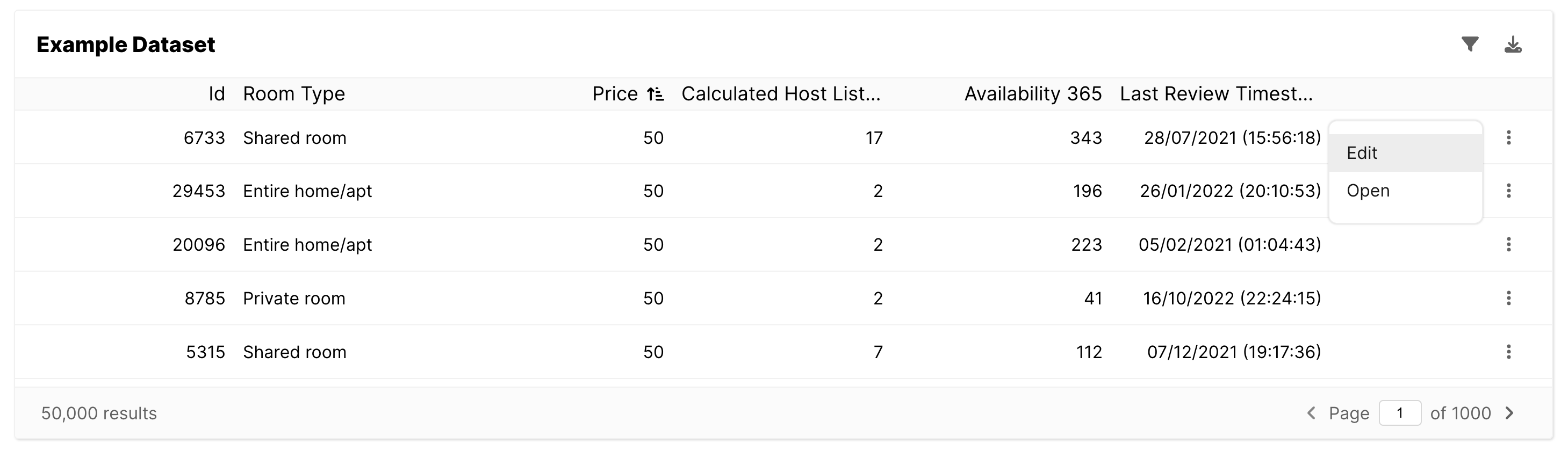 ## Configuration
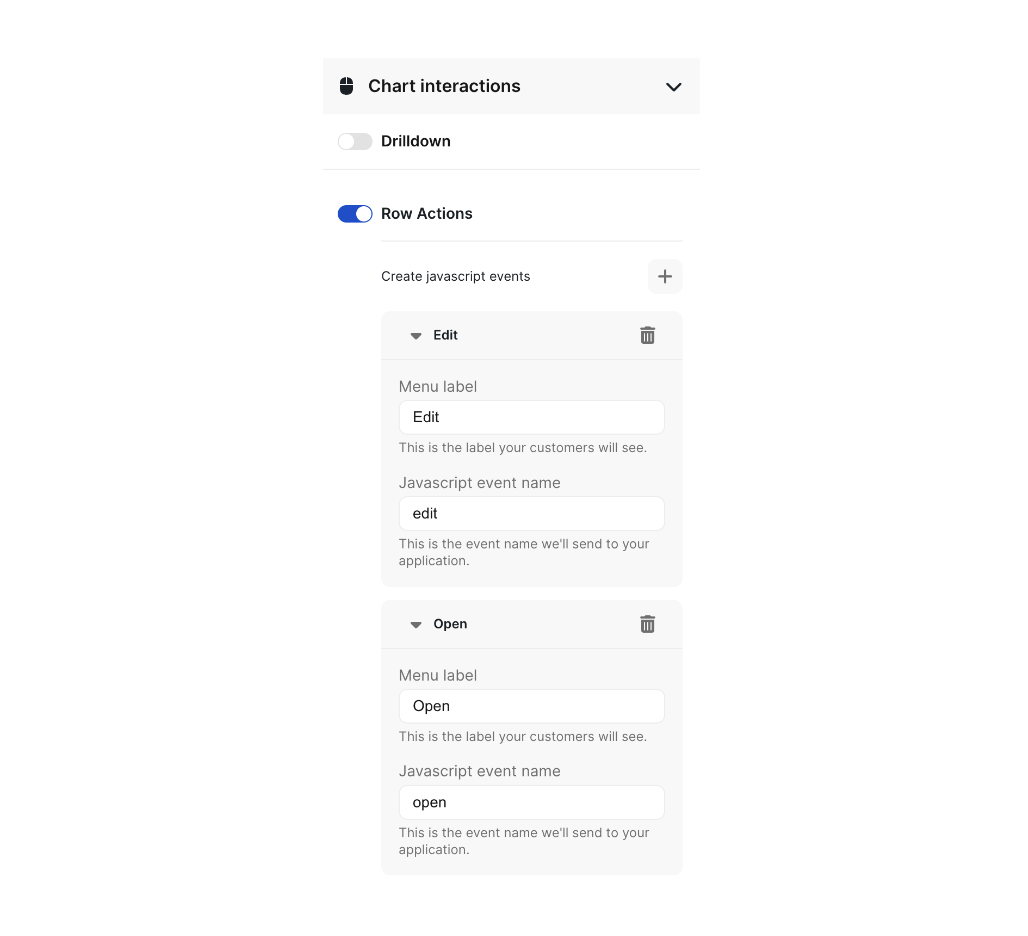 Row Action actions can be configured on the `Actions` tab for the Data Table. For each desired action, you’ll need to specify both the menu label you'd like your customers to see in the table
and the Javascript event name. The Javascript event name will be passed into the event listener in your frontend
code that will then trigger the desired action. You can learn more about interacting with custom Javascript events
[here](/general-features/custom-js-events).
The detail body that is passed with the javascript event contains the `rowData` of the row from which the action menu option is clicked.
# Setting Category Colors
Source: https://docs.explo.co/dashboard-features/setting-color-categories
Sync colors for repeating categories across charts on your dashboard
## How to Set Category Colors Up
In the top left corner of a dashboard page, the caret dropdown will open up a
dropdown with a few different settings, including the ability to set color categories. Click "Set color categories".
Row Action actions can be configured on the `Actions` tab for the Data Table. For each desired action, you’ll need to specify both the menu label you'd like your customers to see in the table
and the Javascript event name. The Javascript event name will be passed into the event listener in your frontend
code that will then trigger the desired action. You can learn more about interacting with custom Javascript events
[here](/general-features/custom-js-events).
The detail body that is passed with the javascript event contains the `rowData` of the row from which the action menu option is clicked.
# Setting Category Colors
Source: https://docs.explo.co/dashboard-features/setting-color-categories
Sync colors for repeating categories across charts on your dashboard
## How to Set Category Colors Up
In the top left corner of a dashboard page, the caret dropdown will open up a
dropdown with a few different settings, including the ability to set color categories. Click "Set color categories".
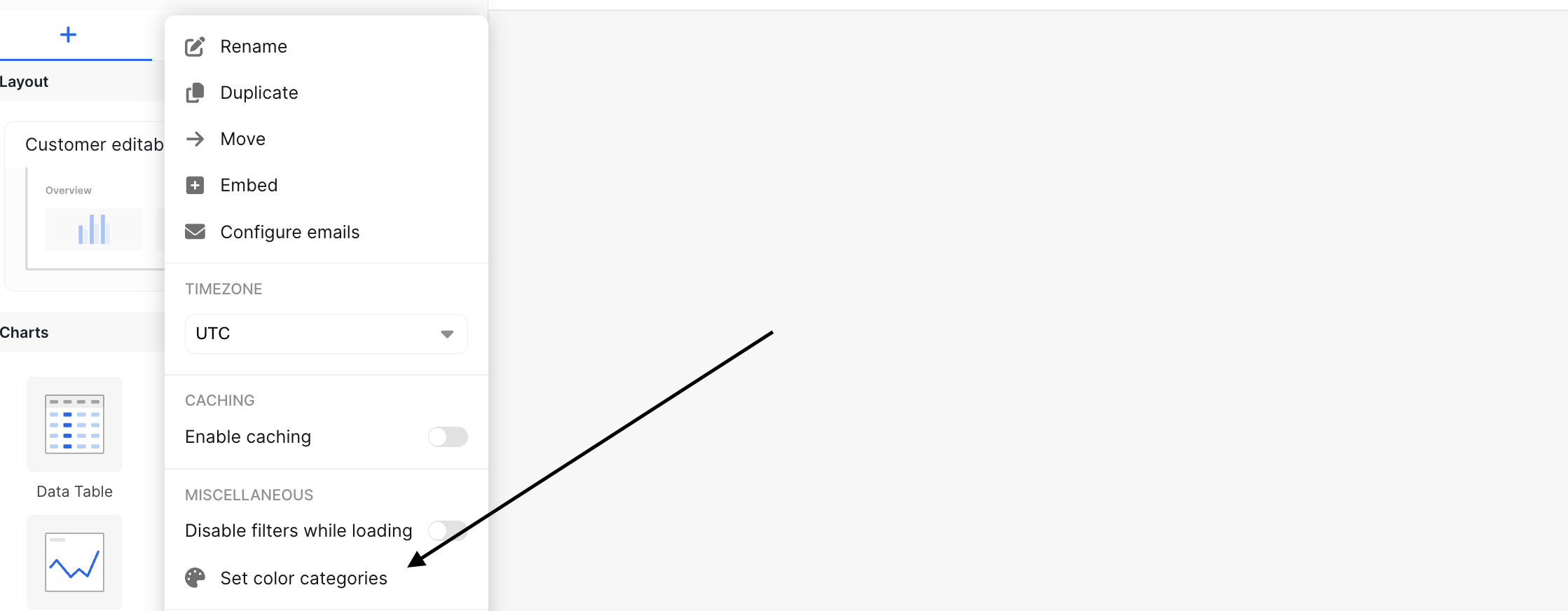 A modal will pop up, giving you the ability to add defined values or column names and their corresponding colors.
There are two ways to set up colors.
Values: You can set colors based on the underlying values you see in the dataset (not any formatted values)
Set the color by the value name in the "Sync color categories" modal:
A modal will pop up, giving you the ability to add defined values or column names and their corresponding colors.
There are two ways to set up colors.
Values: You can set colors based on the underlying values you see in the dataset (not any formatted values)
Set the color by the value name in the "Sync color categories" modal:
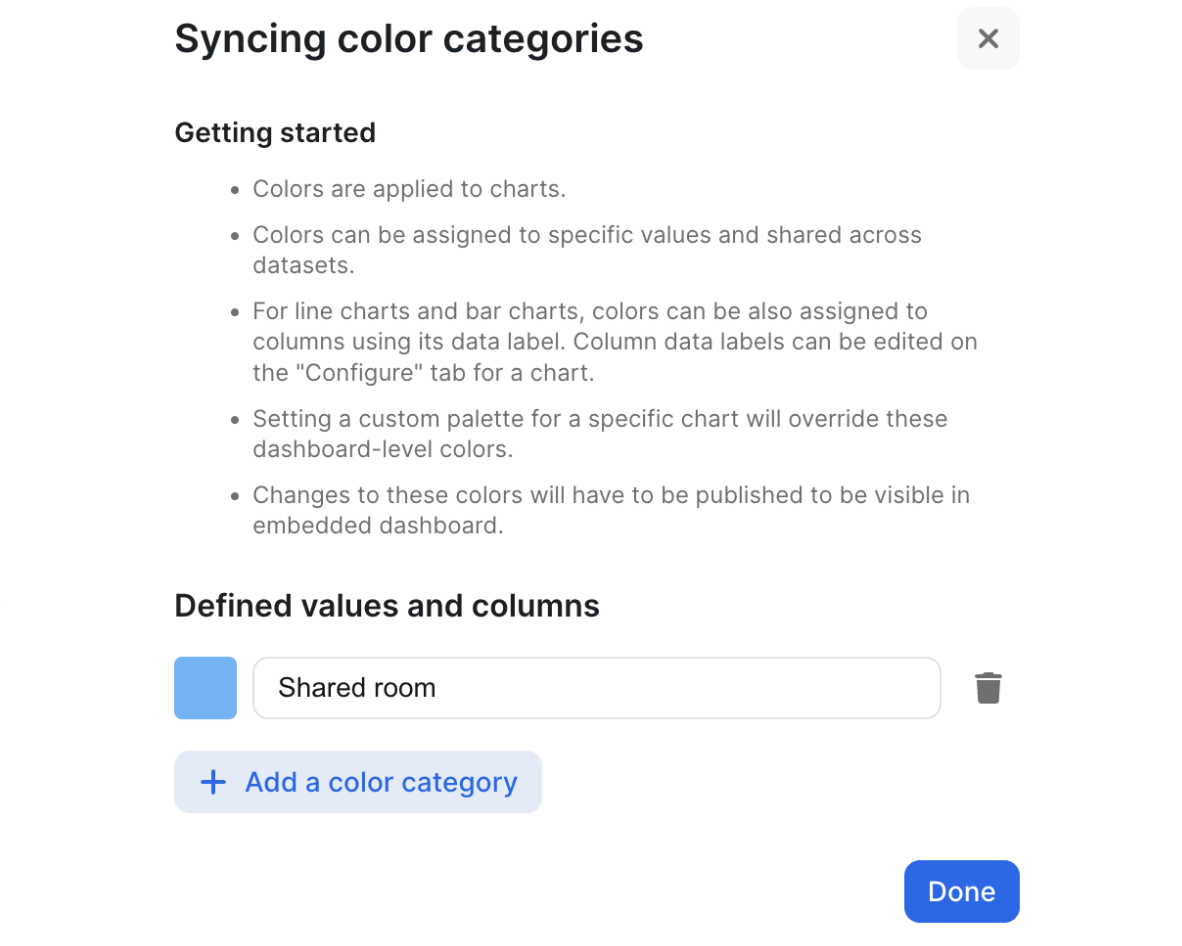 Now, the data grouped by the value "Shared room" matches the light blue color specified at the dashboard level where the other columns use the chart's set color palette:
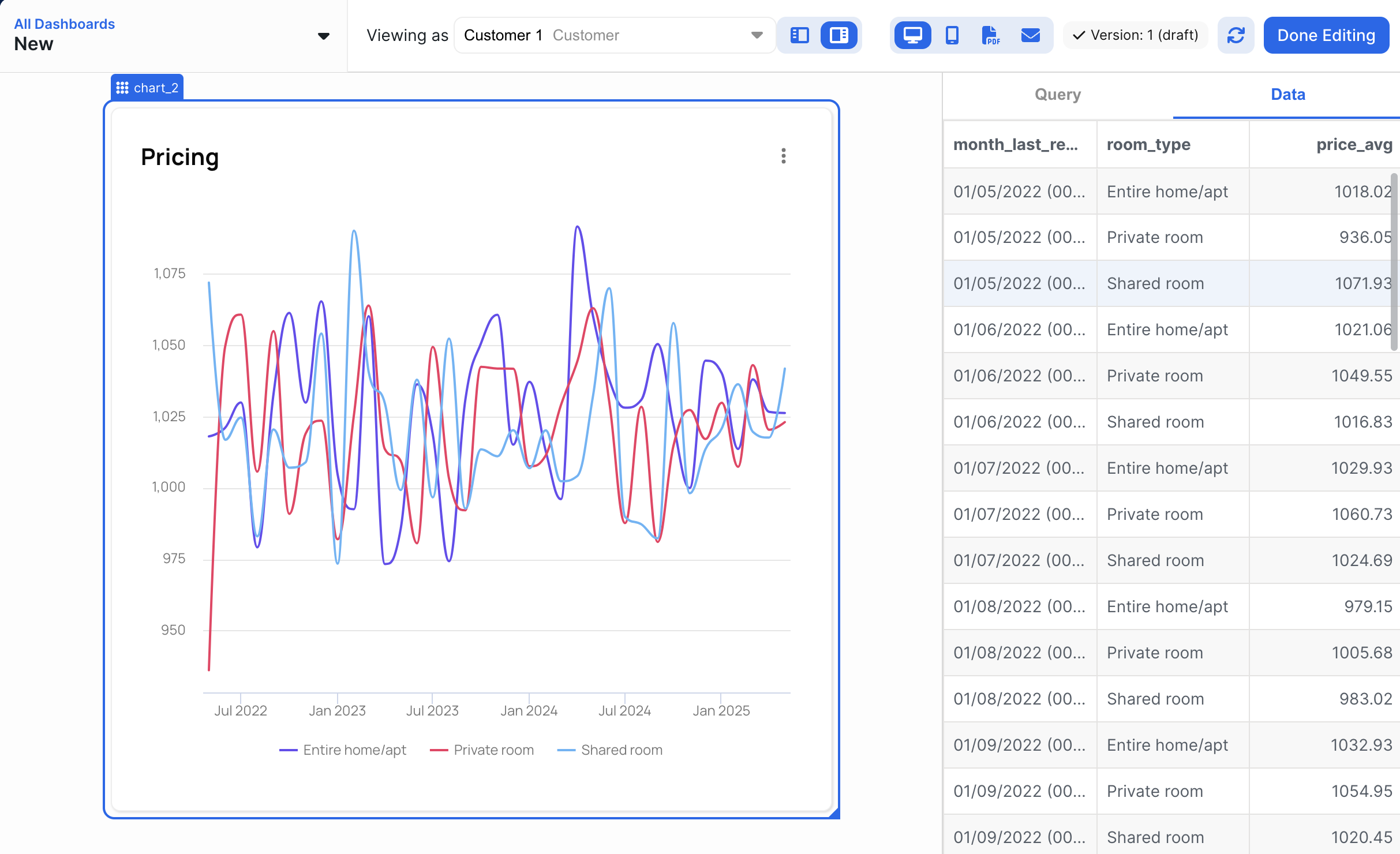 Columns: You can set colors based on column names as identified by each y-axis column's data label.
Set the color by its data label name in the "Sync color categories" modal:
Columns: You can set colors based on column names as identified by each y-axis column's data label.
Set the color by its data label name in the "Sync color categories" modal:
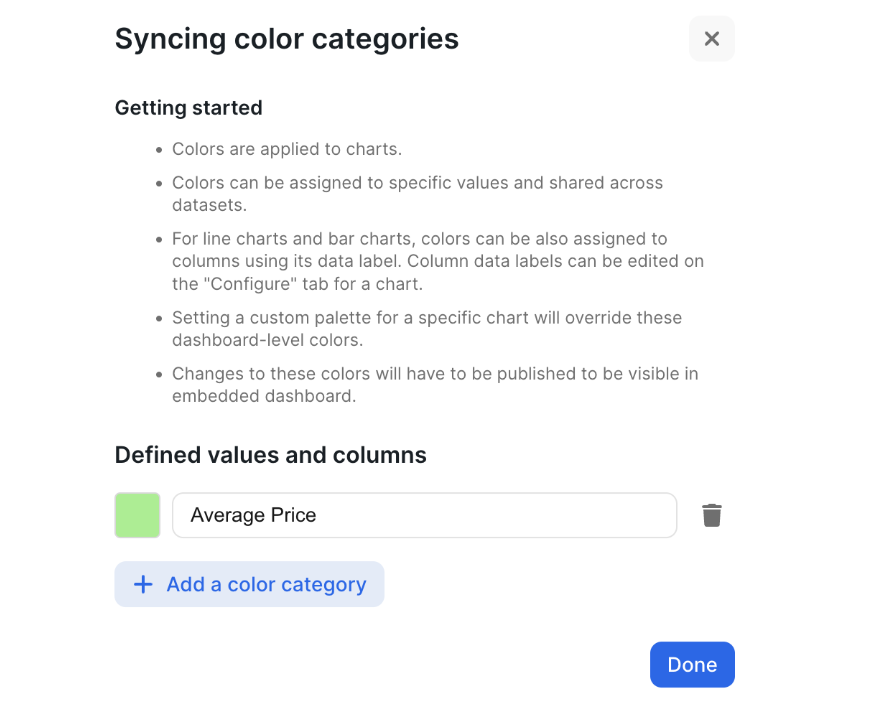 Now, the column with the data label "Average Price" matches the light green color specified at the dashboard level where the other columns use the chart's set color palette:
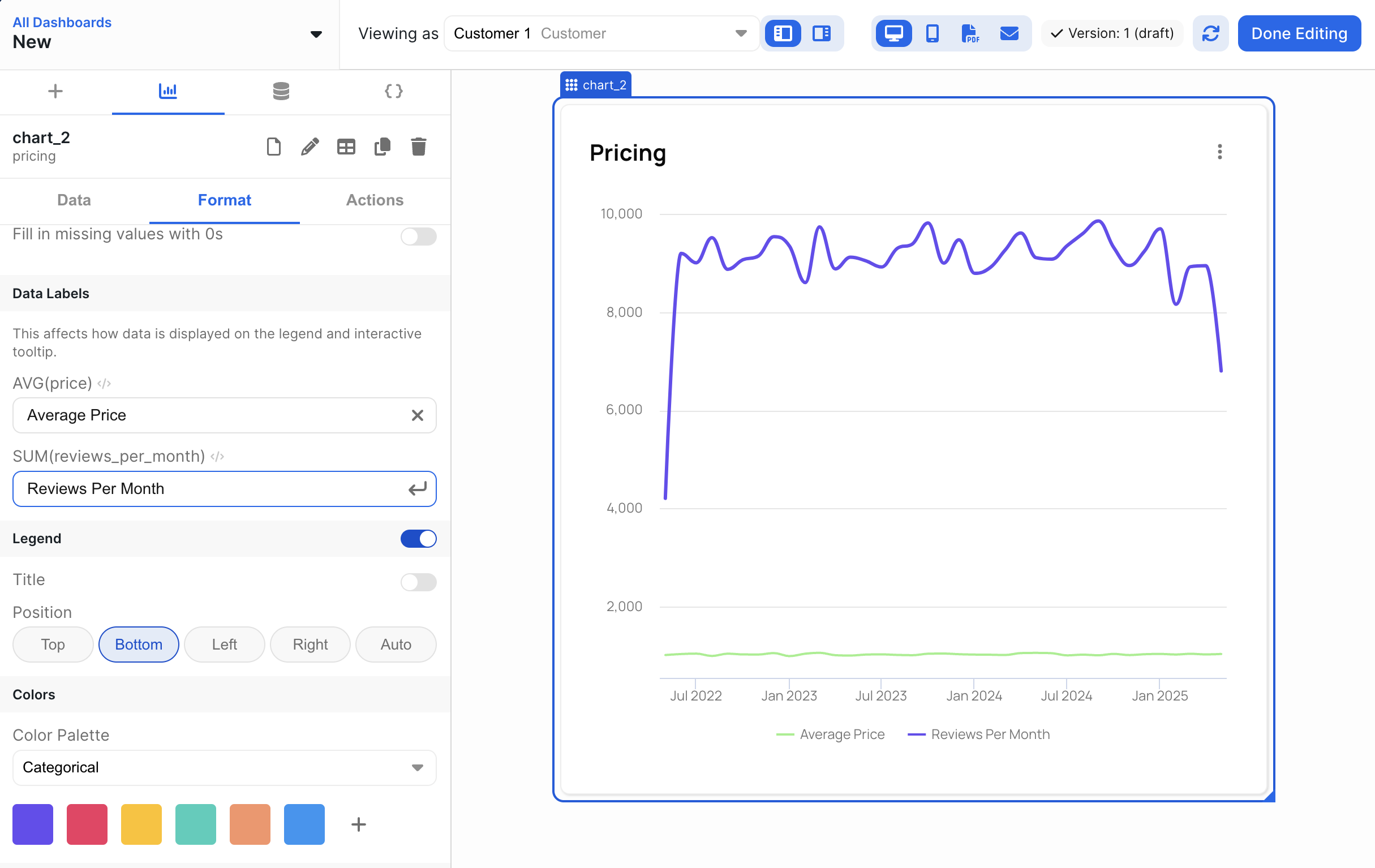 ## General Feature Callouts
* A chart using a custom color palette will override these color selections.
* Column colors can only be set for line charts and bar charts.
# Custom Styles
Source: https://docs.explo.co/dashboard-features/styling-dashboards
Explo is a fully white-labeled solution that allows you to customize the look and feel of your dashboards such that it matches your own application.
Click on your user icon on the top right corner and select "Custom Styles" from
the dropdown.
## General Feature Callouts
* A chart using a custom color palette will override these color selections.
* Column colors can only be set for line charts and bar charts.
# Custom Styles
Source: https://docs.explo.co/dashboard-features/styling-dashboards
Explo is a fully white-labeled solution that allows you to customize the look and feel of your dashboards such that it matches your own application.
Click on your user icon on the top right corner and select "Custom Styles" from
the dropdown.
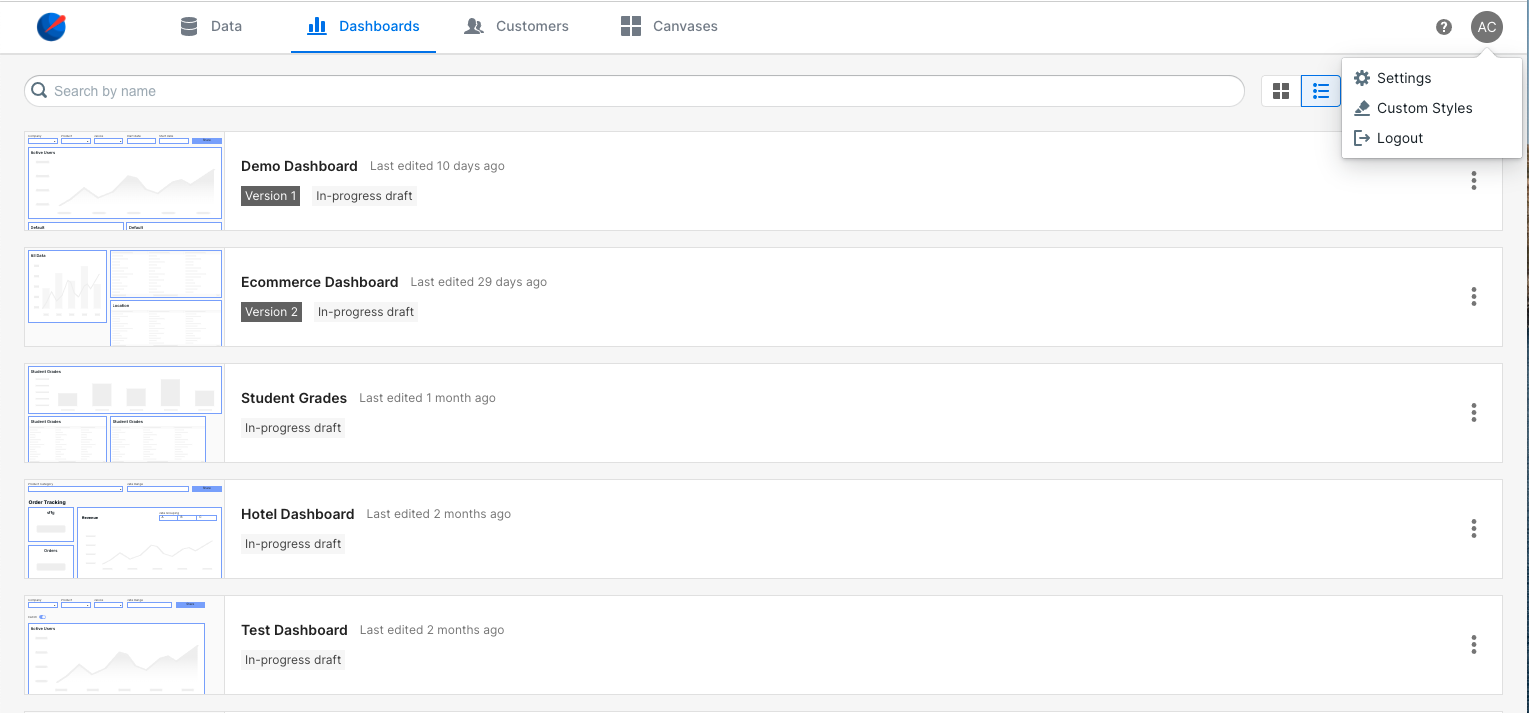 Change parameters to customize your dashboards
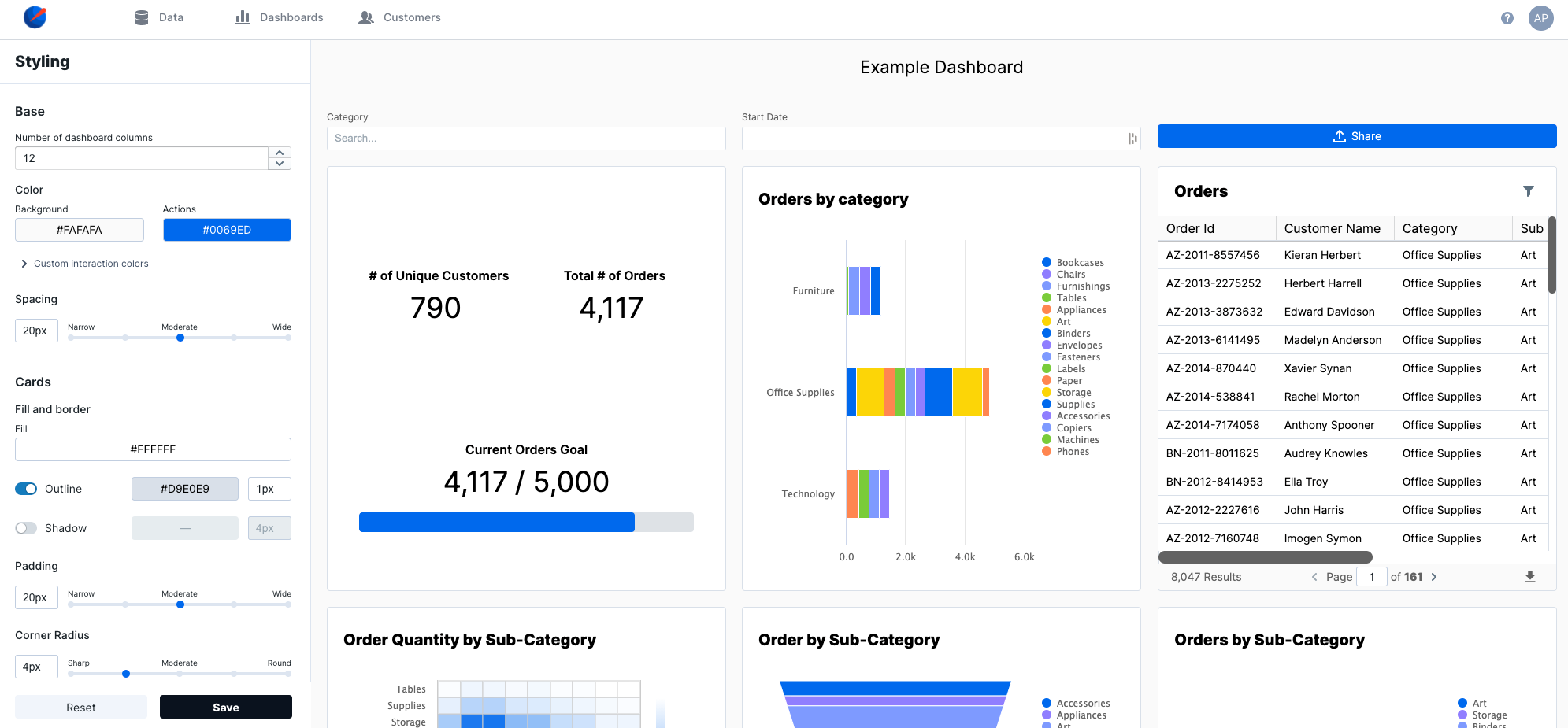 ### Multiple Style/Theme Profiles
You can manage multiple style/theme profiles within Explo. By default, explo displays the 'default' theme/style in your embedded components. However, you can pass in the name of a theme/style via the theme prop in the iframe or web component to display a different theme/style.
```
#iframe
#web component
### Multiple Style/Theme Profiles
You can manage multiple style/theme profiles within Explo. By default, explo displays the 'default' theme/style in your embedded components. However, you can pass in the name of a theme/style via the theme prop in the iframe or web component to display a different theme/style.
```
#iframe
#web component
**Default:** 12 | | Background Color | The background color for the dashboard.
**Default:** #FAFAFA | | Actions Color | The default color for buttons and input states.
**Default:** #0069ED | | Button Color | Overrides the default action color for buttons.
**Default:** Inherit | | Interaction States Color | Overrides the default action color for hover interactions (e.g. dropdown input).
**Default:** Inherit | | Spacing | The number of pixels between adjacent elements on the dashboard.
**Default:** | | Fill | The background color for charts and containers.
**Default:** #FFFFFF | | Outline | The border color and width for elements on the dashboard.
**Default:** Enabled, #D9E0E9, 1px | | Shadow | The box shadow color and size for elements on the dashboard. A box shadow allows elements to appear a "layer above" the background.
**Default:** Disabled, #000000, 4px | | Padding | Interior padding within charts and containers.
**Default:** 20px | | Corner Radius | Determines the roundness of the corners of elements on the dashboard.
**Default:** Inherit | | Button Corner Radius | Overrides the default corner radius for buttons.
**Default:** Inherit | | Primary Text | Font style and color for headings and most body text on the dashboard. Leaving this value as "Inherit" allows the dashboard to inherit the font family from the website in which it's embedded.
**Default:** Inherit, #000000 | | Secondary Text | Font style and color for supporting text and icons (e.g. "download CSV" icon button on the Data Table). Leaving this value as "Inherit" allows the dashboard to inherit the font family from the website in which it's embedded.
**Default:** Inherit, #626262 | | Text Size | The size of body text on the dashboard. Other text sizes are derived from this value as follows:
- **Header 1:** + 8px
- **Header 2:** + 6px
- **Header 3:** + 2px
- **Body:** + 0px
- **Small Heading:** - 2px
- **Small Body:** - 2px
| | Custom Text Overrides | Custom overrides for the various text types contained in a dashboard. These types are typically used as follows:
- **Header 1:** Extra large text to communicate a single value (e.g. KPI value)
- **Header 2:** Chart headings (e.g. Bar chart, Line chart, etc.)
- **Header 3:** Secondary headings (e.g. heading in date picker modal)
- **Body:** Most text on the dashboard, such as data table values, dropdown input options, and share button text.
- **Small Heading:** Chart axis and legend titles
- **Small Body:** Supporting text, such as chart axis and legend values
| | Categorical Palette | Default palette for category-based charts (e.g. Bar chart, Pie chart) Good for clear differentiation between categories.
**Default:** #0069ED, #907EFF, #7E9AFF, #7ACC39, #FF8750, #FCD508 | | Diverging Palette | Good for data where values fall on one end of a "middle point".
**Default:** #7ACC39, #FFFFFF, #0069ED | | Gradient Palette | Default palette for spectrum-based charts (e.g. Heat map). Good for data that falls on a spectrum or within a range.
**Default:** #FFFFFF, #0069ED | If you need any additional customizations, feel free to reach out to us at [support@explo.co](mailto:support@explo.co). # Custom Fonts Source: https://docs.explo.co/dashboard-features/styling-dashboards/custom-fonts Upload your own font and use it throughout your dashboards Click on your user icon on the top right corner and select "Settings" from the dropdown.
 From there go down to the custom fonts section and select your font file. The
font file extensions we currently support are .otf, .ttf, .woff, and .woff2. We
use the file name as the font name so make sure there are no duplicates. You can
remove any uploaded file by clicking on "Remove".
From there go down to the custom fonts section and select your font file. The
font file extensions we currently support are .otf, .ttf, .woff, and .woff2. We
use the file name as the font name so make sure there are no duplicates. You can
remove any uploaded file by clicking on "Remove".
 Then head to the custom styles section and in any of the font drop-downs you
will see your custom fonts at the top like below. Select the font you want and
save the style and your font should be ready to go!
Then head to the custom styles section and in any of the font drop-downs you
will see your custom fonts at the top like below. Select the font you want and
save the style and your font should be ready to go!
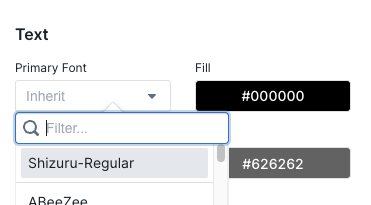 # Getting Started
Source: https://docs.explo.co/data-share/getting-started
## Go to Data Share
Navigate to Explo’s Data Share - the central hub for all Explo Asset sharing in your organization. Create new Shares, access previously scheduled Shares, edit Drafts, and view Data Sharing Recent Activity.
## Create a New Share
New Shares are created using our setup tool that allows you to choose the delivery method, the cadence, the recipients, and the data assets you’d like to include.
# Getting Started
Source: https://docs.explo.co/data-share/getting-started
## Go to Data Share
Navigate to Explo’s Data Share - the central hub for all Explo Asset sharing in your organization. Create new Shares, access previously scheduled Shares, edit Drafts, and view Data Sharing Recent Activity.
## Create a New Share
New Shares are created using our setup tool that allows you to choose the delivery method, the cadence, the recipients, and the data assets you’d like to include.
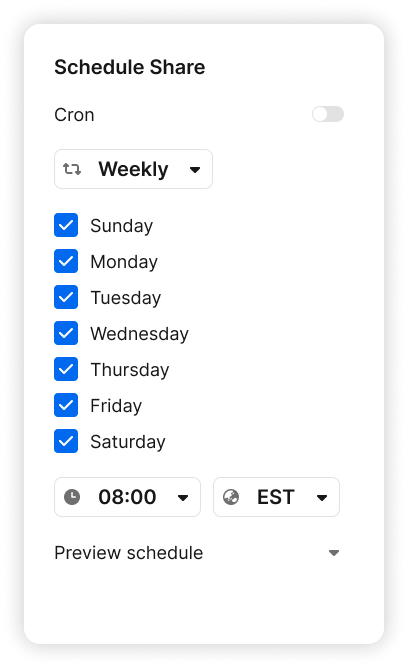
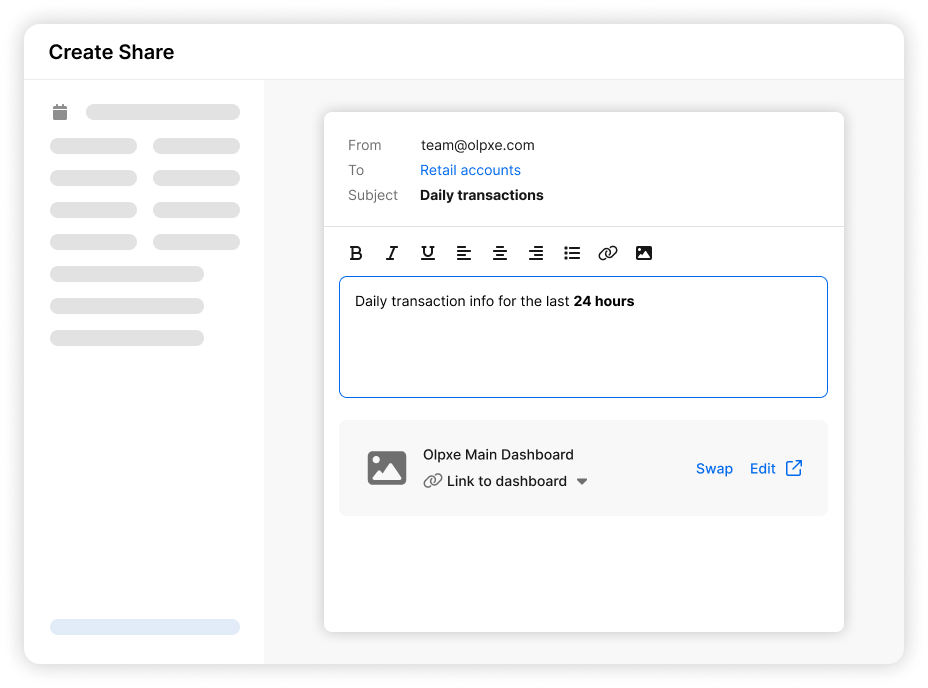 ## View scheduled Shares
View all of your currently scheduled Shares and any drafts that you have waiting to be completed.
## View scheduled Shares
View all of your currently scheduled Shares and any drafts that you have waiting to be completed.
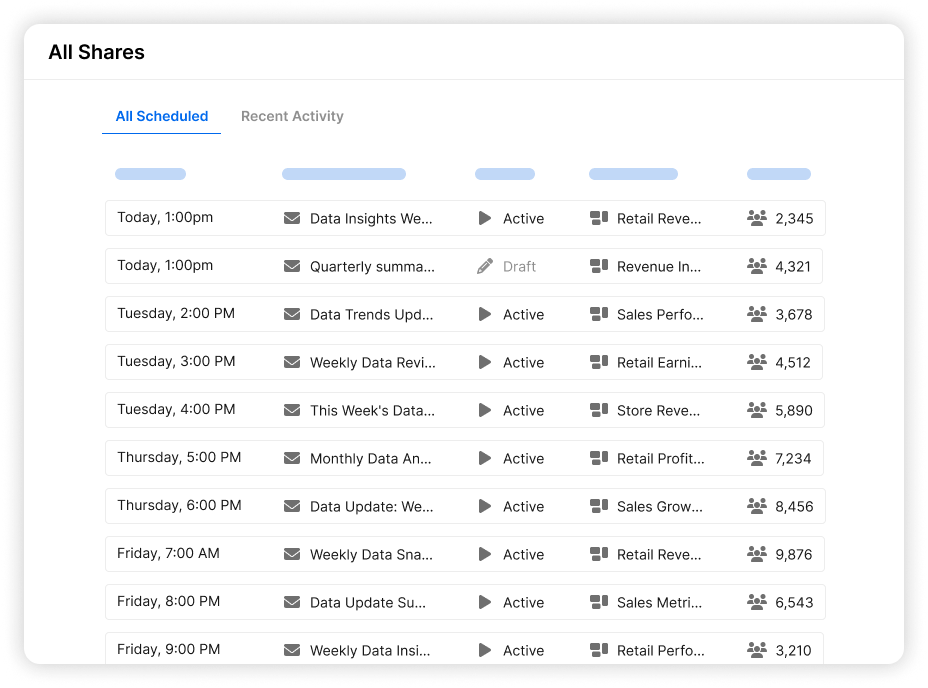 ## Recent Activity
View the Data Share’s Recent Activity page for a better understanding of all Data Sharing across your organization today.
## Recent Activity
View the Data Share’s Recent Activity page for a better understanding of all Data Sharing across your organization today.
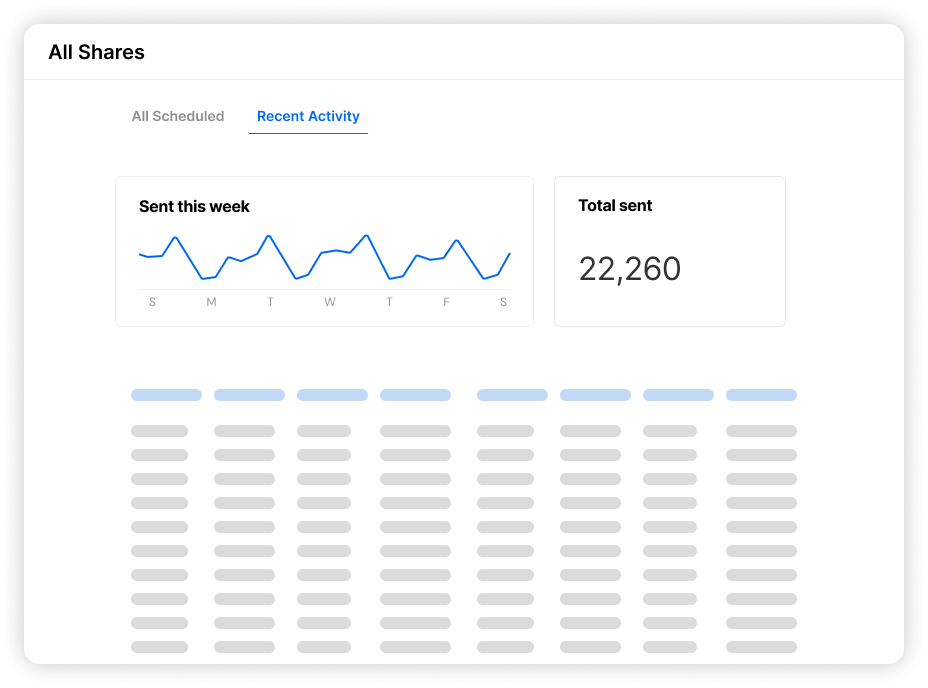 ## Email Layout Configuration
When creating your Share, you can specify custom text and formatting for headers and footers, and you can adjust the layout and contents of your dashboard, specifically for emails.
## Email Layout Configuration
When creating your Share, you can specify custom text and formatting for headers and footers, and you can adjust the layout and contents of your dashboard, specifically for emails.
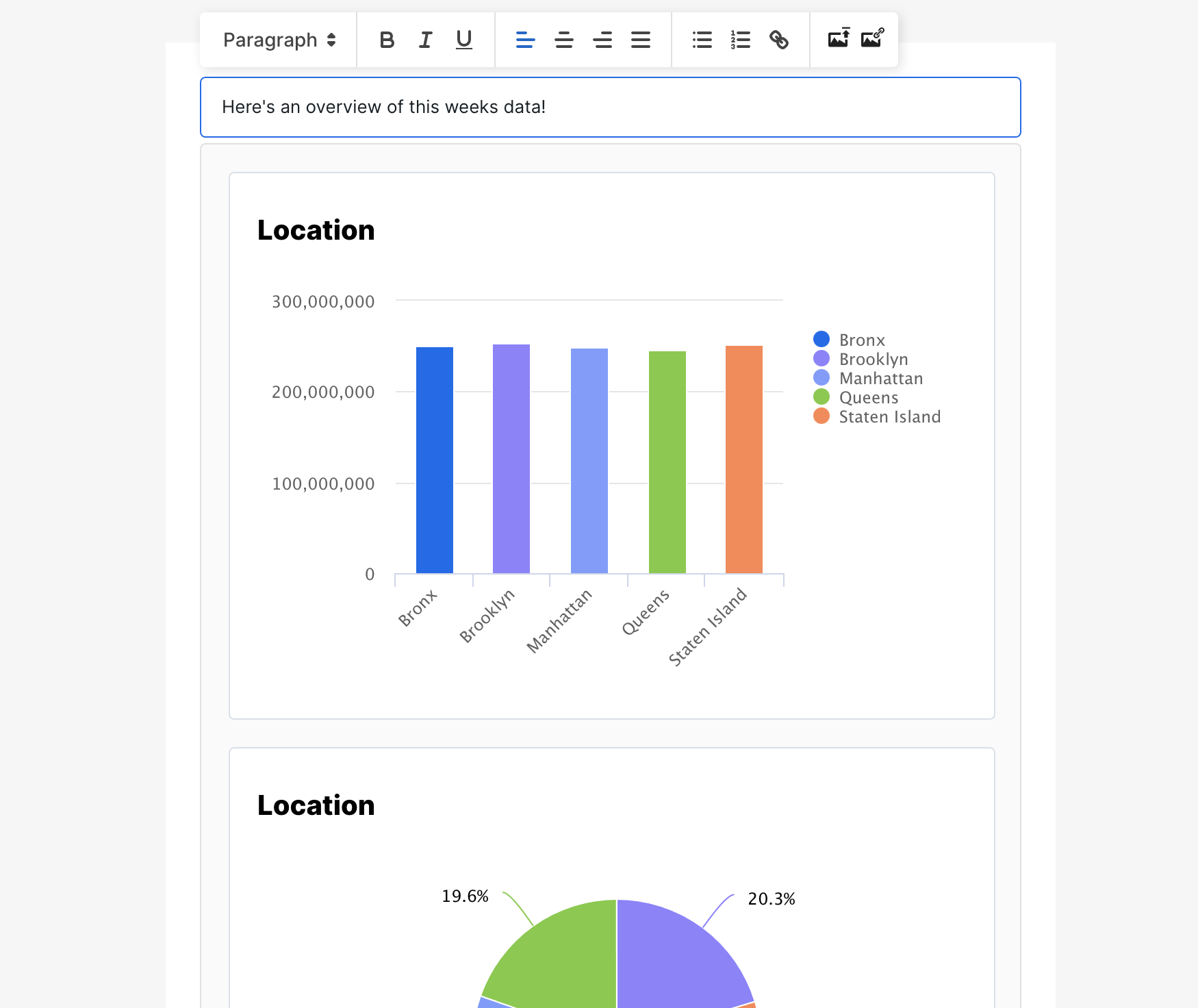 # Overview
Source: https://docs.explo.co/data-share/overview
Understanding Data Share and its components
## What is Data Share?
Data Share is Explo’s central location for all Explo asset sharing in your organization. You can share Dashboards, Report Builders, and Datasets to customers directly using the different sharing methods available.
# Overview
Source: https://docs.explo.co/data-share/overview
Understanding Data Share and its components
## What is Data Share?
Data Share is Explo’s central location for all Explo asset sharing in your organization. You can share Dashboards, Report Builders, and Datasets to customers directly using the different sharing methods available.
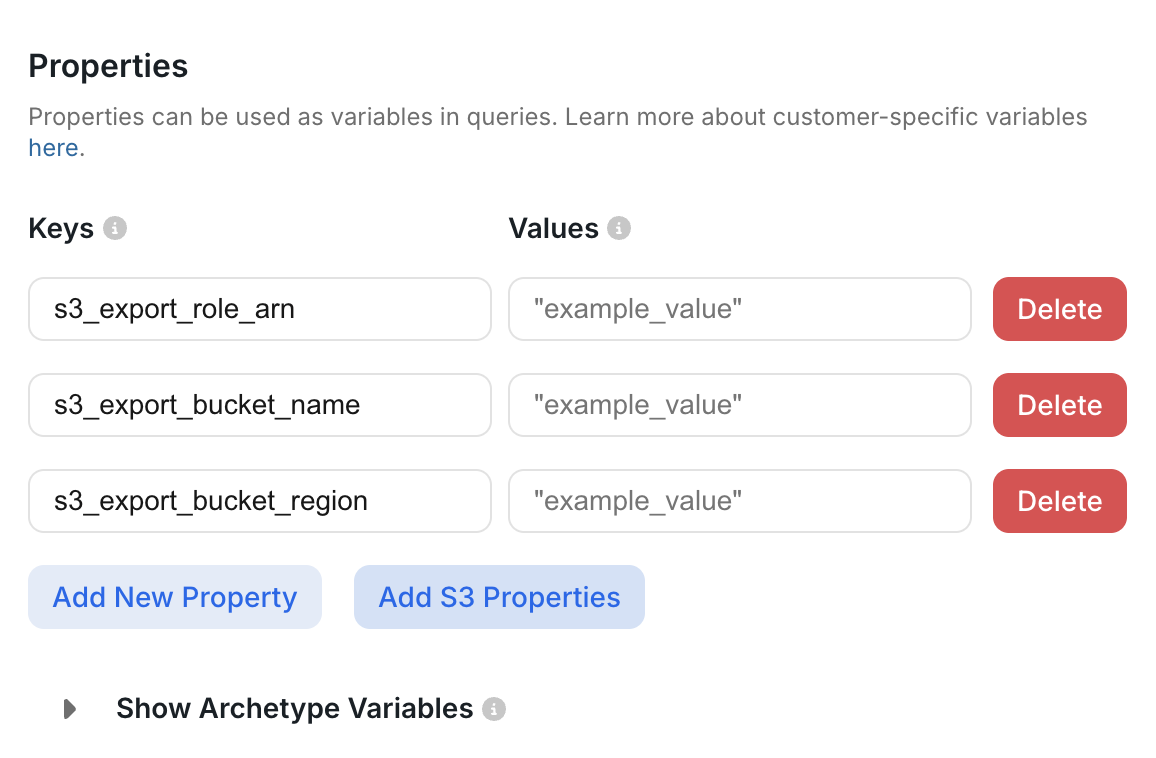 # SFTP Setup
Source: https://docs.explo.co/data-share/sftp-setup
Getting Started with Data Share: SFTP
Explo Data Share using SFTP allows customers to deliver Explo Assets and Datasets directly to an end user's SFTP Server. End users will need to provide SFTP Export Username, Port, and Host Name to be able to receive Shares.
# Part 1: SFTP Server Authentication
Explo provides a public key for end users to input into their SFTP Server. Please add this to the server’s `.ssh/authorized_keys` file.
# Part 2: Providing Explo with End User Information
Explo Customer uploads SFTP Properties: Username, Port, and Host for each of their customers to the customer `properties` in Explo. Each User will be able to have one SFTP Server.
# SFTP Setup
Source: https://docs.explo.co/data-share/sftp-setup
Getting Started with Data Share: SFTP
Explo Data Share using SFTP allows customers to deliver Explo Assets and Datasets directly to an end user's SFTP Server. End users will need to provide SFTP Export Username, Port, and Host Name to be able to receive Shares.
# Part 1: SFTP Server Authentication
Explo provides a public key for end users to input into their SFTP Server. Please add this to the server’s `.ssh/authorized_keys` file.
# Part 2: Providing Explo with End User Information
Explo Customer uploads SFTP Properties: Username, Port, and Host for each of their customers to the customer `properties` in Explo. Each User will be able to have one SFTP Server.
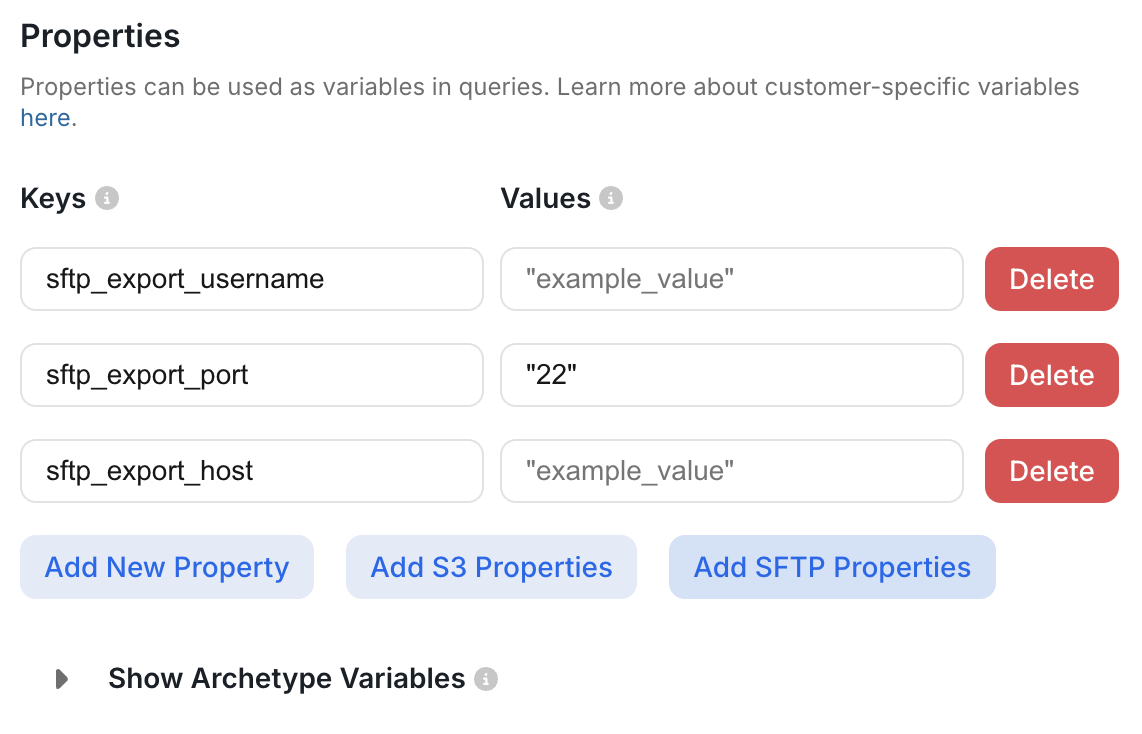 The values `sftp_export_username`, `sftp_export_port`, `sftp_export_host` are reserved keys in the `properties`.
# Building your data model
Source: https://docs.explo.co/data-sources/building-your-data-model
Although Explo can sit on top of almost any data model, here are a few tips to ensure better performance and ease of use when connecting to Explo.
### Segment your data by customers
It is very important for your data to be segmented by customers. In most
cases, a customer is your customer, but can also be different entities that
you wish to split your data by.
Ensuring that tables in your database contains a field such as`customer_id`or
`organization_name `can make it much easier and quicker to query and segment
your data.
However, if all your tables do not have a customer field, you can always join
tables in the Explo interface.
The values `sftp_export_username`, `sftp_export_port`, `sftp_export_host` are reserved keys in the `properties`.
# Building your data model
Source: https://docs.explo.co/data-sources/building-your-data-model
Although Explo can sit on top of almost any data model, here are a few tips to ensure better performance and ease of use when connecting to Explo.
### Segment your data by customers
It is very important for your data to be segmented by customers. In most
cases, a customer is your customer, but can also be different entities that
you wish to split your data by.
Ensuring that tables in your database contains a field such as`customer_id`or
`organization_name `can make it much easier and quicker to query and segment
your data.
However, if all your tables do not have a customer field, you can always join
tables in the Explo interface.
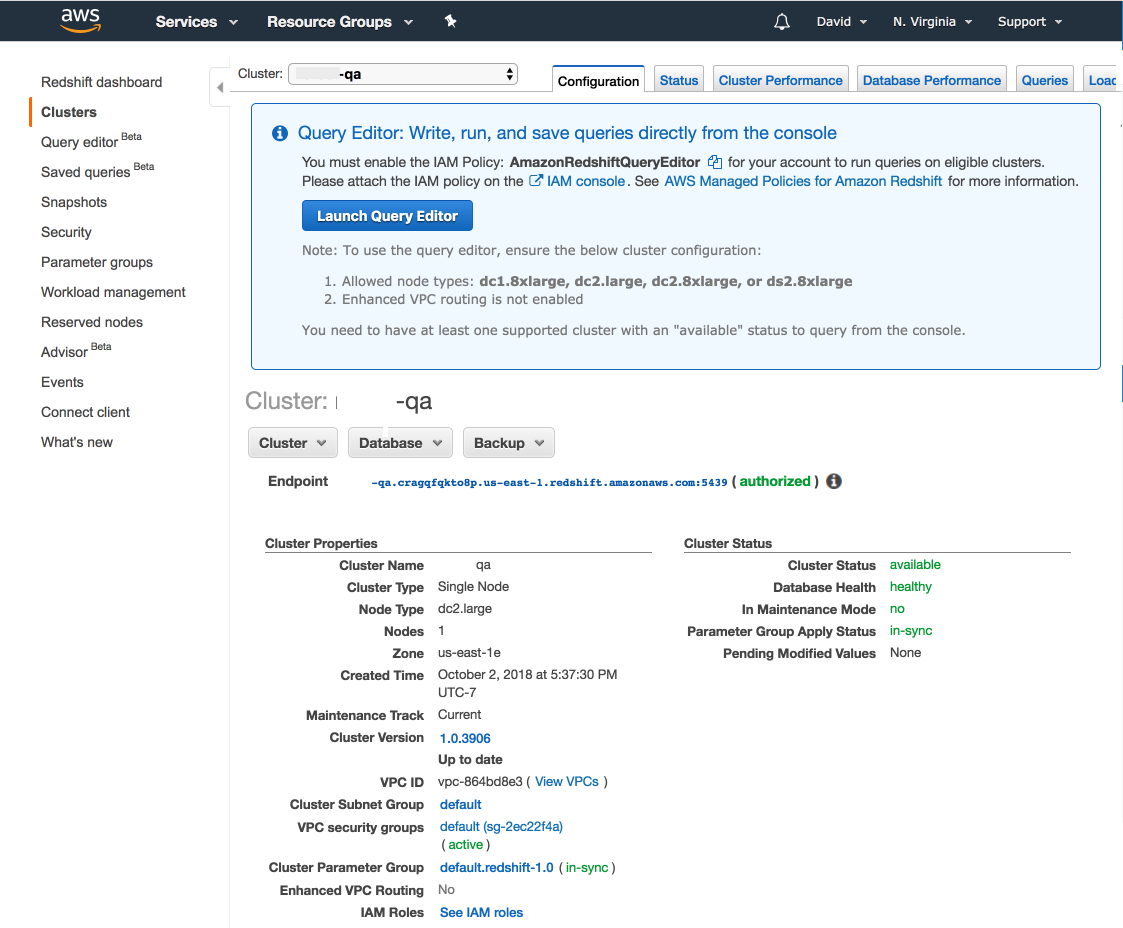 ## Questions?
Please reach out to the Explo team at
[support@explo.co](mailto:support@explo.co) if you have any questions.
# SingleStore
Source: https://docs.explo.co/data-sources/connecting-to-data-sources/data-source-types/singlestore
## Intro
Find out more about SingleStore [here](https://www.singlestore.com/).
## Necessary Credentials
* **Hostname**
* The server where your database lives
* Example: *db.location.singlestore.com*
* **Port**
* The port the database server uses
* Example: *3306*
* **Database name**
* Name of the database you are connecting Explo to
* Example: *dbname*
* **Authentication**
* Scheme you want to use (options below)
### Authentication Options
**Username and Password**
* Credentials:
* Username
* Password
## Allowlisting Explo's IPs
## Questions?
Please reach out to the Explo team at
[support@explo.co](mailto:support@explo.co) if you have any questions.
# SingleStore
Source: https://docs.explo.co/data-sources/connecting-to-data-sources/data-source-types/singlestore
## Intro
Find out more about SingleStore [here](https://www.singlestore.com/).
## Necessary Credentials
* **Hostname**
* The server where your database lives
* Example: *db.location.singlestore.com*
* **Port**
* The port the database server uses
* Example: *3306*
* **Database name**
* Name of the database you are connecting Explo to
* Example: *dbname*
* **Authentication**
* Scheme you want to use (options below)
### Authentication Options
**Username and Password**
* Credentials:
* Username
* Password
## Allowlisting Explo's IPs
 ## What are Schema?
Schema are a foldering system that you can use to group your data sources by
queries that will be run against them. Schema define a set of common tables
between its data sources, which are referred to as synced tables. Each schema
has a default data source, which serves as the source of these synced tables for
that schema.
Dataset queries and visualizations are configured against a schema, rather than
a single dataset. When you render a dashboard for a specific customer, it will
pull all data from the data source the customer is associated with for each
schema when populating the view.
## What are Schema?
Schema are a foldering system that you can use to group your data sources by
queries that will be run against them. Schema define a set of common tables
between its data sources, which are referred to as synced tables. Each schema
has a default data source, which serves as the source of these synced tables for
that schema.
Dataset queries and visualizations are configured against a schema, rather than
a single dataset. When you render a dashboard for a specific customer, it will
pull all data from the data source the customer is associated with for each
schema when populating the view.
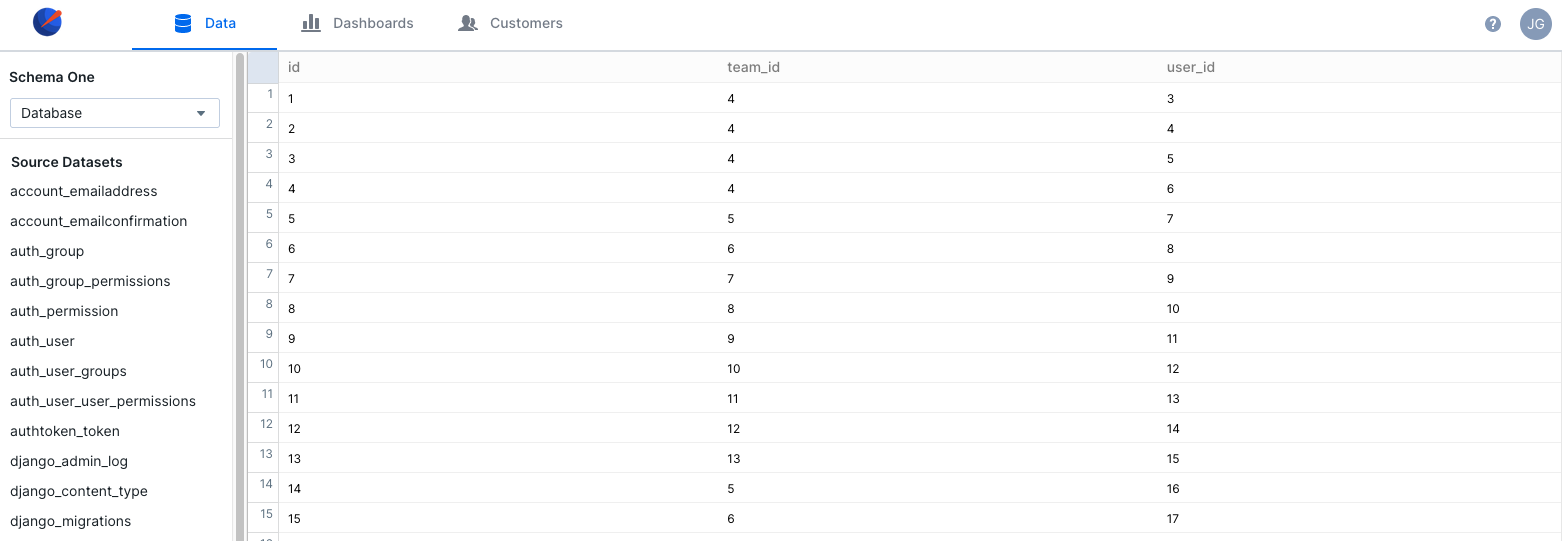 ## Why use Schema?
Schema are a powerful tool that enable you to use databases of different shapes
to power different elements of your dashboard. Because datasets in your
dashboard are connected to a specific schema, you don't have to ensure that
every data source you connect to Explo works with every query you write.
For example, you might have a set of data sources in a "Sales" schema that
powers some datasets and dashboard elements and another set of data sources in a
"Marketing" schema that powers others. Your customers would see their own data
in each of these schemas, which makes your dashboards more flexible and
informative.
# Managing Schema
Source: https://docs.explo.co/data-sources/data-sources-and-schema/managing-schema
This guide describes how to manage schema set up for your multiple data sources.
## Adding a Schema
To add a schema, you must create a new data source and associate it with that
schema. On the Data tab, click the "Add Data Source" button to add a new data
source. As part of this flow, you will see a 'plus' sign next to the schemas
dropdown, which you can click to enter a schema name. This data source will
automatically be assigned as the default data source for your new schema, and
you will be prompted to sync tables on connection to the data source.
## Managing Schema
To manage schema, navigate to the Data tab and click the Manage Schemas button.
From here, you can edit the names of your schema, change the default data
source, and delete your schema.
When changing the default data source for a schema, it is recommended that you
then sync tables for that data source again.
Deleting a schema is an operation that should only be done if absolutely
necessary. When you delete a schema, all data sources linked to that schema will
be deleted. Because these data sources may be powering queries in your
dashboards, you cannot delete a schema that has any datasets linked to that
schema. You must first manually delete those data sets from the Dashboard editor
before deleting the schema itself.
# Multiple Data Sources
Source: https://docs.explo.co/data-sources/data-sources-and-schema/multiple-data-sources
This guide describes how to configure Explo to support multiple data sources
## Why Multiple Data Sources?
There are a few different reasons why you may want to connect multiple data sources to Explo:
* You want to connect and build dashboards against both your staging and production databases
* You have customer data segmented into multiple different databases
In either of these scenarios, you can use Explo to connect multiple data sources to power your dashboards.
## Why use Schema?
Schema are a powerful tool that enable you to use databases of different shapes
to power different elements of your dashboard. Because datasets in your
dashboard are connected to a specific schema, you don't have to ensure that
every data source you connect to Explo works with every query you write.
For example, you might have a set of data sources in a "Sales" schema that
powers some datasets and dashboard elements and another set of data sources in a
"Marketing" schema that powers others. Your customers would see their own data
in each of these schemas, which makes your dashboards more flexible and
informative.
# Managing Schema
Source: https://docs.explo.co/data-sources/data-sources-and-schema/managing-schema
This guide describes how to manage schema set up for your multiple data sources.
## Adding a Schema
To add a schema, you must create a new data source and associate it with that
schema. On the Data tab, click the "Add Data Source" button to add a new data
source. As part of this flow, you will see a 'plus' sign next to the schemas
dropdown, which you can click to enter a schema name. This data source will
automatically be assigned as the default data source for your new schema, and
you will be prompted to sync tables on connection to the data source.
## Managing Schema
To manage schema, navigate to the Data tab and click the Manage Schemas button.
From here, you can edit the names of your schema, change the default data
source, and delete your schema.
When changing the default data source for a schema, it is recommended that you
then sync tables for that data source again.
Deleting a schema is an operation that should only be done if absolutely
necessary. When you delete a schema, all data sources linked to that schema will
be deleted. Because these data sources may be powering queries in your
dashboards, you cannot delete a schema that has any datasets linked to that
schema. You must first manually delete those data sets from the Dashboard editor
before deleting the schema itself.
# Multiple Data Sources
Source: https://docs.explo.co/data-sources/data-sources-and-schema/multiple-data-sources
This guide describes how to configure Explo to support multiple data sources
## Why Multiple Data Sources?
There are a few different reasons why you may want to connect multiple data sources to Explo:
* You want to connect and build dashboards against both your staging and production databases
* You have customer data segmented into multiple different databases
In either of these scenarios, you can use Explo to connect multiple data sources to power your dashboards.
 On this page, you will see all connected data sources. If you click on a
specific data source, you will be taken to a data viewer where you can preview
the data in the data source. This view also allows you to toggle between
different data sources within that schema.
On this page, you will see all connected data sources. If you click on a
specific data source, you will be taken to a data viewer where you can preview
the data in the data source. This view also allows you to toggle between
different data sources within that schema.
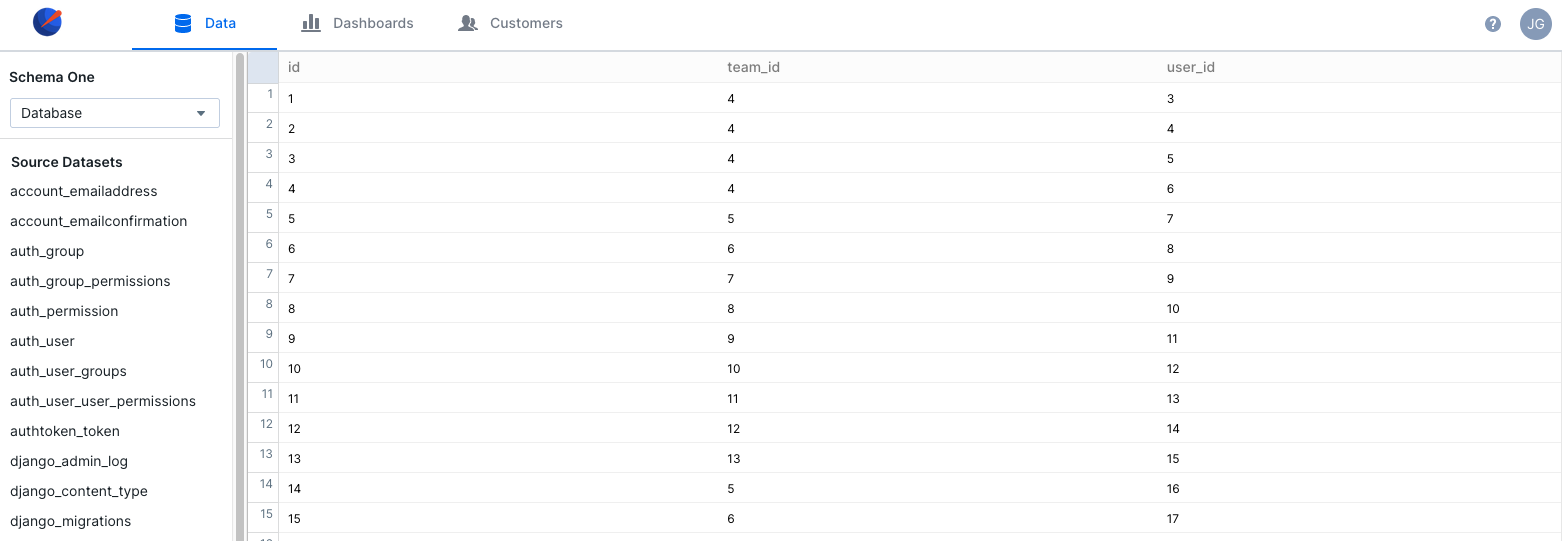 ## Add a Data Source
On the Data tab, click the "Add Data Source" button to add a new data source.
First, you'll be prompted to enter a display nickname and id for your database,
along with choosing its schema and visibility group. For more information about
visibility groups, check out
[this section of our documentation](/managing-permissions/visibility-groups).
## Add a Data Source
On the Data tab, click the "Add Data Source" button to add a new data source.
First, you'll be prompted to enter a display nickname and id for your database,
along with choosing its schema and visibility group. For more information about
visibility groups, check out
[this section of our documentation](/managing-permissions/visibility-groups).
 Follow the steps in the flow and enter your credentials for the database to
connect it to Explo.
## Connecting Customers to Data Sources
### Customer API
Every customer you create in Explo is associated with a specific set of data
sources, one for each schema. When you render the dashboard for that customer,
it will pull all data for that view from those data sources associated with the
customer.
When you create a customer via the API, you can optionally specify a
`data_source_id` or the `data_source_provided_id`. This will associate the user
group with that data source for the schema that data source belongs to. If you
do not specify the data source, it will associate the customer with the
default data source, which you can configure from the data page.
For more information, go to
[our section on the Customer API](/api-reference/customer-api).
Follow the steps in the flow and enter your credentials for the database to
connect it to Explo.
## Connecting Customers to Data Sources
### Customer API
Every customer you create in Explo is associated with a specific set of data
sources, one for each schema. When you render the dashboard for that customer,
it will pull all data for that view from those data sources associated with the
customer.
When you create a customer via the API, you can optionally specify a
`data_source_id` or the `data_source_provided_id`. This will associate the user
group with that data source for the schema that data source belongs to. If you
do not specify the data source, it will associate the customer with the
default data source, which you can configure from the data page.
For more information, go to
[our section on the Customer API](/api-reference/customer-api).

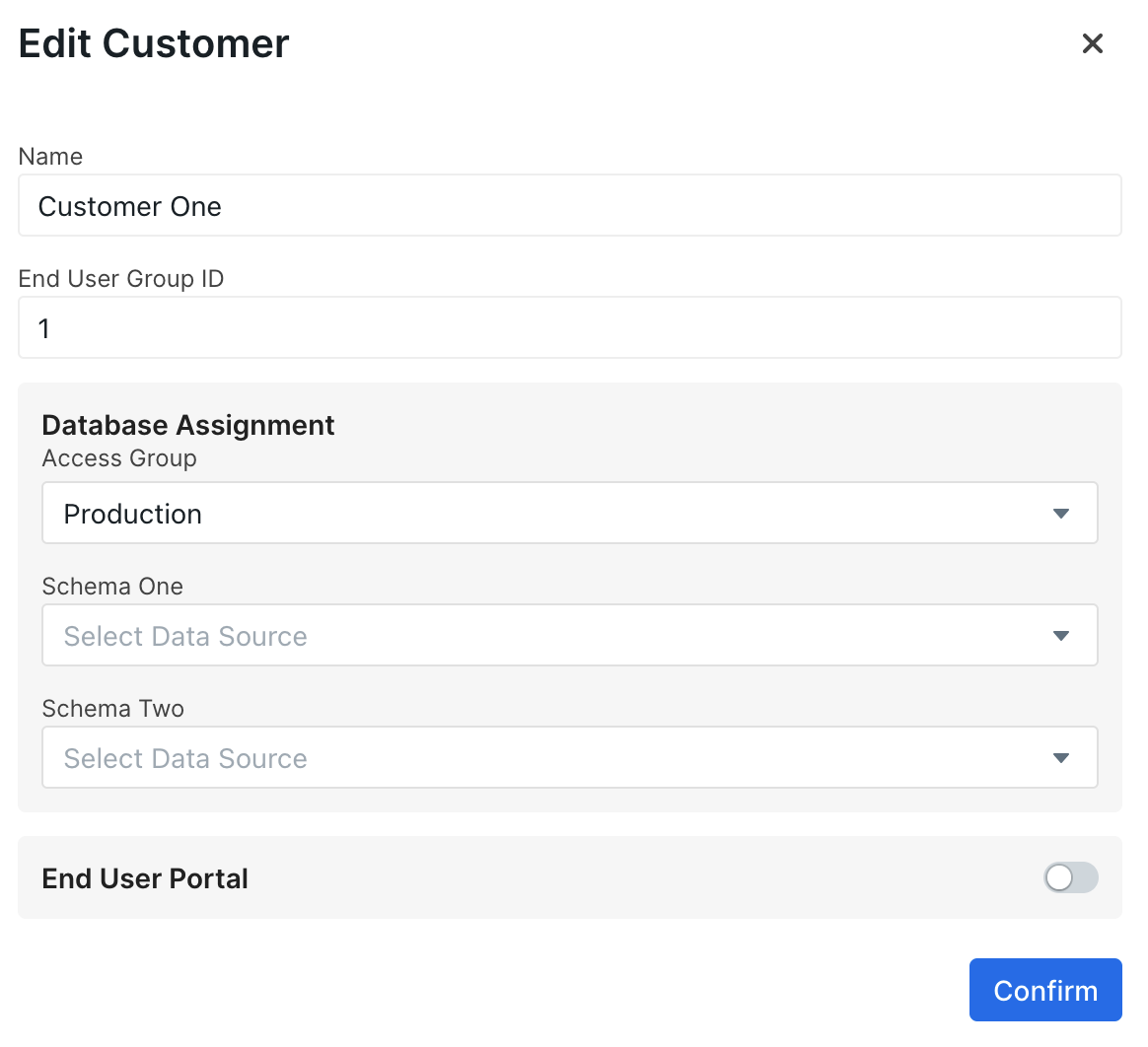 ### Customers Tab
On the Customers tab, there are dropdowns for choosing a data source for each
schema when editing or creating a customer. If no data source is selected for a
given schema, that customer will be associated with the default data source for
that visibility group and schema.
### Customers Tab
On the Customers tab, there are dropdowns for choosing a data source for each
schema when editing or creating a customer. If no data source is selected for a
given schema, that customer will be associated with the default data source for
that visibility group and schema.
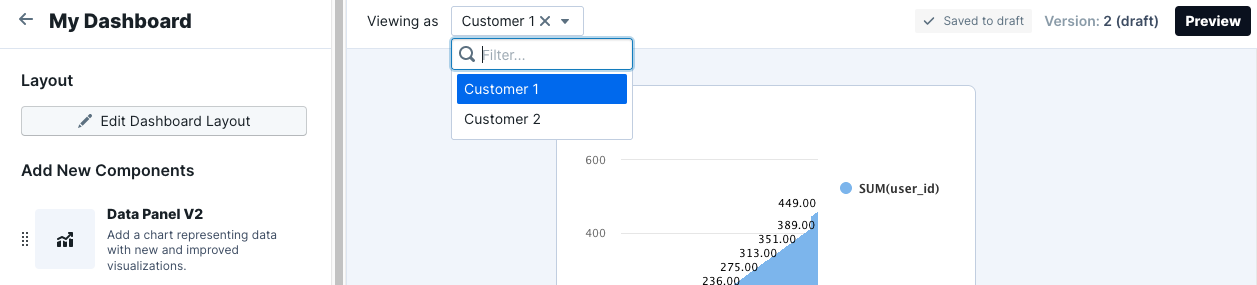 ## Viewing Dashboards in Different Data Sources
When you are making dashboards, there is a dropdown for customers.
For each dashboard, you will be able to toggle between different customers to
select which one you are viewing as. the data on the page will then reflect data
from the data sources associated with that customer.
## Embedding with Multiple Data Sources
Embedding with multiple data sources is as straightforward as with a single data
source.
When you create your customers, we will give you back the customer token.
Simply provide this token when embedding and we will query from the right data
sources and present the correct data.
# Sync Tables
Source: https://docs.explo.co/data-sources/data-sources-and-schema/sync-new-tables
Sync tables in your database
Syncing tables will allow you to view table and column names in the dataset editor,
as well as use autocomplete when writing SQL. It is recommended that you sync tables
when adding a new schema to Explo, or when new tables are added into your database
or warehouse.
You can sync tables by clicking on the triple dot menu to the right of the schema.
## Viewing Dashboards in Different Data Sources
When you are making dashboards, there is a dropdown for customers.
For each dashboard, you will be able to toggle between different customers to
select which one you are viewing as. the data on the page will then reflect data
from the data sources associated with that customer.
## Embedding with Multiple Data Sources
Embedding with multiple data sources is as straightforward as with a single data
source.
When you create your customers, we will give you back the customer token.
Simply provide this token when embedding and we will query from the right data
sources and present the correct data.
# Sync Tables
Source: https://docs.explo.co/data-sources/data-sources-and-schema/sync-new-tables
Sync tables in your database
Syncing tables will allow you to view table and column names in the dataset editor,
as well as use autocomplete when writing SQL. It is recommended that you sync tables
when adding a new schema to Explo, or when new tables are added into your database
or warehouse.
You can sync tables by clicking on the triple dot menu to the right of the schema.
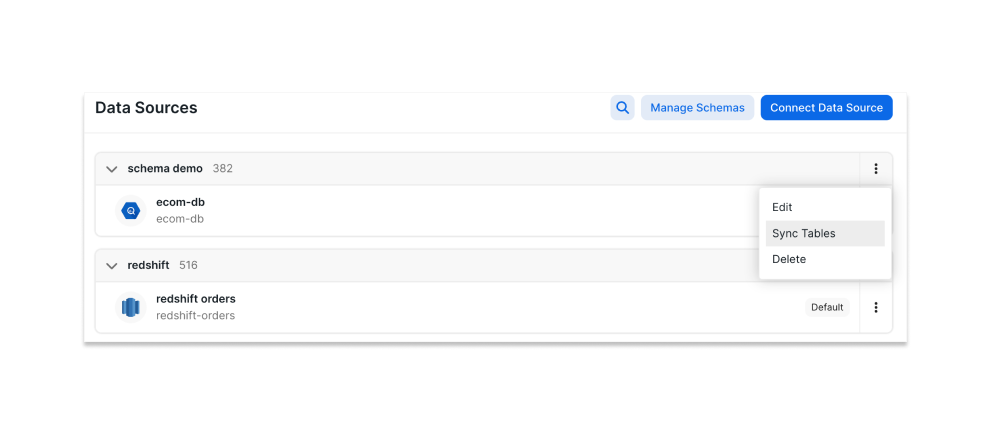 From here, you can select the specific tables that you plan on querying from while
using Explo. Note that all tables will still be accessible in the dataset editor,
but only synced tables will show up with autocomplete.
From here, you can select the specific tables that you plan on querying from while
using Explo. Note that all tables will still be accessible in the dataset editor,
but only synced tables will show up with autocomplete.
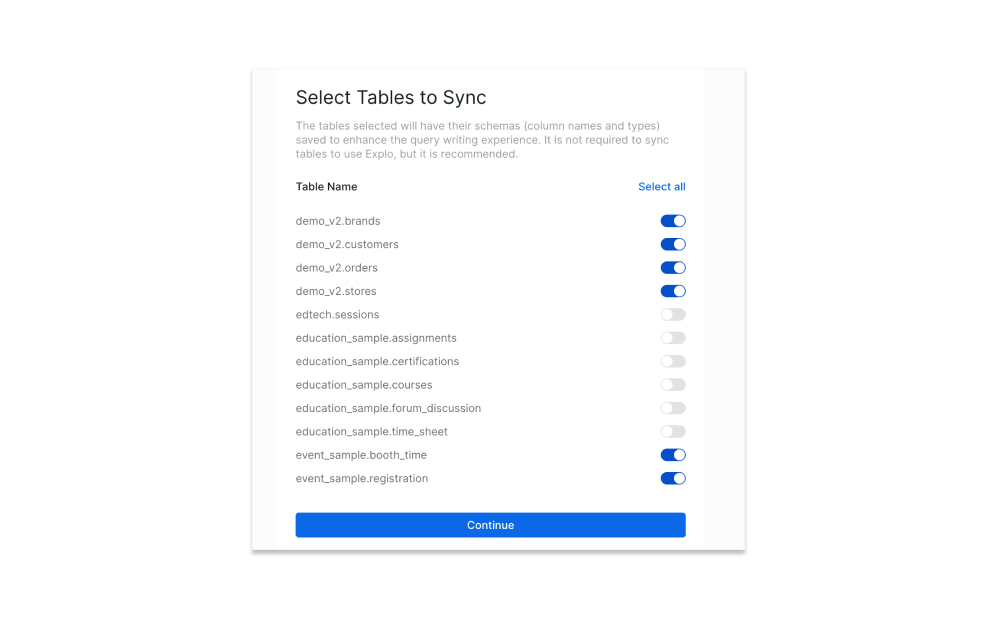 Click continue and the tables should be synced! This may take a little while if the tables
are particularly large. Note that a schema only syncs tables taken from the default data
source for that schema.
# Data Source Specifics
Source: https://docs.explo.co/data-sources/fido/data-source-specifics
Below is a table explaining some specifics around how FIDO interacts with each data source it connects to.
| Data Source Type | Persistent Connections Supported? | Other Notes |
| ---------------- | ------------------------------------------------------------------------------------------------------------------------ | ------------------------------------------------------------------------------- |
| Athena | N/A - Athena has no persistent connection support. | All features supported |
| BigQuery | N/A - BigQuery has no persistent connection support. | All features supported |
| Clickhouse | Yes | All features supported |
| Databricks | N/A - Pooled connections maintained but no keepalives used. Warehouse is allowed to sleep when no Explo activity occurs. | All features supported |
| Motherduck | Yes | All features supported |
| MySQL | Yes | Only 5.7+ supported; percentile calculations only fully supported in 8.0+ |
| Postgres | Yes | All features supported (recommend Postgres 12+) |
| Redshift | Yes - but possible to disable keepalives for serverless warehouse. Contact support if interested. | All features supported |
| Snowflake | N/A - Pooled connections maintained but no keepalives used. Warehouse is allowed to sleep when no Explo activity occurs. | All features supported |
| SQL Server | Yes | All features supported |
| Supabase | Yes | All features supported; note must use IPv4 to connect or Supavisor Session Mode |
## Connection Keep Alive Queries
For data source types that support persistent connections, we periodically validate that each connection is still valid.
After one minute since the last successful query on that connection, we will run `SELECT 1 as result` as validation. If
this query fails, we will replace that specific connection. Keeping these connections alive and valid helps decrease
query latency, providing a better end-user experience.
### Disabling Keep Alive Queries
For data source types that offer a serverless variety (such as Redshift Serverless), keep alive queries can cost you
money because they keep the database awake. We offer the ability to disable keepalives for cases like that. Please reach
out to support if you'd like to disable keep alive queries.
# General
Source: https://docs.explo.co/data-sources/fido/general
Explo's data querying microservice called FIDO.
FIDO is Explo's data orchestration service. There are a lot of benefits compared to the previous data querying architecture including:
* Persistent database connection management, eliminating connection latency for queries (connection and SSH tunneling time)
* Longer timeouts configurable for queries
* Querying databases within a certain region of the world for data residency requirements and speed optimizations
* Connect via SSH tunneling, AWS PrivateLink, and more
## Resources
* We’ve also [talked about it a bit on our engineering blog](https://www.explo.co/blog/explo-data-connector) if you’d like to read more.
* Here is a slide that we presented with a partner showing one customer’s speed-up (your results may vary of course).
Click continue and the tables should be synced! This may take a little while if the tables
are particularly large. Note that a schema only syncs tables taken from the default data
source for that schema.
# Data Source Specifics
Source: https://docs.explo.co/data-sources/fido/data-source-specifics
Below is a table explaining some specifics around how FIDO interacts with each data source it connects to.
| Data Source Type | Persistent Connections Supported? | Other Notes |
| ---------------- | ------------------------------------------------------------------------------------------------------------------------ | ------------------------------------------------------------------------------- |
| Athena | N/A - Athena has no persistent connection support. | All features supported |
| BigQuery | N/A - BigQuery has no persistent connection support. | All features supported |
| Clickhouse | Yes | All features supported |
| Databricks | N/A - Pooled connections maintained but no keepalives used. Warehouse is allowed to sleep when no Explo activity occurs. | All features supported |
| Motherduck | Yes | All features supported |
| MySQL | Yes | Only 5.7+ supported; percentile calculations only fully supported in 8.0+ |
| Postgres | Yes | All features supported (recommend Postgres 12+) |
| Redshift | Yes - but possible to disable keepalives for serverless warehouse. Contact support if interested. | All features supported |
| Snowflake | N/A - Pooled connections maintained but no keepalives used. Warehouse is allowed to sleep when no Explo activity occurs. | All features supported |
| SQL Server | Yes | All features supported |
| Supabase | Yes | All features supported; note must use IPv4 to connect or Supavisor Session Mode |
## Connection Keep Alive Queries
For data source types that support persistent connections, we periodically validate that each connection is still valid.
After one minute since the last successful query on that connection, we will run `SELECT 1 as result` as validation. If
this query fails, we will replace that specific connection. Keeping these connections alive and valid helps decrease
query latency, providing a better end-user experience.
### Disabling Keep Alive Queries
For data source types that offer a serverless variety (such as Redshift Serverless), keep alive queries can cost you
money because they keep the database awake. We offer the ability to disable keepalives for cases like that. Please reach
out to support if you'd like to disable keep alive queries.
# General
Source: https://docs.explo.co/data-sources/fido/general
Explo's data querying microservice called FIDO.
FIDO is Explo's data orchestration service. There are a lot of benefits compared to the previous data querying architecture including:
* Persistent database connection management, eliminating connection latency for queries (connection and SSH tunneling time)
* Longer timeouts configurable for queries
* Querying databases within a certain region of the world for data residency requirements and speed optimizations
* Connect via SSH tunneling, AWS PrivateLink, and more
## Resources
* We’ve also [talked about it a bit on our engineering blog](https://www.explo.co/blog/explo-data-connector) if you’d like to read more.
* Here is a slide that we presented with a partner showing one customer’s speed-up (your results may vary of course).
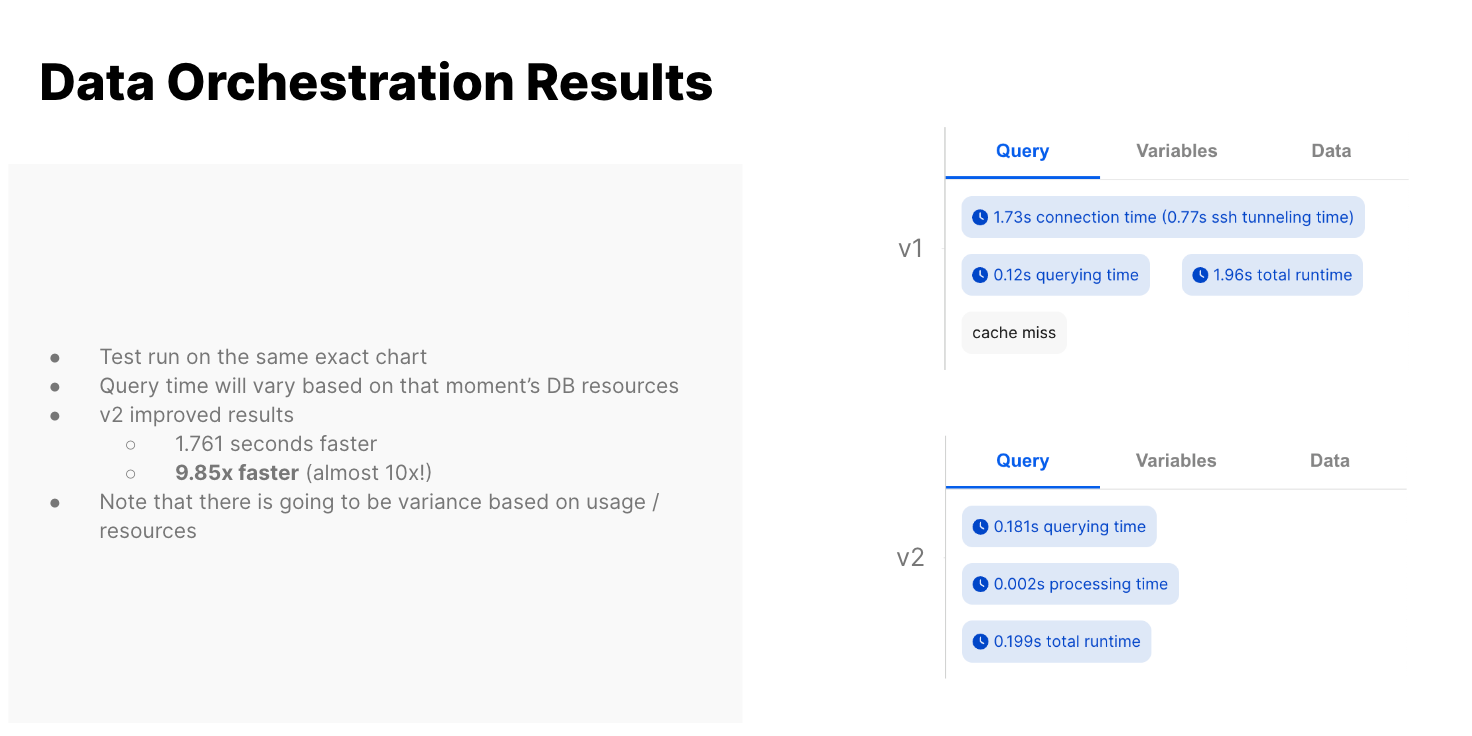 * Here is a talk that Gary (co-founder) gave about the query service
**Optimizing Analytics Platforms with ClickHouse** (March 2025)
# How to Migrate
Source: https://docs.explo.co/data-sources/fido/how-to-migrate
## 1. IP Allowlisting
To prepare for this, you will need to adjust your IP allowlisting for your databases (and SSH bastions if you use one) to include two new IPV4 addresses. More details [here](https://docs.explo.co/data-sources/connecting-to-data-sources/connectivity-regions#default-connectivity-region-access), including all of our egress IPs for all of our infrastructure. **For brevity, these are the new addresses to be *added*** (please keep the existing):
```
3.219.104.199
35.175.85.18
100.27.162.59
34.231.221.92
```
* Here is a talk that Gary (co-founder) gave about the query service
**Optimizing Analytics Platforms with ClickHouse** (March 2025)
# How to Migrate
Source: https://docs.explo.co/data-sources/fido/how-to-migrate
## 1. IP Allowlisting
To prepare for this, you will need to adjust your IP allowlisting for your databases (and SSH bastions if you use one) to include two new IPV4 addresses. More details [here](https://docs.explo.co/data-sources/connecting-to-data-sources/connectivity-regions#default-connectivity-region-access), including all of our egress IPs for all of our infrastructure. **For brevity, these are the new addresses to be *added*** (please keep the existing):
```
3.219.104.199
35.175.85.18
100.27.162.59
34.231.221.92
```
 The following are notes about how Explo allowlisting works:
* Explo's allowlist supports both hardcoded domains and domains that use an
asterisk (\*) as a wildcard
* [https://testing.explo.co](https://testing.explo.co) and https\://\*.explo.co will both allowlist
[https://testing.explo.co](https://testing.explo.co), but the second rule would also allowlist
[https://staging.explo.co](https://staging.explo.co)
* A wildcard only applies to a single subdomain (the portion of a url between
two periods)
* https\://\*.\*.explo.co would allowlist [https://site.testing.explo.co](https://site.testing.explo.co), but
https\://\*.explo.co would not
* Wildcards can also be mixed with hardcoded text within a subdomain
* [https://explo-\*.co](https://explo-*.co) allowlists [https://explo-testing.co](https://explo-testing.co) and
[https://explo-staging.co](https://explo-staging.co)
* The www is not required for the allowlist rules
* [https://explo.co](https://explo.co) allowlists both [https://www.explo.co](https://www.explo.co) and [https://explo.co](https://explo.co)
* You must include a protocol (http or https) in your allowlist rule, and this
cannot be wildcarded
The following are notes about how Explo allowlisting works:
* Explo's allowlist supports both hardcoded domains and domains that use an
asterisk (\*) as a wildcard
* [https://testing.explo.co](https://testing.explo.co) and https\://\*.explo.co will both allowlist
[https://testing.explo.co](https://testing.explo.co), but the second rule would also allowlist
[https://staging.explo.co](https://staging.explo.co)
* A wildcard only applies to a single subdomain (the portion of a url between
two periods)
* https\://\*.\*.explo.co would allowlist [https://site.testing.explo.co](https://site.testing.explo.co), but
https\://\*.explo.co would not
* Wildcards can also be mixed with hardcoded text within a subdomain
* [https://explo-\*.co](https://explo-*.co) allowlists [https://explo-testing.co](https://explo-testing.co) and
[https://explo-staging.co](https://explo-staging.co)
* The www is not required for the allowlist rules
* [https://explo.co](https://explo.co) allowlists both [https://www.explo.co](https://www.explo.co) and [https://explo.co](https://explo.co)
* You must include a protocol (http or https) in your allowlist rule, and this
cannot be wildcarded
 ## How do I set up a portal?
### Settings
In Explo's team settings page, you can supply several pieces of metadata for
your portal:
| Field | Description |
| ----------------- | --------------------------------------------------------------------------------------------------------------------------------------------------------------------------------------- |
| Page Favicon Url | A url pointing to the favicon that will display on your browser's tab from the portal page |
| Portal Logo | A url pointing to the logo that you would like to display both on the login and dashboard views |
| Portal Site Title | The title that will display on your browser's tab from the portal page |
| External Email | The email from which authentication emails will be sent to your users. Note that you should reach out to Explo support to set up this email if you want it to come from your own domain |
To have a custom domain point to your portal (such as `your_domain.com/portal`),
reach out to Explo support.
### Permissioning
In your customer configuration on the customers tab, you can now select a
dashboard to permission to the customer and supply a set of user emails
that can log in to see this dashboard. Our portal authenticates via magic link,
so you do not have to supply a password or handle any sort of customer
management outside of granting or revoking email access on this page.
## What do my users see?
On first access of the portal, your users will see a log in screen prompting
them for an email. If they submit an email you've granted access to, then they
will receive a link via email that will permission them to the dashboard. This
link lasts 15 minutes, and access to the dashboard lasts 7 days before they must
log in again.
On subsequent accesses to the portal, your users will be directed immediately to
the dashboard itself, provided that their session has not expired and that you
haven't revoked access for that email.
## How do I set up a portal?
### Settings
In Explo's team settings page, you can supply several pieces of metadata for
your portal:
| Field | Description |
| ----------------- | --------------------------------------------------------------------------------------------------------------------------------------------------------------------------------------- |
| Page Favicon Url | A url pointing to the favicon that will display on your browser's tab from the portal page |
| Portal Logo | A url pointing to the logo that you would like to display both on the login and dashboard views |
| Portal Site Title | The title that will display on your browser's tab from the portal page |
| External Email | The email from which authentication emails will be sent to your users. Note that you should reach out to Explo support to set up this email if you want it to come from your own domain |
To have a custom domain point to your portal (such as `your_domain.com/portal`),
reach out to Explo support.
### Permissioning
In your customer configuration on the customers tab, you can now select a
dashboard to permission to the customer and supply a set of user emails
that can log in to see this dashboard. Our portal authenticates via magic link,
so you do not have to supply a password or handle any sort of customer
management outside of granting or revoking email access on this page.
## What do my users see?
On first access of the portal, your users will see a log in screen prompting
them for an email. If they submit an email you've granted access to, then they
will receive a link via email that will permission them to the dashboard. This
link lasts 15 minutes, and access to the dashboard lasts 7 days before they must
log in again.
On subsequent accesses to the portal, your users will be directed immediately to
the dashboard itself, provided that their session has not expired and that you
haven't revoked access for that email.
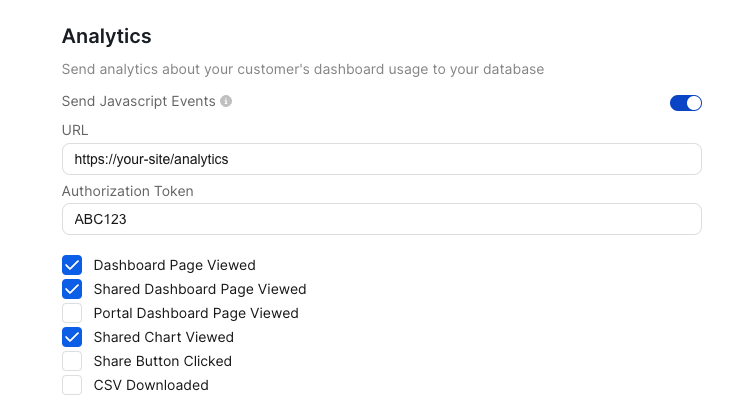 ## Analytics Data
When, for example, your dashboard is viewed from a Share link, Explo will send a
request to the supplied URL with the following shape.
| Field | Type | Description |
| ------------------ | ------ | ----------------------------------------------------- |
| user\_id | string | Id of the user who triggered the event |
| name | string | The type of event triggered |
| properties | json | Metadata about the event |
| custom\_properties | json | Custom metadata passed in to embedded `web component` |
For javascript events, the metadata described above will be contained in the detail of the event message.
## Event Types
#### Shared Event Types
| Name |
| ---------------------------- |
| Portal Dashboard Page Viewed |
| Data Panel PDF Downloaded |
| CSV Downloaded |
| Table Sorted |
| Table Paged |
| Table Filtered |
| Dropdown Selected |
| Multiselect Selected |
| Datepicker Selected |
#### Explore Specific Event Types
| Name |
| ---------------------------- |
| Dashboard Page Viewed |
| Shared Dashboard Page Viewed |
| Shared Chart Viewed |
| Share Button Clicked |
## Metadata Properties
#### Shared Properties
| Field | Type |
| ---------------------- | ------- |
| team\_id | int |
| team\_name | string |
| customer\_id | int |
| customer\_name | string |
| customer\_provided\_id | string |
| customer\_is\_demo | boolean |
#### Explore Properties
| Field | Type |
| ------------------------- | ------ |
| dashboard\_template\_id | int |
| dashboard\_template\_name | string |
#### Page View Event Additional Properties
| Field | Type | Description |
| -------------- | ------ | ------------------------------------------------------------ |
| is\_production | bool | true if this is a production dashboard |
| environment | string | the environment tag supplied when the dashboard was embedded |
| is\_strict | bool | whether the dashboard was embedded in strict mode |
| embed\_source | string | share or iframe, depending on how the dashboard was embedded |
## Recommended Ways to Test
Internally, we use [Beeceptor](https://beeceptor.com/) to test these endpoints. It ensures the requests are sending and that the request body is structured as expected. All you need to do is launch a mock server and use that generated endpoint, like `garytesting.free.beeceptor.com`, in the `URL` field in the [Explo app](https://app.explo.co/settings/analytics).
Then, open your embedded dashboard and fire some events to see it flow to Beeceptor.
# Overview
Source: https://docs.explo.co/general-features/custom-js-events
Listen for custom JS events sent by Explo in your app
## Web Component
Explo uses the [CustomEvent](https://developer.mozilla.org/en-US/docs/Web/API/CustomEvent) spec to fire our own events when certain things happen in the app that you might want to respond to in your app.
### How do I interact with Custom JS events?
Add an event listener in your app to respond to any of the available events listed on this page.
```js theme={null}
const listener = (e) => {
console.log(e.detail);
};
elem.addEventListener("EVENT_NAME", listener);
```
Be sure to clean up the event listener when you're done with it.
```js theme={null}
elem.removeEventListener(listener);
```
## Iframe
For Iframes, Explo uses the [PostMessage](https://developer.mozilla.org/en-US/docs/Web/API/Window/postMessage) spec to fire the events
### How do I interact with Custom JS events?
Add an event listener in your app to respond to the events listed on this page.
```js theme={null}
const messageListener = (e) => {
// Check origin of message before reading
if (e.origin != "https://app.explo.co") return;
switch (e.data.event) {
case "sendVariableUpdatedEvent":
console.log(e.data.detail);
break;
}
};
window.addEventListener("message", messageListener);
```
Just make sure you clean up the event listener when you're done with it.
```js theme={null}
window.removeEventListener(messageListener);
```
# Editable Sections Example Code
Source: https://docs.explo.co/general-features/custom-js-events/editable-sections-example-code
Programmatically interact with editable sections using custom JS events. Please reach out to Explo support if this is something your team wants to enable.
# Example Code
```
```
# Incoming Events
Source: https://docs.explo.co/general-features/custom-js-events/incoming-events
You may consume any of the following events that Explo can emit.
## `sendVariableUpdatedEvent`
**Description:**
Sent when a new value is selected for a variable from a dashboard Element.
**Output Parameters:**
| Parameter | Type | Description |
| --------- | ------ | ---------------------------- |
| varName | string | Name of the variable updated |
| newValue | any | New value of the variable |
**Example:**
```json theme={null}
{
"detail": {
"varName": "string",
"newValue": "any"
}
}
```
## `dashboardReadyToLoad`
**Description:**
Sent when dashboard information has been loaded and the dashboard itself is ready to render and to start loading data.
**Output Parameters:**
| Parameter | Type | Description |
| --------------- | ------ | ------------------------------------------------------------------------------------------------------------------------- |
| dashboardId | string | ID of the dashboard from the URL param or HTML attribute. Empty string if not provided |
| dashboardHeight | number | Estimated height in pixels of the dashboard. Use `dashboardLoaded` and `dashboardUpdated` events to get the actual height |
**Output Example:**
```json theme={null}
{
"detail": {
"dashboardId": "string",
"dashboardHeight": 0
}
}
```
## `dashboardLoaded`
**Description:**
Sent when all initial data for a dashboard has been loaded.
**Output Parameters:**
| Parameter | Type | Description |
| --------------- | ------ | ---------------------------------------------------------------------------------------------------------------------------------- |
| dashboardId | string | ID of the dashboard from the URL param or HTML attribute. Empty string if not provided |
| dashboardHeight | number | Full height in pixels of the dashboard. Use to set the height of the iframe or Web Component |
| loadTime | number | Time in milliseconds it took to fetch all data and render the dashboard. Does not include asset loading or component startup time. |
**Output Example:**
```json theme={null}
{
"detail": {
"dashboardId": "exampleDashboardId",
"dashboardHeight": 100,
"loadTime": 100
}
}
```
## `dashboardUpdated`
**Description:**
Sent when the contents of the dashboard changes.
**Output Parameters:**
| Parameter | Type | Description |
| --------------- | ------ | -------------------------------------------------------------------------------------------- |
| dashboardId | string | ID of the dashboard from the URL param or HTML attribute. Empty string if not provided |
| dashboardHeight | number | Full height in pixels of the dashboard. Use to set the height of the iframe or Web Component |
**Output Example:**
```json theme={null}
{
"detail": {
"dashboardId": "exampleDashboardId",
"dashboardHeight": 100
}
}
```
## `analyticsEventFired`
**Description:**
Fires when one of the selected actions on the Analytics settings page has been performed.
Refer to the [analytics events documentation](/general-features/analytics-reporting) for more details.
## `customerJwtExpired`
**Description:**
Fires when the current JWT expires. Refer to the
[updateCustomerJwt event](/general-features/custom-js-events/outgoing-events#updatecustomerjwt)
for programmatically updating the JWT.
## `error`
**Description:**
Sent when the dashboard or report builder encounters an error. Please reach out to Explo support if you want this enabled for your workspace.
**Output Example:**
```javascript theme={null}
{
detail: {
error: "Error message",
user_id: "123", // Unique identifier for end user
properties: {
dashboard_type: "iframe",
embed_source: "iframe",
team_id: 1,
team_name: "Explo",
customer_id: 1,
customer_name: "Customer 1",
customer_provided_id: "1",
// If error occurred in Report Builder:
report_builder_id: 15, // Report Builder ID
report_builder_name: "hello", // Report Builder Name
report_name: "my report" // Report Name
report_type: 'BUILT_IN' // 'BUILT_IN' or 'CUSTOMER_REPORT'
view_name: "my report" // View Name
// If error occurred in Dashboard:
dashboard_template_id: 12,
dashboard_template_name: "hello",
data_panel_id: "fdasf",
// If error occured on dataset
dataset_id: 123,
},
},
}
```
## `dashboardFailed`
**Description:**
Sent when the dashboard embed fails to load entirely. This is not a data querying issue, but rather an embedding issue. Usually this is because of an expired or misconfigured `JWT` or an invalid `embed_id` / `customer_token`.
## `reportBuilderReadyToLoad`
**Description:**
Sent when report builder information has been loaded and the report builder itself is ready to render and to start loading data.
**Output Parameters:**
| Parameter | Type | Description |
| --------------- | ------ | ------------------------------ |
| reportBuilderId | string | Embed ID of the report builder |
**Output Example:**
```json theme={null}
{
"detail": {
"reportBuilderId": "string"
}
}
```
## `reportBuilderFailed`
**Description:**
Sent when the report builder embed fails to load entirely. This is not a data querying issue, but rather an embedding issue. Usually this is because of an expired or misconfigured `JWT` or an invalid `embed_id` / `customer_token`.
# Iframe Example
Source: https://docs.explo.co/general-features/custom-js-events/incoming-events/iframe-example
In order to listen for an incoming event, you need to add an event listener for `message`, like this `window.addEventListener("message", messageListener)`. Then all of the different incoming events will be available to be consumed.
```
```
The console log output looks like this:
## Analytics Data
When, for example, your dashboard is viewed from a Share link, Explo will send a
request to the supplied URL with the following shape.
| Field | Type | Description |
| ------------------ | ------ | ----------------------------------------------------- |
| user\_id | string | Id of the user who triggered the event |
| name | string | The type of event triggered |
| properties | json | Metadata about the event |
| custom\_properties | json | Custom metadata passed in to embedded `web component` |
For javascript events, the metadata described above will be contained in the detail of the event message.
## Event Types
#### Shared Event Types
| Name |
| ---------------------------- |
| Portal Dashboard Page Viewed |
| Data Panel PDF Downloaded |
| CSV Downloaded |
| Table Sorted |
| Table Paged |
| Table Filtered |
| Dropdown Selected |
| Multiselect Selected |
| Datepicker Selected |
#### Explore Specific Event Types
| Name |
| ---------------------------- |
| Dashboard Page Viewed |
| Shared Dashboard Page Viewed |
| Shared Chart Viewed |
| Share Button Clicked |
## Metadata Properties
#### Shared Properties
| Field | Type |
| ---------------------- | ------- |
| team\_id | int |
| team\_name | string |
| customer\_id | int |
| customer\_name | string |
| customer\_provided\_id | string |
| customer\_is\_demo | boolean |
#### Explore Properties
| Field | Type |
| ------------------------- | ------ |
| dashboard\_template\_id | int |
| dashboard\_template\_name | string |
#### Page View Event Additional Properties
| Field | Type | Description |
| -------------- | ------ | ------------------------------------------------------------ |
| is\_production | bool | true if this is a production dashboard |
| environment | string | the environment tag supplied when the dashboard was embedded |
| is\_strict | bool | whether the dashboard was embedded in strict mode |
| embed\_source | string | share or iframe, depending on how the dashboard was embedded |
## Recommended Ways to Test
Internally, we use [Beeceptor](https://beeceptor.com/) to test these endpoints. It ensures the requests are sending and that the request body is structured as expected. All you need to do is launch a mock server and use that generated endpoint, like `garytesting.free.beeceptor.com`, in the `URL` field in the [Explo app](https://app.explo.co/settings/analytics).
Then, open your embedded dashboard and fire some events to see it flow to Beeceptor.
# Overview
Source: https://docs.explo.co/general-features/custom-js-events
Listen for custom JS events sent by Explo in your app
## Web Component
Explo uses the [CustomEvent](https://developer.mozilla.org/en-US/docs/Web/API/CustomEvent) spec to fire our own events when certain things happen in the app that you might want to respond to in your app.
### How do I interact with Custom JS events?
Add an event listener in your app to respond to any of the available events listed on this page.
```js theme={null}
const listener = (e) => {
console.log(e.detail);
};
elem.addEventListener("EVENT_NAME", listener);
```
Be sure to clean up the event listener when you're done with it.
```js theme={null}
elem.removeEventListener(listener);
```
## Iframe
For Iframes, Explo uses the [PostMessage](https://developer.mozilla.org/en-US/docs/Web/API/Window/postMessage) spec to fire the events
### How do I interact with Custom JS events?
Add an event listener in your app to respond to the events listed on this page.
```js theme={null}
const messageListener = (e) => {
// Check origin of message before reading
if (e.origin != "https://app.explo.co") return;
switch (e.data.event) {
case "sendVariableUpdatedEvent":
console.log(e.data.detail);
break;
}
};
window.addEventListener("message", messageListener);
```
Just make sure you clean up the event listener when you're done with it.
```js theme={null}
window.removeEventListener(messageListener);
```
# Editable Sections Example Code
Source: https://docs.explo.co/general-features/custom-js-events/editable-sections-example-code
Programmatically interact with editable sections using custom JS events. Please reach out to Explo support if this is something your team wants to enable.
# Example Code
```
```
# Incoming Events
Source: https://docs.explo.co/general-features/custom-js-events/incoming-events
You may consume any of the following events that Explo can emit.
## `sendVariableUpdatedEvent`
**Description:**
Sent when a new value is selected for a variable from a dashboard Element.
**Output Parameters:**
| Parameter | Type | Description |
| --------- | ------ | ---------------------------- |
| varName | string | Name of the variable updated |
| newValue | any | New value of the variable |
**Example:**
```json theme={null}
{
"detail": {
"varName": "string",
"newValue": "any"
}
}
```
## `dashboardReadyToLoad`
**Description:**
Sent when dashboard information has been loaded and the dashboard itself is ready to render and to start loading data.
**Output Parameters:**
| Parameter | Type | Description |
| --------------- | ------ | ------------------------------------------------------------------------------------------------------------------------- |
| dashboardId | string | ID of the dashboard from the URL param or HTML attribute. Empty string if not provided |
| dashboardHeight | number | Estimated height in pixels of the dashboard. Use `dashboardLoaded` and `dashboardUpdated` events to get the actual height |
**Output Example:**
```json theme={null}
{
"detail": {
"dashboardId": "string",
"dashboardHeight": 0
}
}
```
## `dashboardLoaded`
**Description:**
Sent when all initial data for a dashboard has been loaded.
**Output Parameters:**
| Parameter | Type | Description |
| --------------- | ------ | ---------------------------------------------------------------------------------------------------------------------------------- |
| dashboardId | string | ID of the dashboard from the URL param or HTML attribute. Empty string if not provided |
| dashboardHeight | number | Full height in pixels of the dashboard. Use to set the height of the iframe or Web Component |
| loadTime | number | Time in milliseconds it took to fetch all data and render the dashboard. Does not include asset loading or component startup time. |
**Output Example:**
```json theme={null}
{
"detail": {
"dashboardId": "exampleDashboardId",
"dashboardHeight": 100,
"loadTime": 100
}
}
```
## `dashboardUpdated`
**Description:**
Sent when the contents of the dashboard changes.
**Output Parameters:**
| Parameter | Type | Description |
| --------------- | ------ | -------------------------------------------------------------------------------------------- |
| dashboardId | string | ID of the dashboard from the URL param or HTML attribute. Empty string if not provided |
| dashboardHeight | number | Full height in pixels of the dashboard. Use to set the height of the iframe or Web Component |
**Output Example:**
```json theme={null}
{
"detail": {
"dashboardId": "exampleDashboardId",
"dashboardHeight": 100
}
}
```
## `analyticsEventFired`
**Description:**
Fires when one of the selected actions on the Analytics settings page has been performed.
Refer to the [analytics events documentation](/general-features/analytics-reporting) for more details.
## `customerJwtExpired`
**Description:**
Fires when the current JWT expires. Refer to the
[updateCustomerJwt event](/general-features/custom-js-events/outgoing-events#updatecustomerjwt)
for programmatically updating the JWT.
## `error`
**Description:**
Sent when the dashboard or report builder encounters an error. Please reach out to Explo support if you want this enabled for your workspace.
**Output Example:**
```javascript theme={null}
{
detail: {
error: "Error message",
user_id: "123", // Unique identifier for end user
properties: {
dashboard_type: "iframe",
embed_source: "iframe",
team_id: 1,
team_name: "Explo",
customer_id: 1,
customer_name: "Customer 1",
customer_provided_id: "1",
// If error occurred in Report Builder:
report_builder_id: 15, // Report Builder ID
report_builder_name: "hello", // Report Builder Name
report_name: "my report" // Report Name
report_type: 'BUILT_IN' // 'BUILT_IN' or 'CUSTOMER_REPORT'
view_name: "my report" // View Name
// If error occurred in Dashboard:
dashboard_template_id: 12,
dashboard_template_name: "hello",
data_panel_id: "fdasf",
// If error occured on dataset
dataset_id: 123,
},
},
}
```
## `dashboardFailed`
**Description:**
Sent when the dashboard embed fails to load entirely. This is not a data querying issue, but rather an embedding issue. Usually this is because of an expired or misconfigured `JWT` or an invalid `embed_id` / `customer_token`.
## `reportBuilderReadyToLoad`
**Description:**
Sent when report builder information has been loaded and the report builder itself is ready to render and to start loading data.
**Output Parameters:**
| Parameter | Type | Description |
| --------------- | ------ | ------------------------------ |
| reportBuilderId | string | Embed ID of the report builder |
**Output Example:**
```json theme={null}
{
"detail": {
"reportBuilderId": "string"
}
}
```
## `reportBuilderFailed`
**Description:**
Sent when the report builder embed fails to load entirely. This is not a data querying issue, but rather an embedding issue. Usually this is because of an expired or misconfigured `JWT` or an invalid `embed_id` / `customer_token`.
# Iframe Example
Source: https://docs.explo.co/general-features/custom-js-events/incoming-events/iframe-example
In order to listen for an incoming event, you need to add an event listener for `message`, like this `window.addEventListener("message", messageListener)`. Then all of the different incoming events will be available to be consumed.
```
```
The console log output looks like this:
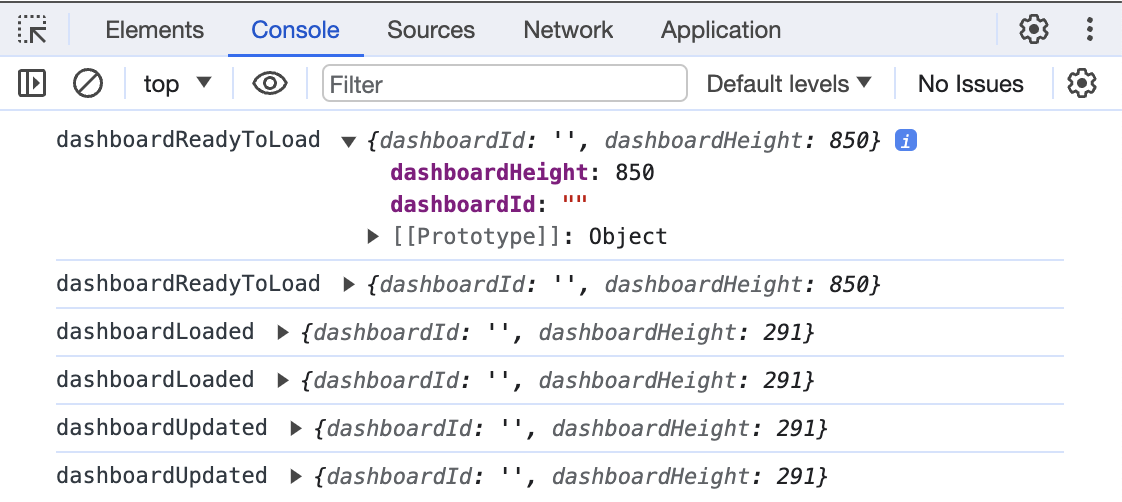 # Web Component Example
Source: https://docs.explo.co/general-features/custom-js-events/incoming-events/web-component-example
In order to listen for an incoming event, you need to add an event listener for that event name. So in the example below you will see that an event listener was added for `dashboardLoaded`.
```
# Web Component Example
Source: https://docs.explo.co/general-features/custom-js-events/incoming-events/web-component-example
In order to listen for an incoming event, you need to add an event listener for that event name. So in the example below you will see that an event listener was added for `dashboardLoaded`.
```
 # Outgoing JS Events to Emit
Source: https://docs.explo.co/general-features/custom-js-events/outgoing-events
Emit any of these events to Explo's iFrame or Web Component to programmatically interact with the embed.
### `updateExploDashboardVariable`
**Description:**
Update the value of a variable in the dashboard.
**Parameters:**
| Parameter | Type | Description |
| --------- | ------ | --------------------------------- |
| varName | string | Name of the variable |
| value | any | Value to update the variable with |
**Example:**
```javascript theme={null}
exploIframe.contentWindow.postMessage(
{
event: "updateExploDashboardVariable",
detail: { varName: "exampleVariable", value: "newValue" },
},
"*"
);
```
### `updateExploDashboardVariables`
**Description:**
Update the value of multiple variables in the dashboard.
**Parameters:**
| Parameter | Type | Description |
| --------- | ----------------------------------- | ------------------------------ |
| variables | `{ varName: string; value: any }[]` | A list of the variable updates |
**Example:**
```javascript theme={null}
exploIframe.contentWindow.postMessage(
{
event: "updateExploDashboardVariables",
detail: {
variables: [
{ varName: "exampleVariable1", value: "newValue1" },
{ varName: "exampleVariable2", value: "newValue2" },
],
},
},
"*"
);
```
### `updateCustomerJwt`
**Description:**
Update the customer's JWT to a new value.
**Example:**
```javascript theme={null}
exploIframe.contentWindow.postMessage(
{
event: "updateCustomerJwt",
detail: { jwt: "new_jwt" },
},
"*"
);
```
# Embed ID Page
Source: https://docs.explo.co/general-features/embed-id-page
## General Embed ID Pages
Some Explo customers only keep track of `embed_id`s internally and it is cumbersome for them to go from `embed_id` to the internal dashboard or report builder URL to make edits.
We added a new URL:
```
app.explo.co/embed_id/{embed_id}
```
where `{embed_id}` is the ID you use to embed a dashboard or a report builder.
This endpoint is agnostic to whether it is a dashboard or a report builder and will redirect you to the right `app.explo.co/dashboard/{dashboard_id}` or `app.explo.co/report-builder/{report_builder_id}/datasets`.
If no resource exists, it will take you to the Explo app home page.
# Exporting Features
Source: https://docs.explo.co/general-features/exporting-features
## General
Explo allows you to export dashboards, charts, reports, and more as `CSV`s, `PDF`s, `PNG`s, and `XSLX`s. These exported files are temporarily stored in Explo's S3 bucket as a landing zone for your customers to download the files from.
## S3 Security
THe S3 bucket that is used has an object expiration of `7 days` set to the entirety of the bucket. This means that after 7 days, the file temporarily stored in S3 will be permanently deleted. The files are encrypted at rest in S3.
## Bring Your Own S3 bucket
Your team can also optionally provide your own S3 bucket for Explo to export files temporarily to. Please contact Explo support to help you set this up. We will need the following from you:
* Folder name
* This prefixes the download file names
* Bucket name
* Region
* A role provisioned in your AWS account with S3 read and write permissions that Explo may assume. Explo support will provide you with an Explo ARN to establish the trust relationship with for this role.
# Internationalization
Source: https://docs.explo.co/general-features/internationalization
Configure how strings, dates, numbers, and currencies are formatted in your dashboards.
Currently, Explo supports localizing strings, dates, numbers, and currencies for your embedded dashboards and report builders.
Your team's desired locale can be set via the Developer section of the Settings tab and will affect all of your
customer's dashboards and report builders.
## Configuring Internationalization
Currently, you have three options for choosing the desired locale to display
your dashboards in.
1. Pass in a locale code and currency code via the web component or IFrame
2. Select the option to prefer browser locale via the Settings Tab
3. Select a default language/currency. for your team via the Settings Tab
In order of preference, Explo will override any configured settings with a
passed in locale code. Explo will then attempt to use browser locale if the
option is selected and the user's browser language is supported, before finally
defaulting to the default language for your team.
Note for currencies, the browser locale does not affect internationalization. only
a passed currency code or setting in your team's settings will affect the currency format.
# Outgoing JS Events to Emit
Source: https://docs.explo.co/general-features/custom-js-events/outgoing-events
Emit any of these events to Explo's iFrame or Web Component to programmatically interact with the embed.
### `updateExploDashboardVariable`
**Description:**
Update the value of a variable in the dashboard.
**Parameters:**
| Parameter | Type | Description |
| --------- | ------ | --------------------------------- |
| varName | string | Name of the variable |
| value | any | Value to update the variable with |
**Example:**
```javascript theme={null}
exploIframe.contentWindow.postMessage(
{
event: "updateExploDashboardVariable",
detail: { varName: "exampleVariable", value: "newValue" },
},
"*"
);
```
### `updateExploDashboardVariables`
**Description:**
Update the value of multiple variables in the dashboard.
**Parameters:**
| Parameter | Type | Description |
| --------- | ----------------------------------- | ------------------------------ |
| variables | `{ varName: string; value: any }[]` | A list of the variable updates |
**Example:**
```javascript theme={null}
exploIframe.contentWindow.postMessage(
{
event: "updateExploDashboardVariables",
detail: {
variables: [
{ varName: "exampleVariable1", value: "newValue1" },
{ varName: "exampleVariable2", value: "newValue2" },
],
},
},
"*"
);
```
### `updateCustomerJwt`
**Description:**
Update the customer's JWT to a new value.
**Example:**
```javascript theme={null}
exploIframe.contentWindow.postMessage(
{
event: "updateCustomerJwt",
detail: { jwt: "new_jwt" },
},
"*"
);
```
# Embed ID Page
Source: https://docs.explo.co/general-features/embed-id-page
## General Embed ID Pages
Some Explo customers only keep track of `embed_id`s internally and it is cumbersome for them to go from `embed_id` to the internal dashboard or report builder URL to make edits.
We added a new URL:
```
app.explo.co/embed_id/{embed_id}
```
where `{embed_id}` is the ID you use to embed a dashboard or a report builder.
This endpoint is agnostic to whether it is a dashboard or a report builder and will redirect you to the right `app.explo.co/dashboard/{dashboard_id}` or `app.explo.co/report-builder/{report_builder_id}/datasets`.
If no resource exists, it will take you to the Explo app home page.
# Exporting Features
Source: https://docs.explo.co/general-features/exporting-features
## General
Explo allows you to export dashboards, charts, reports, and more as `CSV`s, `PDF`s, `PNG`s, and `XSLX`s. These exported files are temporarily stored in Explo's S3 bucket as a landing zone for your customers to download the files from.
## S3 Security
THe S3 bucket that is used has an object expiration of `7 days` set to the entirety of the bucket. This means that after 7 days, the file temporarily stored in S3 will be permanently deleted. The files are encrypted at rest in S3.
## Bring Your Own S3 bucket
Your team can also optionally provide your own S3 bucket for Explo to export files temporarily to. Please contact Explo support to help you set this up. We will need the following from you:
* Folder name
* This prefixes the download file names
* Bucket name
* Region
* A role provisioned in your AWS account with S3 read and write permissions that Explo may assume. Explo support will provide you with an Explo ARN to establish the trust relationship with for this role.
# Internationalization
Source: https://docs.explo.co/general-features/internationalization
Configure how strings, dates, numbers, and currencies are formatted in your dashboards.
Currently, Explo supports localizing strings, dates, numbers, and currencies for your embedded dashboards and report builders.
Your team's desired locale can be set via the Developer section of the Settings tab and will affect all of your
customer's dashboards and report builders.
## Configuring Internationalization
Currently, you have three options for choosing the desired locale to display
your dashboards in.
1. Pass in a locale code and currency code via the web component or IFrame
2. Select the option to prefer browser locale via the Settings Tab
3. Select a default language/currency. for your team via the Settings Tab
In order of preference, Explo will override any configured settings with a
passed in locale code. Explo will then attempt to use browser locale if the
option is selected and the user's browser language is supported, before finally
defaulting to the default language for your team.
Note for currencies, the browser locale does not affect internationalization. only
a passed currency code or setting in your team's settings will affect the currency format.
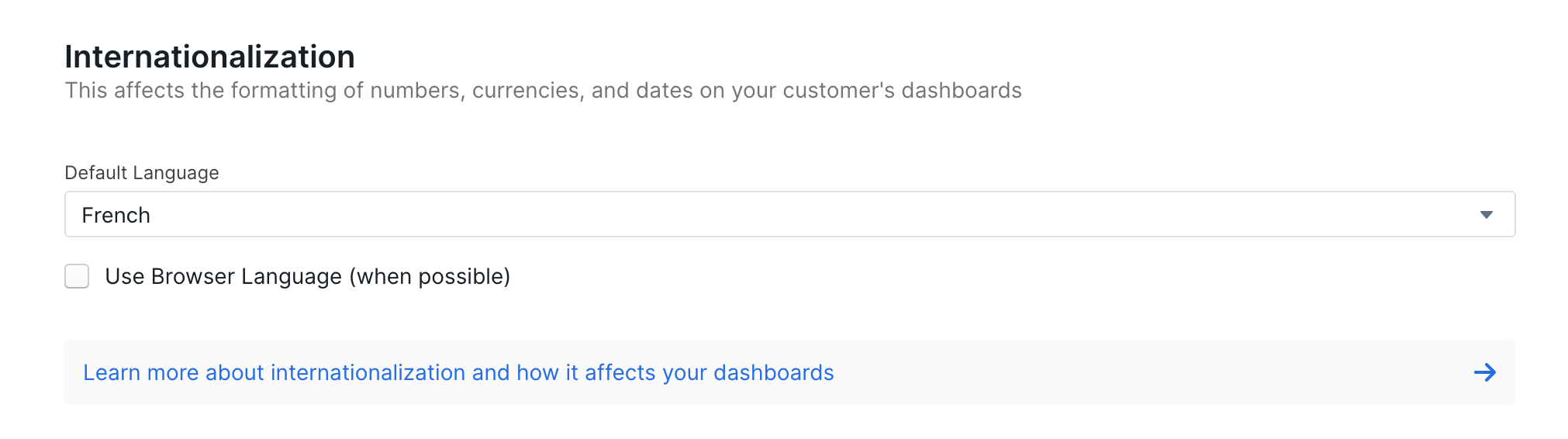 ### Providing Your Own Translations
You can also provide your own translations for your dashboard or report builder if Explo does not support the language you need. If you'd like a demo of the latest functionality, check out this [loom video](https://www.loom.com/share/b07de32e327447749a7052ea30afc7f3).
To do this, you can provide us a JSON object that matches the structure of our built in translations. You can provide a subset of the
object, or all of it.
```json theme={null}
{
"AI": {
"AIAssistant": "AI Assistant",
"AIInsights": "AI Insights",
"AreYouSureYouWantToExit": "Are you sure you want to exit?",
"AskAI": "Ask AI",
"ChartSuggestions": "Chart suggestions",
"DescribeWhatYouWantToVisualize": "Describe what you want to visualize",
"ErrorGeneratingInsights": "Error generating insights: {{error}}",
"ExitConversation": "Exit Conversation",
"ExitingAChatWithoutAViewThatIsTiedToTheChatSession": "Exiting a chat without a view that is tied to the chat session",
"FreeText": "Free text",
"GenerateViewUsingAI": "Generate a new view using AI",
"GeneratedChartSuggestionsBasedOnYourData": "Generated chart suggestions based on your data",
"Insights": "Insights",
"IntroMessage1": "Hi there, ready to uncover insights? I'm your data analysis assistant, here to help you turn data into powerful visualizations. I create one chart at a time and can't modify existing ones.",
"IntroMessage2": "If you know what you need, select a chart type in the dropdown on the right. Need help getting started? Tell the assistant what you are looking for in the Free-Text or use the AI-generated suggestions.",
"IntroMessage3": "To help you get started, here are the columns for your current dataset {{name}}.",
"PleaseConsultTheAIChatbotForVisualizationCreation": "Please consult the AI chatbot for visualization creation",
"ReportAI": "Report AI",
"SelectAChartTypeInTheDropdownOnTheRightToContinueConfiguringThisView": "Select a chart type in the dropdown on the right to continue configuring this view.",
"SelectDatasetBeforeGeneratingViewUsingAI": "Select a dataset before generating a view using AI",
"SubmittingAChatWithoutAViewThatIsTiedToTheChatSession": "Submitting a chat without a view that is tied to the chat session",
"Thinking": "Thinking...",
"ThisReportNoLongerHasAccessToTheAIAssistant": "This report no longer has access to the AI Assistant. Please contact support for more information and to request access.",
"TypeAMessage": "Type a message",
"TypeAMessageToGetChartSuggestions": "Type a message to get chart suggestions",
"YourConversationWillNotBeSavedAndThisViewWillBeDeleted": "Your conversation will not be saved and this view will be deleted",
"YouveReachedTheMaximumNumberOfMessagesAllowedInAConversation": "You've reached the maximum number of messages allowed in a conversation. If you want to increase the message limit, please reach out to support."
},
"Buttons": {
"AddChart": "Add chart",
"AddFilter": "Add filter",
"Apply": "Apply",
"Cancel": "Cancel",
"Copied": "Copied",
"Copy": "Copy",
"CreateView": "Create view",
"Delete": "Delete",
"DeselectAll": "Deselect all",
"Dismiss": "Dismiss",
"Done": "Done",
"DoneEditing": "Done editing",
"Download": "Download",
"Edit": "Edit",
"EditData": "Edit data",
"Export": "Export",
"HideAll": "Hide all",
"NewReport": "New Report",
"Reset": "Reset",
"Save": "Save",
"SaveAs": "Save as",
"SaveChanges": "Save changes",
"ScheduleEmail": "Schedule email",
"SearchForValue": "Search for value {{value}}",
"SelectAll": "Select all",
"SendEmail": "Send email",
"SendTest": "Send test",
"Set": "Set",
"ShowAll": "Show all",
"ShowLess": "Show less",
"ShowMore": "Show more",
"Update": "Update"
},
"Charts": {
"CreateChart": "Create chart",
"LoadingVisualizationData": "Loading visualization data...",
"PaginationNotSupported": "Pagination is not supported for this data.",
"UnableToGenerateChart": "Unable to generate chart",
"VisualizationName": "Visualization name",
"VisualizationPreview": "Visualization preview",
"VisualizationType": "Visualization type"
},
"Data": {
"AddAtLeastOne": "Add at least one {{name}} to populate {{visualizationName}}",
"AddSort": "Add sort",
"Amount": "Amount",
"And": "and",
"ChangeDataset": "Change dataset",
"ColorGradientType": "Color Gradient Type",
"Column": "Column",
"ColumnTotals": "Column totals",
"Column_plural": "Columns",
"Cumulative": "Cumulative",
"Data": "Data",
"DataNotValidFor": "Data not valid for {{visualization}}",
"Dataset": "Dataset",
"DatasetPreview": "Dataset preview",
"Diverging": "Diverging",
"Format": "Format",
"GroupBy": "Group by",
"Linear": "Linear",
"Loading": "Loading",
"Maximum": "Maximum",
"Minimum": "Minimum",
"Missing": "Missing {{missingText}}",
"No": "No {{name}}s",
"NoColumnsSelected": "No columns selected",
"NoData": "No data",
"NoDatasetSelected": "No dataset selected",
"NoDatasets": "No datasets",
"None": "None",
"Of": "of",
"Page": "Page",
"Removed": "{{count}} {{name}} removed to fit {{visualizationName}}",
"Removed_plural": "{{count}} {{name}}s removed to fit {{visualizationName}}",
"Result": "{{localizedCount}} result",
"Result_plural": "{{localizedCount}} results",
"RowLimit": "{{limit}} rows out of {{rowCount}} are being displayed for performance",
"SearchDatasetsBy": "Search datasets by name, description or columns",
"SelectDataset": "Select dataset",
"SelectDatasetBeforePreviewingData": "Select a dataset before previewing data",
"SelectDatasetWithName": "Select dataset {{datasetName}}",
"Sort": "Sort",
"SortBy": "Sort by",
"SortedBy": "Sorted by",
"Stages": "Stages",
"Standard": "Standard",
"UnderlyingData": "Underlying data",
"Value": "Value",
"Value_plural": "Values",
"XAxis": "X-axis",
"YAxis": "Y-axis",
"YouAreAttemptingToSelectANewDatasetThisWillClearYourExistingReport": "You are attempting to select a new dataset. This will clear your existing report."
},
"DataShare": {
"AddContentToYourEmail": "Add content to your email...",
"AddRecipientEmail": "Add recipient email",
"Body": "Body",
"EmailContent": "Email content",
"EmailsDisclaimer": "Emails are sent from {{fromEmail}}. Remember to check your spam folder if you don't see it in your inbox. Test emails will include your unsaved changes.",
"ExportAndEmailAllTheViewsInThisReport": "Export and email all the views in this report. Only saved changes will be exported.",
"ExportType": "Export type",
"FailedToSendTestEmail": "Failed to send test email, please try again then contact support if the issue persists.",
"Frequency": "Frequency",
"NoEmailsScheduled": "No emails scheduled",
"RepeatOn": "Repeat on",
"RepeatOnEvery": "Repeat on every",
"Scheduling": "Scheduling",
"SelectFrequency": "Select frequency",
"SelectRecipients": "Select recipients",
"Subject": "Subject",
"SubjectCannotBeEmpty": "Subject cannot be empty",
"SuccessfullySentTestEmail": "Successfully sent test email.",
"ThisEmailWillIncludeYourUnsavedChanges": "This email will include your unsaved changes",
"Weekday": "Weekday",
"YouMustInsertAtLeastOneRecipient": "You must insert at least one recipient"
},
"Dates": {
"SelectDateRange": "Select a range"
},
"EditableSection": {
"AddAChartToCustomizeThisSectionOfYourDashboard": "Add a chart to customize this section of your dashboard",
"AddAChartToSetTheDefaultLayoutForYourCustomers": "Add a chart to set the default layout for your customers",
"AddAChartToThisSection": "Add a chart to this section",
"DiscardAllChangesToThisSection": "Discard all changes to this section",
"MoveAddAndDeleteChartsInThisSection": "Move, add and delete charts in this section",
"ToEditTheDefaultLayoutUseTheConfigPanelOnTheLeft": "To edit the default layout, use the config panel on the left",
"ToToggleChartsFromTheDefaultLayoutUseTheConfigPanelOnTheLeft": "To toggle charts from the default layout, use the config panel on the left"
},
"Errors": {
"DashboardError": "There was an error loading the dashboard. Please contact your support team for help.",
"ErrorLoadingTotalResults": "Error loading total results"
},
"Exports": {
"AddContentToYourEmail": "Add content to your email...",
"AddRecipientEmail": "Add recipient email",
"Body": "Body",
"EmailContent": "Email content",
"EmailsAreSentFrom": "Emails are sent from {{fromEmail}}. Remember to check your spam folder if you don't see it in your inbox. Test emails will include your unsaved changes.",
"ExportAndEmailAllTheViewsInThisReportOnlySavedChangesWillBeExported": "Export and email all the views in this report. Only saved changes will be exported.",
"ExportCompleteYourDownloadWillStartInAFewSeconds": "Export complete. Your download will start in a few seconds.",
"ExportNow": "Export Now",
"ExportType": "Export type",
"FailedToSendTestEmail": "Failed to send test email, please try again then contact support if the issue persists.",
"IfNotClickHere": "If not, click here.",
"ImageExportLimitationWarning": "For tables, PDF and Image exports are limited to 500 rows. Use CSV or Excel to export the full dataset.",
"ImmediatelyExportAndDownloadTheCurrentViewUnsavedChangesWillBeExported": "Immediately export and download the current view. Unsaved changes will be exported.",
"NoEmailsScheduled": "No Emails Scheduled",
"RecommendedForTables": "Recommended for tables",
"ScheduleEmail": "Schedule email",
"ScheduleExport": "Schedule Export",
"Scheduling": "Scheduling",
"SelectRecipients": "Select recipients",
"Subject": "Subject",
"SubjectCannotBeEmpty": "Subject cannot be empty",
"SuccessfullySentTestEmail": "Successfully sent test email.",
"ThisEmailWillIncludeYourUnsavedChanges": "This email will include your unsaved changes",
"UnableToExportReportPleaseTryAgainThenContactSupportIfTheIssuePersists": "Unable to export report. Please try again then contact support if the issue persists.",
"ViewTheLatestFrom": "View the latest from {{resourceName}}",
"YouMustInsertAtLeastOneRecipient": "You must insert at least one recipient"
},
"Filters": {
"FilterCategory": "Filter category",
"Filters": "Filters",
"NoFiltersApplied": "No filters applied",
"Operator": "Operator",
"OperatorSelection": {
"Contains": "contains",
"DoesNotContain": "does not contain",
"Equals": "equals",
"GreaterThan": "greater than",
"GreaterThanOrEqualTo": "greater than or equal to",
"Is": "is",
"IsAfter": "is after",
"IsBefore": "is before",
"IsBetween": "is between",
"IsEmpty": "is empty",
"IsFalse": "is false",
"IsIn": "is in",
"IsNot": "is not",
"IsNotEmpty": "is not empty",
"IsNotIn": "is not in",
"IsOnOrAfter": "is on or after",
"IsOnOrBefore": "is on or before",
"IsToday": "is today",
"IsTrue": "is true",
"LessThan": "less than",
"LessThanOrEqualTo": "less than or equal to",
"Next": "next",
"NotEquals": "not equals",
"Previous": "previous"
},
"RemoveFilter": "Remove filter",
"SelectTime": "Select time"
},
"Formatting": {
"AppliesToTable": "Applies to table",
"AppliesToUnderlyingData": "Applies to underlying data",
"Area": "Area",
"Area100": "Area 100%",
"AreaChartType": "Area Chart Type",
"CellLabels": "Cell Labels",
"CollapseGroupsWhenThereAre2OrMoreGroupBysShowingSubtotalsForEachGroupTablesWithBreakdownsMustAlwaysBePivoted": "Collapse groups when there are 2 or more \"Group bys\", showing subtotals for each group. Tables with breakdowns must always be pivoted.",
"CollapsibleGroups": "Collapsible groups",
"Hidden": "Hidden",
"Large": "Large",
"MarkerRadius": "Marker Radius",
"NoFormatOptionsAvailableForVisualization": "No format options available for {{visualization}}",
"ShowConfigurableTotalsAtTheBottomOfEachColumn": "Show configurable totals at the bottom of each column",
"Small": "Small",
"StartWithGroupsCollapsed": "Start with Groups Collapsed",
"Visible": "Visible",
"WhenEnabledPivotTableGroupsWillBeCollapsedByDefaultWhenTheTableFirstLoads": "When enabled, pivot table groups will be collapsed by default when the table first loads."
},
"Inputs": {
"SearchByNameOrDescription": "Search by name or description",
"SearchValue": "Search value"
},
"Menus": {
"Download": "Download",
"SendToEmail": "Send to email",
"ShareToWeb": "Share to web",
"ViewUnderlyingData": "View underlying data"
},
"NeedsConfigurationPanel": {
"ADropdownOrDatepickerIsRequired": "A dropdown or date picker is required to load this chart. Please select an option.",
"ConfigureChartToGetStarted": "Configure the chart to get started.",
"SomethingWentWrong": "Something went wrong. Please refresh the page and try again."
},
"ReportBuilder": {
"AllReports": "All Reports",
"BuiltIn": "Built In",
"BuiltInReport": "Built In Report",
"BuiltInReport_plural": "Built In Reports",
"BuiltInReportsArePreBuiltReportsThatYouCanUseToQuicklyPreviewDataOrCreateYourOwnReportsOffOf": "Built In Reports are pre-built reports that you can use to quickly preview data or create your own reports off of.",
"ChangesToBuiltInReportsCannotBeSavedButYouCanSaveYourChangesToANewReport": "Changes to Built In Reports cannot be saved but you can save your changes to a new report.",
"ClickOnATableRowToRevealTheUnderlyingData": "Click on a table row to reveal the underlying data",
"ClickOnAVisualizationDataPointToRevealTheUnderlyingData": "Click on a visualization data point to reveal the underlying data",
"CloseWithoutSaving": "Close without saving",
"CollapseUnderlyingData": "Collapse underlying data",
"CreateFirstReport": "Create your first report",
"CreateYourFirstReport": "Create your first report",
"Description": "Description",
"DisplayingRows": "Displaying {{rowCount}} of {{totalCount}} rows",
"EitherSaveYourChangesToThisReportBeforeClosingItOrDiscardTheChanges": "Either save your changes to this report before closing it or discard the changes.",
"EnterANameForYourView": "Enter a name for your view",
"FailedToLoadCategoriesPleaseRefresh": "Failed to load categories. Please refresh the page and try again.",
"ForPerformanceOnlyTheFirst1000ValuesAreShownInThisList": "For performance, only the first 1000 values are shown in this list.",
"General": "General",
"GetStartedWithTheseBuiltInReports": "Get started with these Built In Reports",
"MyBuiltIn": "My Built In",
"Name": "Name",
"NewAppendText": "Copy",
"NewReportName": "New report name",
"NoBuiltIns": "No built ins",
"NoReportsCreated": "No reports created",
"NoStarredReportsOrBuiltIns": "No starred reports or built ins",
"NoVisualizationSelected": "No visualization selected. Choose a visualization from the dropdown above or click Report AI to start a chat.",
"Onboarding": {
"AccessTheExportManagerByClickingExportScheduleExport": "Access the export manager by clicking Export > Schedule Export",
"AfterAVisualizationTypeIsSelectedTheChartWillBeCreatedOnceAllFieldsAreValid": "After a visualization type is selected, the chart will be created once all fields are valid - the interface will indicate which ones need refinement.",
"AllColumnsWillBeShownInTablesByDefault": "All columns will be shown in tables by default. You can adjust the order of the columns by directly rearranging the columns in the Report Data section. You can also use the eye icons in this section to show and hide columns.",
"AreaChart": "Area chart - view data by category or time through filled curves",
"AttemptingToSwitchVisualizationsInASingleViewWillTryToConvertTheExistingVisualizationIntoTheNext": "Attempting to switch visualizations in a single view will try to convert the existing visualization into the next.",
"BarChart": "Bar chart - view data by category",
"BarFunnel": "Bar Funnel - view data through stages of a process",
"CategoryFilters": "Category Filters",
"ChooseWhatDataToIncludeInYourReportBySpecifyingADataSet": "Choose what data to include in your report by specifying a data set",
"CreateVisualizationsWithAI": "Create visualizations with AI",
"DataSelection": "Data Selection",
"DateFilters": "Date Filters",
"EachOfYourReportsCanHaveMultipleViews": "Each of your reports can have multiple views",
"Exporting": "Exporting",
"Features": "Features",
"Filters": "Filters",
"FiltersAllowYouToLookAtMoreSpecificSlicesOfYourData": "Filters allow you to look at more specific slices of your data",
"GettingStarted": "Getting Started",
"Heatmap": "Heatmap - view data with values depicted by color",
"KPIMetric": "KPI - view a single “Key Performance Indicator” metric",
"KickStartYourViewsWithTheAIVisualizationCenter": "Kick start your views with the AI visualization center!",
"LineChart": "Line chart - view data over a continuous spectrum",
"NumberFilters": "Number Filters",
"PieChart": "Pie chart - view how individual values contribute to a whole",
"RefineDetailsBeforeCreatingANewViewInYourReport": "Refine details before creating a new view in your report",
"ReportAI": "Report AI",
"ReportBuilderGuides": "Report Builder guides",
"ReportFunctionality": "Report Functionality",
"Scatter": "Scatter - view data as dots representing values for two different variables",
"ScheduledExportsCanBeSentToAnyNumberOfEmailsAtASetOfCadences": "Scheduled exports can be sent to any number of emails at a set of cadences",
"SearchGuides": "Search guides",
"SelectTheDataYouWantToUseInYourReport": "Select the data you want to use in your report",
"SomeReportsHaveAdditionalFormattingOptions": "Some reports have additional formatting options (like directional and grouping options for bar charts)",
"Table": "Table - view all data or grouped data in tabular format",
"TableSetup": "Table Setup",
"ThereAre5PossibleTypesOfVisualizations": "There are 5 possible types of visualizations. Each view can have one visualization. The types of visualizations are:",
"TipTryOutUsingKeyTermsToHelpMakeYourPromptsMoreSpecific": "Tip: Try out using key terms to help make your prompts more specific",
"ToCreateAggregationsDragSpecificColumnsInTheValuesSectionAndSelectTheAggregationTypeInTheDropdown": "To create aggregations, drag specific columns in the Values section, and select the aggregation type in the dropdown. You can also use the plus icon to the right of the section header to add columns to each section. Note that you may find custom aggregations via the Values “add” button.",
"TotalsAndSubtotalsCanBeTurnedOnAndOffOnEachRow": "Totals and subtotals can be turned on and off on each row. You can change the aggregation method by clicking each of the columns, except in the case of the Values in the grouped by format. These aggregations can be changed in the data panel.",
"Views": "Views",
"Visualizations": "Visualizations",
"YouCanBeAsSpecificAsYouWant": "You can be as specific as you want!",
"YouCanExportYourReportImmediatelyAsACSVOrScheduleItToGoOutToASetOfEmailsAtASetOfCadences": "You can export your report immediately as a CSV or schedule it to go out to a set of emails at a set of cadences"
},
"OpenInNewView": "Open in new view",
"ReportName": "Report name",
"ReportPermissions": "Report permissions",
"Reports": "Reports",
"SaveAndClose": "Save and close",
"SaveAsNewReport": "Save as new report",
"SaveAsNewReportAndClose": "Save as new report and close",
"SaveNewReport": "Save new report",
"SaveToANewReport": "Save to a new report",
"SavingIsOnlyAvailableInTheEmbed": "Saving is only available in the embed",
"SeeAllBuiltInReports": "See all Built In Reports",
"SelectVisualization": "Select a visualization",
"Settings": "Settings",
"Starred": "Starred",
"UntitledReport": "Untitled report",
"UntitledView": "Untitled view",
"ViewDataNotLoaded": "View data not loaded",
"XAxisAndGroupingColumnsMustBeDistinct": "X-axis and Grouping columns must be distinct",
"XAxisAndYAxisMustBeDistinct": "X-axis and Y-axis must be distinct",
"YAxisAndGroupingColumnsMustBeDistinct": "Y-axis and Grouping columns must be distinct",
"YouHaveUnsavedChangesOnThisBuiltInReport": "You have unsaved changes on this Built In Report",
"YouHaveUnsavedChangesOnThisReport": "You have unsaved changes on this report"
},
"ShareButton": {
"AllowViewersToInteractWithFilters": "Allow viewers to interact with filters",
"ClickHere": "Click here",
"ClickHereToCopyLink": "Click here to copy link",
"DownloadComplete": "Download complete",
"DownloadFailed": "Download failed",
"Downloading": "Downloading",
"EmailFailedToSend": "Email failed to send",
"EmailWillBeSentShortly": "Email will be sent shortly",
"EnterAPassword": "Enter a password",
"EnterAUsername": "Enter a username",
"EnterEmail": "Enter email",
"ExposeUnderlyingData": "Expose underlying data",
"Generating": "Generating",
"IfDownloadDidNotStartAutomatically": "If download did not start automatically",
"IfDownloadFailedToStart": "If download failed to start",
"NeedToPublishAVersionToCreateAShareLink": "Need to publish a version to create a share link",
"NoPublishedVersions": "No published versions",
"PasswordRequired": "Password required",
"SubtitleNoPassword": "No password",
"SubtitlePassword": "Password",
"UsernameRequired": "Username required"
},
"Time": {
"At": "at",
"LastEdited": "Last edited",
"On": "on",
"OnThe": "on the",
"TimeLabel": "Time",
"Timezone": "Timezone"
},
"VersionControl": {
"Saved": "Saved",
"UnsavedChanges": "Unsaved changes"
}
}
```
## Custom Date Formats
For data tables and data panels, you can also pass in a custom format for dates
if the pre-made options don't work for your use case.
### Providing Your Own Translations
You can also provide your own translations for your dashboard or report builder if Explo does not support the language you need. If you'd like a demo of the latest functionality, check out this [loom video](https://www.loom.com/share/b07de32e327447749a7052ea30afc7f3).
To do this, you can provide us a JSON object that matches the structure of our built in translations. You can provide a subset of the
object, or all of it.
```json theme={null}
{
"AI": {
"AIAssistant": "AI Assistant",
"AIInsights": "AI Insights",
"AreYouSureYouWantToExit": "Are you sure you want to exit?",
"AskAI": "Ask AI",
"ChartSuggestions": "Chart suggestions",
"DescribeWhatYouWantToVisualize": "Describe what you want to visualize",
"ErrorGeneratingInsights": "Error generating insights: {{error}}",
"ExitConversation": "Exit Conversation",
"ExitingAChatWithoutAViewThatIsTiedToTheChatSession": "Exiting a chat without a view that is tied to the chat session",
"FreeText": "Free text",
"GenerateViewUsingAI": "Generate a new view using AI",
"GeneratedChartSuggestionsBasedOnYourData": "Generated chart suggestions based on your data",
"Insights": "Insights",
"IntroMessage1": "Hi there, ready to uncover insights? I'm your data analysis assistant, here to help you turn data into powerful visualizations. I create one chart at a time and can't modify existing ones.",
"IntroMessage2": "If you know what you need, select a chart type in the dropdown on the right. Need help getting started? Tell the assistant what you are looking for in the Free-Text or use the AI-generated suggestions.",
"IntroMessage3": "To help you get started, here are the columns for your current dataset {{name}}.",
"PleaseConsultTheAIChatbotForVisualizationCreation": "Please consult the AI chatbot for visualization creation",
"ReportAI": "Report AI",
"SelectAChartTypeInTheDropdownOnTheRightToContinueConfiguringThisView": "Select a chart type in the dropdown on the right to continue configuring this view.",
"SelectDatasetBeforeGeneratingViewUsingAI": "Select a dataset before generating a view using AI",
"SubmittingAChatWithoutAViewThatIsTiedToTheChatSession": "Submitting a chat without a view that is tied to the chat session",
"Thinking": "Thinking...",
"ThisReportNoLongerHasAccessToTheAIAssistant": "This report no longer has access to the AI Assistant. Please contact support for more information and to request access.",
"TypeAMessage": "Type a message",
"TypeAMessageToGetChartSuggestions": "Type a message to get chart suggestions",
"YourConversationWillNotBeSavedAndThisViewWillBeDeleted": "Your conversation will not be saved and this view will be deleted",
"YouveReachedTheMaximumNumberOfMessagesAllowedInAConversation": "You've reached the maximum number of messages allowed in a conversation. If you want to increase the message limit, please reach out to support."
},
"Buttons": {
"AddChart": "Add chart",
"AddFilter": "Add filter",
"Apply": "Apply",
"Cancel": "Cancel",
"Copied": "Copied",
"Copy": "Copy",
"CreateView": "Create view",
"Delete": "Delete",
"DeselectAll": "Deselect all",
"Dismiss": "Dismiss",
"Done": "Done",
"DoneEditing": "Done editing",
"Download": "Download",
"Edit": "Edit",
"EditData": "Edit data",
"Export": "Export",
"HideAll": "Hide all",
"NewReport": "New Report",
"Reset": "Reset",
"Save": "Save",
"SaveAs": "Save as",
"SaveChanges": "Save changes",
"ScheduleEmail": "Schedule email",
"SearchForValue": "Search for value {{value}}",
"SelectAll": "Select all",
"SendEmail": "Send email",
"SendTest": "Send test",
"Set": "Set",
"ShowAll": "Show all",
"ShowLess": "Show less",
"ShowMore": "Show more",
"Update": "Update"
},
"Charts": {
"CreateChart": "Create chart",
"LoadingVisualizationData": "Loading visualization data...",
"PaginationNotSupported": "Pagination is not supported for this data.",
"UnableToGenerateChart": "Unable to generate chart",
"VisualizationName": "Visualization name",
"VisualizationPreview": "Visualization preview",
"VisualizationType": "Visualization type"
},
"Data": {
"AddAtLeastOne": "Add at least one {{name}} to populate {{visualizationName}}",
"AddSort": "Add sort",
"Amount": "Amount",
"And": "and",
"ChangeDataset": "Change dataset",
"ColorGradientType": "Color Gradient Type",
"Column": "Column",
"ColumnTotals": "Column totals",
"Column_plural": "Columns",
"Cumulative": "Cumulative",
"Data": "Data",
"DataNotValidFor": "Data not valid for {{visualization}}",
"Dataset": "Dataset",
"DatasetPreview": "Dataset preview",
"Diverging": "Diverging",
"Format": "Format",
"GroupBy": "Group by",
"Linear": "Linear",
"Loading": "Loading",
"Maximum": "Maximum",
"Minimum": "Minimum",
"Missing": "Missing {{missingText}}",
"No": "No {{name}}s",
"NoColumnsSelected": "No columns selected",
"NoData": "No data",
"NoDatasetSelected": "No dataset selected",
"NoDatasets": "No datasets",
"None": "None",
"Of": "of",
"Page": "Page",
"Removed": "{{count}} {{name}} removed to fit {{visualizationName}}",
"Removed_plural": "{{count}} {{name}}s removed to fit {{visualizationName}}",
"Result": "{{localizedCount}} result",
"Result_plural": "{{localizedCount}} results",
"RowLimit": "{{limit}} rows out of {{rowCount}} are being displayed for performance",
"SearchDatasetsBy": "Search datasets by name, description or columns",
"SelectDataset": "Select dataset",
"SelectDatasetBeforePreviewingData": "Select a dataset before previewing data",
"SelectDatasetWithName": "Select dataset {{datasetName}}",
"Sort": "Sort",
"SortBy": "Sort by",
"SortedBy": "Sorted by",
"Stages": "Stages",
"Standard": "Standard",
"UnderlyingData": "Underlying data",
"Value": "Value",
"Value_plural": "Values",
"XAxis": "X-axis",
"YAxis": "Y-axis",
"YouAreAttemptingToSelectANewDatasetThisWillClearYourExistingReport": "You are attempting to select a new dataset. This will clear your existing report."
},
"DataShare": {
"AddContentToYourEmail": "Add content to your email...",
"AddRecipientEmail": "Add recipient email",
"Body": "Body",
"EmailContent": "Email content",
"EmailsDisclaimer": "Emails are sent from {{fromEmail}}. Remember to check your spam folder if you don't see it in your inbox. Test emails will include your unsaved changes.",
"ExportAndEmailAllTheViewsInThisReport": "Export and email all the views in this report. Only saved changes will be exported.",
"ExportType": "Export type",
"FailedToSendTestEmail": "Failed to send test email, please try again then contact support if the issue persists.",
"Frequency": "Frequency",
"NoEmailsScheduled": "No emails scheduled",
"RepeatOn": "Repeat on",
"RepeatOnEvery": "Repeat on every",
"Scheduling": "Scheduling",
"SelectFrequency": "Select frequency",
"SelectRecipients": "Select recipients",
"Subject": "Subject",
"SubjectCannotBeEmpty": "Subject cannot be empty",
"SuccessfullySentTestEmail": "Successfully sent test email.",
"ThisEmailWillIncludeYourUnsavedChanges": "This email will include your unsaved changes",
"Weekday": "Weekday",
"YouMustInsertAtLeastOneRecipient": "You must insert at least one recipient"
},
"Dates": {
"SelectDateRange": "Select a range"
},
"EditableSection": {
"AddAChartToCustomizeThisSectionOfYourDashboard": "Add a chart to customize this section of your dashboard",
"AddAChartToSetTheDefaultLayoutForYourCustomers": "Add a chart to set the default layout for your customers",
"AddAChartToThisSection": "Add a chart to this section",
"DiscardAllChangesToThisSection": "Discard all changes to this section",
"MoveAddAndDeleteChartsInThisSection": "Move, add and delete charts in this section",
"ToEditTheDefaultLayoutUseTheConfigPanelOnTheLeft": "To edit the default layout, use the config panel on the left",
"ToToggleChartsFromTheDefaultLayoutUseTheConfigPanelOnTheLeft": "To toggle charts from the default layout, use the config panel on the left"
},
"Errors": {
"DashboardError": "There was an error loading the dashboard. Please contact your support team for help.",
"ErrorLoadingTotalResults": "Error loading total results"
},
"Exports": {
"AddContentToYourEmail": "Add content to your email...",
"AddRecipientEmail": "Add recipient email",
"Body": "Body",
"EmailContent": "Email content",
"EmailsAreSentFrom": "Emails are sent from {{fromEmail}}. Remember to check your spam folder if you don't see it in your inbox. Test emails will include your unsaved changes.",
"ExportAndEmailAllTheViewsInThisReportOnlySavedChangesWillBeExported": "Export and email all the views in this report. Only saved changes will be exported.",
"ExportCompleteYourDownloadWillStartInAFewSeconds": "Export complete. Your download will start in a few seconds.",
"ExportNow": "Export Now",
"ExportType": "Export type",
"FailedToSendTestEmail": "Failed to send test email, please try again then contact support if the issue persists.",
"IfNotClickHere": "If not, click here.",
"ImageExportLimitationWarning": "For tables, PDF and Image exports are limited to 500 rows. Use CSV or Excel to export the full dataset.",
"ImmediatelyExportAndDownloadTheCurrentViewUnsavedChangesWillBeExported": "Immediately export and download the current view. Unsaved changes will be exported.",
"NoEmailsScheduled": "No Emails Scheduled",
"RecommendedForTables": "Recommended for tables",
"ScheduleEmail": "Schedule email",
"ScheduleExport": "Schedule Export",
"Scheduling": "Scheduling",
"SelectRecipients": "Select recipients",
"Subject": "Subject",
"SubjectCannotBeEmpty": "Subject cannot be empty",
"SuccessfullySentTestEmail": "Successfully sent test email.",
"ThisEmailWillIncludeYourUnsavedChanges": "This email will include your unsaved changes",
"UnableToExportReportPleaseTryAgainThenContactSupportIfTheIssuePersists": "Unable to export report. Please try again then contact support if the issue persists.",
"ViewTheLatestFrom": "View the latest from {{resourceName}}",
"YouMustInsertAtLeastOneRecipient": "You must insert at least one recipient"
},
"Filters": {
"FilterCategory": "Filter category",
"Filters": "Filters",
"NoFiltersApplied": "No filters applied",
"Operator": "Operator",
"OperatorSelection": {
"Contains": "contains",
"DoesNotContain": "does not contain",
"Equals": "equals",
"GreaterThan": "greater than",
"GreaterThanOrEqualTo": "greater than or equal to",
"Is": "is",
"IsAfter": "is after",
"IsBefore": "is before",
"IsBetween": "is between",
"IsEmpty": "is empty",
"IsFalse": "is false",
"IsIn": "is in",
"IsNot": "is not",
"IsNotEmpty": "is not empty",
"IsNotIn": "is not in",
"IsOnOrAfter": "is on or after",
"IsOnOrBefore": "is on or before",
"IsToday": "is today",
"IsTrue": "is true",
"LessThan": "less than",
"LessThanOrEqualTo": "less than or equal to",
"Next": "next",
"NotEquals": "not equals",
"Previous": "previous"
},
"RemoveFilter": "Remove filter",
"SelectTime": "Select time"
},
"Formatting": {
"AppliesToTable": "Applies to table",
"AppliesToUnderlyingData": "Applies to underlying data",
"Area": "Area",
"Area100": "Area 100%",
"AreaChartType": "Area Chart Type",
"CellLabels": "Cell Labels",
"CollapseGroupsWhenThereAre2OrMoreGroupBysShowingSubtotalsForEachGroupTablesWithBreakdownsMustAlwaysBePivoted": "Collapse groups when there are 2 or more \"Group bys\", showing subtotals for each group. Tables with breakdowns must always be pivoted.",
"CollapsibleGroups": "Collapsible groups",
"Hidden": "Hidden",
"Large": "Large",
"MarkerRadius": "Marker Radius",
"NoFormatOptionsAvailableForVisualization": "No format options available for {{visualization}}",
"ShowConfigurableTotalsAtTheBottomOfEachColumn": "Show configurable totals at the bottom of each column",
"Small": "Small",
"StartWithGroupsCollapsed": "Start with Groups Collapsed",
"Visible": "Visible",
"WhenEnabledPivotTableGroupsWillBeCollapsedByDefaultWhenTheTableFirstLoads": "When enabled, pivot table groups will be collapsed by default when the table first loads."
},
"Inputs": {
"SearchByNameOrDescription": "Search by name or description",
"SearchValue": "Search value"
},
"Menus": {
"Download": "Download",
"SendToEmail": "Send to email",
"ShareToWeb": "Share to web",
"ViewUnderlyingData": "View underlying data"
},
"NeedsConfigurationPanel": {
"ADropdownOrDatepickerIsRequired": "A dropdown or date picker is required to load this chart. Please select an option.",
"ConfigureChartToGetStarted": "Configure the chart to get started.",
"SomethingWentWrong": "Something went wrong. Please refresh the page and try again."
},
"ReportBuilder": {
"AllReports": "All Reports",
"BuiltIn": "Built In",
"BuiltInReport": "Built In Report",
"BuiltInReport_plural": "Built In Reports",
"BuiltInReportsArePreBuiltReportsThatYouCanUseToQuicklyPreviewDataOrCreateYourOwnReportsOffOf": "Built In Reports are pre-built reports that you can use to quickly preview data or create your own reports off of.",
"ChangesToBuiltInReportsCannotBeSavedButYouCanSaveYourChangesToANewReport": "Changes to Built In Reports cannot be saved but you can save your changes to a new report.",
"ClickOnATableRowToRevealTheUnderlyingData": "Click on a table row to reveal the underlying data",
"ClickOnAVisualizationDataPointToRevealTheUnderlyingData": "Click on a visualization data point to reveal the underlying data",
"CloseWithoutSaving": "Close without saving",
"CollapseUnderlyingData": "Collapse underlying data",
"CreateFirstReport": "Create your first report",
"CreateYourFirstReport": "Create your first report",
"Description": "Description",
"DisplayingRows": "Displaying {{rowCount}} of {{totalCount}} rows",
"EitherSaveYourChangesToThisReportBeforeClosingItOrDiscardTheChanges": "Either save your changes to this report before closing it or discard the changes.",
"EnterANameForYourView": "Enter a name for your view",
"FailedToLoadCategoriesPleaseRefresh": "Failed to load categories. Please refresh the page and try again.",
"ForPerformanceOnlyTheFirst1000ValuesAreShownInThisList": "For performance, only the first 1000 values are shown in this list.",
"General": "General",
"GetStartedWithTheseBuiltInReports": "Get started with these Built In Reports",
"MyBuiltIn": "My Built In",
"Name": "Name",
"NewAppendText": "Copy",
"NewReportName": "New report name",
"NoBuiltIns": "No built ins",
"NoReportsCreated": "No reports created",
"NoStarredReportsOrBuiltIns": "No starred reports or built ins",
"NoVisualizationSelected": "No visualization selected. Choose a visualization from the dropdown above or click Report AI to start a chat.",
"Onboarding": {
"AccessTheExportManagerByClickingExportScheduleExport": "Access the export manager by clicking Export > Schedule Export",
"AfterAVisualizationTypeIsSelectedTheChartWillBeCreatedOnceAllFieldsAreValid": "After a visualization type is selected, the chart will be created once all fields are valid - the interface will indicate which ones need refinement.",
"AllColumnsWillBeShownInTablesByDefault": "All columns will be shown in tables by default. You can adjust the order of the columns by directly rearranging the columns in the Report Data section. You can also use the eye icons in this section to show and hide columns.",
"AreaChart": "Area chart - view data by category or time through filled curves",
"AttemptingToSwitchVisualizationsInASingleViewWillTryToConvertTheExistingVisualizationIntoTheNext": "Attempting to switch visualizations in a single view will try to convert the existing visualization into the next.",
"BarChart": "Bar chart - view data by category",
"BarFunnel": "Bar Funnel - view data through stages of a process",
"CategoryFilters": "Category Filters",
"ChooseWhatDataToIncludeInYourReportBySpecifyingADataSet": "Choose what data to include in your report by specifying a data set",
"CreateVisualizationsWithAI": "Create visualizations with AI",
"DataSelection": "Data Selection",
"DateFilters": "Date Filters",
"EachOfYourReportsCanHaveMultipleViews": "Each of your reports can have multiple views",
"Exporting": "Exporting",
"Features": "Features",
"Filters": "Filters",
"FiltersAllowYouToLookAtMoreSpecificSlicesOfYourData": "Filters allow you to look at more specific slices of your data",
"GettingStarted": "Getting Started",
"Heatmap": "Heatmap - view data with values depicted by color",
"KPIMetric": "KPI - view a single “Key Performance Indicator” metric",
"KickStartYourViewsWithTheAIVisualizationCenter": "Kick start your views with the AI visualization center!",
"LineChart": "Line chart - view data over a continuous spectrum",
"NumberFilters": "Number Filters",
"PieChart": "Pie chart - view how individual values contribute to a whole",
"RefineDetailsBeforeCreatingANewViewInYourReport": "Refine details before creating a new view in your report",
"ReportAI": "Report AI",
"ReportBuilderGuides": "Report Builder guides",
"ReportFunctionality": "Report Functionality",
"Scatter": "Scatter - view data as dots representing values for two different variables",
"ScheduledExportsCanBeSentToAnyNumberOfEmailsAtASetOfCadences": "Scheduled exports can be sent to any number of emails at a set of cadences",
"SearchGuides": "Search guides",
"SelectTheDataYouWantToUseInYourReport": "Select the data you want to use in your report",
"SomeReportsHaveAdditionalFormattingOptions": "Some reports have additional formatting options (like directional and grouping options for bar charts)",
"Table": "Table - view all data or grouped data in tabular format",
"TableSetup": "Table Setup",
"ThereAre5PossibleTypesOfVisualizations": "There are 5 possible types of visualizations. Each view can have one visualization. The types of visualizations are:",
"TipTryOutUsingKeyTermsToHelpMakeYourPromptsMoreSpecific": "Tip: Try out using key terms to help make your prompts more specific",
"ToCreateAggregationsDragSpecificColumnsInTheValuesSectionAndSelectTheAggregationTypeInTheDropdown": "To create aggregations, drag specific columns in the Values section, and select the aggregation type in the dropdown. You can also use the plus icon to the right of the section header to add columns to each section. Note that you may find custom aggregations via the Values “add” button.",
"TotalsAndSubtotalsCanBeTurnedOnAndOffOnEachRow": "Totals and subtotals can be turned on and off on each row. You can change the aggregation method by clicking each of the columns, except in the case of the Values in the grouped by format. These aggregations can be changed in the data panel.",
"Views": "Views",
"Visualizations": "Visualizations",
"YouCanBeAsSpecificAsYouWant": "You can be as specific as you want!",
"YouCanExportYourReportImmediatelyAsACSVOrScheduleItToGoOutToASetOfEmailsAtASetOfCadences": "You can export your report immediately as a CSV or schedule it to go out to a set of emails at a set of cadences"
},
"OpenInNewView": "Open in new view",
"ReportName": "Report name",
"ReportPermissions": "Report permissions",
"Reports": "Reports",
"SaveAndClose": "Save and close",
"SaveAsNewReport": "Save as new report",
"SaveAsNewReportAndClose": "Save as new report and close",
"SaveNewReport": "Save new report",
"SaveToANewReport": "Save to a new report",
"SavingIsOnlyAvailableInTheEmbed": "Saving is only available in the embed",
"SeeAllBuiltInReports": "See all Built In Reports",
"SelectVisualization": "Select a visualization",
"Settings": "Settings",
"Starred": "Starred",
"UntitledReport": "Untitled report",
"UntitledView": "Untitled view",
"ViewDataNotLoaded": "View data not loaded",
"XAxisAndGroupingColumnsMustBeDistinct": "X-axis and Grouping columns must be distinct",
"XAxisAndYAxisMustBeDistinct": "X-axis and Y-axis must be distinct",
"YAxisAndGroupingColumnsMustBeDistinct": "Y-axis and Grouping columns must be distinct",
"YouHaveUnsavedChangesOnThisBuiltInReport": "You have unsaved changes on this Built In Report",
"YouHaveUnsavedChangesOnThisReport": "You have unsaved changes on this report"
},
"ShareButton": {
"AllowViewersToInteractWithFilters": "Allow viewers to interact with filters",
"ClickHere": "Click here",
"ClickHereToCopyLink": "Click here to copy link",
"DownloadComplete": "Download complete",
"DownloadFailed": "Download failed",
"Downloading": "Downloading",
"EmailFailedToSend": "Email failed to send",
"EmailWillBeSentShortly": "Email will be sent shortly",
"EnterAPassword": "Enter a password",
"EnterAUsername": "Enter a username",
"EnterEmail": "Enter email",
"ExposeUnderlyingData": "Expose underlying data",
"Generating": "Generating",
"IfDownloadDidNotStartAutomatically": "If download did not start automatically",
"IfDownloadFailedToStart": "If download failed to start",
"NeedToPublishAVersionToCreateAShareLink": "Need to publish a version to create a share link",
"NoPublishedVersions": "No published versions",
"PasswordRequired": "Password required",
"SubtitleNoPassword": "No password",
"SubtitlePassword": "Password",
"UsernameRequired": "Username required"
},
"Time": {
"At": "at",
"LastEdited": "Last edited",
"On": "on",
"OnThe": "on the",
"TimeLabel": "Time",
"Timezone": "Timezone"
},
"VersionControl": {
"Saved": "Saved",
"UnsavedChanges": "Unsaved changes"
}
}
```
## Custom Date Formats
For data tables and data panels, you can also pass in a custom format for dates
if the pre-made options don't work for your use case.
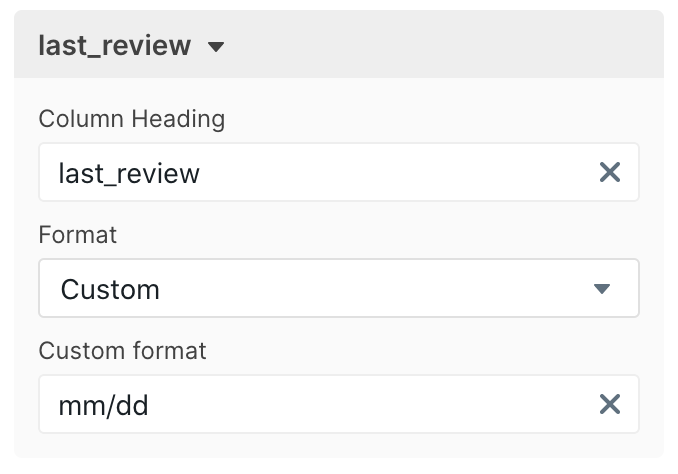 Date format options can be found
[here](https://day.js.org/docs/en/display/format).
## Supported Languages
* English (en-us)
* English, United Kingdom (en-gb)
* French (fr-fr)
* French (Canadian) (fr-ca)
* German (de-de)
* Italian (it-it)
* Portuguese (Brazilian) (pt-br)
* Spanish (es-es)
* Japanese (ja-jp)
### Supported currencies
* American Dollar (usd)
* Brazilian Real (brl)
* British Sterling (gbp)
* Canadian Dollar (cad)
* Danish Krone (dkk)
* Euro (eur)
* Indian Rupee (inr)
* Indonesia Rupiah (idr)
* Japanese Yen (jpy)
* Mexican Peso (mxn)
* Pakistani Rupee (pkr)
* Philipine Peso (php)
* South African Rand (zar)
* Thai Baht (thb)
* United Arab Emirates Dirham (aed)
If there is a language or currency you would like us to support, please email us at [support@explo.co](mailto:support@explo.co) and we can add that for you.
# Timezones
Source: https://docs.explo.co/general-features/timezones
Timezones are annoying. Luckily Explo makes it easy to manage timezones for your dashboard on a granular level to enable you to serve data to your customers in the most accurate form possible.
## Default Timezone Behavior
Out of the box, Explo dashboards behave in a predictable fashion with regards to
timezones. Explo assumes that all of the data coming from your database is in
UTC format
([as it should be](https://dev.to/corykeane/3-simple-rules-for-effectively-handling-dates-and-timezones-1pe0)).
We then convert the dates to the local time of the user that is viewing the
dashboard to show them the data.
For example, if a user views the dashboard from PST, then Explo shows all of the
dates converted from UTC to PST. If a user views the same dashboard from EST,
Explo displays the dates convert from UTC to EST.
## Configurability
Date format options can be found
[here](https://day.js.org/docs/en/display/format).
## Supported Languages
* English (en-us)
* English, United Kingdom (en-gb)
* French (fr-fr)
* French (Canadian) (fr-ca)
* German (de-de)
* Italian (it-it)
* Portuguese (Brazilian) (pt-br)
* Spanish (es-es)
* Japanese (ja-jp)
### Supported currencies
* American Dollar (usd)
* Brazilian Real (brl)
* British Sterling (gbp)
* Canadian Dollar (cad)
* Danish Krone (dkk)
* Euro (eur)
* Indian Rupee (inr)
* Indonesia Rupiah (idr)
* Japanese Yen (jpy)
* Mexican Peso (mxn)
* Pakistani Rupee (pkr)
* Philipine Peso (php)
* South African Rand (zar)
* Thai Baht (thb)
* United Arab Emirates Dirham (aed)
If there is a language or currency you would like us to support, please email us at [support@explo.co](mailto:support@explo.co) and we can add that for you.
# Timezones
Source: https://docs.explo.co/general-features/timezones
Timezones are annoying. Luckily Explo makes it easy to manage timezones for your dashboard on a granular level to enable you to serve data to your customers in the most accurate form possible.
## Default Timezone Behavior
Out of the box, Explo dashboards behave in a predictable fashion with regards to
timezones. Explo assumes that all of the data coming from your database is in
UTC format
([as it should be](https://dev.to/corykeane/3-simple-rules-for-effectively-handling-dates-and-timezones-1pe0)).
We then convert the dates to the local time of the user that is viewing the
dashboard to show them the data.
For example, if a user views the dashboard from PST, then Explo shows all of the
dates converted from UTC to PST. If a user views the same dashboard from EST,
Explo displays the dates convert from UTC to EST.
## Configurability
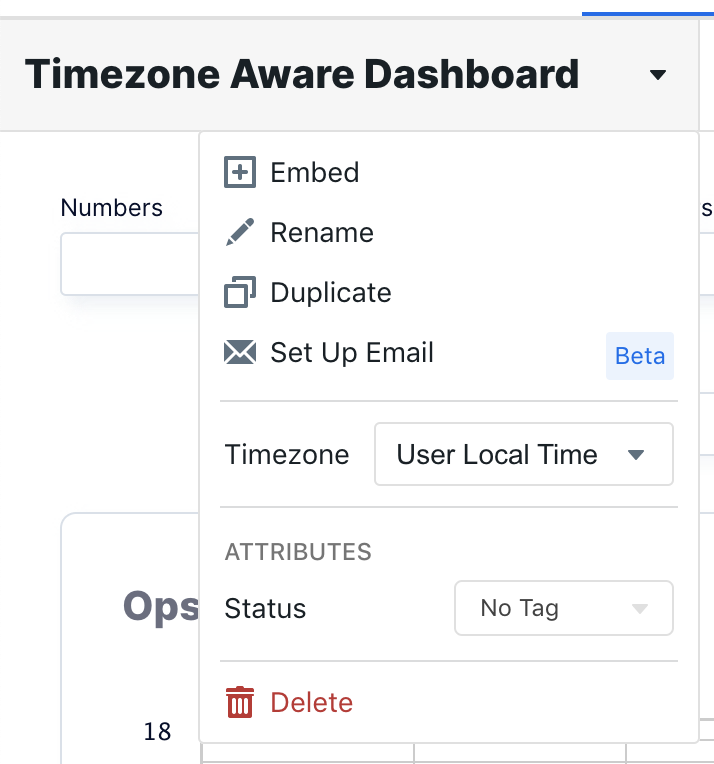 If you go to a dashboard's settings dropdown, you will see a section called
"Timezone". Here you can choose between two options: "User Local Time" and
"UTC".
The default for all new dashboards is UTC, which behaves the way
described above. In most cases, the default setting should be the best approach
and give your customers the most consistent viewing experience.
However, there are times when you will want to have more granular control or
force the customer to view the dashboard in a certain timezone. In those cases
you'll want to use the UTC setting.
## UTC Timezone Setting
The UTC configuration gives you the most control over your customer's viewing
experience with respect to timezone aware data.
### What it does
UTC dashboards will display all datetime data exactly as it was received from
the query. We won't do any conversions to the user's local time. If your DB has
a datetime stored at 11 PM UTC, the data on the frontend will interpret and
display it as 11 PM.
### Setting a specific timezone
Since the dashboard will show the users the dates exactly as they are coming
from the backend, you can use this setting to set the dashboard to either a
specific timezone, or a user-configurable timezone.
#### Setting a specific timezone
To do this, you should convert the datetime data in your SQL queries to the
timezone using your database's SQL dialect. For example, in postgres, you can
convert your data to PST timezone as follows:
```sql theme={null}
select
created_at at time zone 'utc' at time zone 'pst'
from users;
```
When the data is then retrieved from the backend, Explo will show it as is, in
PST.
#### User-configurable timezones
It is also possible to create dropdown on the dashboard which your users can
then use to set the timezones to their preference. To do this, create a
[Dropdown Select element](https://docs.explo.co/creating-dashboards/ui-elements/dropdown-select)
and make the options the various timezones that you want your users to be able
to use. Default the dropdown to the default timezone you want the dashboard
rendered in
Then, in your queries, you can modify the hardcoded timezone to be configurable
as such:
```sql theme={null}
select
[[created_at at time zone 'utc' at time zone {{timezone_dropdown}}]]
from users;
```
Now, when your users switch between timezone options in the dropdown, they can
change the timezone of the data in the UI.
## Passing a timezone to embed code.
You can also pass a timezone in via the web component or iframe. The parameter will look something like this:
```
timezone = "America/New_York"
```
The list of valid timezone values can be found [here](https://en.wikipedia.org/wiki/List_of_tz_database_time_zones).
# Editing the Current Draft
Source: https://docs.explo.co/general-features/version-control/editing-the-current-draft
In Explo, versions follow a linear history. You always start editing off of the most recent version of the dashboard or report builder.
### Entering Edit Mode
To begin editing the most recent version, click the "Edit" button in the top
right of the page.
If you go to a dashboard's settings dropdown, you will see a section called
"Timezone". Here you can choose between two options: "User Local Time" and
"UTC".
The default for all new dashboards is UTC, which behaves the way
described above. In most cases, the default setting should be the best approach
and give your customers the most consistent viewing experience.
However, there are times when you will want to have more granular control or
force the customer to view the dashboard in a certain timezone. In those cases
you'll want to use the UTC setting.
## UTC Timezone Setting
The UTC configuration gives you the most control over your customer's viewing
experience with respect to timezone aware data.
### What it does
UTC dashboards will display all datetime data exactly as it was received from
the query. We won't do any conversions to the user's local time. If your DB has
a datetime stored at 11 PM UTC, the data on the frontend will interpret and
display it as 11 PM.
### Setting a specific timezone
Since the dashboard will show the users the dates exactly as they are coming
from the backend, you can use this setting to set the dashboard to either a
specific timezone, or a user-configurable timezone.
#### Setting a specific timezone
To do this, you should convert the datetime data in your SQL queries to the
timezone using your database's SQL dialect. For example, in postgres, you can
convert your data to PST timezone as follows:
```sql theme={null}
select
created_at at time zone 'utc' at time zone 'pst'
from users;
```
When the data is then retrieved from the backend, Explo will show it as is, in
PST.
#### User-configurable timezones
It is also possible to create dropdown on the dashboard which your users can
then use to set the timezones to their preference. To do this, create a
[Dropdown Select element](https://docs.explo.co/creating-dashboards/ui-elements/dropdown-select)
and make the options the various timezones that you want your users to be able
to use. Default the dropdown to the default timezone you want the dashboard
rendered in
Then, in your queries, you can modify the hardcoded timezone to be configurable
as such:
```sql theme={null}
select
[[created_at at time zone 'utc' at time zone {{timezone_dropdown}}]]
from users;
```
Now, when your users switch between timezone options in the dropdown, they can
change the timezone of the data in the UI.
## Passing a timezone to embed code.
You can also pass a timezone in via the web component or iframe. The parameter will look something like this:
```
timezone = "America/New_York"
```
The list of valid timezone values can be found [here](https://en.wikipedia.org/wiki/List_of_tz_database_time_zones).
# Editing the Current Draft
Source: https://docs.explo.co/general-features/version-control/editing-the-current-draft
In Explo, versions follow a linear history. You always start editing off of the most recent version of the dashboard or report builder.
### Entering Edit Mode
To begin editing the most recent version, click the "Edit" button in the top
right of the page.
 In the above example, there is no current draft since Version 3 has already been
publish. Thus, when you click Edit, it will create a new draft, Version 5.
In the above example, there is no current draft since Version 3 has already been
publish. Thus, when you click Edit, it will create a new draft, Version 5.
 ### Edit Interface
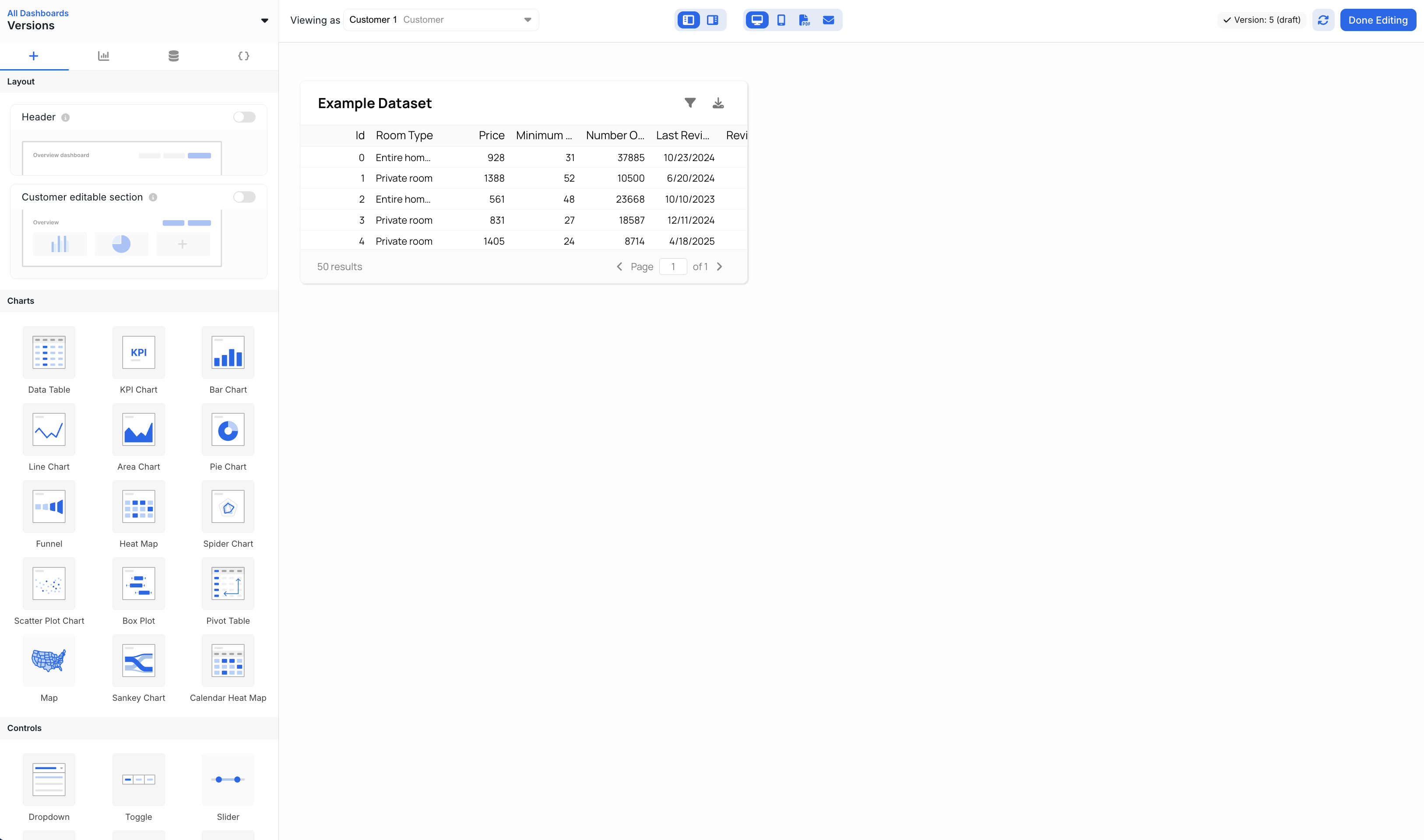 After clicking edit, the editing controls will open up. In here, you
can create new datasets, add new components, and configure the chart.
### Saving Changes
All changes that you make to the elements, layout, and dataset are
automatically saved to the current draft
After clicking edit, the editing controls will open up. In here, you
can create new datasets, add new components, and configure the chart.
### Saving Changes
All changes that you make to the elements, layout, and dataset are
automatically saved to the current draft
 When you refresh the page or come back to your edits later, they will still be
there. However, since this is jut a draft, the edits will not be pushed to your
production applications until they have been published.
# Embedding Environments
Source: https://docs.explo.co/general-features/version-control/embedding-environments
### Embedding with the Web Component
When you embed an Explo dashboard or report builder with the web component, you may specify the
environment for example with dashboards in the following way:
```html theme={null}
When you refresh the page or come back to your edits later, they will still be
there. However, since this is jut a draft, the edits will not be pushed to your
production applications until they have been published.
# Embedding Environments
Source: https://docs.explo.co/general-features/version-control/embedding-environments
### Embedding with the Web Component
When you embed an Explo dashboard or report builder with the web component, you may specify the
environment for example with dashboards in the following way:
```html theme={null}
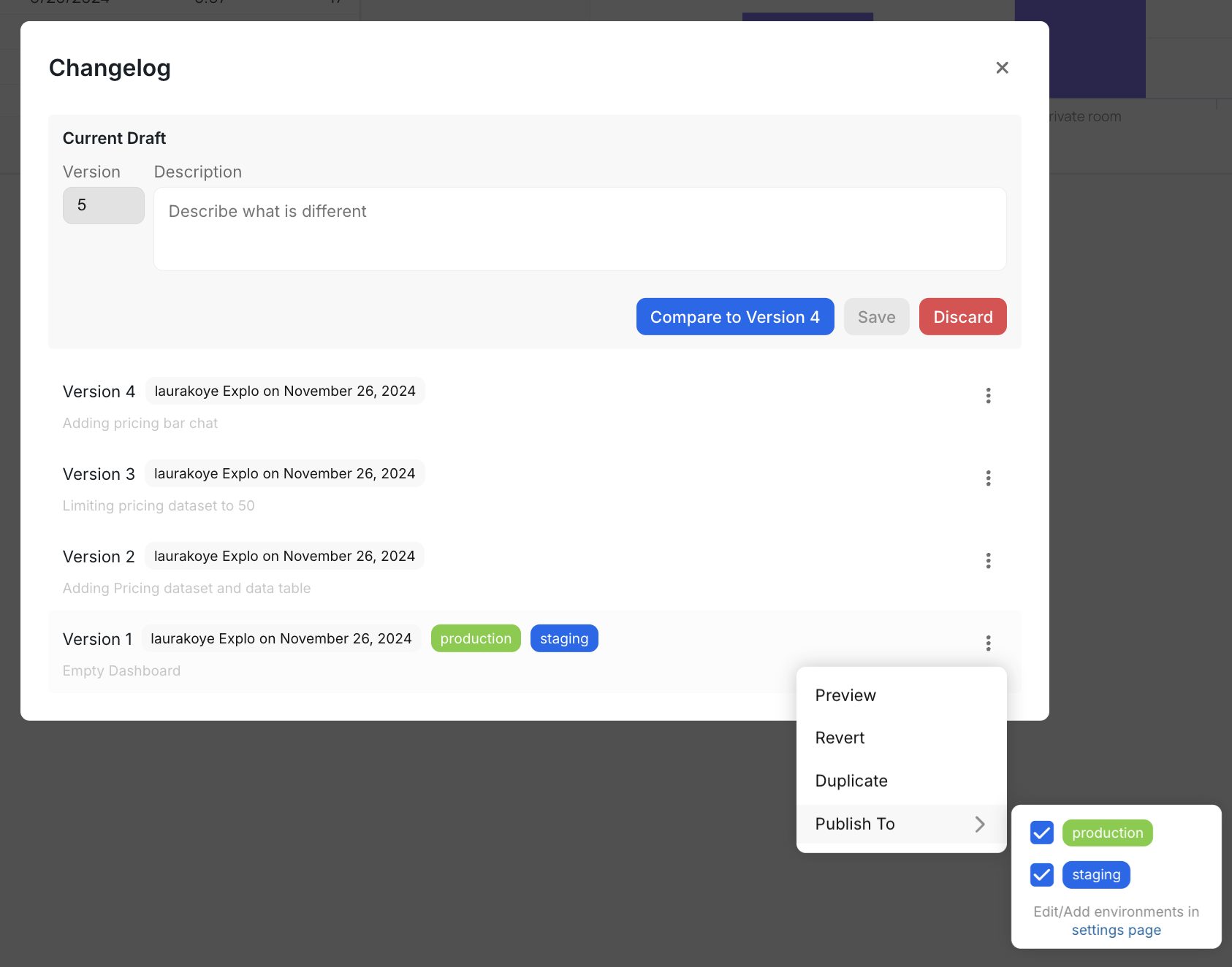 ### What are environment tags?
Environment tags are a way of managing which version of the dashboard or report builder is being
shown in your application. When you embed, you can pass in an
environment field which corresponds to an environment tag. The embedded
component will then render the resource associated with the provided
environment tag.
### Creating new environment tags
By default, your account has a `production` and `staging` environment tag. You
may create any number of tags to manage as many environments as you may have.
### What are environment tags?
Environment tags are a way of managing which version of the dashboard or report builder is being
shown in your application. When you embed, you can pass in an
environment field which corresponds to an environment tag. The embedded
component will then render the resource associated with the provided
environment tag.
### Creating new environment tags
By default, your account has a `production` and `staging` environment tag. You
may create any number of tags to manage as many environments as you may have.
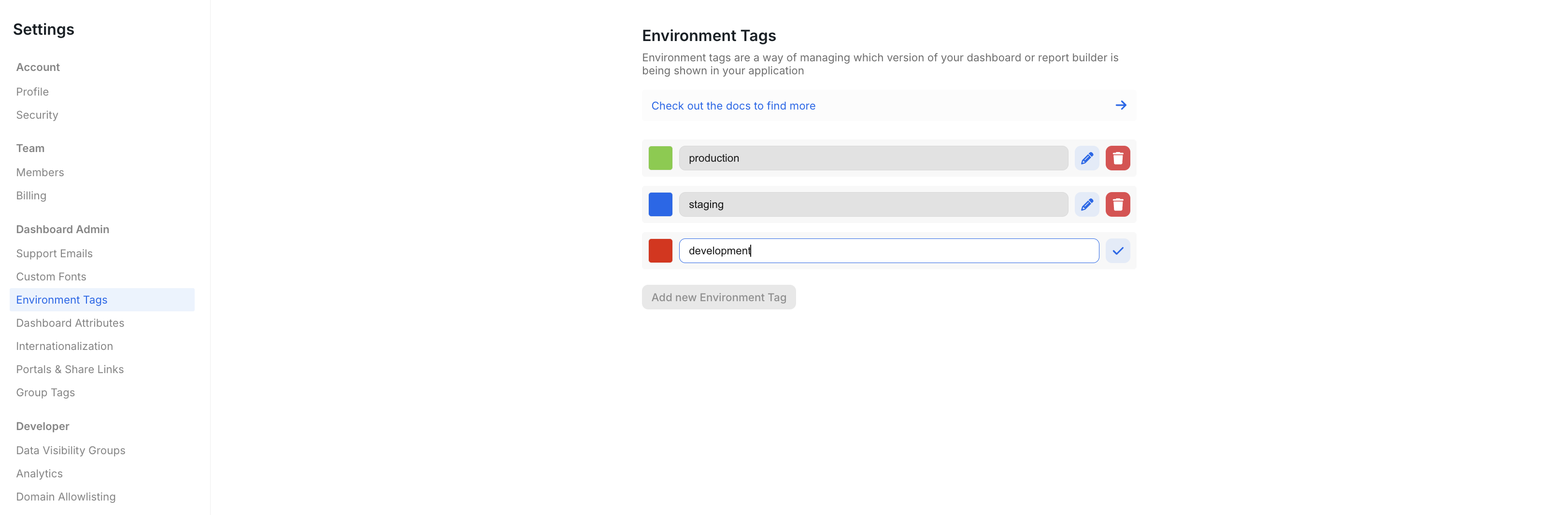 To create a new environment, click "Add new Environment Tag" and then configure the new tag.
Read more about publishing a version to a specific environment [here](/general-features/version-control/publishing-a-new-version).
### Special environment tags for Dashboards
Some environment tags have special behavior for emails and the customer portal. If a dashboard version is tagged with `portal`, then
that version will be used by the customer portal. If a dashboard version is tagged with `email`, then that version will be used by
for scheduled email reports.
# Publishing a New Version
Source: https://docs.explo.co/general-features/version-control/publishing-a-new-version
All changes you make to the current draft are not yet made accessible to embed until you publish the draft as a new version.
To publish a version, navigate back to the preview page and select the "Version
Control" modal.
To create a new environment, click "Add new Environment Tag" and then configure the new tag.
Read more about publishing a version to a specific environment [here](/general-features/version-control/publishing-a-new-version).
### Special environment tags for Dashboards
Some environment tags have special behavior for emails and the customer portal. If a dashboard version is tagged with `portal`, then
that version will be used by the customer portal. If a dashboard version is tagged with `email`, then that version will be used by
for scheduled email reports.
# Publishing a New Version
Source: https://docs.explo.co/general-features/version-control/publishing-a-new-version
All changes you make to the current draft are not yet made accessible to embed until you publish the draft as a new version.
To publish a version, navigate back to the preview page and select the "Version
Control" modal.
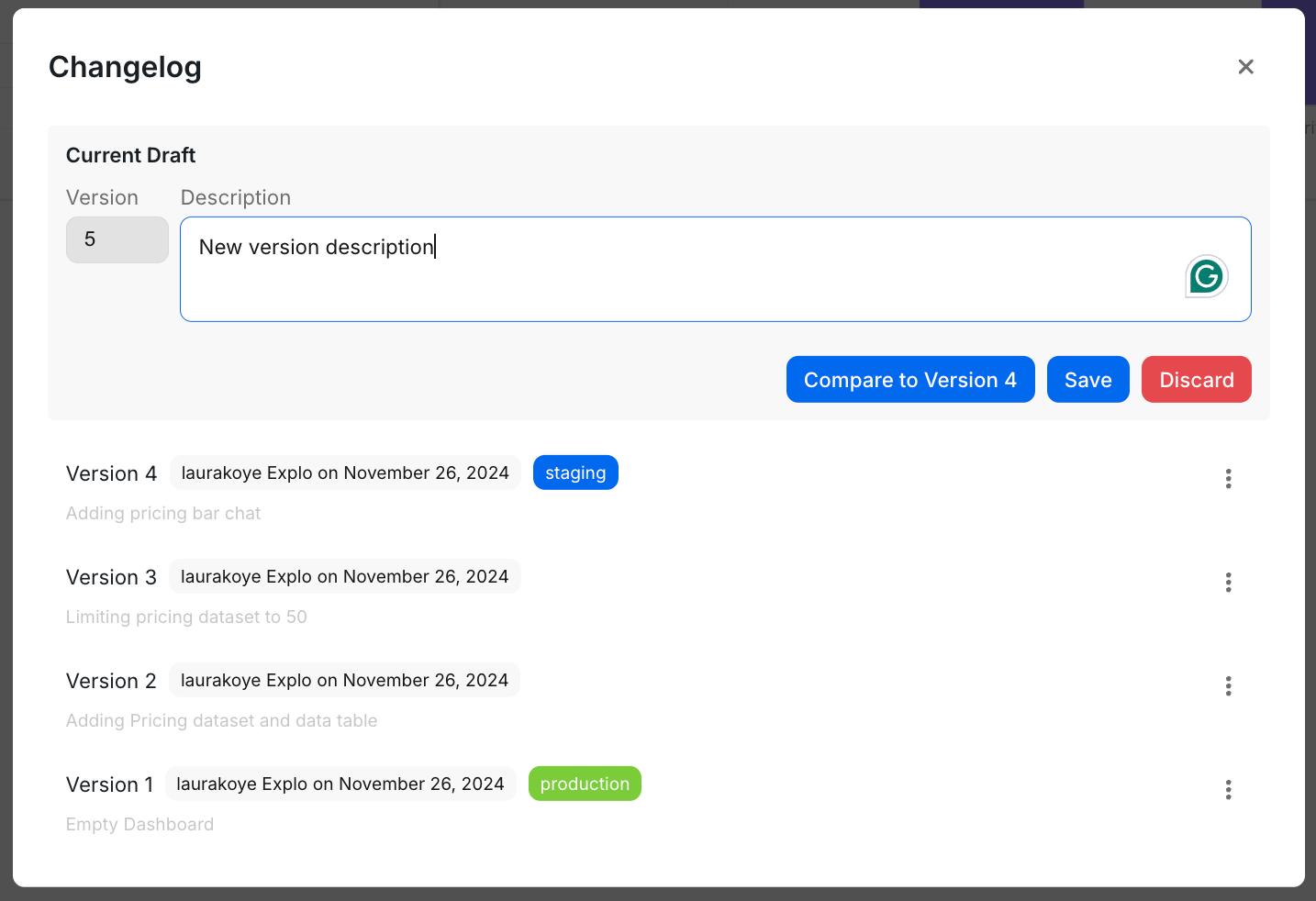 Add in a description of the changes made and click "Save". In the next
section, we'll explain how to manage the environment tags for the different
versions. Add in a description of the changes made and click "Save". In
the next section, we'll explain how to manage the environment tags for the
different versions.
### Publishing to an environment
Add in a description of the changes made and click "Save". In the next
section, we'll explain how to manage the environment tags for the different
versions. Add in a description of the changes made and click "Save". In
the next section, we'll explain how to manage the environment tags for the
different versions.
### Publishing to an environment
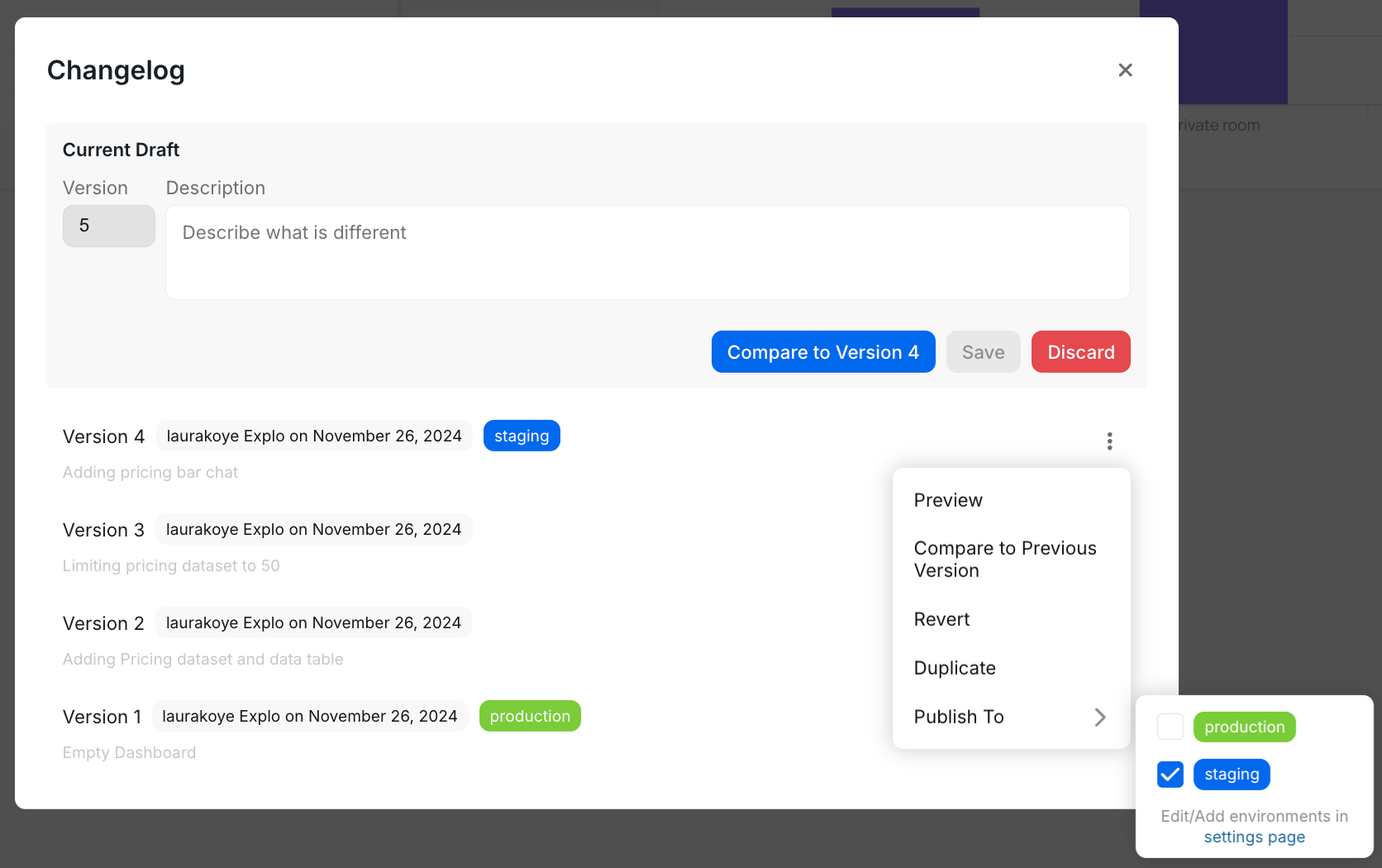 To publish a version to an environment, simply select the "Publish To" option
and select the environment you would like to publish the version to.
This action will publish this version to any part of your website which is
embedding an Explo dashboard or report builder with that environment tag specified.
# Reverting Versions
Source: https://docs.explo.co/general-features/version-control/reverting-versions
If you found some issues with your current version or just simply want to get back to a previous version you can click on the revert version menu button and it will revert to that version.
If the dashboard or report builder has a current draft it will ask you to confirm that you want to
replace the draft with the version you selected. If there is no current draft it
will set the version selected as the current draft.
To publish a version to an environment, simply select the "Publish To" option
and select the environment you would like to publish the version to.
This action will publish this version to any part of your website which is
embedding an Explo dashboard or report builder with that environment tag specified.
# Reverting Versions
Source: https://docs.explo.co/general-features/version-control/reverting-versions
If you found some issues with your current version or just simply want to get back to a previous version you can click on the revert version menu button and it will revert to that version.
If the dashboard or report builder has a current draft it will ask you to confirm that you want to
replace the draft with the version you selected. If there is no current draft it
will set the version selected as the current draft.
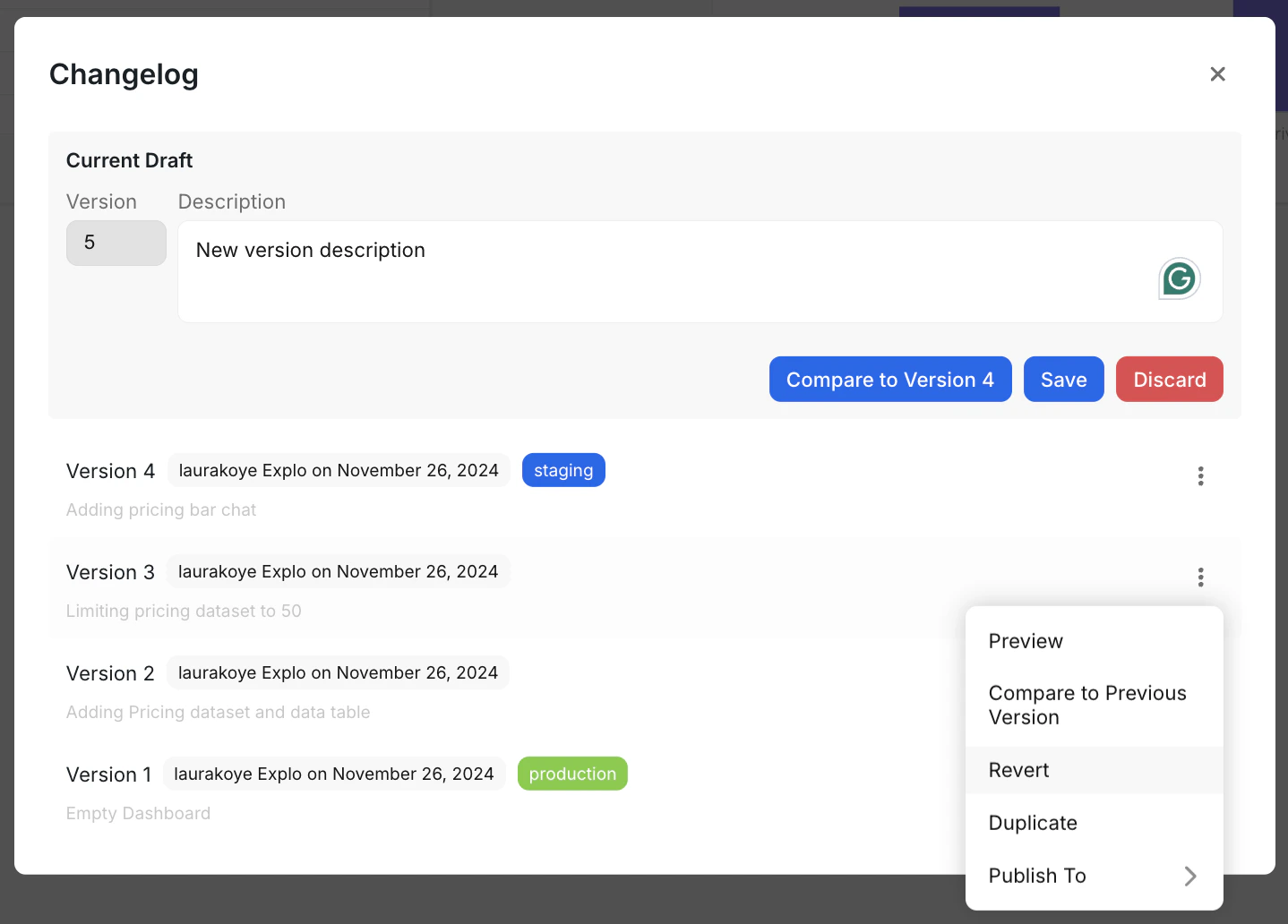 # Viewing Versions
Source: https://docs.explo.co/general-features/version-control/viewing-versions
Explo provides a straightforward way to version your dashboards or report builders. The following pages describe how this system works and how to use it.
### View Page
# Viewing Versions
Source: https://docs.explo.co/general-features/version-control/viewing-versions
Explo provides a straightforward way to version your dashboards or report builders. The following pages describe how this system works and how to use it.
### View Page
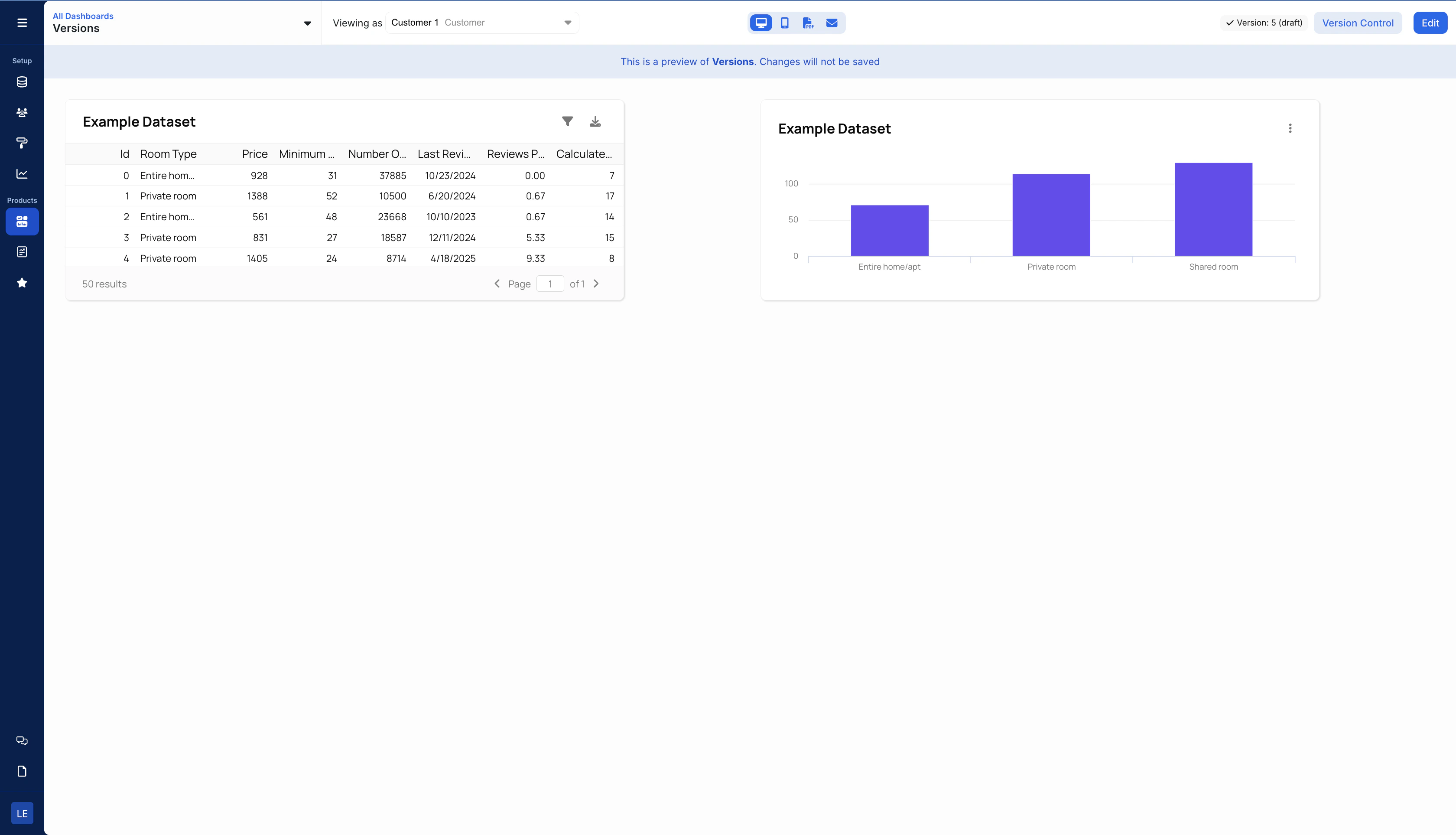 When you navigate to a dashboard or report builder from the home page, you will be taken to the viewer page. This page is a view-only preview. You
can switch between customers with the top bar.
By default, you will be viewing the most recent version or current draft
### Switching Viewing Version
When you navigate to a dashboard or report builder from the home page, you will be taken to the viewer page. This page is a view-only preview. You
can switch between customers with the top bar.
By default, you will be viewing the most recent version or current draft
### Switching Viewing Version
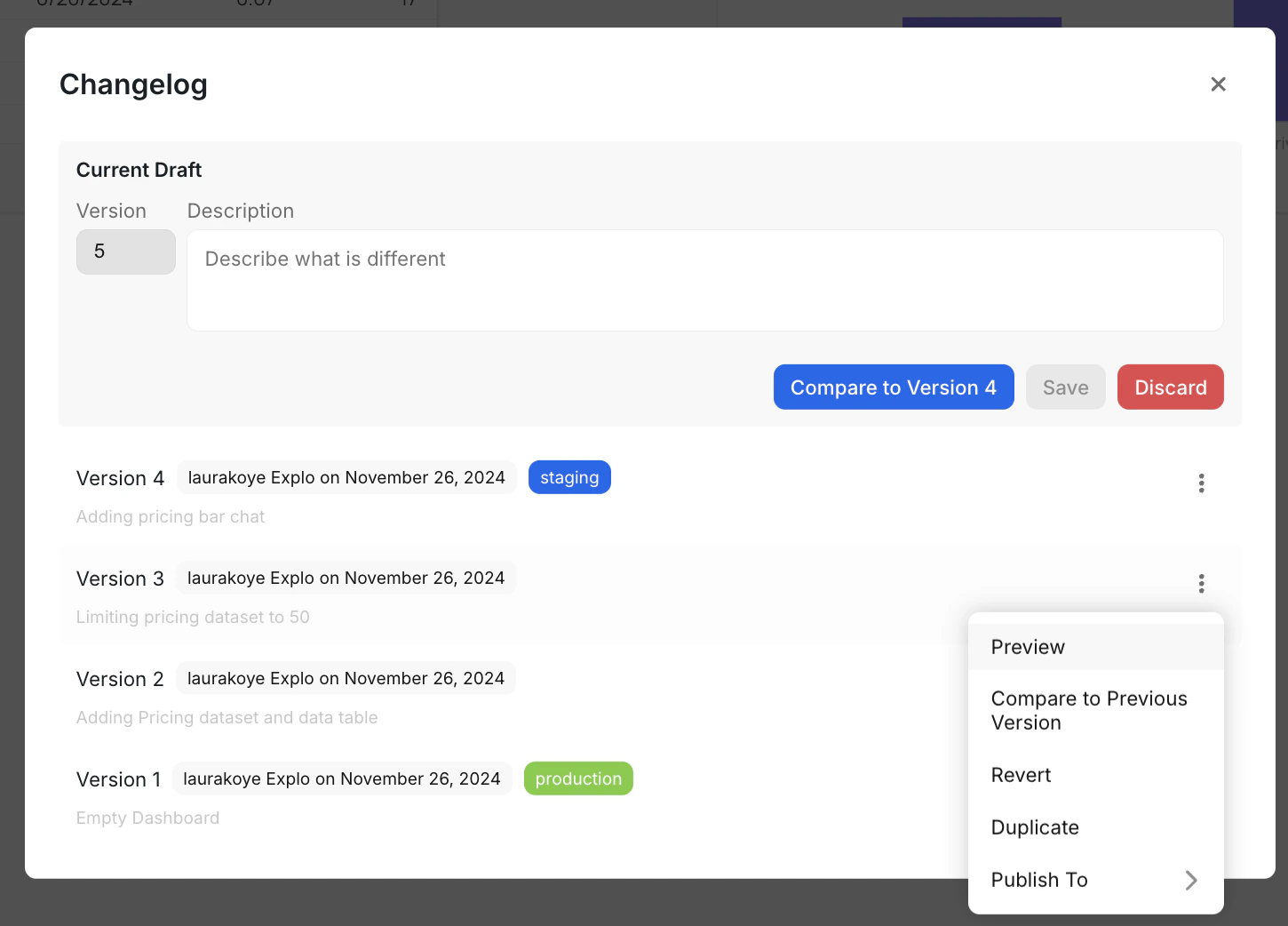 If you click on the "Version Control" button, a modal pops up showing you the
dashboard or report builder's history. In Explo, versions follow a linear history. You always
start editing off of the most recent version of the dashboard or report builder.
To view the resource as a previous version, simply select the "Preview" option
for the version you would like to view.
# Creating My First Dashboard
Source: https://docs.explo.co/getting-started/creating-my-first-dashboard
Follow along to this article to get started creating your first dashboard!
## Set up your datasets in your first dashboard
The first step to building your [first dashboard](https://www.explo.co/blog/what-is-a-dashboard) is to create **dashboard-specific datasets**. Although this is not required, this allows you to configure viewing permissions, configure variables, and optimize your queries that are specific to each dashboard.
If you click on the "Version Control" button, a modal pops up showing you the
dashboard or report builder's history. In Explo, versions follow a linear history. You always
start editing off of the most recent version of the dashboard or report builder.
To view the resource as a previous version, simply select the "Preview" option
for the version you would like to view.
# Creating My First Dashboard
Source: https://docs.explo.co/getting-started/creating-my-first-dashboard
Follow along to this article to get started creating your first dashboard!
## Set up your datasets in your first dashboard
The first step to building your [first dashboard](https://www.explo.co/blog/what-is-a-dashboard) is to create **dashboard-specific datasets**. Although this is not required, this allows you to configure viewing permissions, configure variables, and optimize your queries that are specific to each dashboard.
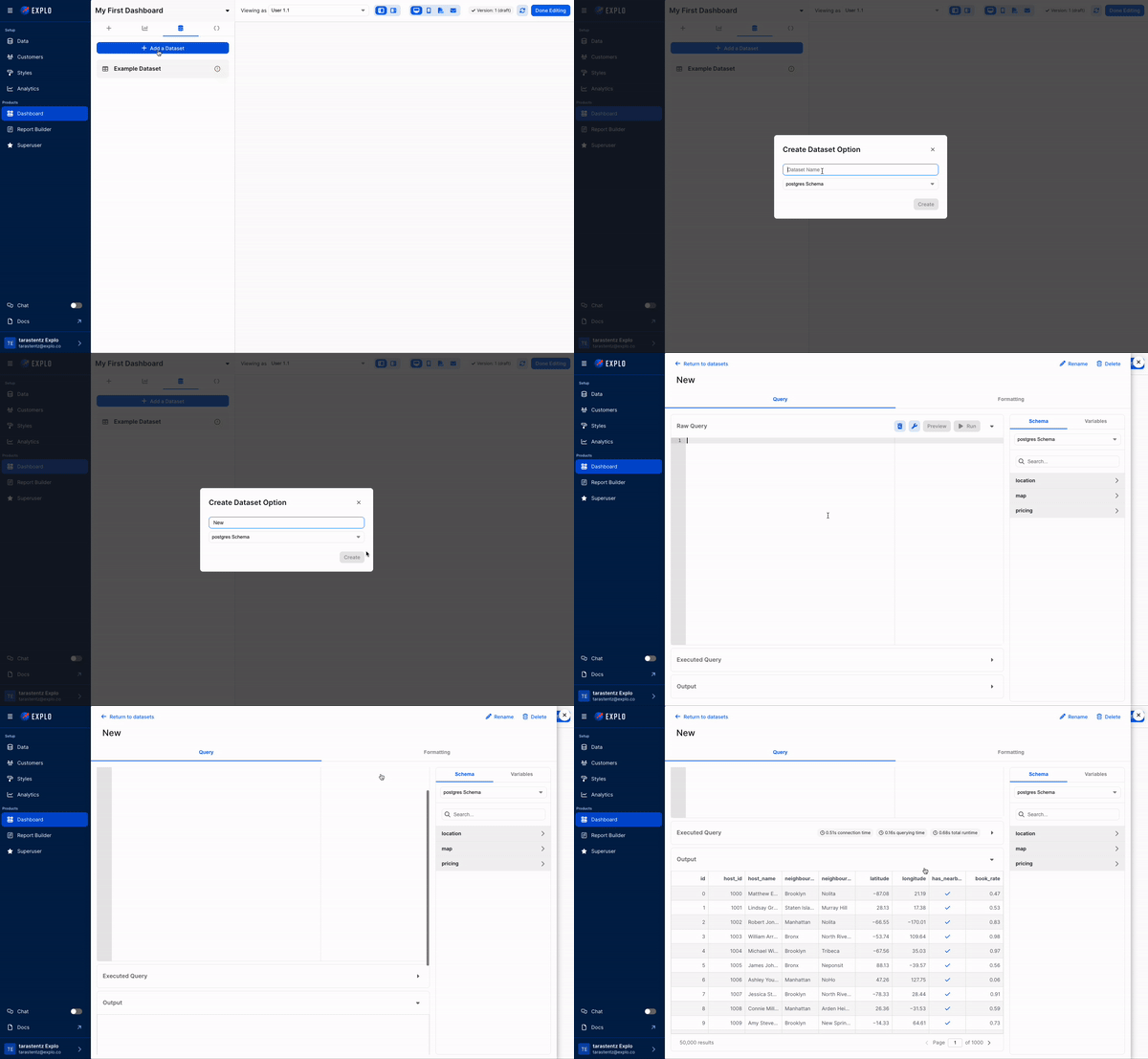 Even if you don't require any additional changes to your data, we suggest you create a new dataset and select entire tables as shown below:
```sql theme={null}
SELECT *
FROM Table_1;
```
Read more about how to use the dataset editor [here](/creating-dashboards/dataset-editor).
## Create your first data panel in your first dashboard
After you've configured your dashboard-specific dataset(s), you're now ready to create a data panel in Explo!
Simple drag and drop a `Chart Component` onto the canvas, and select the dataset you'd like to use.
Even if you don't require any additional changes to your data, we suggest you create a new dataset and select entire tables as shown below:
```sql theme={null}
SELECT *
FROM Table_1;
```
Read more about how to use the dataset editor [here](/creating-dashboards/dataset-editor).
## Create your first data panel in your first dashboard
After you've configured your dashboard-specific dataset(s), you're now ready to create a data panel in Explo!
Simple drag and drop a `Chart Component` onto the canvas, and select the dataset you'd like to use.
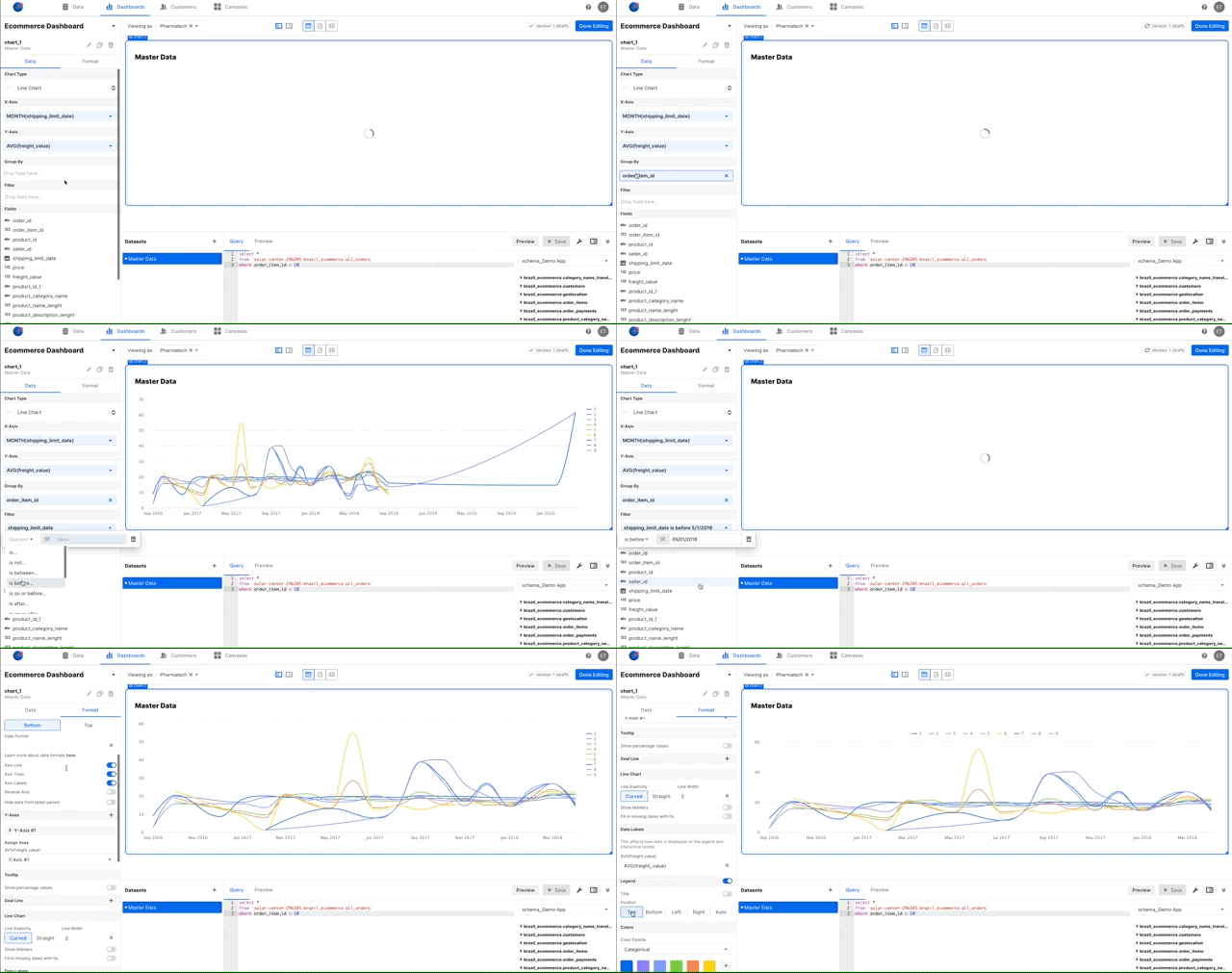 Double click on the panel you created to access the editor. There are 2 separate sections in the editor.
`Data` - select which visualization to use and configure the aggregations, filters, and different parameters
`Format` - format your visualizations that adjust labels, colors, text, and more
Double click on the panel you created to access the editor. There are 2 separate sections in the editor.
`Data` - select which visualization to use and configure the aggregations, filters, and different parameters
`Format` - format your visualizations that adjust labels, colors, text, and more
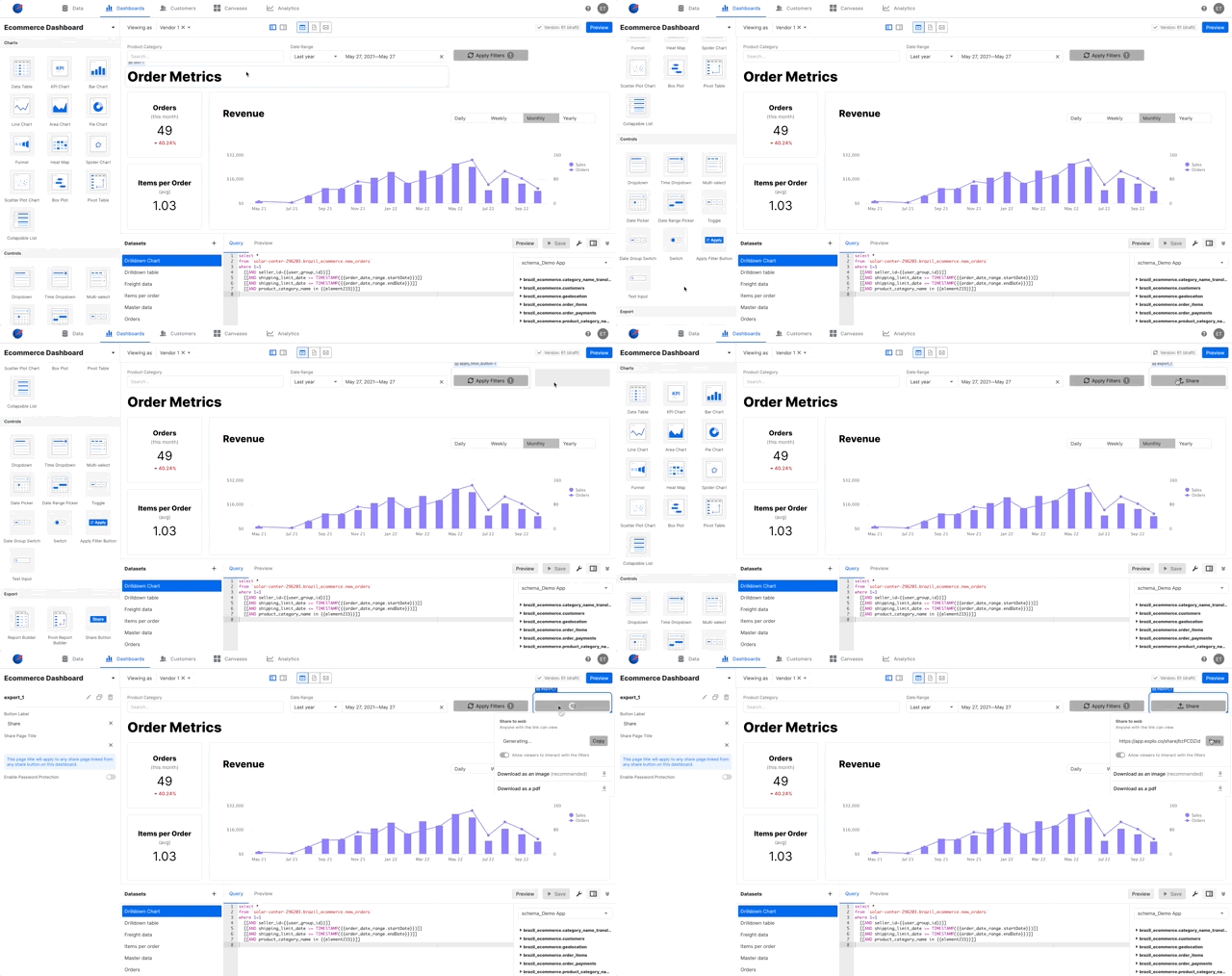 ## Some general resources and examples:
* [Database Dashboards][1]
* [DevOps Metric Dashboard][2]
* [Embedded Dashboards][3]
* [HR Dashboard][4]
* [Marketplace Dashboard][5]
* [React Dashboard][6]
* [Sales Dashboard][7]
* [Self Service Dashboard][8]
* [SQL Dashboard][9]
* [User Dashboard Design][10]
[1]: https://www.explo.co/blog/database-dashboards
[2]: https://www.explo.co/blog/designing-devops-dashboards
[3]: https://www.explo.co/blog/top-embedded-dashboards
[4]: https://www.explo.co/blog/hr-dashboard
[5]: https://www.explo.co/dashboard-gallery/online-marketplace-dashboard
[6]: https://www.explo.co/blog/react-dashboard
[7]: https://www.explo.co/blog/sales-dashboards
[8]: https://www.explo.co/blog/self-service-dashboards
[9]: https://www.explo.co/blog/sql-dashboards
[10]: https://www.explo.co/blog/user-dashboard-design
# User Roles
Source: https://docs.explo.co/managing-permissions/user-roles
Manage your users' permissions in Explo
Use roles to control what your users can see and do in Explo. Each user
is assigned to a role when you invite them, and that role can be reassigned
via the team members page. Explo supports four roles:
* Admin
* Publisher
* Editor
* Viewer
# High Level Role Breakdown
Note that each role has the permissions of the roles before it, e.g. the Publisher role has all the permisisons of the Viewer and Editor roles.
### Assign someone to be a viewer if
* You want them to only be able to see your data (dashboards, data sources, customers, blueprints) in Explo
* You do not want them to be able to make any modifications at all to your data
### Assign someone to be an editor if
* You want them to be able to create new data (dashboards, data sources, customers, blueprints) in Explo
* You want them to be able to make edits to this data BUT you don't want them to be able to make these edits visible to customers via publishing
* You want them to be able to develop your embed locally without affecting your production dashboards
### Assign someone to be a publisher if
* You want them to be able to manage your productionalized dashboards via publishing and settings such as internationalization and email management
* You want them to be able to delete data (dashboards, data sources, customers, blueprints) from Explo
### Assign someone to be an admin if
* You want them to be able to control team settings, such as member invites, roles, and billing
# Table of Permissions
| Entity | Action | Admin | Publisher | Editor | Viewer |
| :------------------------------------------: | :------------------------: | :---: | :-------: | :----: | :----: |
| Data Sources and Schema | View | x | x | x | x |
| | Create | x | x | x | |
| | Edit | x | x | x | |
| | Delete | x | x | | |
| Customers | View | x | x | x | x |
| | Create | x | x | x | |
| | Edit | x | x | x | |
| | Delete | x | x | | |
| Dashboards, Report Builders, and Data Shares | View | x | x | x | x |
| | Create | x | x | x | |
| | Edit | x | x | x | |
| | Delete | x | x | | |
| | View Embed Code | x | x | x | |
| | Publish | x | x | | |
| | Modify Settings | x | x | | |
| Custom Styles | View | x | x | x | x |
| | Create | x | x | | |
| | Edit | x | x | | |
| | Delete | x | x | | |
| API Tokens | View | x | | | |
| | Create | x | | | |
| | Edit | x | | | |
| | Delete | x | | | |
| Settings | View Team Members | x | x | x | x |
| | Invite Team Members | x | | | |
| | Remove Team Members | x | | | |
| | Update Admin Settings | x | | | |
| | Update Developer Settings | x | x | | |
| | Update Billing Information | x | | | |
# Data Visibility Groups
Source: https://docs.explo.co/managing-permissions/visibility-groups
Manage how your data can be read or written by our API
Use Data Visibility Groups to control what data can be accessed via our API and to split
out your data by groups such as testing and production. A data visibility group consists
of API tokens, data sources, and customers. Each API token can be
configured to have either read-write or read-only permissions to our API.
When one of your team members uses that API token to access your data, Explo
will only send the data sources and customers associated with that token's
data visibility group. If someone tries to create a new customer via the API, they
will only be able to associate that customer with data sources also linked
to their token.
### Real-World Example
You might want to create a "Testing" data visibility group for your developers. This
group would have one API token with read-write permissions and would be
associated with any of the customers or data sources that you've created
for the purposes of testing your dashboards.
Now, anyone using the "Testing" API token would be able to test embedding Explo
dashboards without seeing any production data. Because the token is read-write,
they'd be able to create new customers to test with, but those new customers
would also only be able to use your "testing" data.
### Managing Data Visibility Groups
To manage your data visibility groups, go to the Data Visibility Groups section of the settings
page. From there, you have the ability to create and delete data visibility groups, add,
modify, or delete API tokens, and update the data sources associated with each.
## Some general resources and examples:
* [Database Dashboards][1]
* [DevOps Metric Dashboard][2]
* [Embedded Dashboards][3]
* [HR Dashboard][4]
* [Marketplace Dashboard][5]
* [React Dashboard][6]
* [Sales Dashboard][7]
* [Self Service Dashboard][8]
* [SQL Dashboard][9]
* [User Dashboard Design][10]
[1]: https://www.explo.co/blog/database-dashboards
[2]: https://www.explo.co/blog/designing-devops-dashboards
[3]: https://www.explo.co/blog/top-embedded-dashboards
[4]: https://www.explo.co/blog/hr-dashboard
[5]: https://www.explo.co/dashboard-gallery/online-marketplace-dashboard
[6]: https://www.explo.co/blog/react-dashboard
[7]: https://www.explo.co/blog/sales-dashboards
[8]: https://www.explo.co/blog/self-service-dashboards
[9]: https://www.explo.co/blog/sql-dashboards
[10]: https://www.explo.co/blog/user-dashboard-design
# User Roles
Source: https://docs.explo.co/managing-permissions/user-roles
Manage your users' permissions in Explo
Use roles to control what your users can see and do in Explo. Each user
is assigned to a role when you invite them, and that role can be reassigned
via the team members page. Explo supports four roles:
* Admin
* Publisher
* Editor
* Viewer
# High Level Role Breakdown
Note that each role has the permissions of the roles before it, e.g. the Publisher role has all the permisisons of the Viewer and Editor roles.
### Assign someone to be a viewer if
* You want them to only be able to see your data (dashboards, data sources, customers, blueprints) in Explo
* You do not want them to be able to make any modifications at all to your data
### Assign someone to be an editor if
* You want them to be able to create new data (dashboards, data sources, customers, blueprints) in Explo
* You want them to be able to make edits to this data BUT you don't want them to be able to make these edits visible to customers via publishing
* You want them to be able to develop your embed locally without affecting your production dashboards
### Assign someone to be a publisher if
* You want them to be able to manage your productionalized dashboards via publishing and settings such as internationalization and email management
* You want them to be able to delete data (dashboards, data sources, customers, blueprints) from Explo
### Assign someone to be an admin if
* You want them to be able to control team settings, such as member invites, roles, and billing
# Table of Permissions
| Entity | Action | Admin | Publisher | Editor | Viewer |
| :------------------------------------------: | :------------------------: | :---: | :-------: | :----: | :----: |
| Data Sources and Schema | View | x | x | x | x |
| | Create | x | x | x | |
| | Edit | x | x | x | |
| | Delete | x | x | | |
| Customers | View | x | x | x | x |
| | Create | x | x | x | |
| | Edit | x | x | x | |
| | Delete | x | x | | |
| Dashboards, Report Builders, and Data Shares | View | x | x | x | x |
| | Create | x | x | x | |
| | Edit | x | x | x | |
| | Delete | x | x | | |
| | View Embed Code | x | x | x | |
| | Publish | x | x | | |
| | Modify Settings | x | x | | |
| Custom Styles | View | x | x | x | x |
| | Create | x | x | | |
| | Edit | x | x | | |
| | Delete | x | x | | |
| API Tokens | View | x | | | |
| | Create | x | | | |
| | Edit | x | | | |
| | Delete | x | | | |
| Settings | View Team Members | x | x | x | x |
| | Invite Team Members | x | | | |
| | Remove Team Members | x | | | |
| | Update Admin Settings | x | | | |
| | Update Developer Settings | x | x | | |
| | Update Billing Information | x | | | |
# Data Visibility Groups
Source: https://docs.explo.co/managing-permissions/visibility-groups
Manage how your data can be read or written by our API
Use Data Visibility Groups to control what data can be accessed via our API and to split
out your data by groups such as testing and production. A data visibility group consists
of API tokens, data sources, and customers. Each API token can be
configured to have either read-write or read-only permissions to our API.
When one of your team members uses that API token to access your data, Explo
will only send the data sources and customers associated with that token's
data visibility group. If someone tries to create a new customer via the API, they
will only be able to associate that customer with data sources also linked
to their token.
### Real-World Example
You might want to create a "Testing" data visibility group for your developers. This
group would have one API token with read-write permissions and would be
associated with any of the customers or data sources that you've created
for the purposes of testing your dashboards.
Now, anyone using the "Testing" API token would be able to test embedding Explo
dashboards without seeing any production data. Because the token is read-write,
they'd be able to create new customers to test with, but those new customers
would also only be able to use your "testing" data.
### Managing Data Visibility Groups
To manage your data visibility groups, go to the Data Visibility Groups section of the settings
page. From there, you have the ability to create and delete data visibility groups, add,
modify, or delete API tokens, and update the data sources associated with each.
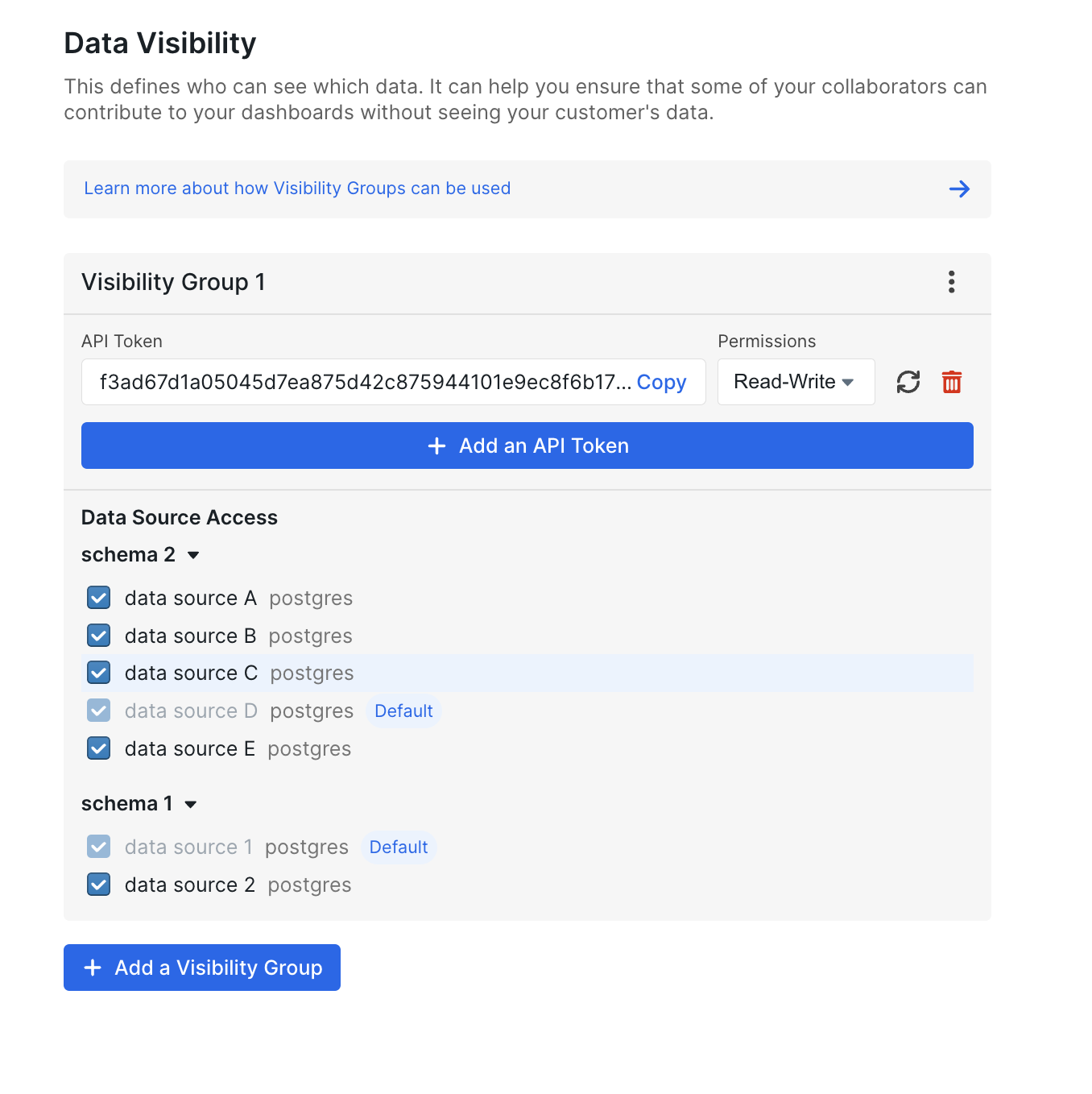 For each schema, you can choose one data source to be the default for your
data visibility group and any number of other data sources to also belong to that data visibility
group. Note that one data source can belong to multiple data visibility groups if you
require that. Defaults can be configured in the manage schemas modal on the data sources page.
For each schema, you can choose one data source to be the default for your
data visibility group and any number of other data sources to also belong to that data visibility
group. Note that one data source can belong to multiple data visibility groups if you
require that. Defaults can be configured in the manage schemas modal on the data sources page.
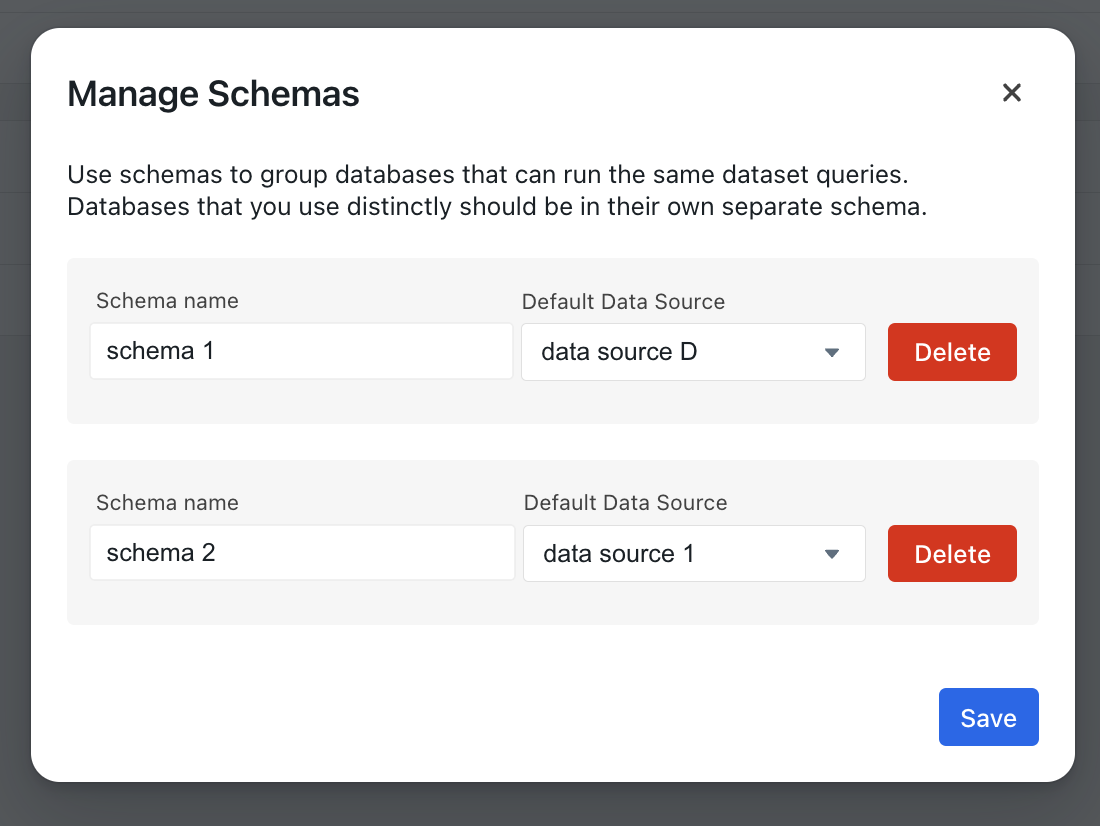 #### Updating customer Visibility
Data Visibility Groups and their association with customers can be managed from the
customer modal. Note that an customer can only be associated with
one data visibility group at a time.
#### Updating customer Visibility
Data Visibility Groups and their association with customers can be managed from the
customer modal. Note that an customer can only be associated with
one data visibility group at a time.
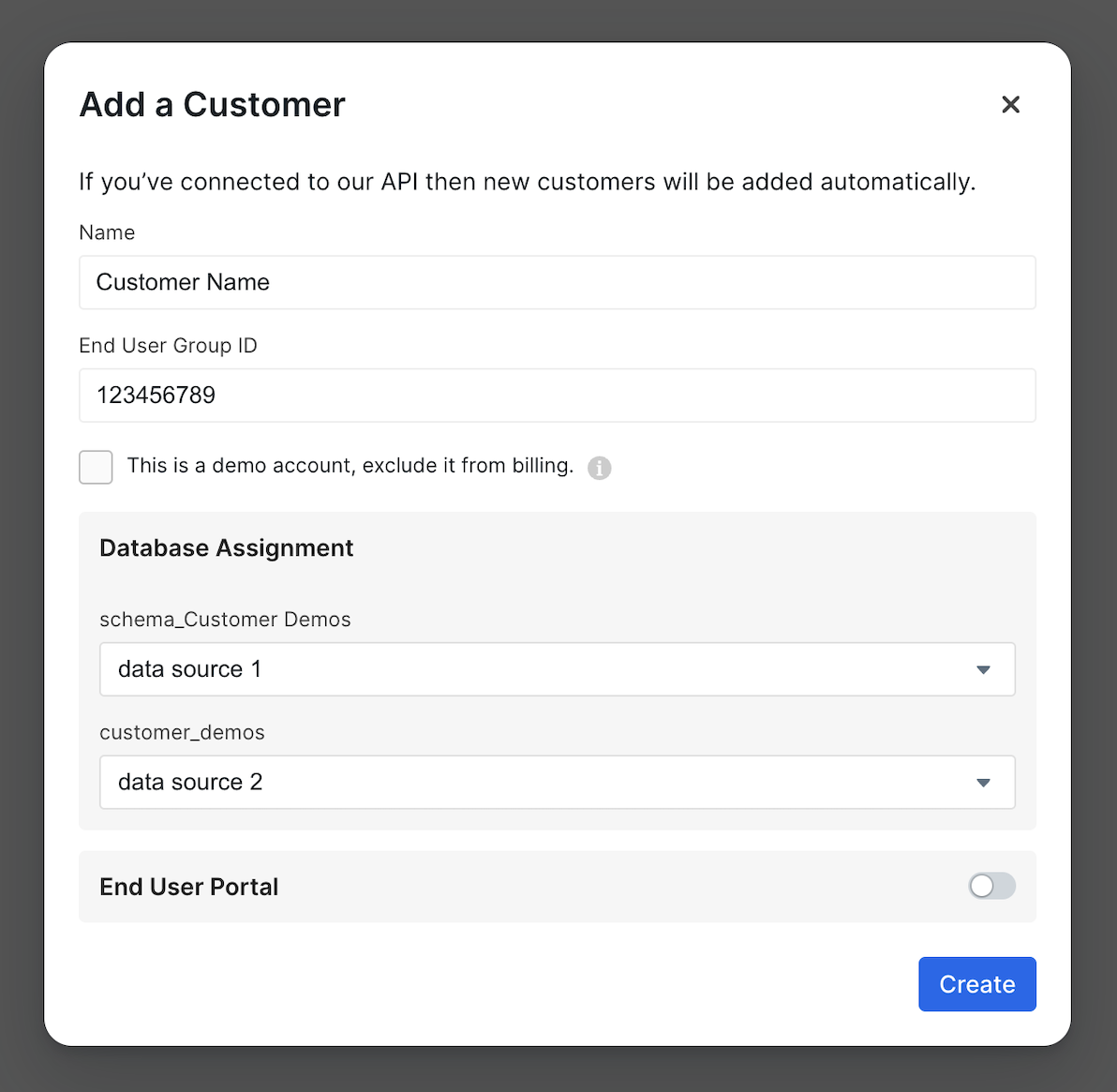 # Custom Aggregations
Source: https://docs.explo.co/report-builder-features/custom-aggregations
Custom aggregations allow you to define aggregated metrics for a dataset that end users can use in the Report Builder when the standard aggregation set does not cover all use cases.
## Using a Custom Aggregation
Custom aggregations will appear when end users click on the `+` sign in the `Values` section of a report. End users can use the custom aggregation on its own or when data is grouped. They can also be used as the aggregation in visualizations.
# Custom Aggregations
Source: https://docs.explo.co/report-builder-features/custom-aggregations
Custom aggregations allow you to define aggregated metrics for a dataset that end users can use in the Report Builder when the standard aggregation set does not cover all use cases.
## Using a Custom Aggregation
Custom aggregations will appear when end users click on the `+` sign in the `Values` section of a report. End users can use the custom aggregation on its own or when data is grouped. They can also be used as the aggregation in visualizations.
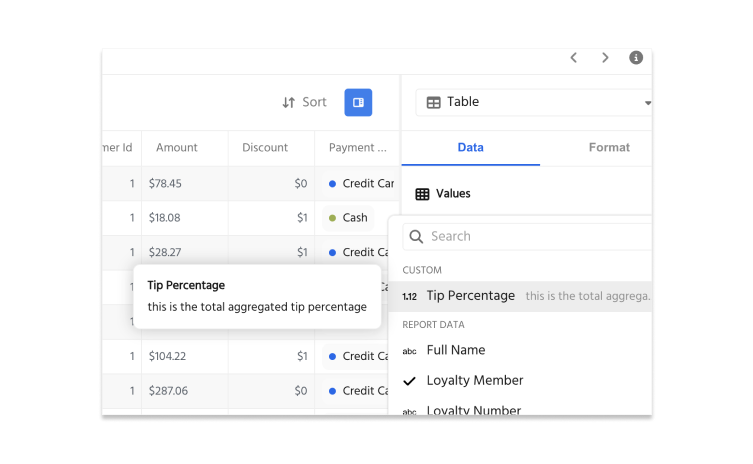 ## Configuration
In the dataset configuration panel, open the tab called `Custom Aggregations` and click `New Custom Aggregation`.
## Configuration
In the dataset configuration panel, open the tab called `Custom Aggregations` and click `New Custom Aggregation`.
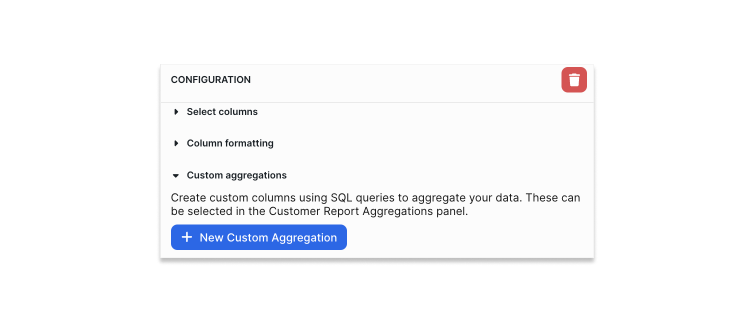 First, name the aggregation. This is how the custom aggregation will be identified in the final Report Builder.
Then, define the aggregation using raw `SQL`. These are some examples of formulas you can write:
`SUM(tip_amount) / SUM(amount)`
`SUM(revenue) - SUM(cost)`
You can add a description for the aggregation that will appear to the right of the aggregation name in the reports.
First, name the aggregation. This is how the custom aggregation will be identified in the final Report Builder.
Then, define the aggregation using raw `SQL`. These are some examples of formulas you can write:
`SUM(tip_amount) / SUM(amount)`
`SUM(revenue) - SUM(cost)`
You can add a description for the aggregation that will appear to the right of the aggregation name in the reports.
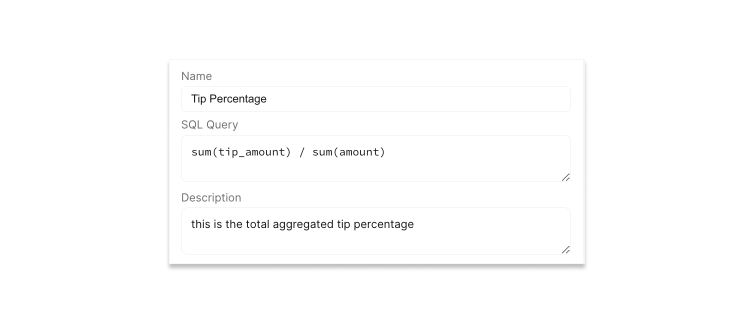 Lastly, you can format the value of the custom aggregation. All standard value formatting options are available here.
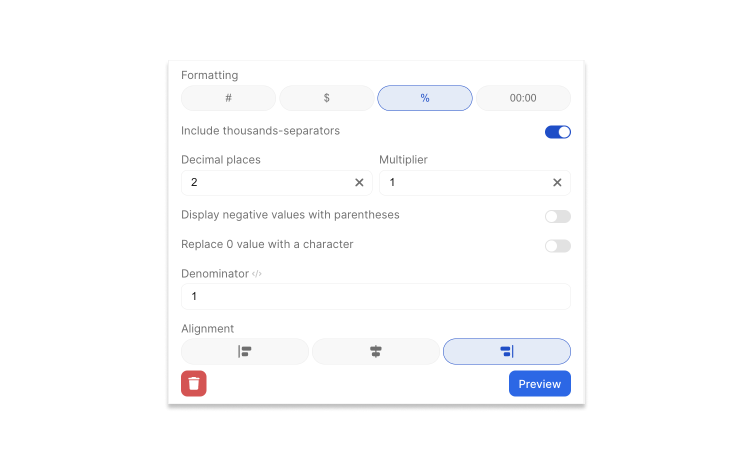 # Duplicating Report Builders
Source: https://docs.explo.co/report-builder-features/duplicating-report-builders
Learn how to duplicate report builders in Explo
You can duplicate a report builder in two ways:
1. **From the Resource List Page**: Locate the report builder you want to duplicate, click the options menu, and select "Duplicate". You will be prompted to select a specific version to duplicate.
# Duplicating Report Builders
Source: https://docs.explo.co/report-builder-features/duplicating-report-builders
Learn how to duplicate report builders in Explo
You can duplicate a report builder in two ways:
1. **From the Resource List Page**: Locate the report builder you want to duplicate, click the options menu, and select "Duplicate". You will be prompted to select a specific version to duplicate.
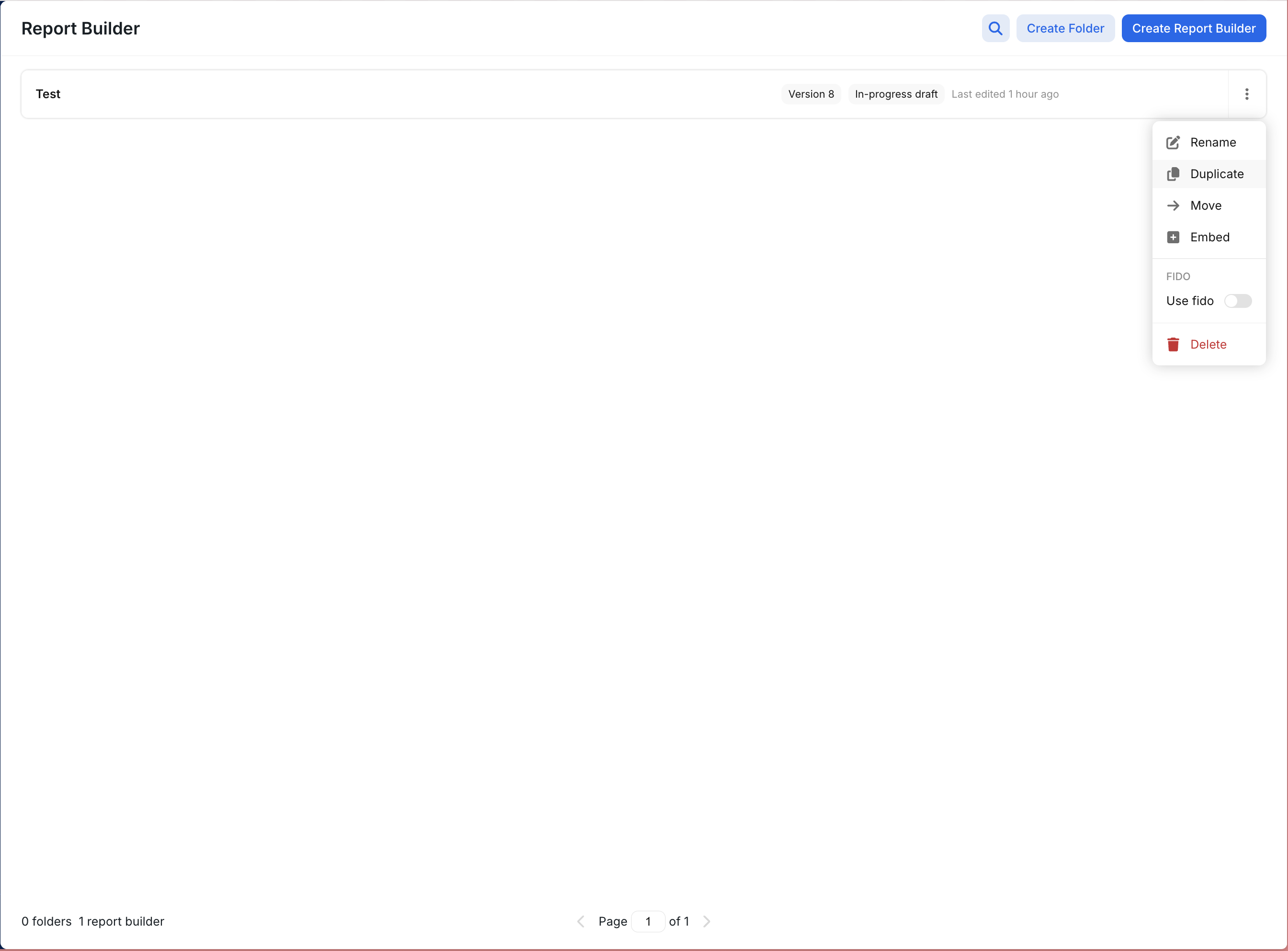 2. **From the Version Control Panel**: Open the report builder, navigate to the version control panel, and select the version you want to duplicate.
 ### Important Notes
* Scheduled emails will not be duplicated.
* Ensure you have the necessary permissions to duplicate report builders.
# Read-Only Report Builders
Source: https://docs.explo.co/report-builder-features/read-only
Some customers want their end users to have a report builder experience that is read-only, meaning that all reporting creating functionality is taken away. In some cases, even ephemeral analytical features like filtering and sorting are removed as well.
## How does it work?
When you generate a [JWT](/embedding-documentation/embed-secrets/intro) to be used for a report builder, you can add a `rbc` claim to the JWT that indicates the allowed editing features for the report builder.
This is an optional claim, meaning it is not needed to construct a valid JWT. If it's not passed in or the list that is passed in is the wildcard string (`["*"]`), all functionality will be allowed.
By **default**, end users will always be able to:
* View reports.
* Toggle favorite reports.
* Configure scheduled emails.
Pass specific key words to allow corresponding capabilities:
* `flt` -> Allow filtering of reports
* `srt` -> Allow sorting of reports
* `core` -> Allow core editing functionality (creating/editing reports, adding/editing views)
* `crt-view` -> Allow creating a new view within an existing built-in report
* `fork` -> Allow saving as a customer report after modifying an existing built-in report
> **Note**: If you are enabling `core` functionality, you don't need to explicitly include `view` or `fork`, as they are covered by `core`.
> **Note**: The `fork` and `crt-view` permissions will not allow modifying the underlying data.
> **Note**: The `fork` permissions will allow saving changes on forked customer reports.
By default if the `rbc` claim is in the JWT with the empty list (`[]`), then all editing capabilities are disabled. Here are some example configurations:
```json theme={null}
[] // Disable all editing capabilities
["flt", "srt"] // Allow filtering and sorting
["flt"] // Allow only filtering
["srt"] // Allow only sorting
["crt-view"] // Allow creating new views in built-in reports
["fork"] // Allow saving modified built-in reports as new customer reports
["crt-view", "fork"] // Allow both viewing and forking
```
# Report Builder AI
Source: https://docs.explo.co/report-builder-features/report-builder-ai
## Overview
Embed AI powered self-service reporting directly into your applications. End users can create new Views with the help of Explo AI resulting in the ability to uncover hidden trends, surface actionable insights, and get precise answered tailored to their business context.
For information on Privacy and Compliance, please read our [Privacy FAQs](/security/ai-acknowledgement#explo-ai-feature-faq)
## Using Report Builder AI
### Control End User Access to AI
Turn on Report Builder AI for end users through customer specific and group tag specific permissions.
Navigate to your Report Builders top left-hand dropdown and select AI Settings. Here you’ll find the ability to select Group Tags and Customers that have AI turned on for this specific Report Builder.
### Important Notes
* Scheduled emails will not be duplicated.
* Ensure you have the necessary permissions to duplicate report builders.
# Read-Only Report Builders
Source: https://docs.explo.co/report-builder-features/read-only
Some customers want their end users to have a report builder experience that is read-only, meaning that all reporting creating functionality is taken away. In some cases, even ephemeral analytical features like filtering and sorting are removed as well.
## How does it work?
When you generate a [JWT](/embedding-documentation/embed-secrets/intro) to be used for a report builder, you can add a `rbc` claim to the JWT that indicates the allowed editing features for the report builder.
This is an optional claim, meaning it is not needed to construct a valid JWT. If it's not passed in or the list that is passed in is the wildcard string (`["*"]`), all functionality will be allowed.
By **default**, end users will always be able to:
* View reports.
* Toggle favorite reports.
* Configure scheduled emails.
Pass specific key words to allow corresponding capabilities:
* `flt` -> Allow filtering of reports
* `srt` -> Allow sorting of reports
* `core` -> Allow core editing functionality (creating/editing reports, adding/editing views)
* `crt-view` -> Allow creating a new view within an existing built-in report
* `fork` -> Allow saving as a customer report after modifying an existing built-in report
> **Note**: If you are enabling `core` functionality, you don't need to explicitly include `view` or `fork`, as they are covered by `core`.
> **Note**: The `fork` and `crt-view` permissions will not allow modifying the underlying data.
> **Note**: The `fork` permissions will allow saving changes on forked customer reports.
By default if the `rbc` claim is in the JWT with the empty list (`[]`), then all editing capabilities are disabled. Here are some example configurations:
```json theme={null}
[] // Disable all editing capabilities
["flt", "srt"] // Allow filtering and sorting
["flt"] // Allow only filtering
["srt"] // Allow only sorting
["crt-view"] // Allow creating new views in built-in reports
["fork"] // Allow saving modified built-in reports as new customer reports
["crt-view", "fork"] // Allow both viewing and forking
```
# Report Builder AI
Source: https://docs.explo.co/report-builder-features/report-builder-ai
## Overview
Embed AI powered self-service reporting directly into your applications. End users can create new Views with the help of Explo AI resulting in the ability to uncover hidden trends, surface actionable insights, and get precise answered tailored to their business context.
For information on Privacy and Compliance, please read our [Privacy FAQs](/security/ai-acknowledgement#explo-ai-feature-faq)
## Using Report Builder AI
### Control End User Access to AI
Turn on Report Builder AI for end users through customer specific and group tag specific permissions.
Navigate to your Report Builders top left-hand dropdown and select AI Settings. Here you’ll find the ability to select Group Tags and Customers that have AI turned on for this specific Report Builder.
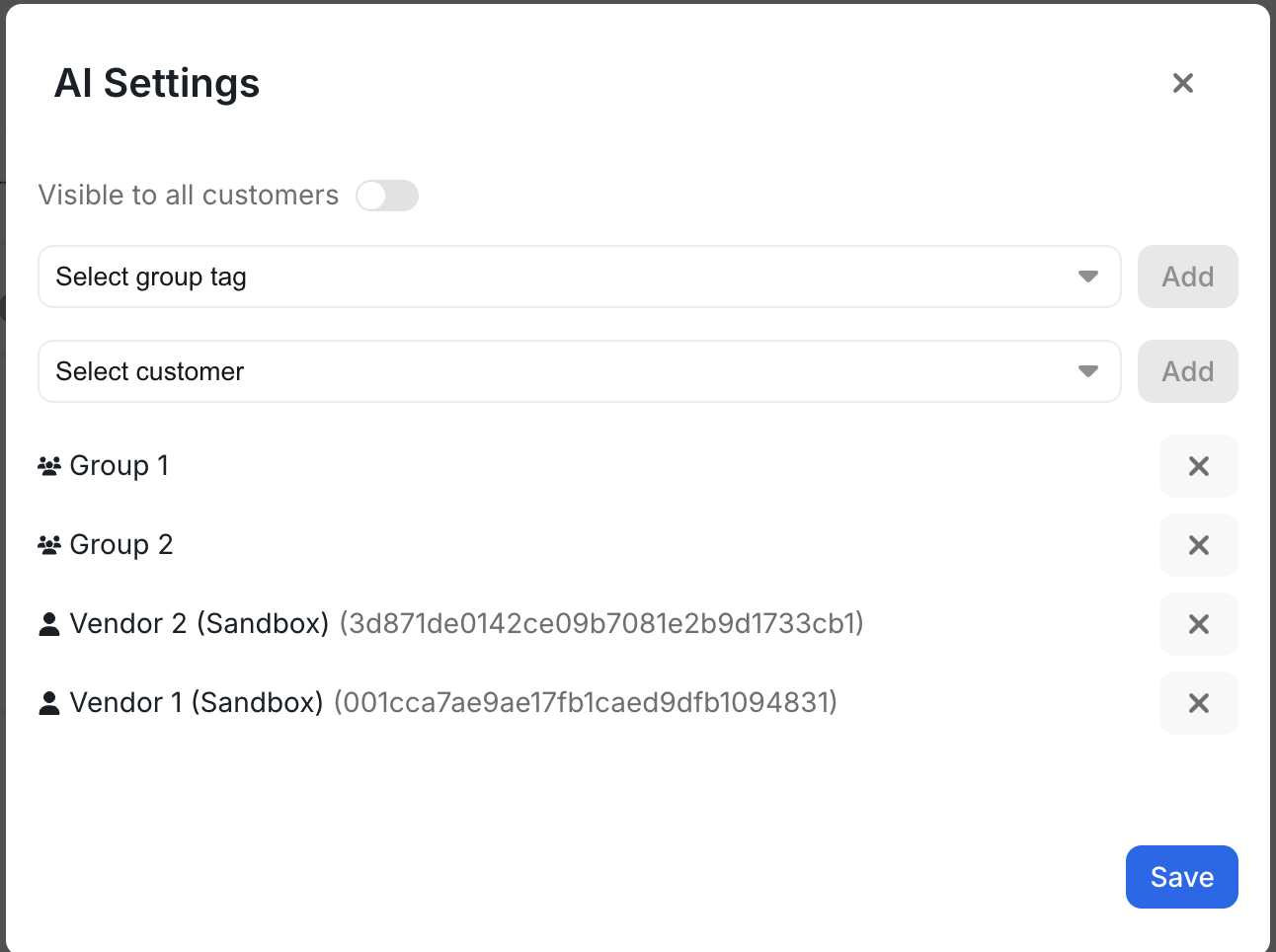 ### Report Builder AI End User Experience
**Step 1: Create a new View**
Report Builder AI is available when creating a new View within Report Builder. End Users will be prompted to interact with Report Builder AI when creating a new View with the option to input Free Text or choose from three Chart suggestions.
### Report Builder AI End User Experience
**Step 1: Create a new View**
Report Builder AI is available when creating a new View within Report Builder. End Users will be prompted to interact with Report Builder AI when creating a new View with the option to input Free Text or choose from three Chart suggestions.
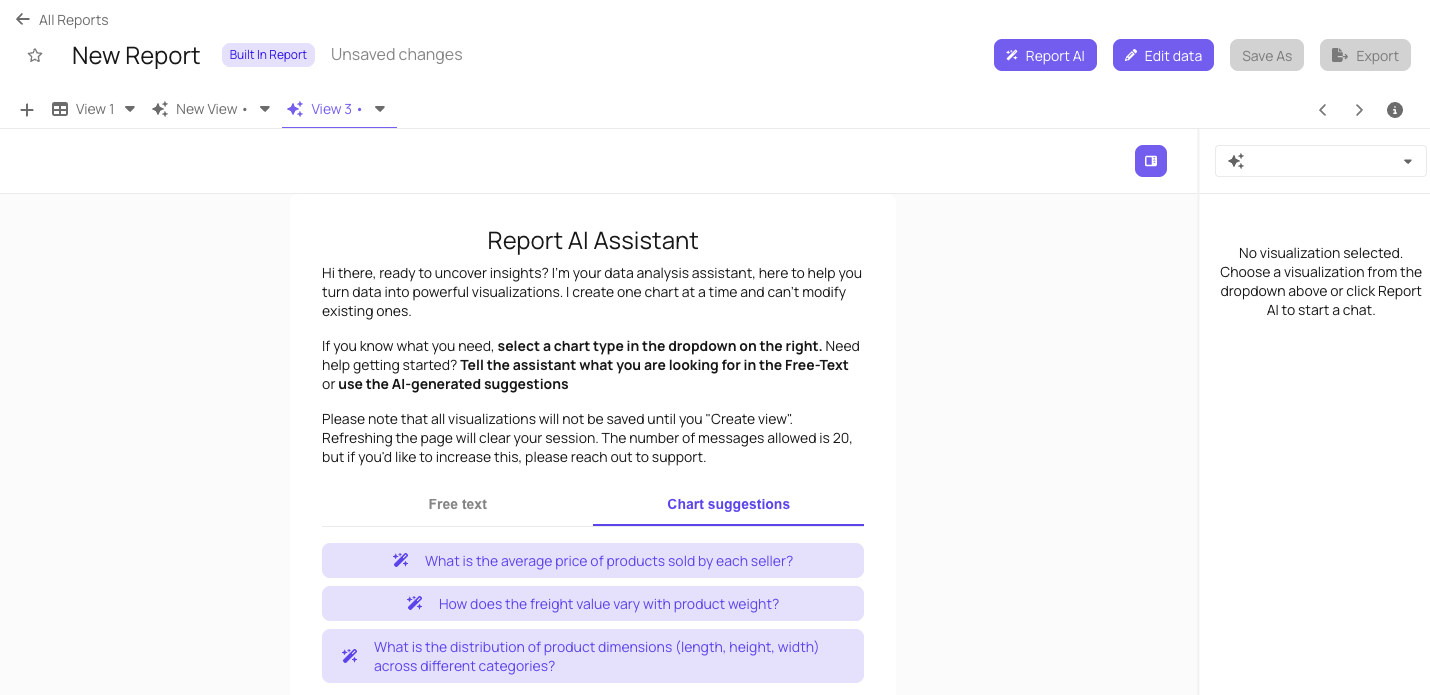 **Step 2: Kick off a chat with Explo AI or choose a chart type**
If End Users do not wish to interact with Report Builder AI, they can choose a chart option on the right hand side of the View.
**Step 2: Kick off a chat with Explo AI or choose a chart type**
If End Users do not wish to interact with Report Builder AI, they can choose a chart option on the right hand side of the View.
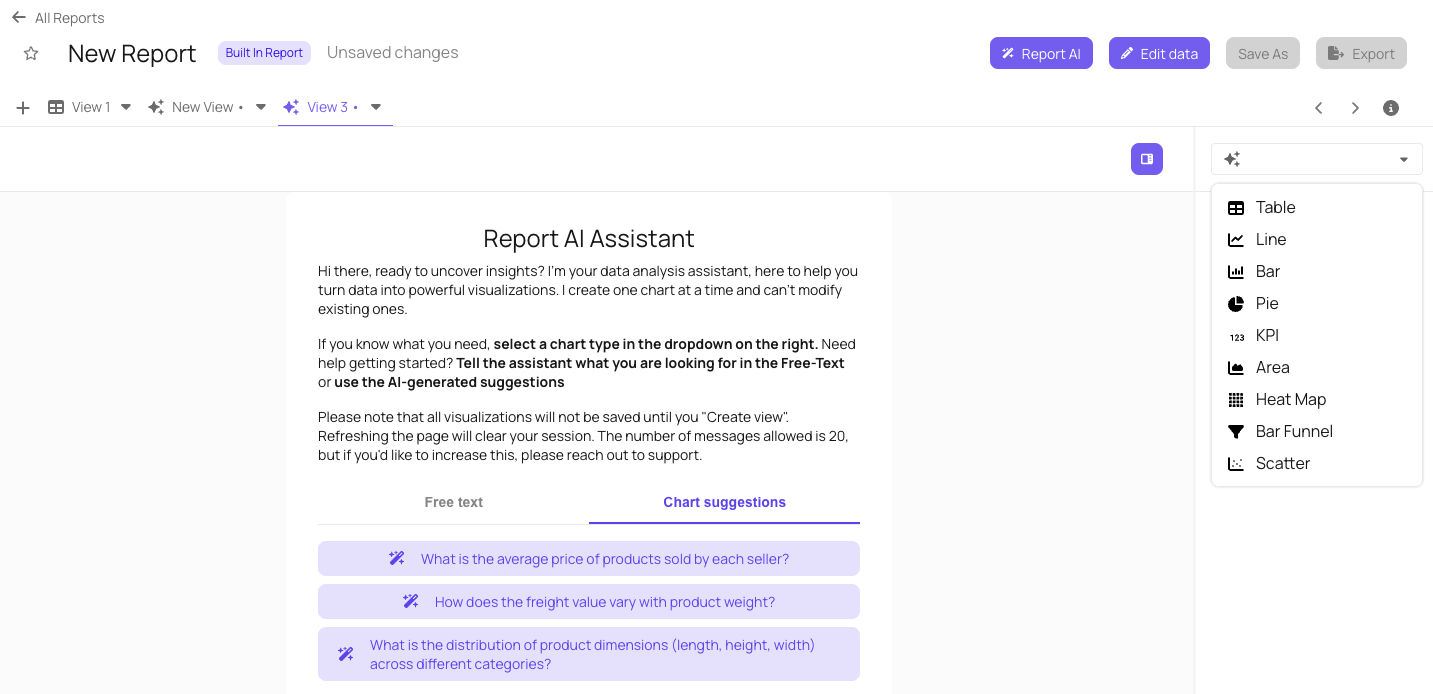 **Step 3: Create a Chart**
Once the End User kicks off their conversation with Explo AI, they’ll be able to iterate with Explo AI to create a chart that helps deliver the insights they are looking for. Once the User selects Create Chart in the Explo AI chart, a chart view will be displayed and the user will be able to change the Visualization Type.
**Step 3: Create a Chart**
Once the End User kicks off their conversation with Explo AI, they’ll be able to iterate with Explo AI to create a chart that helps deliver the insights they are looking for. Once the User selects Create Chart in the Explo AI chart, a chart view will be displayed and the user will be able to change the Visualization Type.
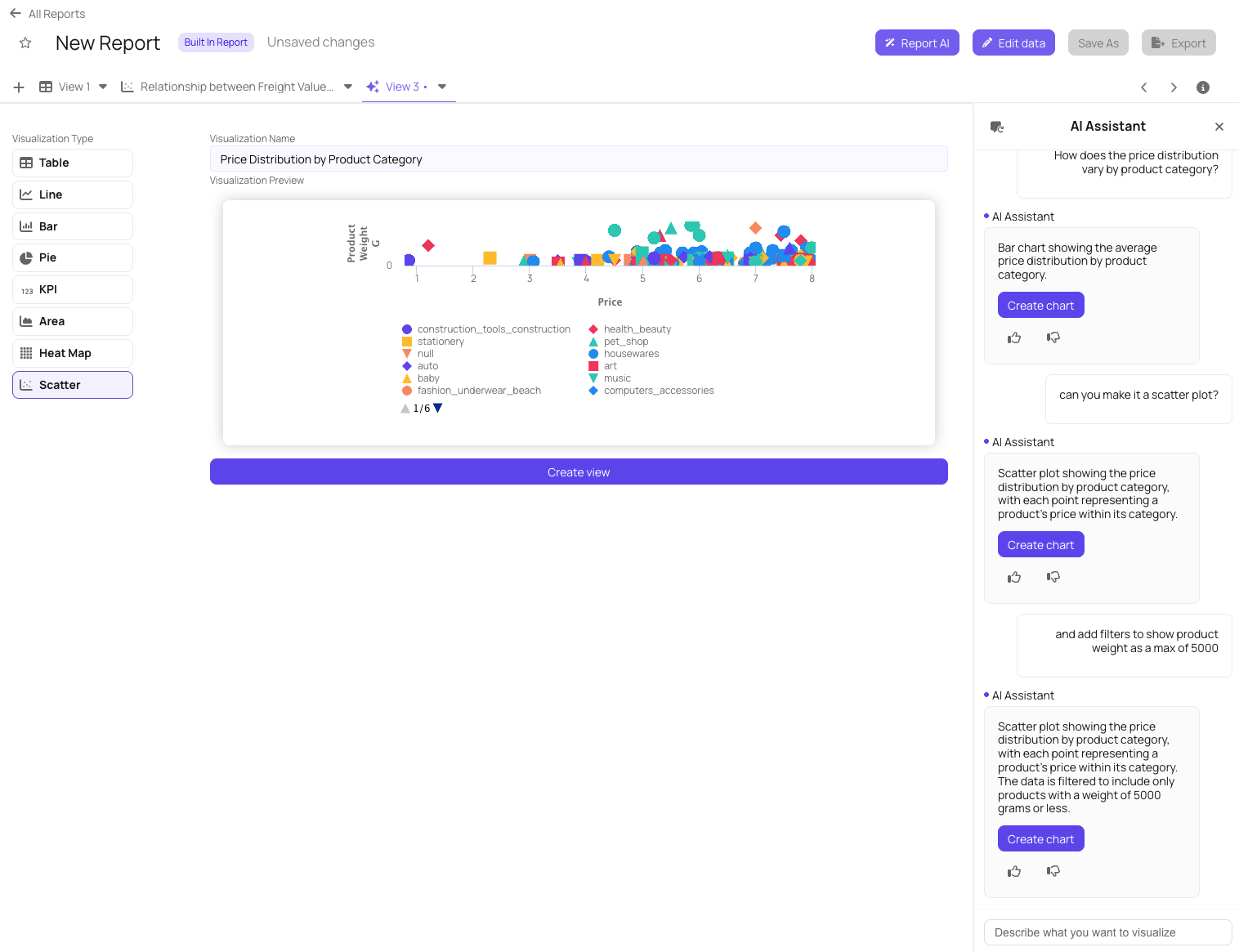 **Step 4: Create View**
When ready, the End User will select Create View to exit the AI conversation and is now able to interact with and Edit the AI-created View.
**Step 4: Create View**
When ready, the End User will select Create View to exit the AI conversation and is now able to interact with and Edit the AI-created View.
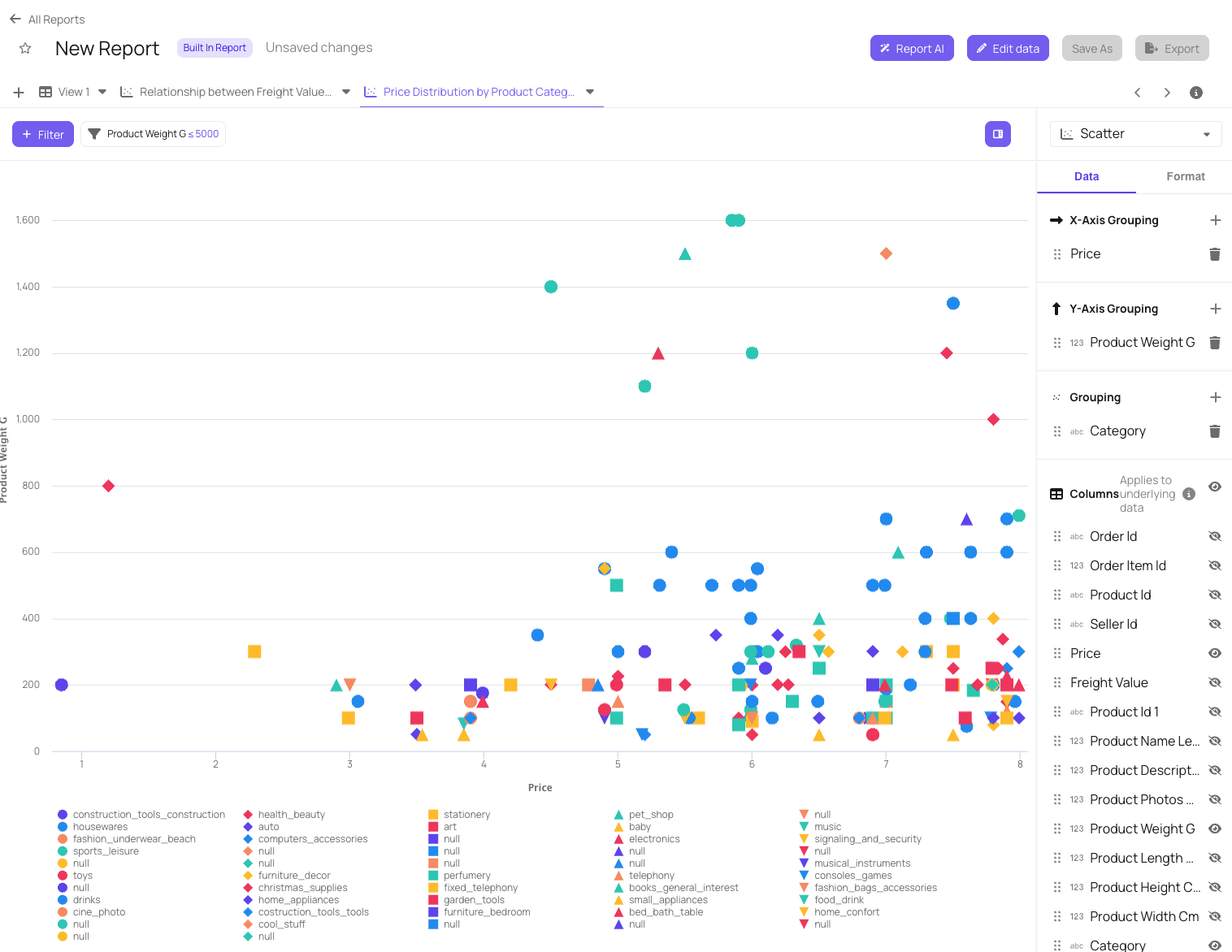 # AI Acknowledgement
Source: https://docs.explo.co/security/ai-acknowledgement
Explo AI is a series of features designed to improve the dashboard creation process and end-user dashboard interaction process by enlisting the power of large language models (LLMs). Explo utilizes state-of-the-art LLM APIs to provide this functionality to users.
## General FAQs
* Today, Explo uses [OpenAI APIs](https://openai.com/api/) for its AI features, but reserves the right to use any LLM that is available via the public cloud or as a private hosted solution.
* As of May 13th, the United States District Court Southern District of New York has ordered OpenAI to preserve and segregate all output log data that would otherwise be deleted on a going forward basis until further order of the court. [Here](https://cases.justia.com/federal/district-courts/new-york/nysdce/1%3A2023cv11195/612697/551/0.pdf) is the court order. We will be following this closely.
* As per OpenAI’s platform documentation [here](https://platform.openai.com/docs/models/how-we-use-your-data#how-we-use-your-data) and community monitor [comment here](https://community.openai.com/t/does-open-ai-api-use-api-data-for-training/659053), the data fed into their API will not be used for training.
## Compliance Details
* Customers need to opt-in to use AI features.
* The OpenAI API is [SOC 2 Type 2 compliant](https://us.aicpa.org/interestareas/frc/assuranceadvisoryservices/serviceorganization-smanagement.html) and has been audited by an independent third-party auditor against the [2017 Trust Services Criteria for Security](https://us.aicpa.org/content/dam/aicpa/interestareas/frc/assuranceadvisoryservices/downloadabledocuments/trust-services-criteria.pdf).
* Explo agrees to use LLM solutions that maintain Explo’s SOC 2 Type 2 compliance requirements.
* Explo is potentially able to sign Business Associate Agreements in support of customers’ compliance with the Health Insurance Portability and Accountability Act (HIPAA). To qualify for this, you must have an Enterprise Agreement with OpenAI & Explo and a qualifying use case. Please [reach out to the OpenAI sales team](https://openai.com/contact-sales) and the Explo team if you are interested.
## Levels of AI Usage
### Level 1: Schemas, Queries, Errors, DB Types
In Explo’s queries to LLM providers, we can expose:
* `table schemas` (table names, column names, column type)
* `SQL queries`
* `error messages`
* `data source types`
If there is data that falls in the items above that you would have concern with being exposed via an API call to an LLM provider, please reach out to Explo prior to using the AI features.
As of July 14th, 2025, `data source types` was added to the list above. All customers who previously agreed to the acknowledgement have been notified appropriately.
### Level 2: Customer Data
In addition to the information in Level 1, Explo’s queries to LLM providers can also include:
* `customer data`
The `customer data` that Explo can feed into the LLM can only and will only come from global datasets in the [Data Library](/data-sources/data-library/overview) and local datasets in dashboards or report builders. Corresponding [archetype variables](/creating-dashboards/variables/types-of-variables/customer-object#archetype-variables) will always be passed in to ensure that the data is segmented correctly.
# AI Acknowledgement
Source: https://docs.explo.co/security/ai-acknowledgement
Explo AI is a series of features designed to improve the dashboard creation process and end-user dashboard interaction process by enlisting the power of large language models (LLMs). Explo utilizes state-of-the-art LLM APIs to provide this functionality to users.
## General FAQs
* Today, Explo uses [OpenAI APIs](https://openai.com/api/) for its AI features, but reserves the right to use any LLM that is available via the public cloud or as a private hosted solution.
* As of May 13th, the United States District Court Southern District of New York has ordered OpenAI to preserve and segregate all output log data that would otherwise be deleted on a going forward basis until further order of the court. [Here](https://cases.justia.com/federal/district-courts/new-york/nysdce/1%3A2023cv11195/612697/551/0.pdf) is the court order. We will be following this closely.
* As per OpenAI’s platform documentation [here](https://platform.openai.com/docs/models/how-we-use-your-data#how-we-use-your-data) and community monitor [comment here](https://community.openai.com/t/does-open-ai-api-use-api-data-for-training/659053), the data fed into their API will not be used for training.
## Compliance Details
* Customers need to opt-in to use AI features.
* The OpenAI API is [SOC 2 Type 2 compliant](https://us.aicpa.org/interestareas/frc/assuranceadvisoryservices/serviceorganization-smanagement.html) and has been audited by an independent third-party auditor against the [2017 Trust Services Criteria for Security](https://us.aicpa.org/content/dam/aicpa/interestareas/frc/assuranceadvisoryservices/downloadabledocuments/trust-services-criteria.pdf).
* Explo agrees to use LLM solutions that maintain Explo’s SOC 2 Type 2 compliance requirements.
* Explo is potentially able to sign Business Associate Agreements in support of customers’ compliance with the Health Insurance Portability and Accountability Act (HIPAA). To qualify for this, you must have an Enterprise Agreement with OpenAI & Explo and a qualifying use case. Please [reach out to the OpenAI sales team](https://openai.com/contact-sales) and the Explo team if you are interested.
## Levels of AI Usage
### Level 1: Schemas, Queries, Errors, DB Types
In Explo’s queries to LLM providers, we can expose:
* `table schemas` (table names, column names, column type)
* `SQL queries`
* `error messages`
* `data source types`
If there is data that falls in the items above that you would have concern with being exposed via an API call to an LLM provider, please reach out to Explo prior to using the AI features.
As of July 14th, 2025, `data source types` was added to the list above. All customers who previously agreed to the acknowledgement have been notified appropriately.
### Level 2: Customer Data
In addition to the information in Level 1, Explo’s queries to LLM providers can also include:
* `customer data`
The `customer data` that Explo can feed into the LLM can only and will only come from global datasets in the [Data Library](/data-sources/data-library/overview) and local datasets in dashboards or report builders. Corresponding [archetype variables](/creating-dashboards/variables/types-of-variables/customer-object#archetype-variables) will always be passed in to ensure that the data is segmented correctly.